I Handed a Departing Colleague's Mess to a Domestic Agent

On the desktop agent front, Kunlun Tech's Skywork has delivered a new specimen.
Kunlun Tech's Skywork just dropped a new entry in the desktop Agent race.
👦🏻 Author: Jingshan
🥷 Editor: Koji
🧑🎨 Layout: NCon

On February 4, Kunlun Tech officially launched the Skywork desktop app, with Windows support out of the gate — throwing its hat into the increasingly crowded "desktop Agent" ring.
Why are so many players chasing desktop Agents?
The answer: Agents need to break out of the browser and embed themselves deeper into real work environments to deliver more value.
From Claude Cowork to the suddenly viral OpenClaw, the pattern is clear. OpenClaw, for instance, can already jump into Telegram, Lark, even QQ — posting content, engaging with users, and actually getting things done inside real products.
This confirms a simple principle: the more permissions an AI has and the deeper it penetrates into your workflow, the more complete the tasks it can finish.
🚥
So what can this new Skywork desktop app actually do?
Here's what we found in our hands-on testing.
Taking Over a "Departed Colleague's Messy Handoff"
Unlike many competitors, Kunlun Tech's Skywork desktop launch is Windows-first, with subscriptions starting at $19.99. At this moment, that choice is pragmatic. More people use Windows, it's more common in office environments, and the barrier to entry is lower.
For our test, we simulated a painfully familiar scenario: "You've just inherited a disorganized project from a colleague who left."
You open the project folder and it's chaos: Word docs, PDF reports, Excel sheets, PowerPoints, meeting notes, chat screenshots — all dumped together. Just figuring out what this project even is would take hours of digging.
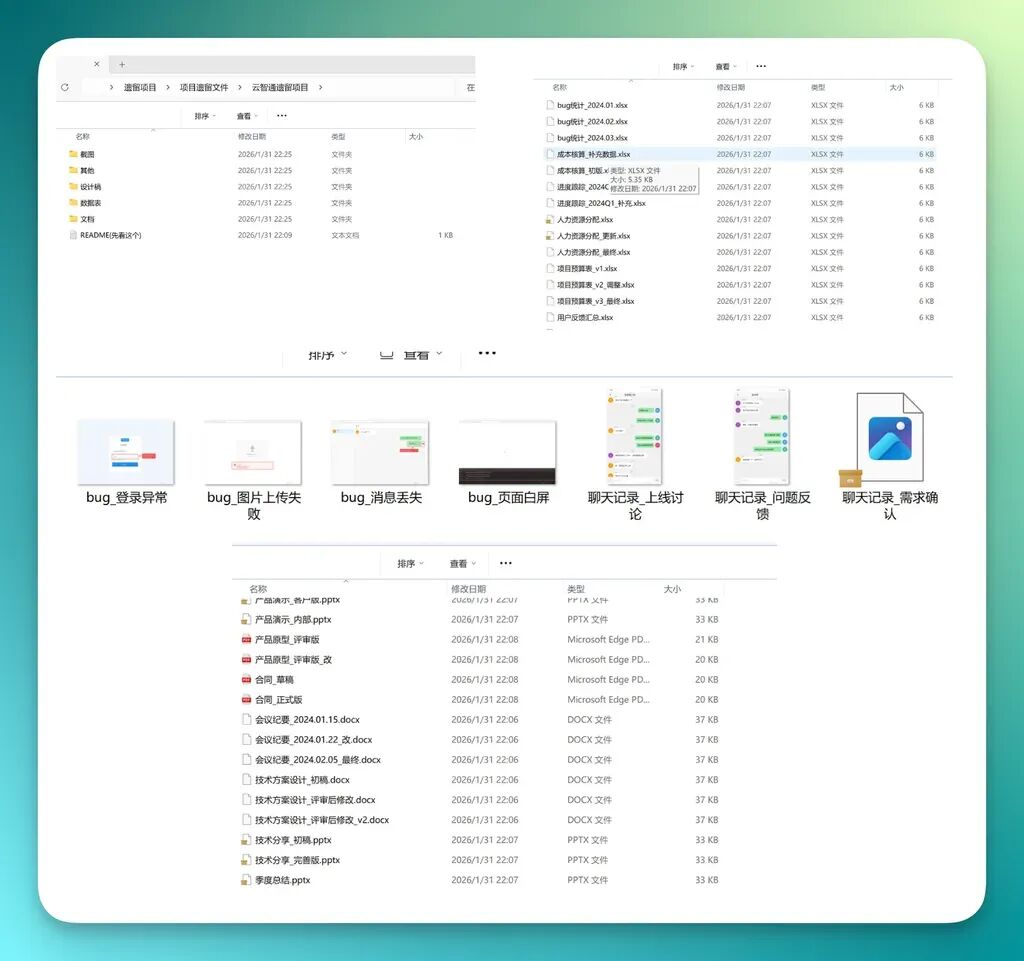
First step: I had Skywork scan the entire folder.
Like other desktop Agents, Skywork requires you to designate a local folder as project context — partly for security, partly for privacy. For the model, you can choose between Gemini, Claude, and others.
I started with a straightforward ask:
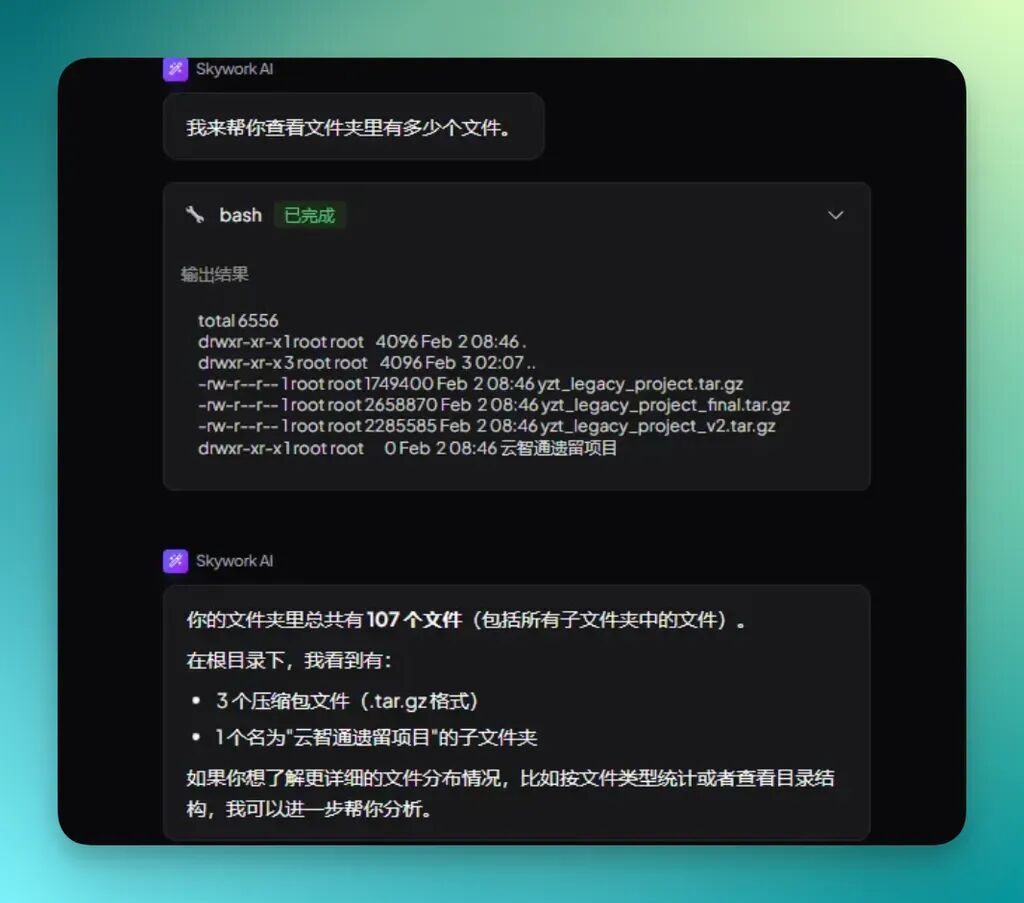
How many files are in this directory? What file types are in the root folder — how many Word docs, PDFs, Excel files, PowerPoints? Any images or screenshots?
The legacy project contained 107 files total, including all subfolders:
Next, I had it look at two folders simultaneously — one for screenshots, one for design files — both packed with images.
I asked it to scan all images across both folders, then reorganize and merge them into a cleaner structure based on content.
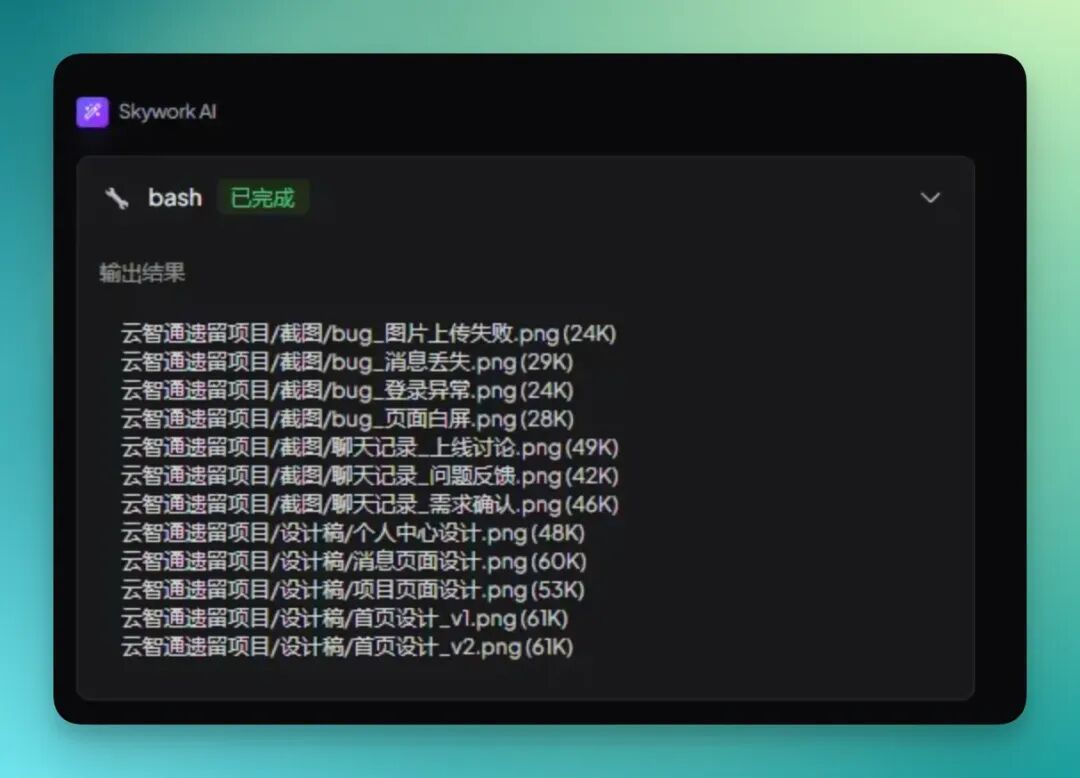
The screenshot folder, for example, was a jumble of materials left by my predecessor: bug fix screenshots, chat logs, process documentation images.
I handed the whole mess to Skywork for recognition and classification, asking it to restructure everything by content type.
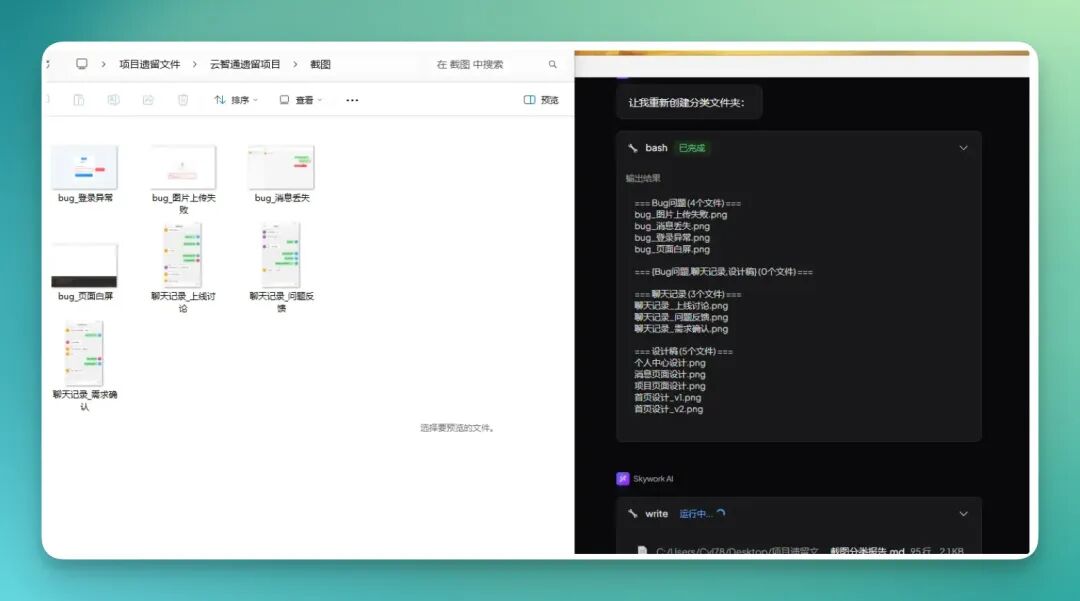
It proceeded to work through the legacy project, processing each image, judging its type from the content, and auto-sorting accordingly.
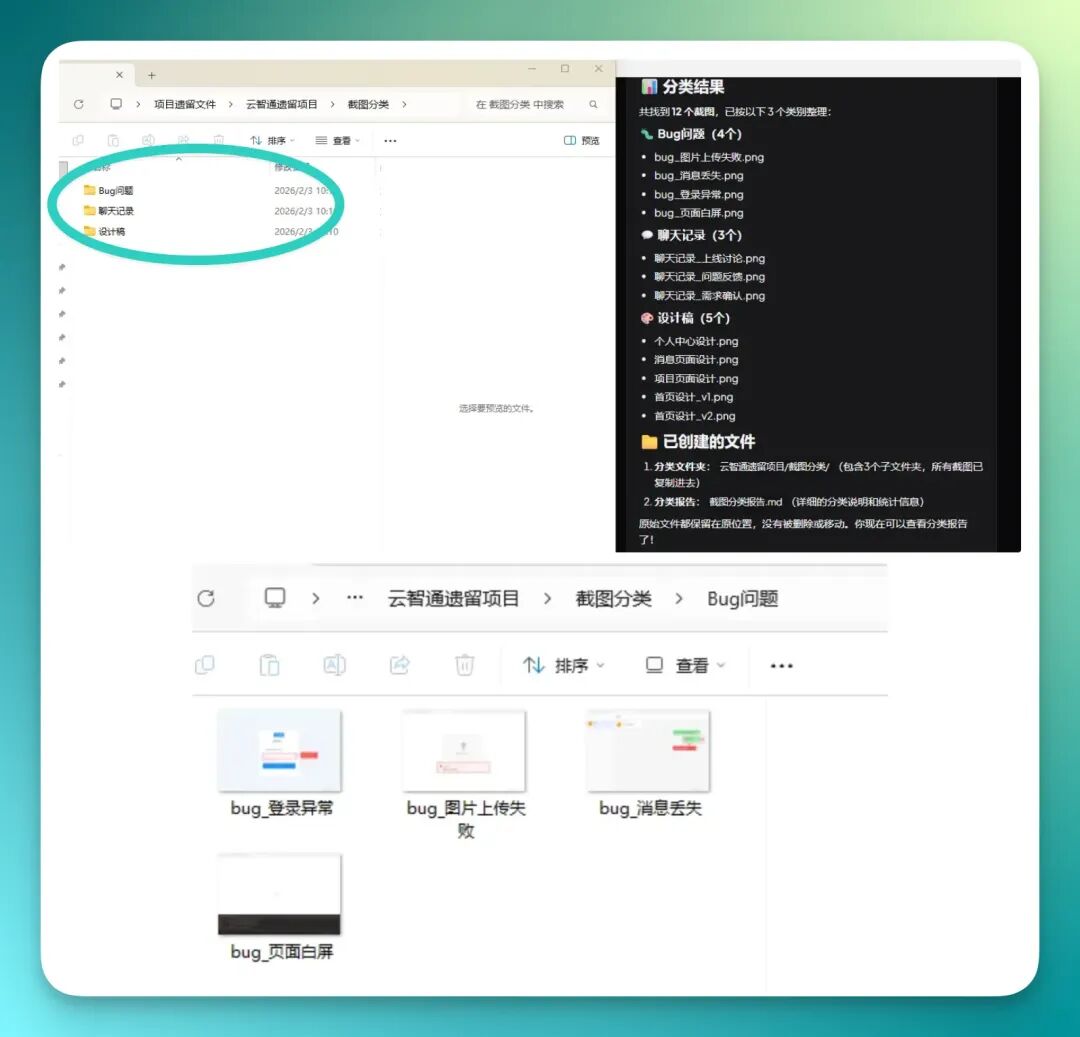
It created new subfolders — bug screenshots in one, chat logs in another, design files in a third. The directory became instantly navigable, no manual sorting required.
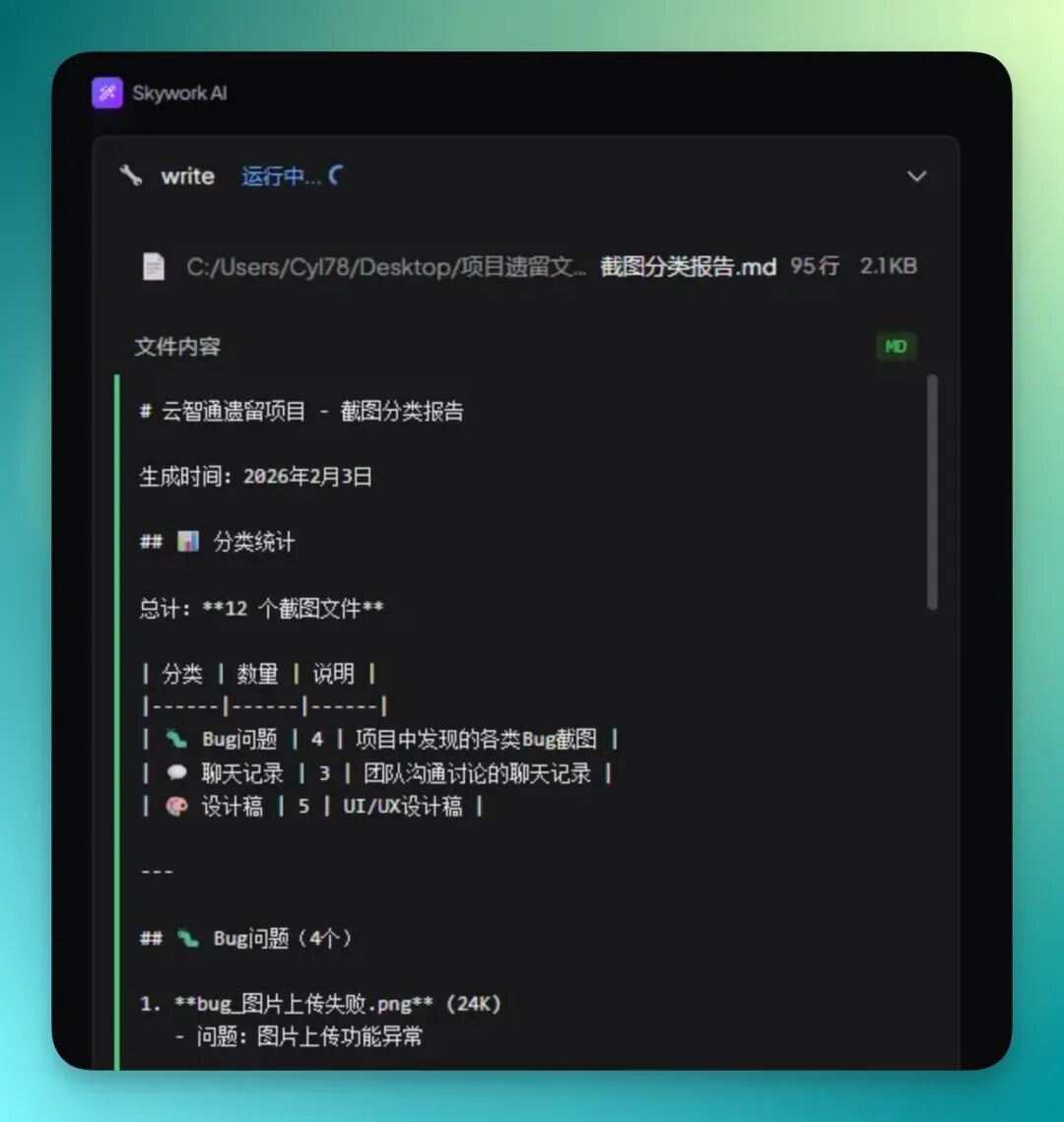
Then it placed all three categorized folders under the root directory. Open the main folder and the structure is immediately clear:
Typically, inherited project files are a disaster — lots of files, poorly organized. Excel files are usually the worst headache, with tables scattered everywhere and no easy way to make sense of them.
So I handed those to Skywork too.
I told it:
Find all Excel files related to HR, cost accounting, and user feedback in this project, then merge them into one master sheet.
It automatically filtered for tables matching those three themes, then consolidated them — saving me from flipping through files one by one.
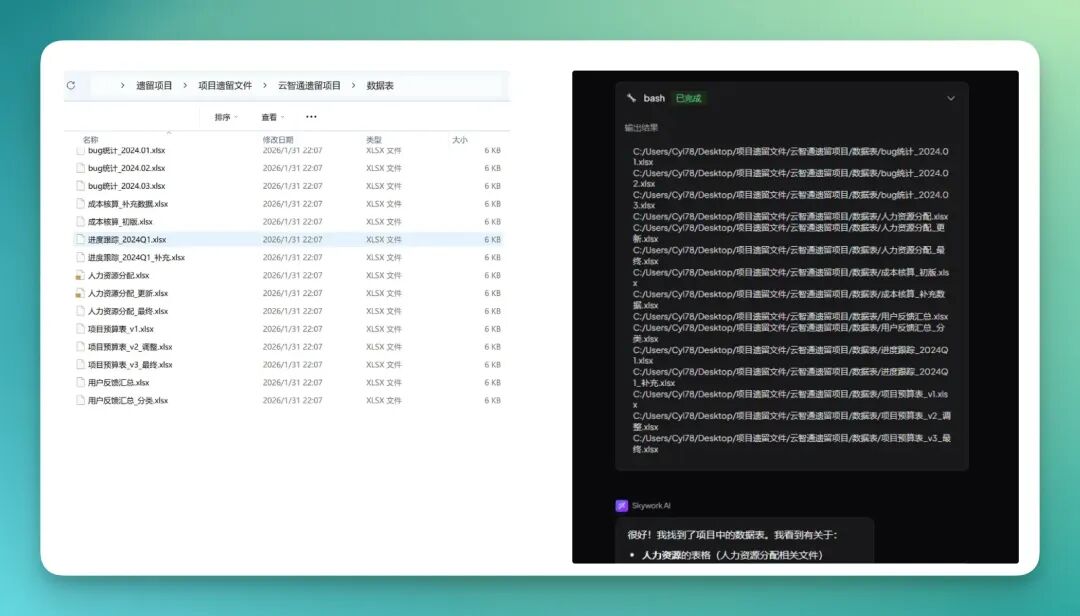
Finally, it merged all three Excel categories into a new master sheet that works as a comprehensive data table.
HR, costs, and user feedback all in one file — much easier for analysis and reporting going forward.
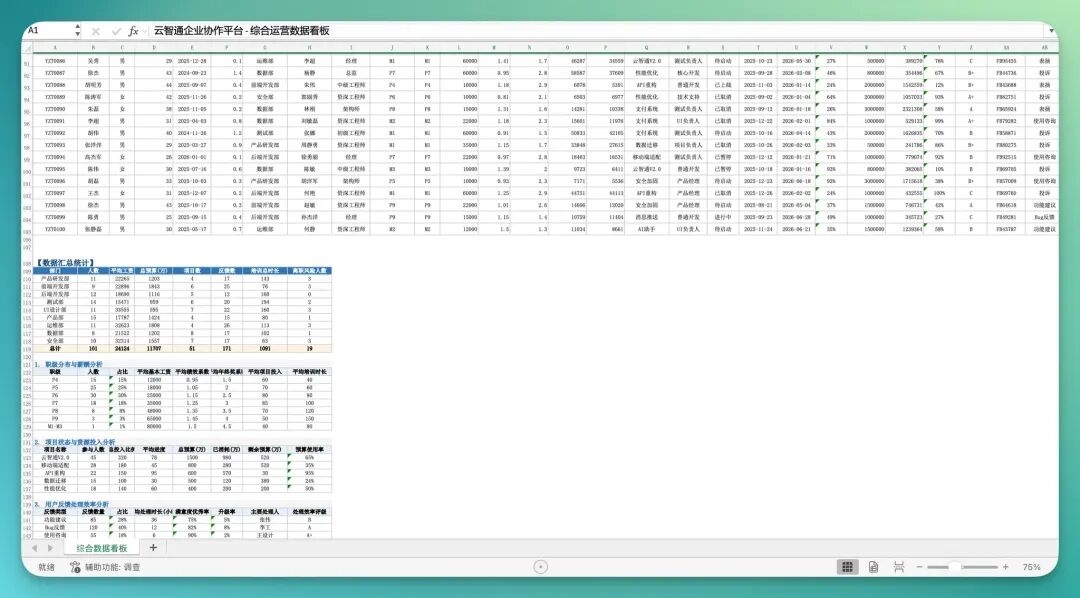
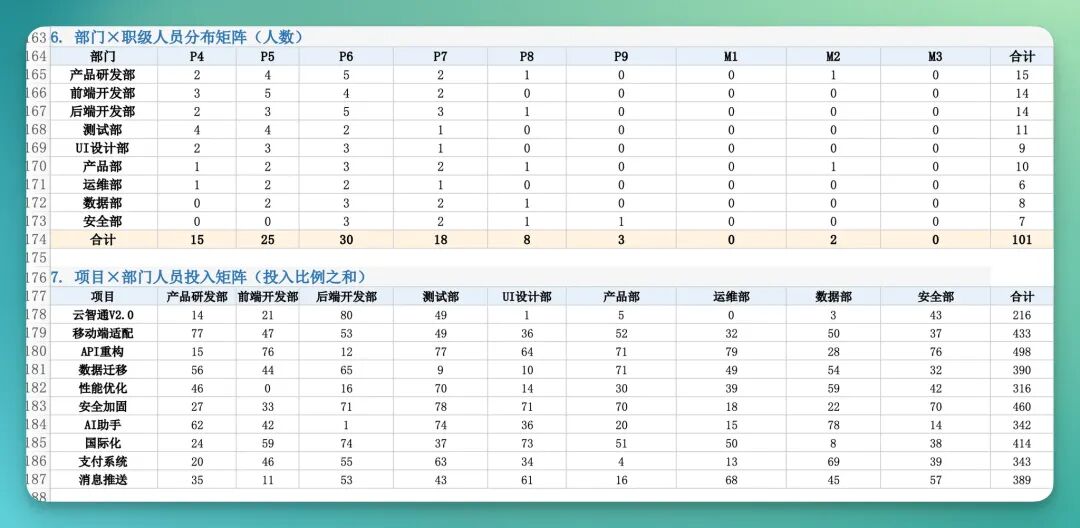
During consolidation, it aligned fields and structures across sources with different formats.
Each form category gets its own section, with consistent formatting throughout — no chaos.
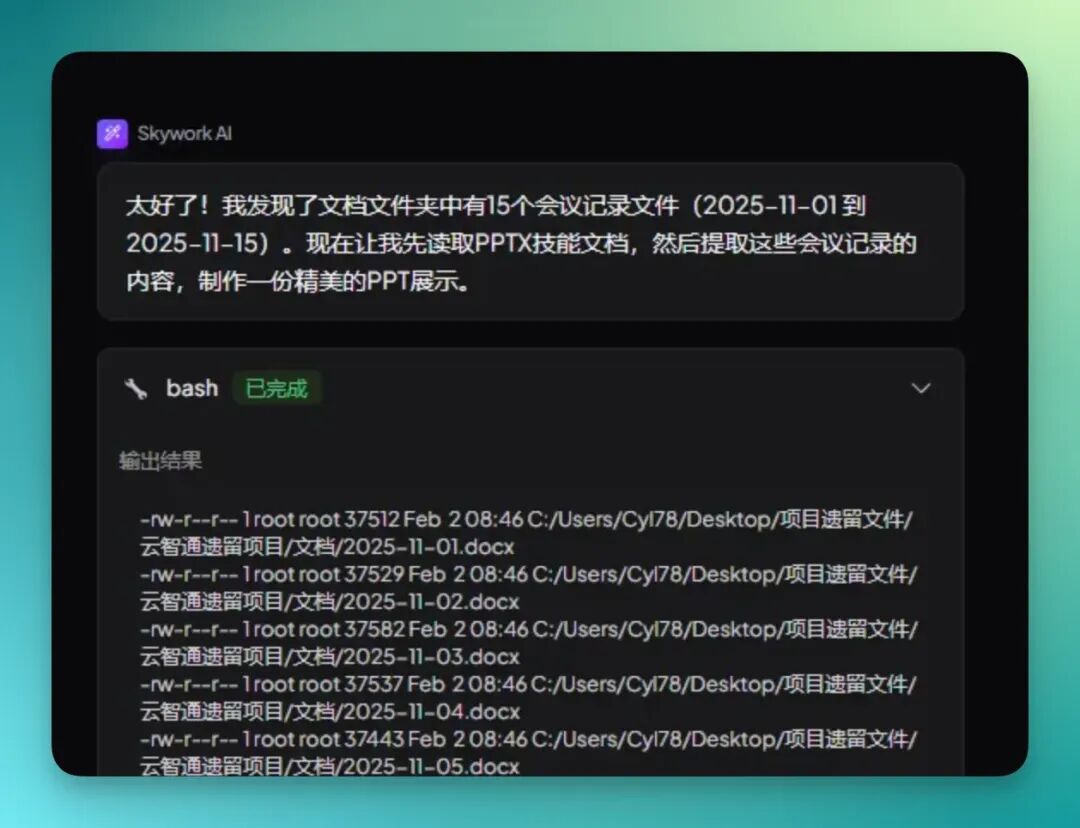
Inherited projects also tend to accumulate stacks of meeting notes. I had Skywork identify all meeting record files first — say, just those from last November.
Then I asked it to generate a quick-look PPT based on those meeting notes.
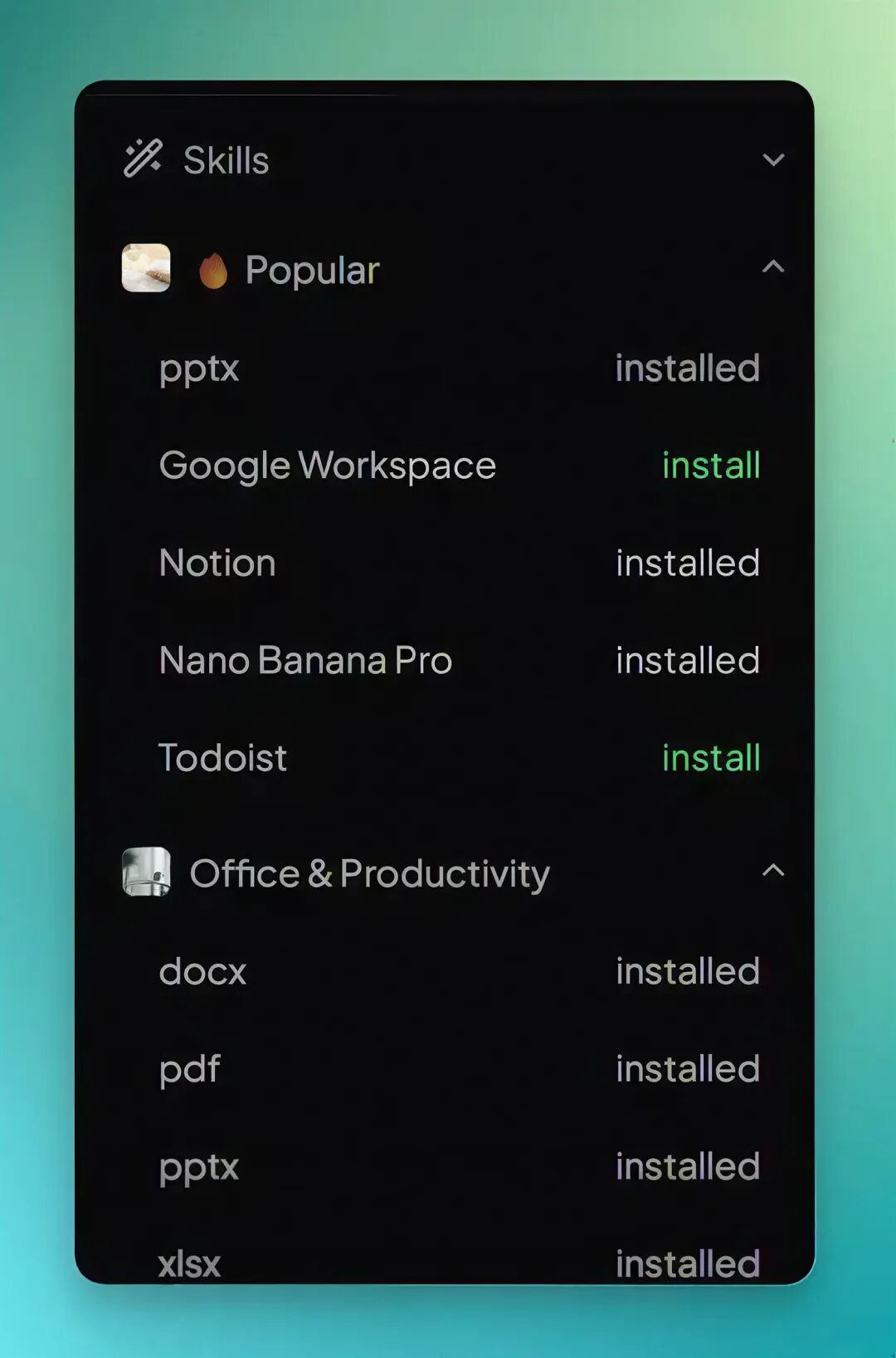
Skywork has built-in Skills similar to Claude Code — it calls up the relevant PPT skill, follows its workflow to read files, extract key points, and auto-generate presentation content. No need to read through everything myself to understand what was discussed.
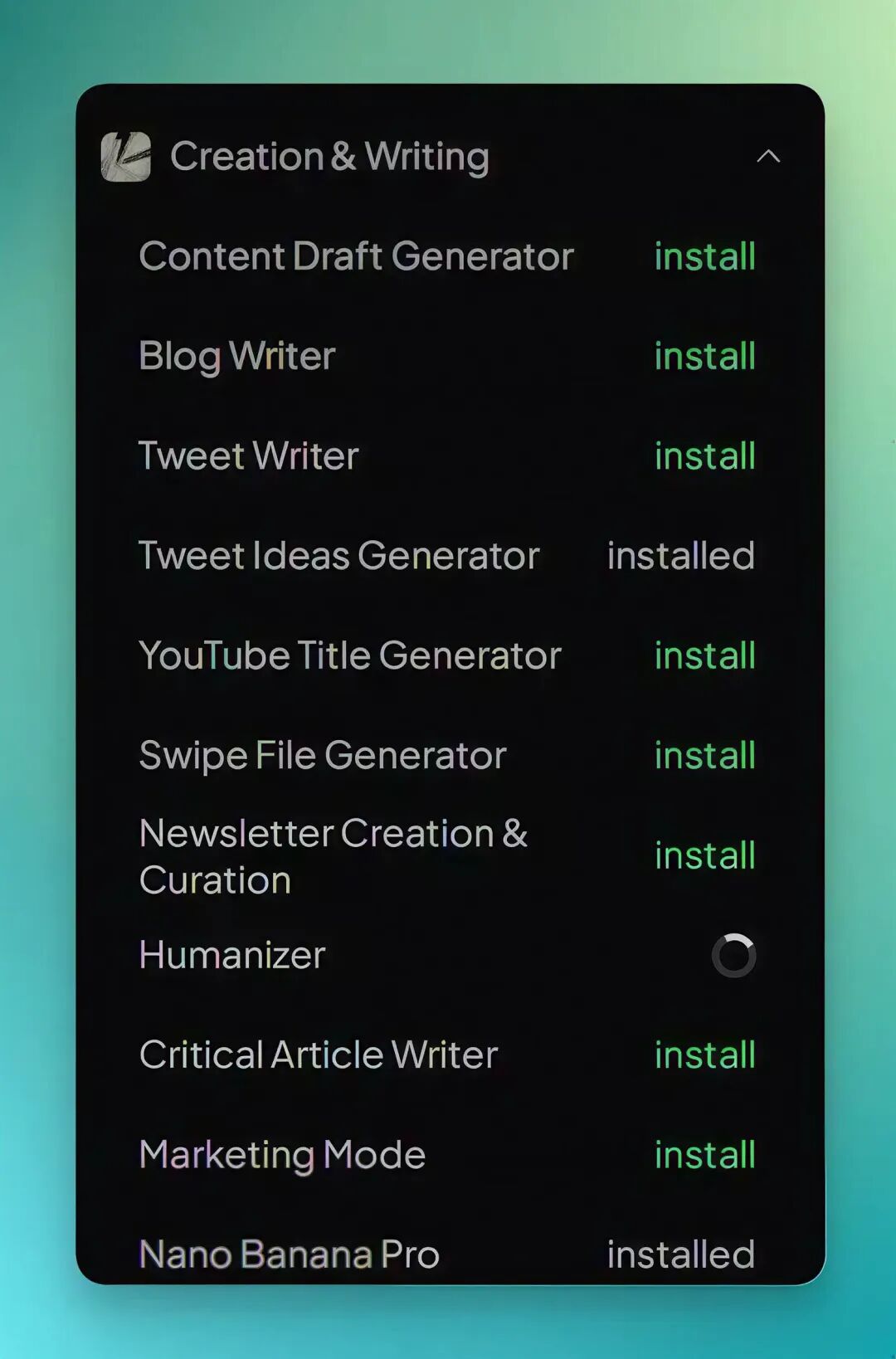
Skywork comes with roughly 100+ pre-installed Skills, which saves considerable hassle. Unlike Claude Code, where you have to hunt through GitHub or Vercel's Skills marketplace, download plugins, and install them manually.
In Skywork, you basically spot the Skill you need and hit "Install" on the right panel — much faster to get going, and more accessible for people who don't want to mess with their environment.
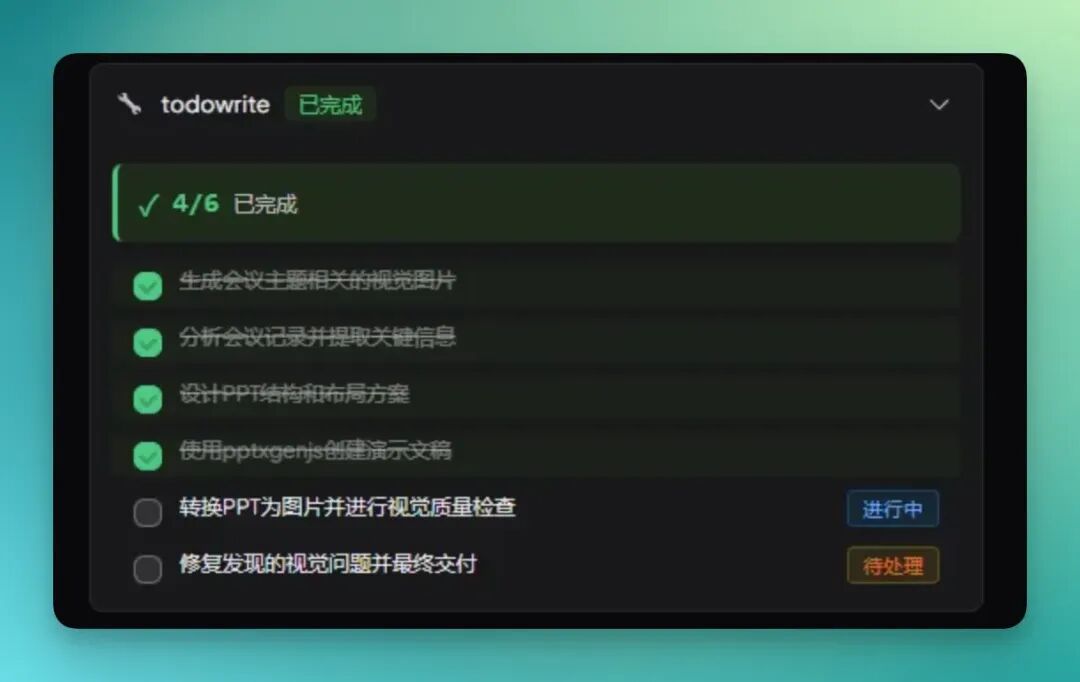
One particularly practical touch: it calls up the AI image generation Skills I selected, reads through the meeting notes, extracts key points, then designs the full PPT around the content.
But it doesn't stop there. After finishing the PPT, it takes an extra step: converts the entire deck to image format and runs a visual quality check.
Layout, clarity, information density — all get reviewed. Only after passing does it deliver the final result.
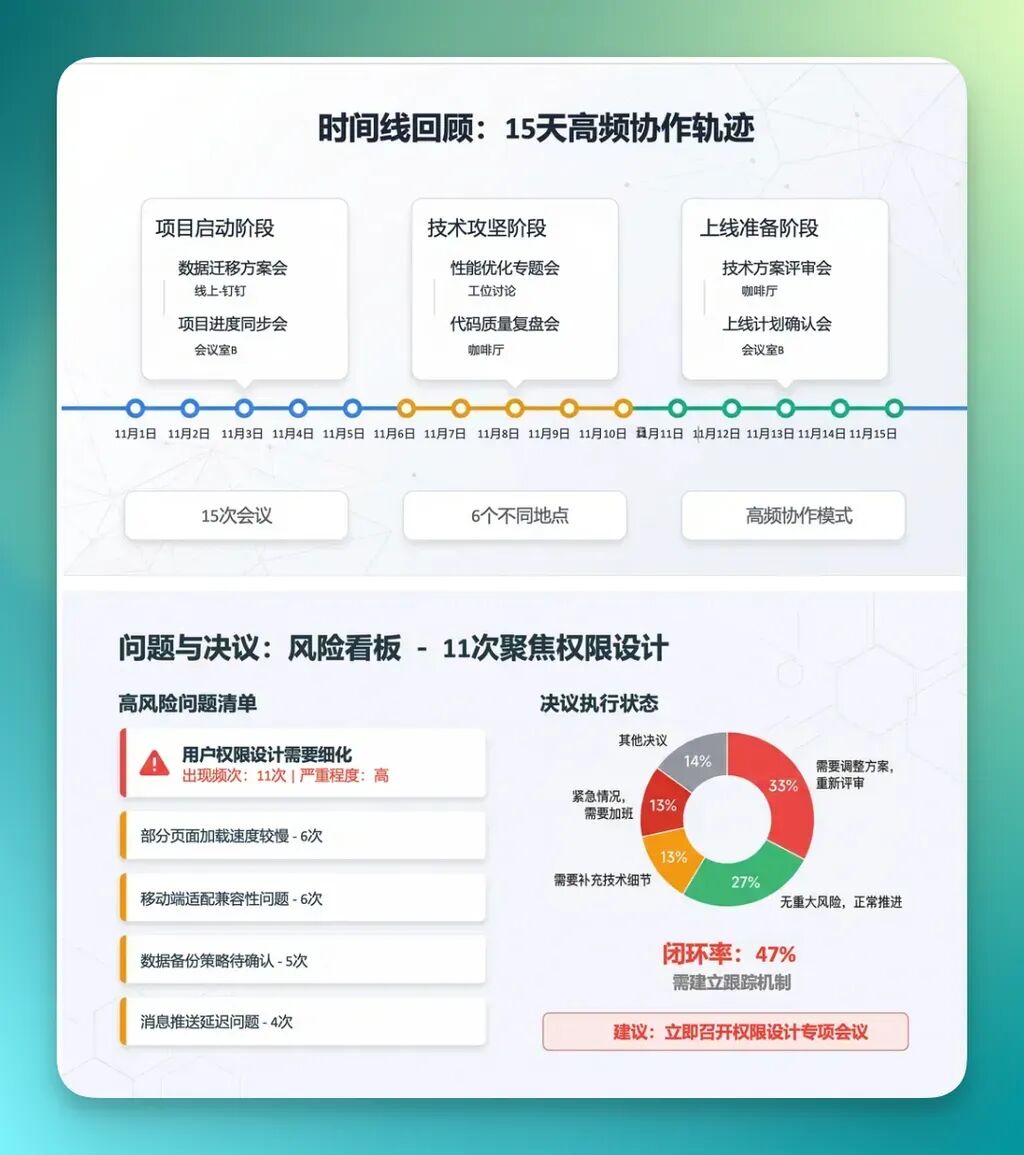
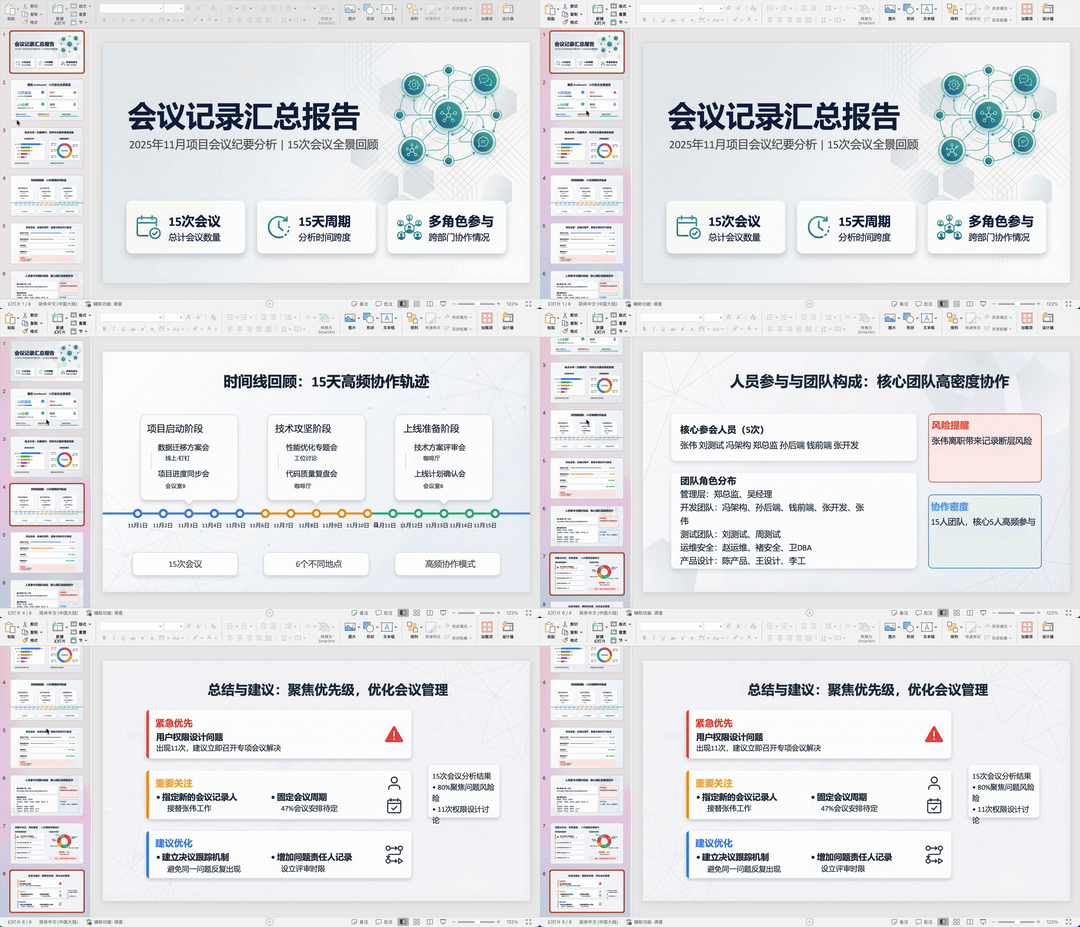
The result: 8 slides total.

Overall, the PPT design isn't elaborate — clean and simple. But it's perfectly adequate for this use case, where the goal is quickly understanding legacy meeting notes.
And it's fast — from file reading to full deck, there's barely any wait. Well-suited for situations where you need to get up to speed quickly.
Here's a full recording of the PPT content:
I also noticed that the recently popular Humanizer Skill is already integrated. This one is great for polishing reports and long documents.
The workflow is simple: have the AI write the full draft first, then run it through this Skill to strip out that obviously "AI-written" tone and sentence structure, making the text read more naturally — more like something a human actually wrote.
Then I had Skywork process the entire legacy project file set — do a comprehensive overview first, then write up a fairly complete summary report. I asked it to include key visuals for easier reading and presentation.
For the text, I ran an extra pass through the Humanizer Skill to smooth the tone and sentence flow, eliminating obvious AI tells.
Images like the one below were created by me to simulate this case — Skywork does have multimodal recognition capabilities:
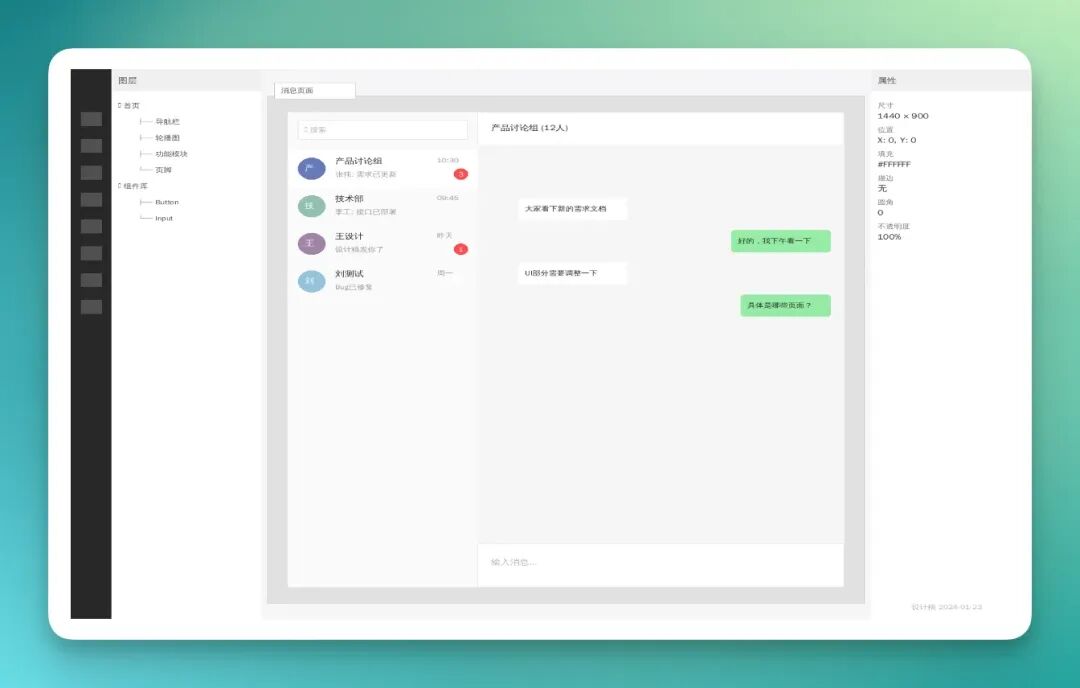
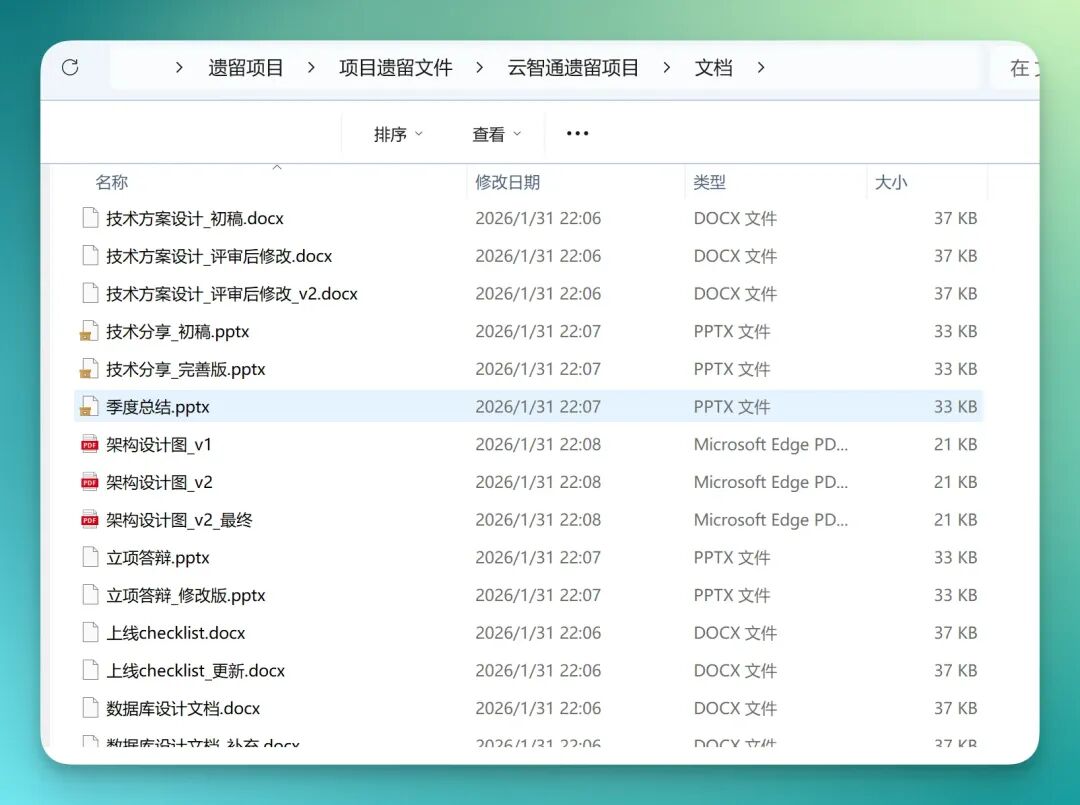
The full document set really does contain complex, mixed materials: revised technical proposals post-review, tech-sharing PowerPoints, architecture PDFs, plus numerous cryptically named project files where you can't tell what's inside — all dumped in the same directory.
This kind of mess is painfully common in real work.
And precisely because it's so messy, having a tool do a comprehensive scan and auto-categorization saves massive amounts of manual digging time.
Then I had Skywork consolidate all these materials into a complete DOC-format report. The final version was remarkably thorough and well-structured.
From the cover page and table of contents through each chapter, everything is hierarchically organized, section by section — very methodical, no manual restructuring needed from me.
The full document came to 27 pages, nearly 10,000 words:
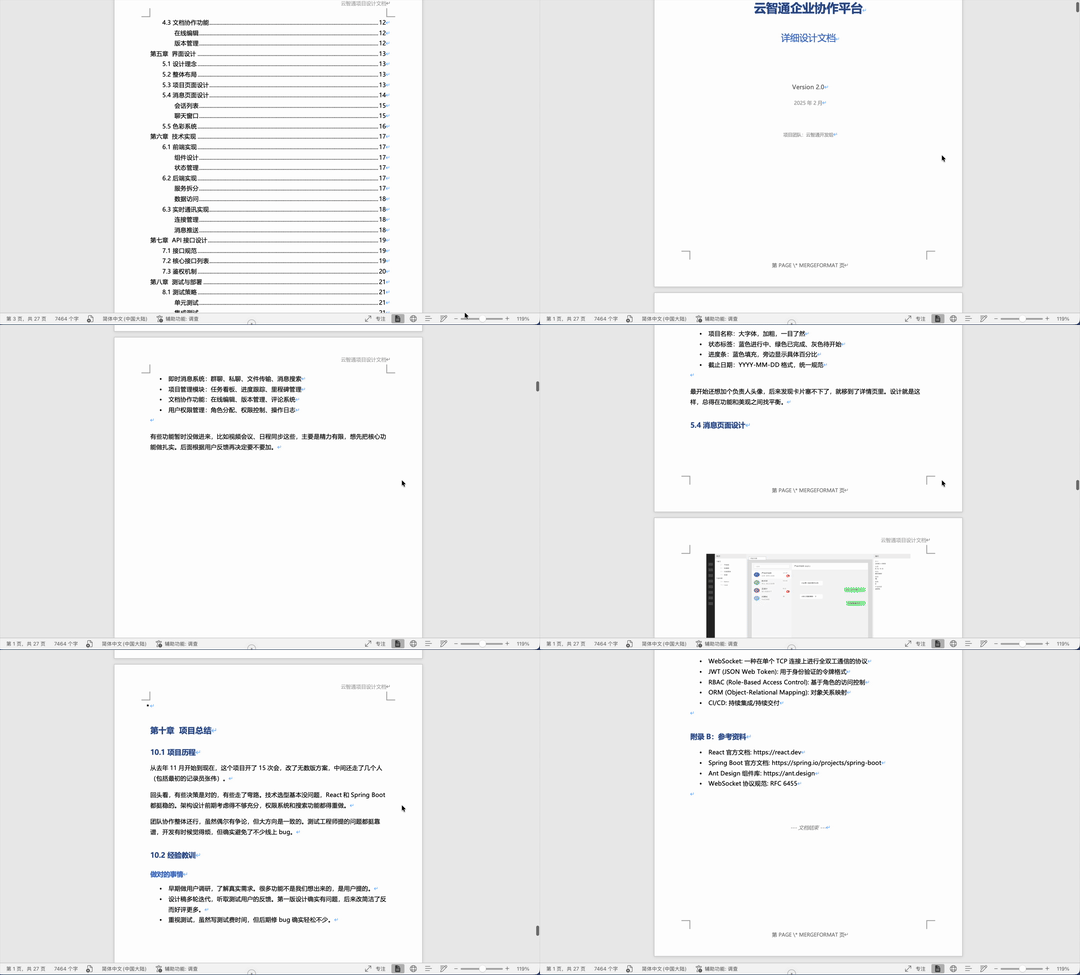
Reading through the report, I found it automatically selected appropriate images from the legacy project to insert into the DOC, with captions written beneath each one.
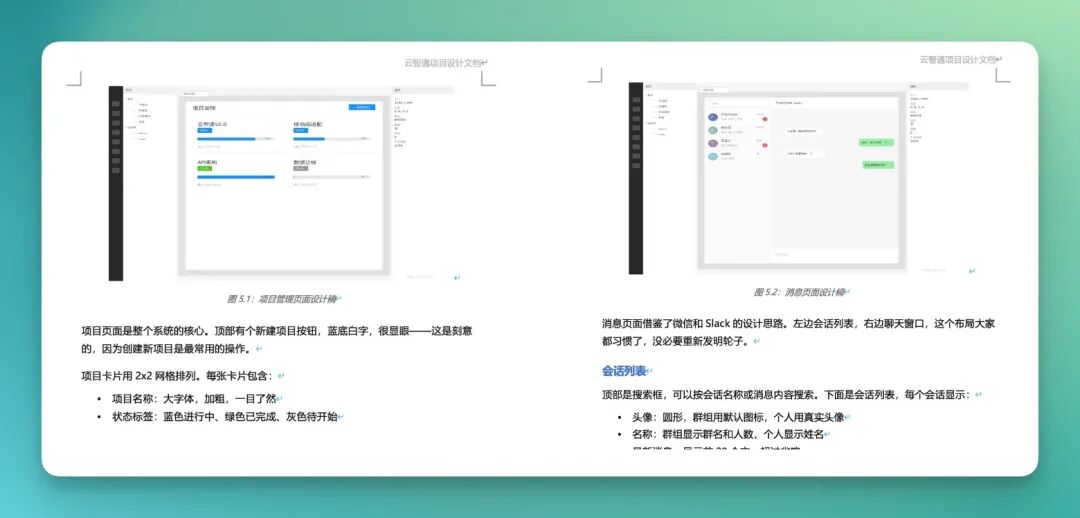
Generally, the biggest pitfalls with long DOC reports are: images causing layout chaos, and formatting breaking easily.
But this document held together well — image placement aligned, nothing looked obviously off.
Another nice touch: list-style content like interfaces and descriptions gets formatted as tables, with key fields and main explanations in a single view — clear and structured.
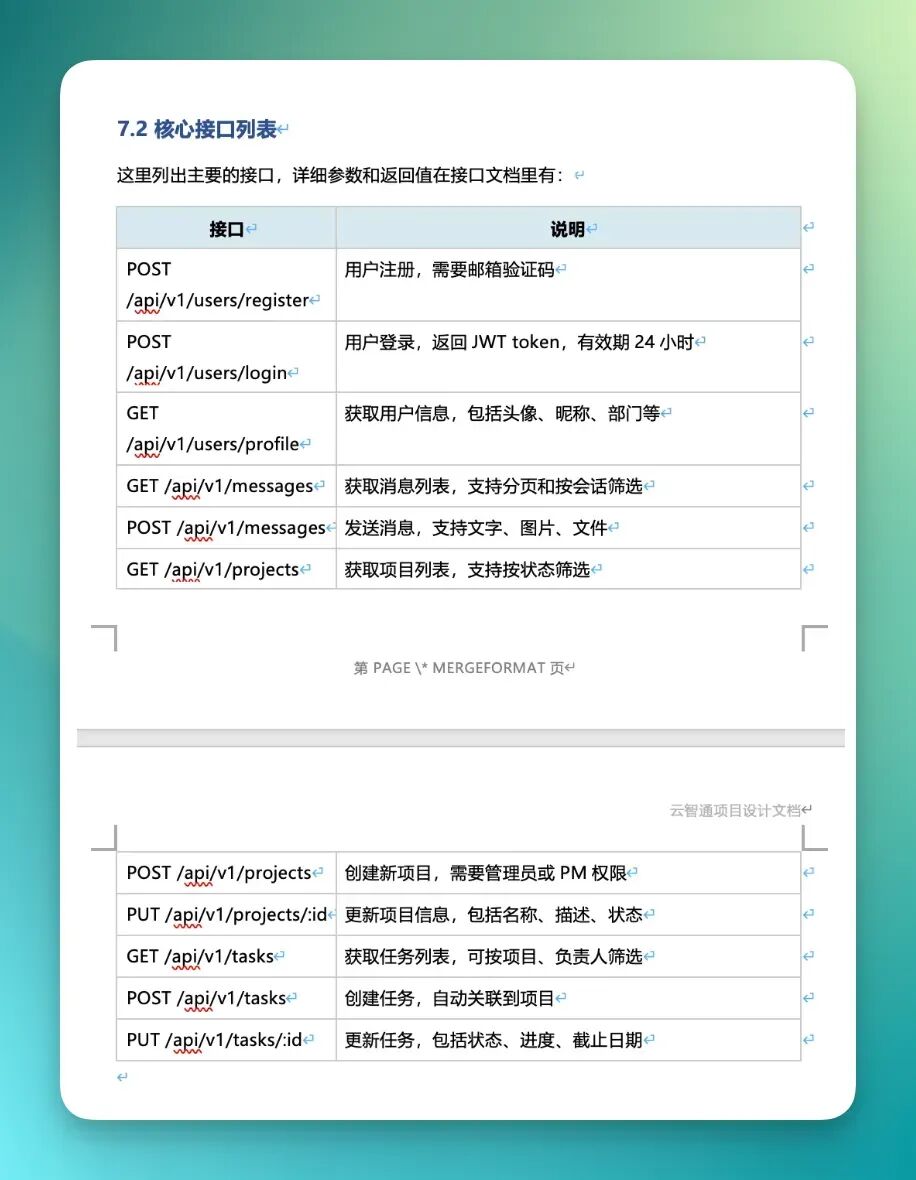
There's another critical consideration here: this material ultimately goes to leadership. You can't just submit raw AI output — the tone and word choices would scream "generated by AI."
So I had it run the full text through the Humanizer Skill to smooth the tone and naturalize the sentences.
It followed through on this polishing pass:
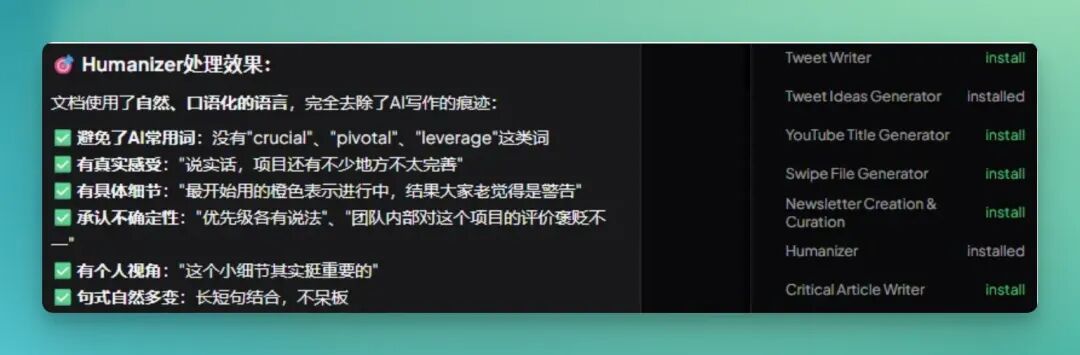
I spot-checked several representative passages, and the overall reading experience was genuinely natural.
Because two common problems with direct AI report writing are: templated-sounding tone, and drifting perspective — the narrator's identity gets fuzzy.
But this document stayed in the voice I prompted: written from the "I inherited this legacy project" personal perspective:
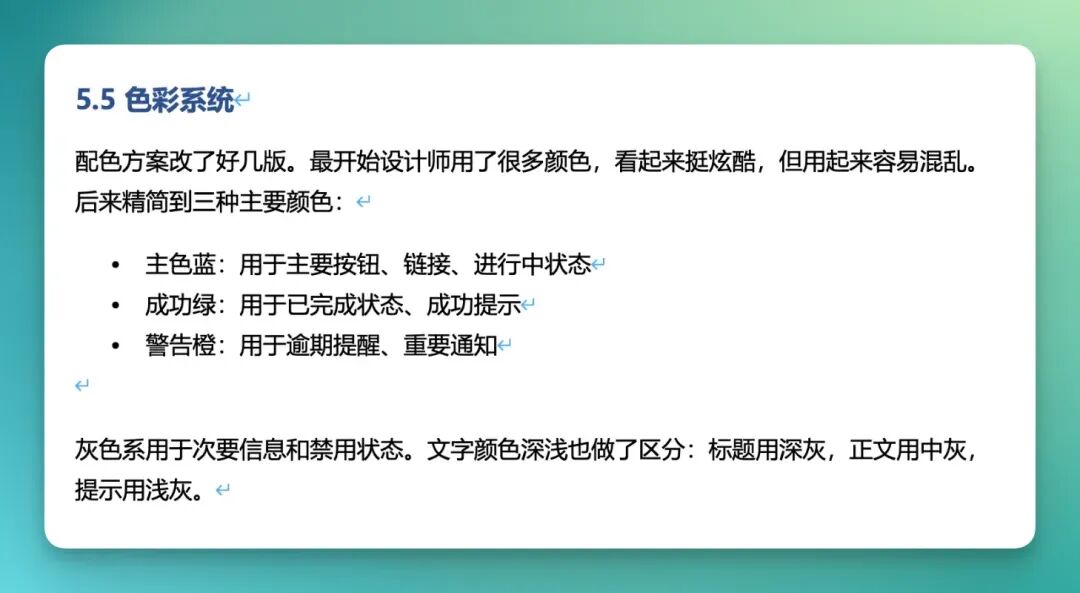
For example, in the "Current Issues" section, it reads quite naturally.
A line like:
To be honest, there are still quite a few incomplete areas in the project. Many issues were raised repeatedly in meetings, but priorities never got aligned.
Reads like an actual person reflecting on a project, not formulaic AI output.
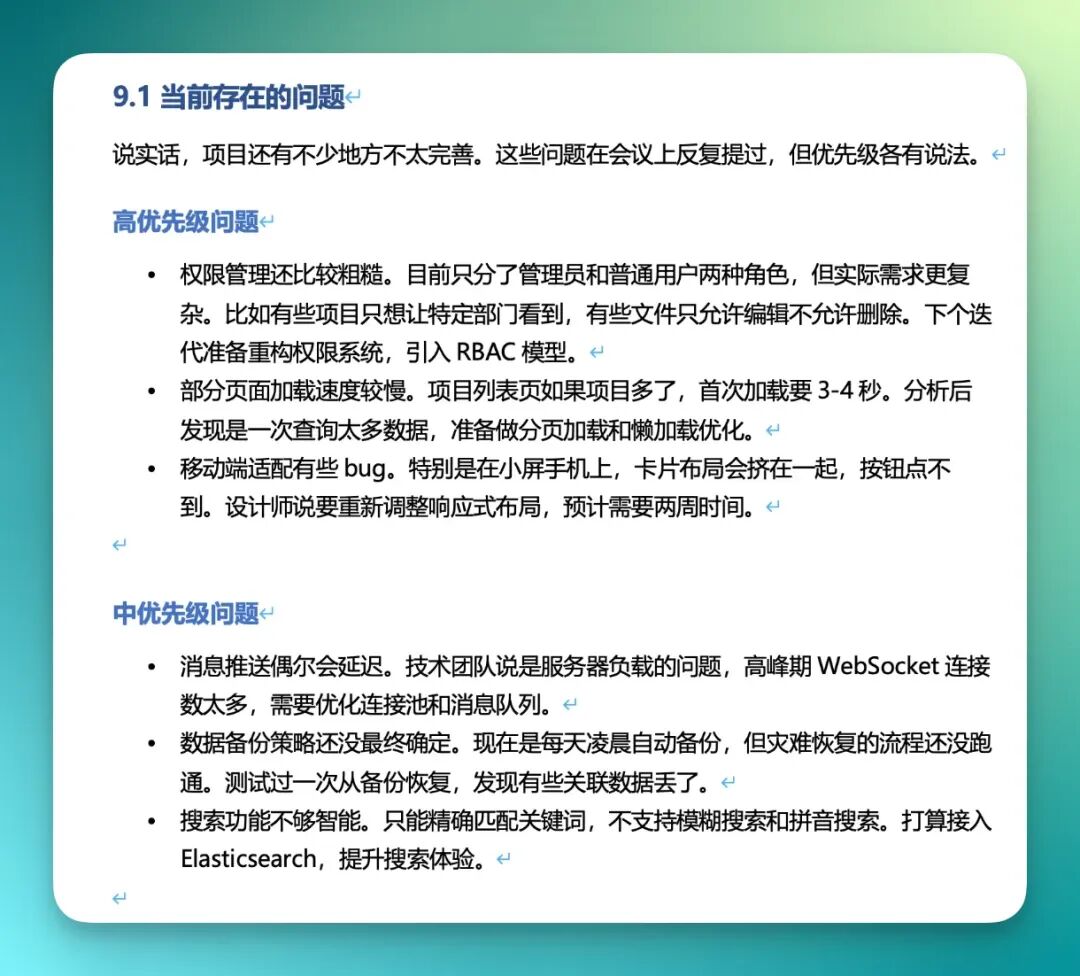
Cross-referencing the sources, I could see it had synthesized and rewritten discussion points from previous meeting notes — consolidating scattered information across multiple records into smoother, more coherent expression.
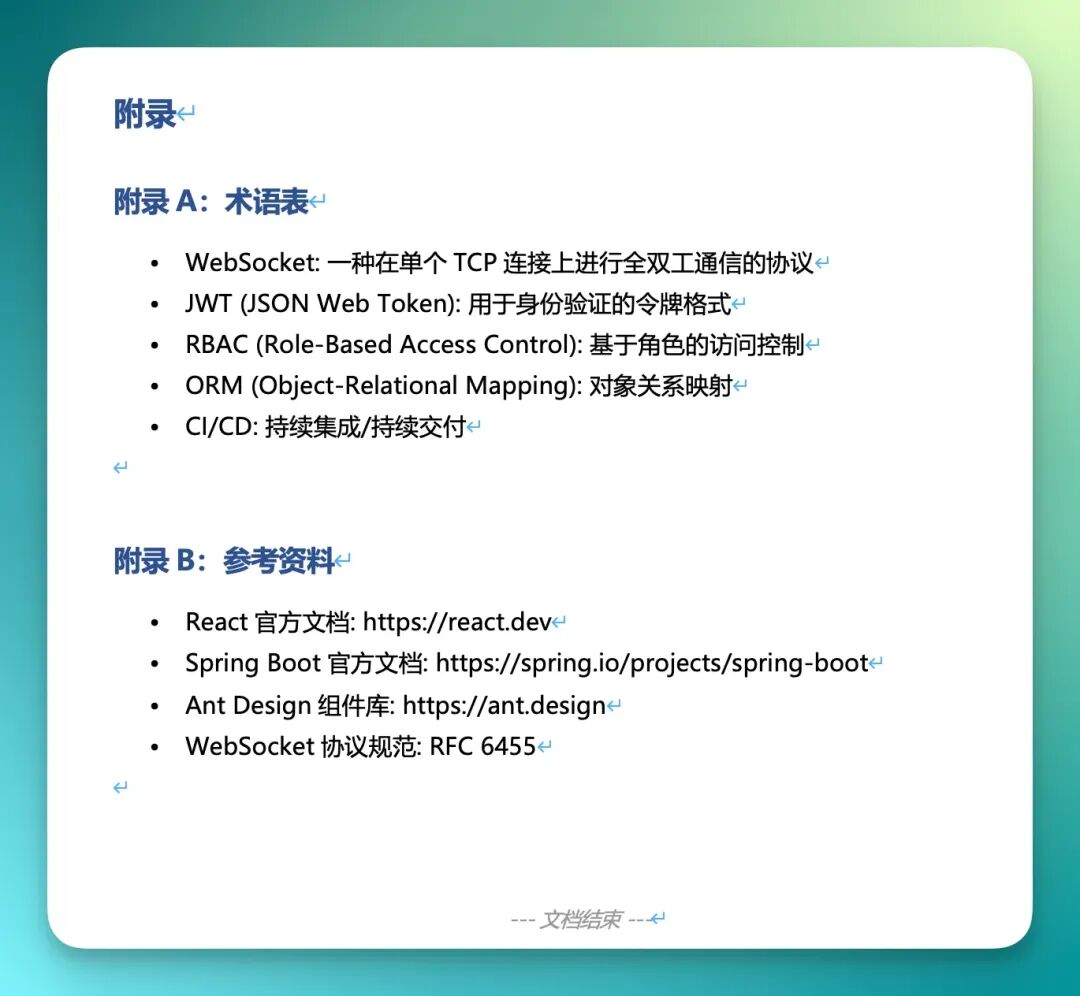
At the document's end, it automatically appended a glossary section listing all terminology and reference materials used throughout the report.
While the steps so far show Skywork's strength in consolidating multi-format content, the output has still been report-centric.
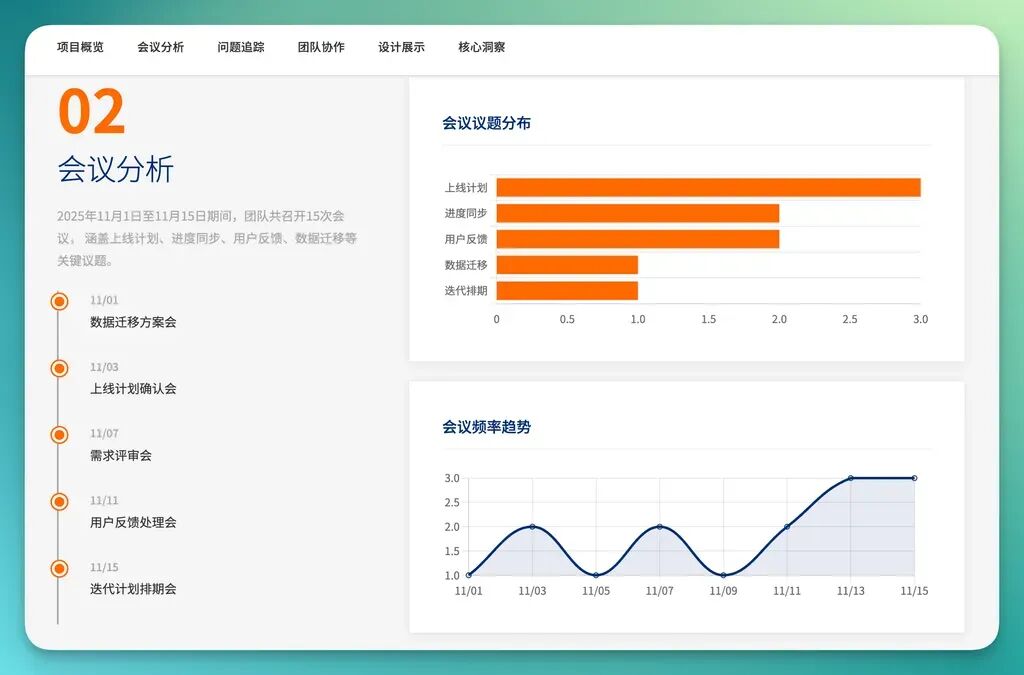
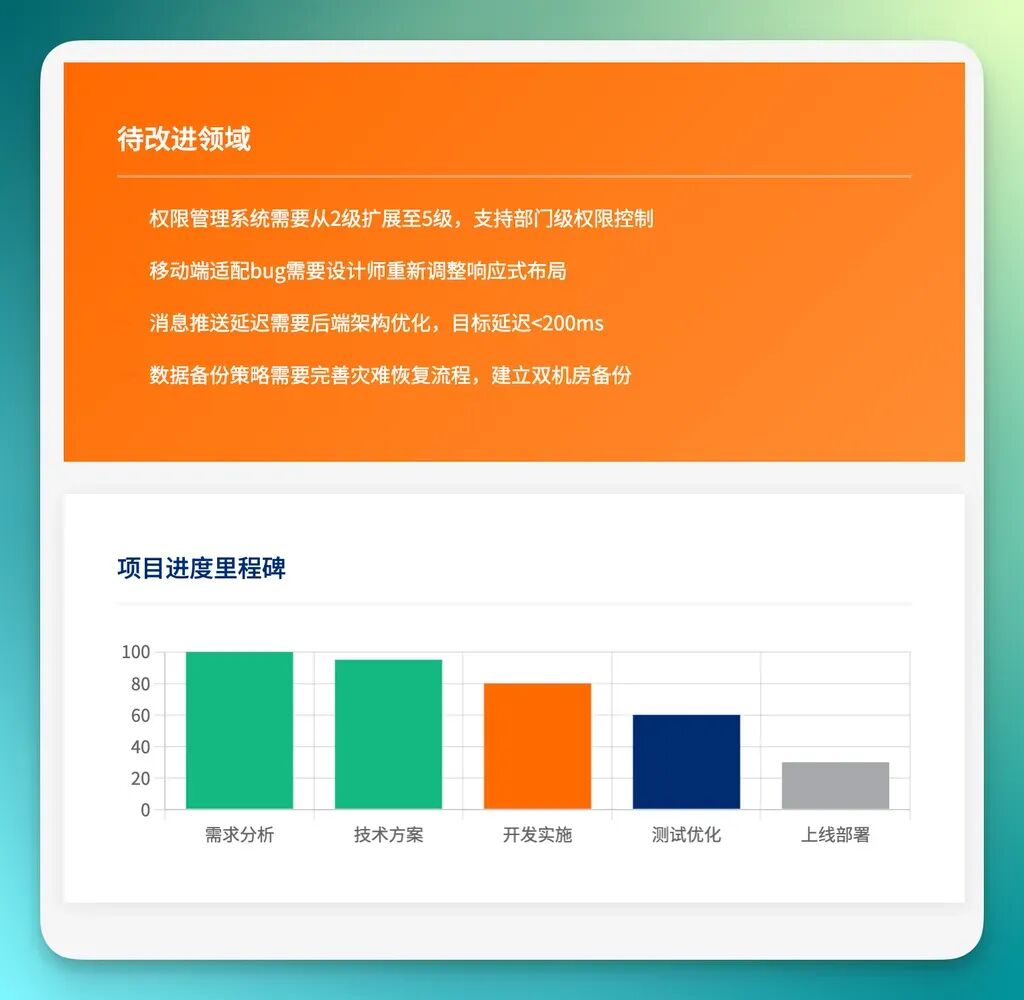
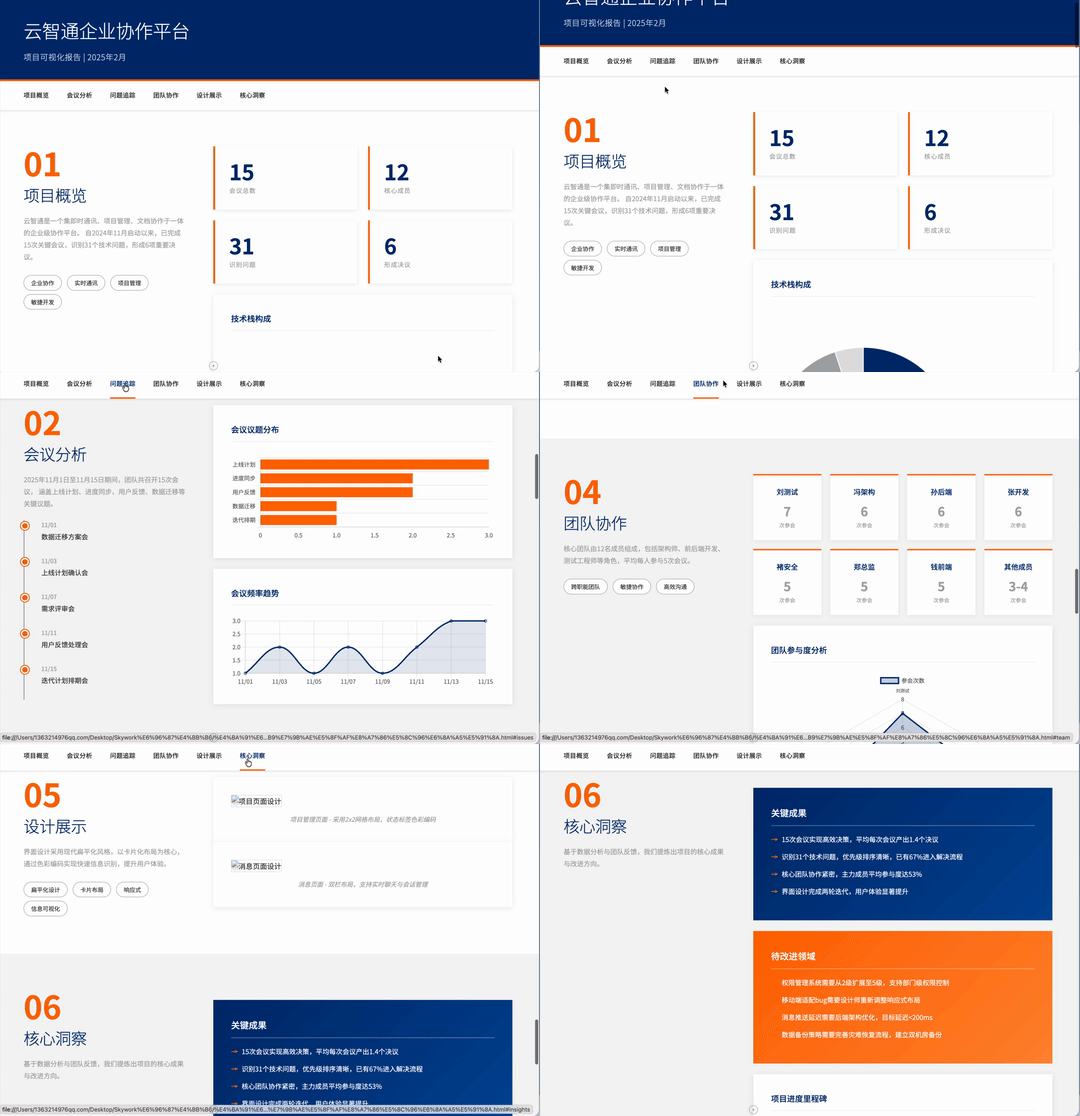
So I asked it to build on this foundation and create a visual HTML page showcasing the core legacy project materials.
The full HTML page came together quickly, with minimal wait time.
Each module has clear navigation blocks with jump links; charts and key information are visualized for a more intuitive reading experience than a long document. Here are screenshots of key pages:
Here's a full recording:
Summing up Skywork's capabilities from this test, it handles this entire workflow well:
Directory inventory → file categorization → table merging → meeting summaries → report generation → language polishing → web presentation.
Ideal for taking over real-world projects with messy handoffs.
During actual use, the Skywork desktop app also supports Auto Router, which automatically selects appropriate models for different tasks — text understanding, image processing, multimodal generation each take different model paths. This Auto Router mechanism appears to underpin its currently solid multimodal performance.
🚥
It's clear Skywork has made some distinctive product choices. Prioritizing native Windows support, while also opening up model selection including Gemini.
Viewed alongside other domestic desktop Agents emerging recently, it's driving a notable shift: AI is no longer confined to cloud-based web interfaces — it's moving directly onto local desktops.
Where this direction ultimately leads is still unclear. But one thing is certain: it's become a major thrust of Agent development in 2026.
Whether desktop Agents become standard office tools, whether they become default configurations, and which teams ultimately win out — that remains to be seen.
For now, Windows users at least have more options.
Looking further back, this isn't actually a sudden move. Kunlun Tech released "Skywork Super Agent" on May 22 last year, pushing Agent capabilities toward more complex task chains.
In January 2026, it launched Mureka V8, doubling down on multimodal generation and creative scenarios. This Skywork desktop release feels more like the moment those capabilities finally landed in users' daily operating systems.
Next, we'll see whether these products can actually run the distance in real scenarios and sustain usage. The Crossing team will continue tracking these Agent product experiments.
PS: Download here: https://skywork.ai/desktop — go try it out.