Another New Player Enters the AI Browser Race: Tabbit Joins the Fray

Is Tabbit AI Browser Actually Good? How Do You Use It?
Is Tabbit AI Browser Any Good? And How Do You Use It?
👦🏻 Author: Jingshan
🥷 Editor: Koji
🧑🎨 Designer: NCon

Over the past year, the AI browser space suddenly got crowded. OpenAI built Atlas, Perplexity is working on Comet, the Arc team spun out to build Dia, Opera launched Neon, SigmaOS is targeting productivity users, and Genspark announced it's jumping in too.
Everyone's betting on the same thing: the browser will be one of the most important entry points in the AI era. The shared logic across this whole space is that the browser will become the core operating interface of the AI age.
Search, information synthesis, task execution — capabilities that used to be scattered across different tools — are now being compressed back into a single window.
Yesterday, Lightyears Away, Meituan's internal independent AI application exploration unit, officially launched Tabbit AI Browser, joining this increasingly crowded race.
It's brought some fresh ideas to the AI browser feature set, along with a few genuine improvements.
Below, based on heavy hands-on use, we'll talk through what it actually does in "life scenarios and work scenarios" — and how well it does them.
Life Scenarios | Immersive Museum Browsing
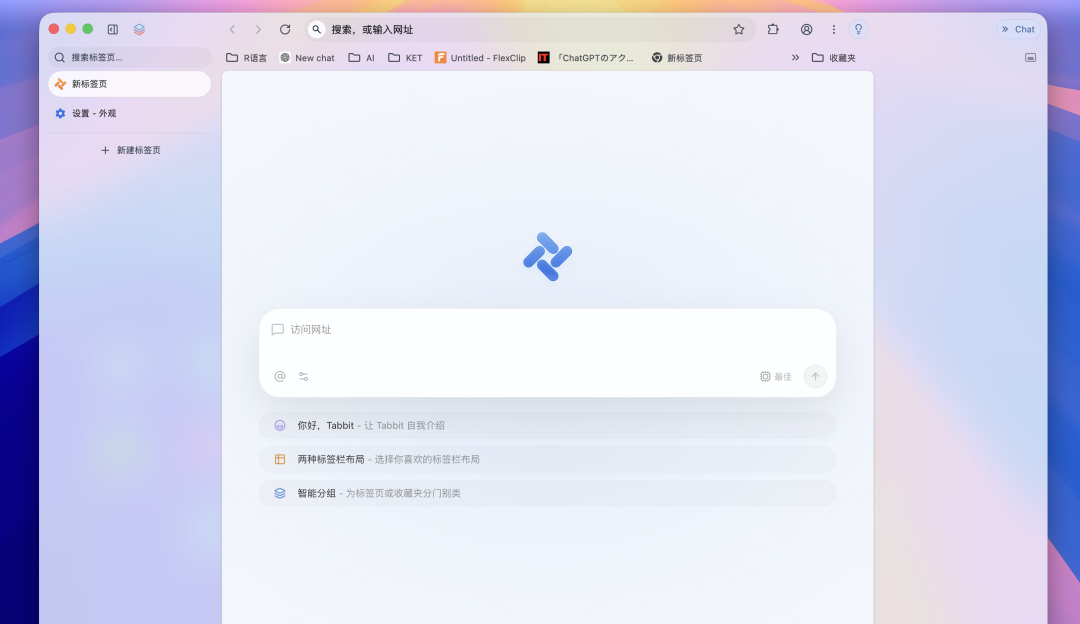
Tabbit AI Browser runs on the Chrome engine at its core, which means it's essentially been rebuilt on top of Google Chrome. So its layout, core experience — almost identical to Chrome. It's mature, fully featured, everything you'd expect is there.
That said, Tabbit AI Browser pays more attention to aesthetics, with richer styling options. Simply put: it looks better.
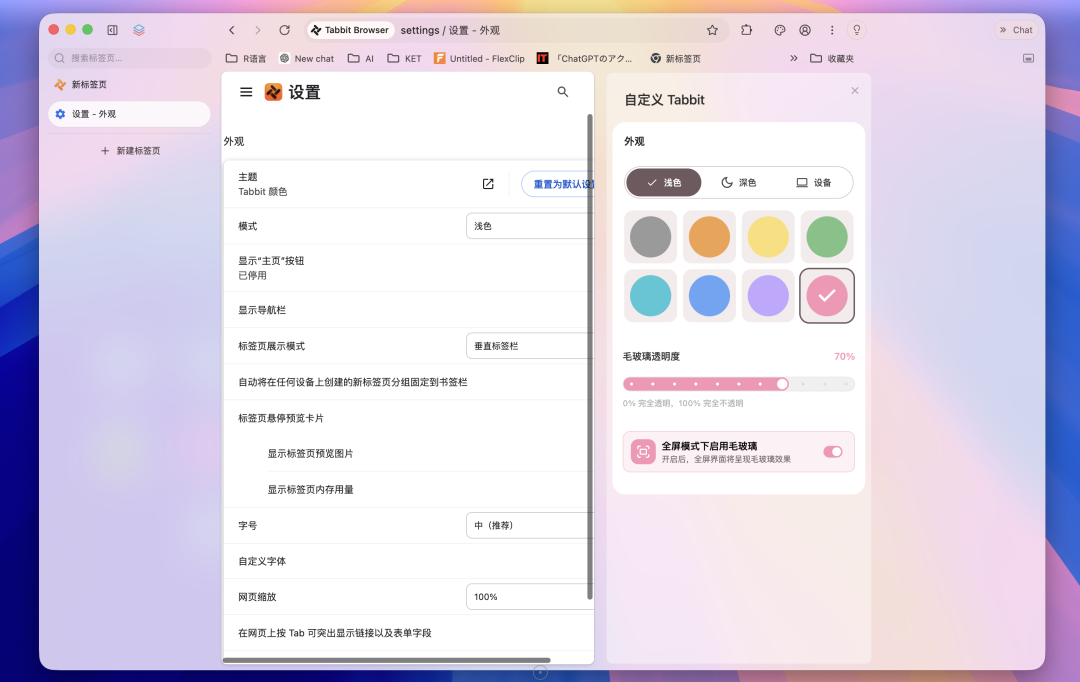
In the appearance settings, you can customize Tabbit easily. I generally like to match it with my computer's own wallpaper, frosted glass at 70% opacity:
Next I'll walk through, based on heavy real-world use, how it improves my daily workflow. I'll go through its features as I actually experienced them.
First thing I noticed: browsing content in Tabbit AI Browser feels especially immersive. Particularly for museum websites — it's strong at recognizing image content, making it great for immersive virtual museum visits, like the online exhibitions at the Met in New York.
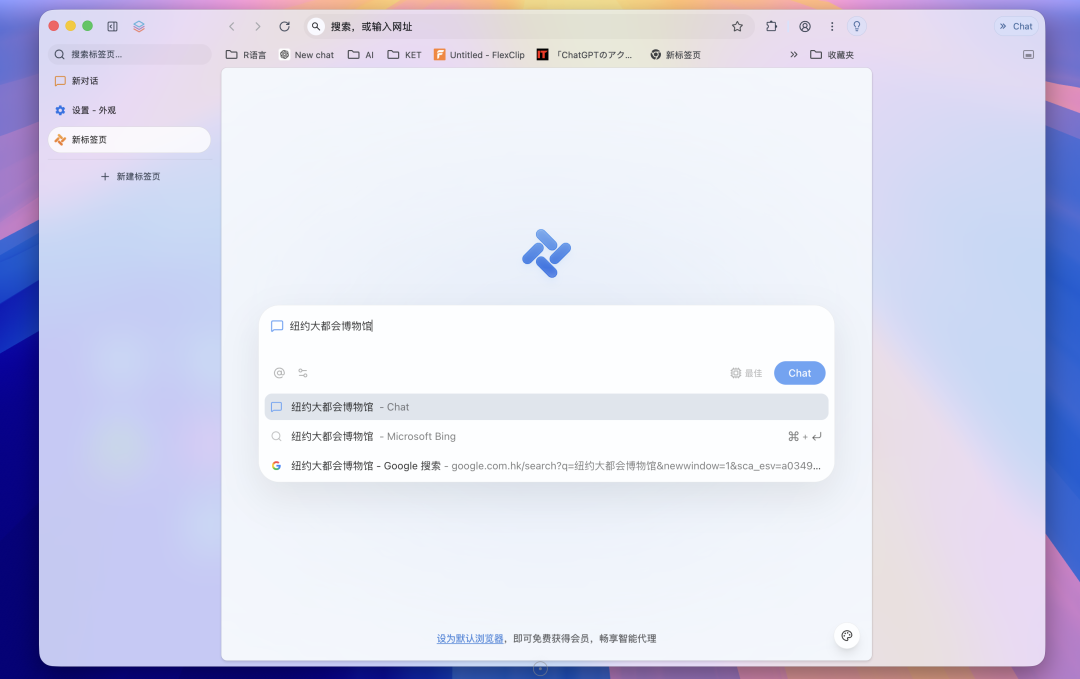
Type anything in the search box and you get two types of search results. Two main paths:
First is Chat, where it uses its built-in AI to synthesize all information and give you a summarized answer.
Second is jumping straight to Google Search — a logic that's actually similar to a lot of AI browsers now.
I've been using it heavily for immersive exhibition browsing. Take this painting below — just double-click the image and you can ask anything about it. It automatically jumps to the input box on the far right. The whole experience is very smooth.
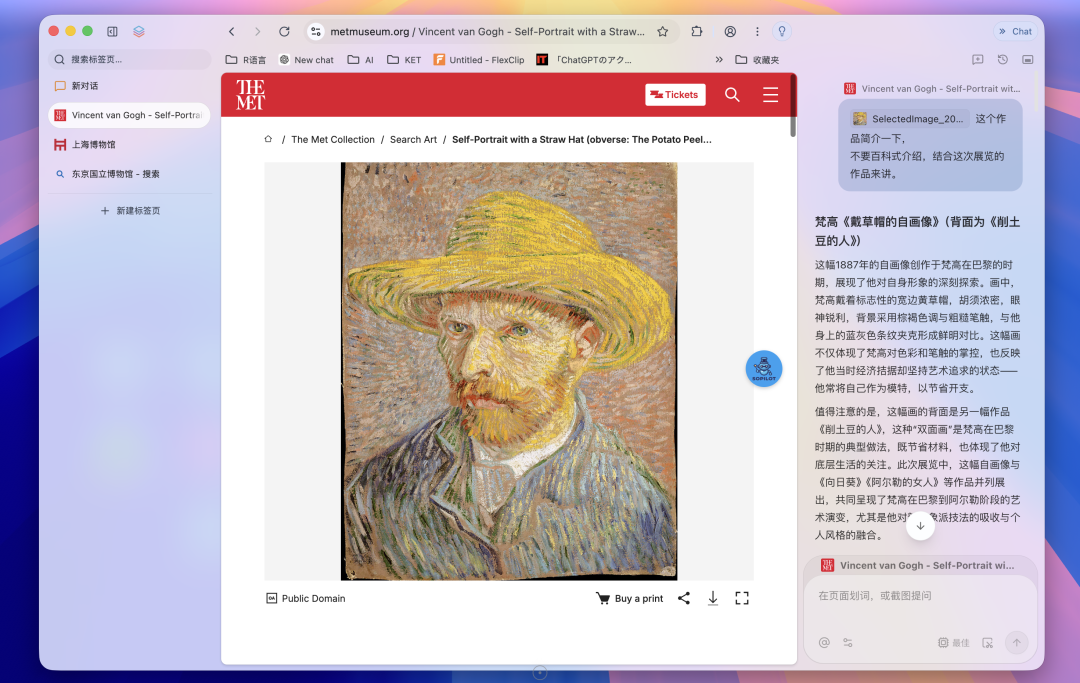
Tabbit AI Browser has strong page content comprehension — whether images, text, or entire pages, it recognizes them well. And whenever you open a page, the Tabbit AI panel on the right automatically anchors to that page's information.
Say I open a page with many paintings plus full exhibition curation info.
Especially facing English-language sites, or pages with messy, poorly structured information — just ask Tabbit AI Browser in the right-side dialog and it will organize all the curation info for you, much more intuitively.
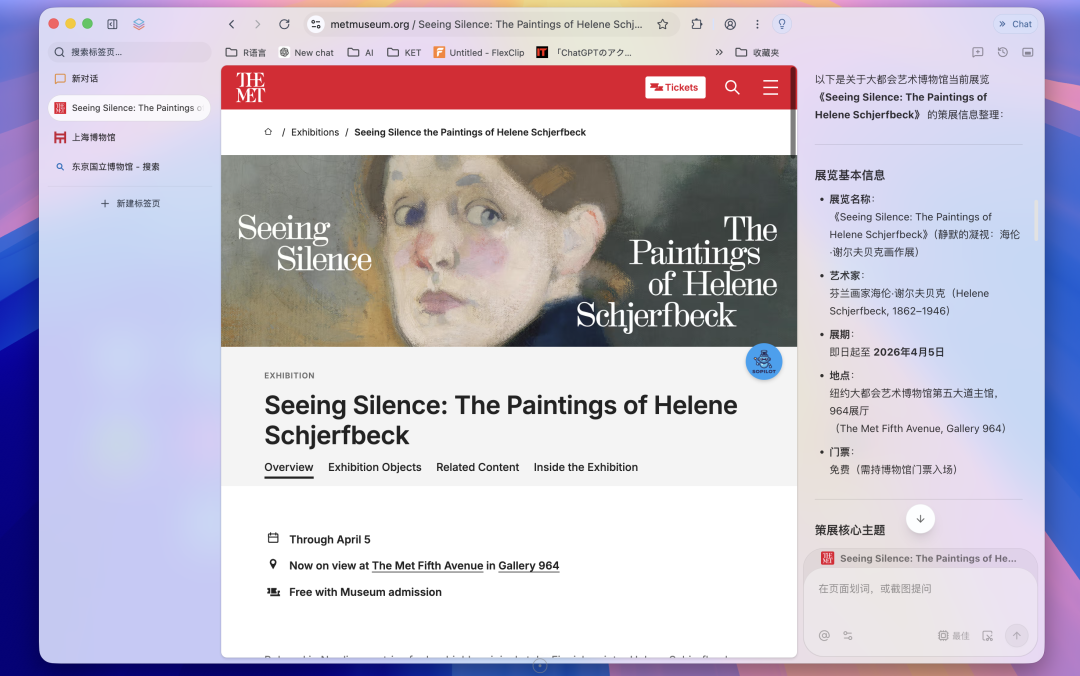
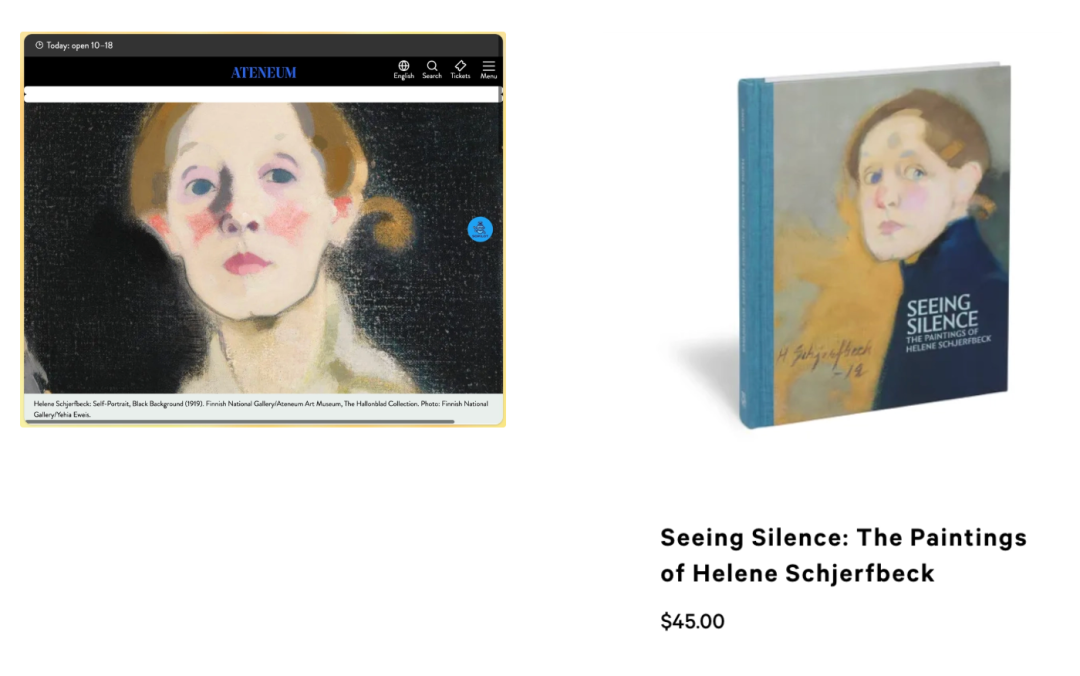
For example, after opening this Finnish painter's work above, I asked whether the painter had other works and had it jump straight to links.
Or asked whether these paintings were available for purchase, if there were related websites — it would give structured jump links in the right-side dialog. This workflow really is quite smooth.
Also, the dialog box at the bottom of Tabbit AI Browser has a screenshot feature with some special design touches.
When you click screenshot, it automatically recognizes text boxes and module frames on the page, positioning them for you. You can directly select its pre-positioned modules, or drag your own selection like a normal screenshot.
After capturing, it imports straight into the right-side dialog, and you can ask your next question.
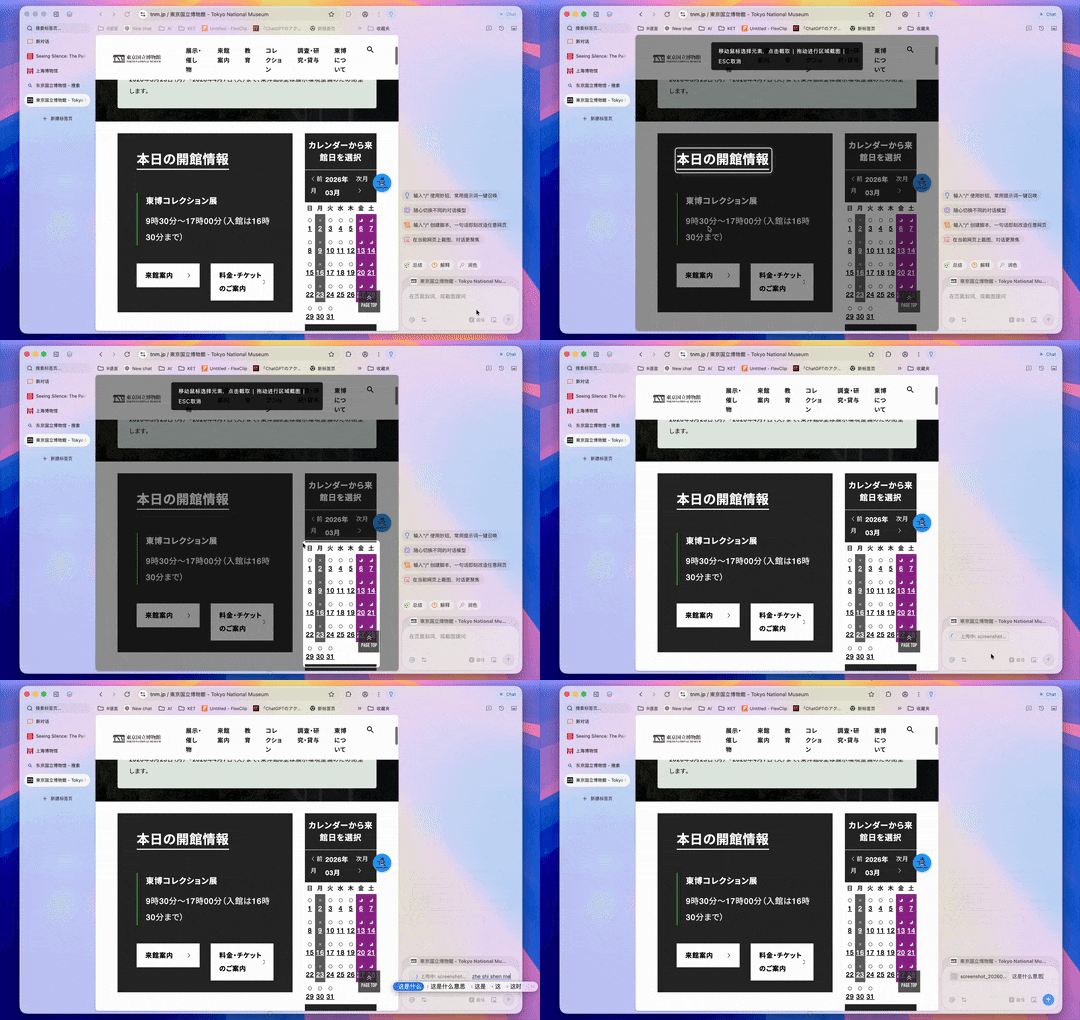
For example, I opened a Tokyo National Museum page with a calendar image that was hard to understand, content quite complex. This is actually something we run into daily — whether browsing foreign or domestic sites, you always encounter some confusingly designed information.
At this point you can directly select that content and ask Tabbit AI Browser, and it will organize all the information for you, very conveniently, with related jump links included.
In other words, it doesn't just do pure image recognition — it combines the image with the entire page's content to give you a structured answer. Pure image recognition alone would be far less interesting.
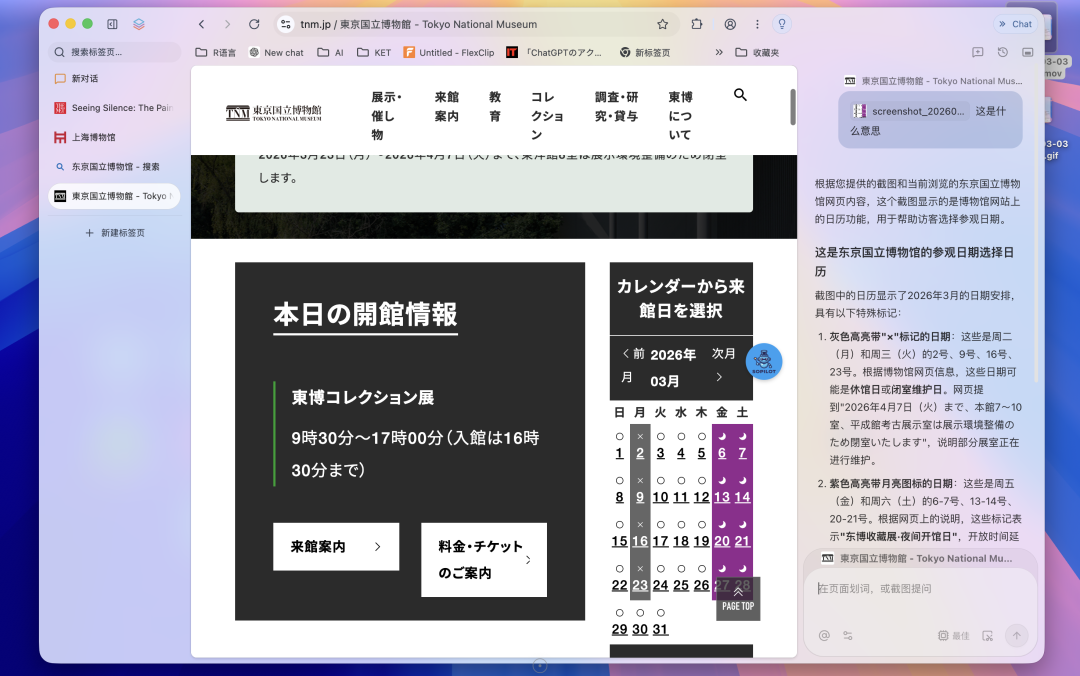
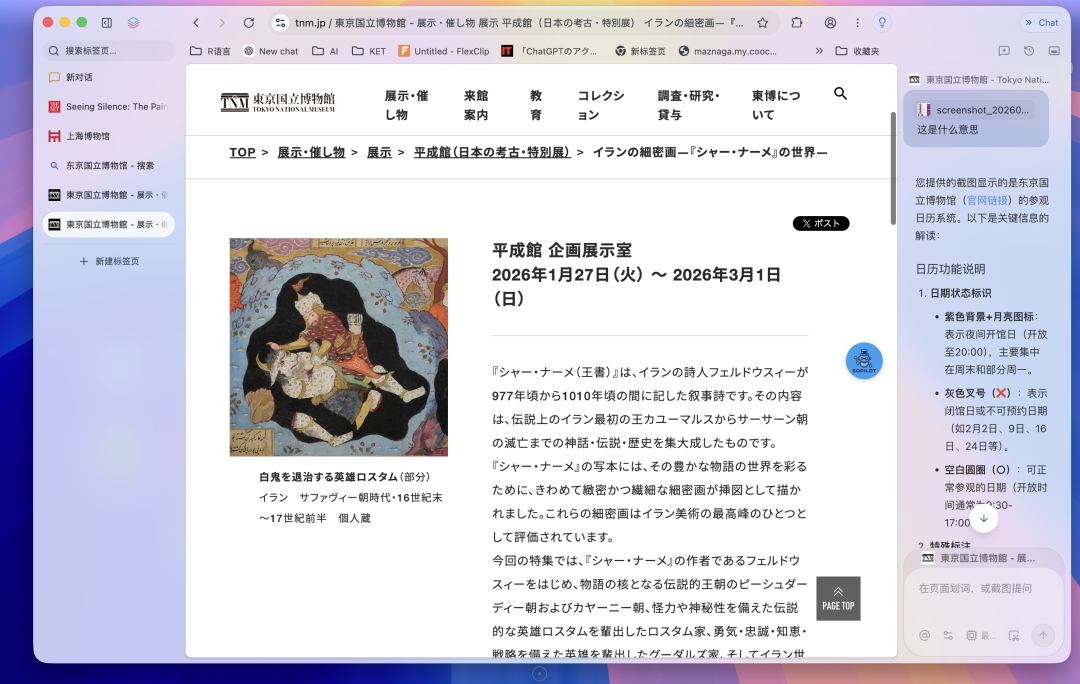
Another point that really shows off Tabbit AI Browser's image recognition: it can combine image recognition with the entire page's content together.
Say I see a complex Iranian painting and directly ask about it — it can do a structured presentation of what various elements in the image represent and mean.
For immersive reading of certain content types, like museum browsing or long articles, this really does improve the experience significantly.
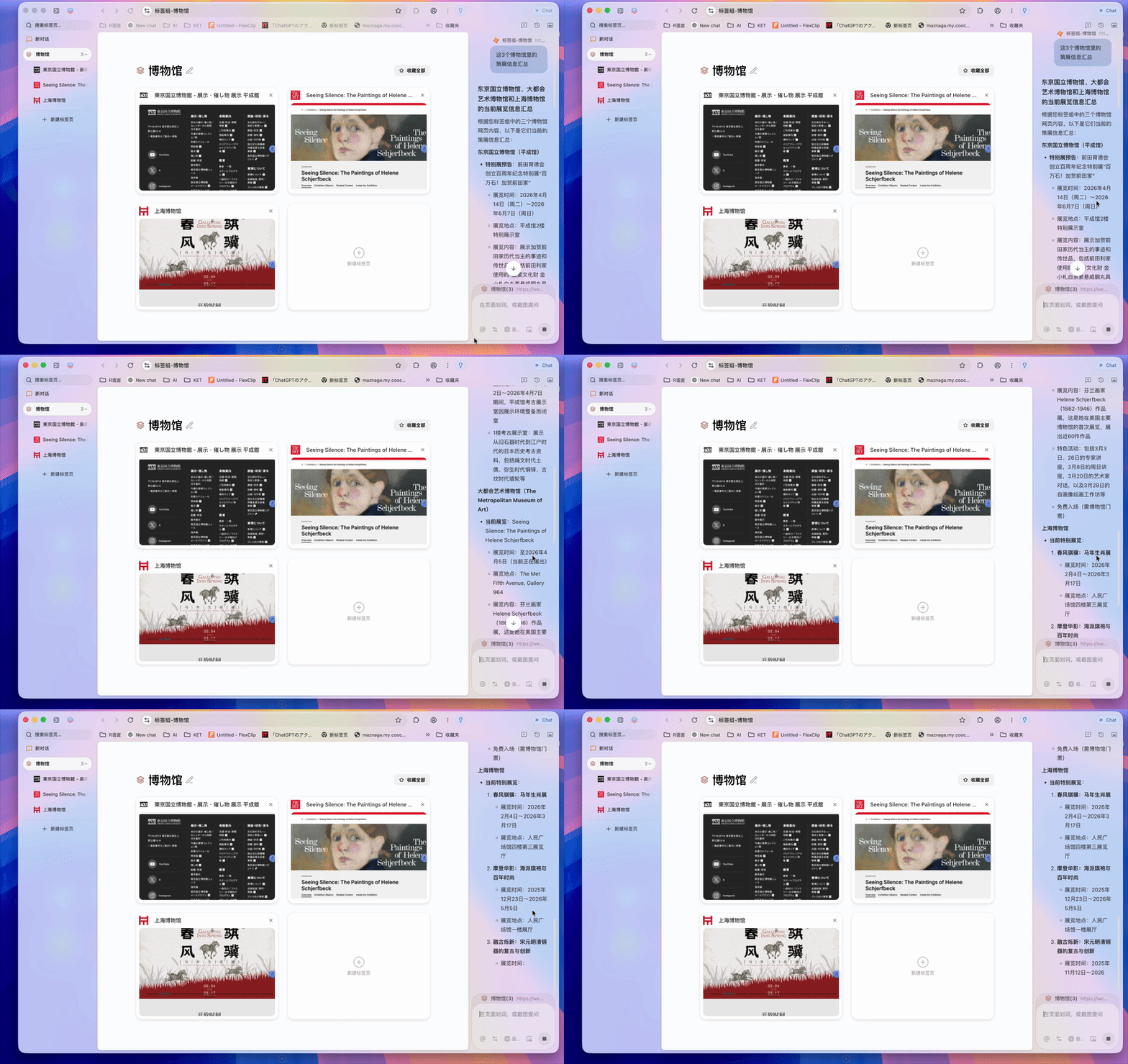
And I found that Tabbit AI Browser also recognizes tab groups quite well. Say I open 3 museum sites, put them under the same tab group, then directly ask questions about that group.
Just click the tab group — no special commands needed — and ask about these 3 museums' curation content or other relevant info. It automatically synthesizes content from all 3 pages.
Work Scenarios | Taming Exploding Tabs + Synthesis
The scenario above leans more lifestyle, everyday experience stuff. This next one is more work-oriented.
I normally open a ton of pages in my browser, explosively — maybe a dozen or twenty.
Among these pages, some are PDFs, some are deep information aggregation sites, some are product sites.
Usually I open these around a single theme, but with so many open, things get messy between pages, hard to do integrated analysis.
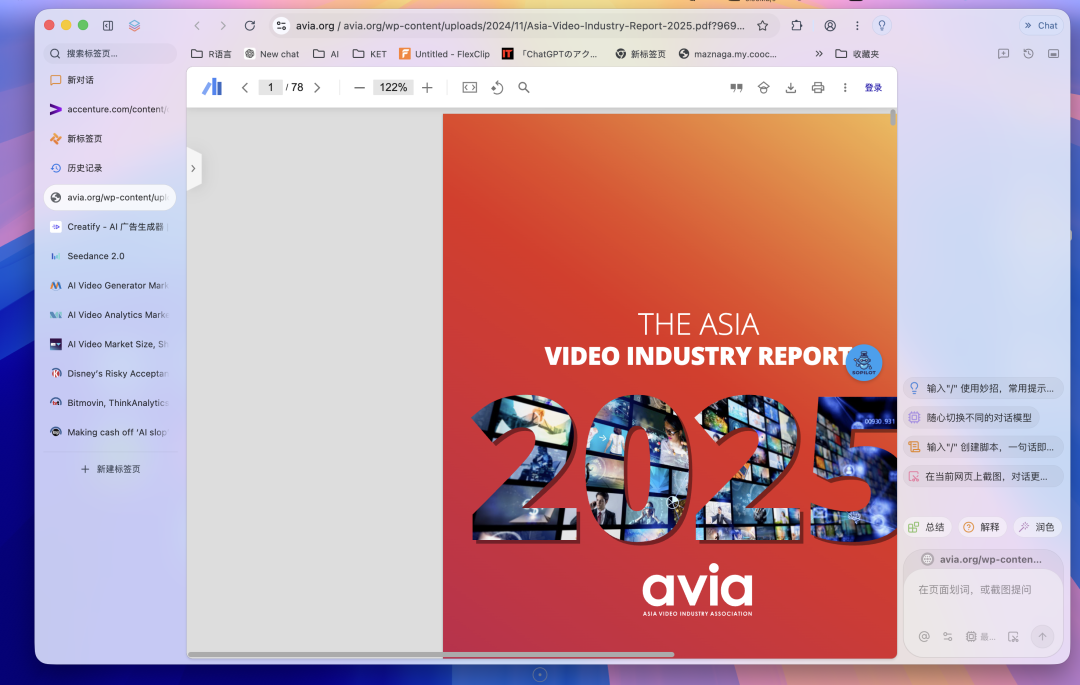
This is a real scenario, and Tabbit AI Browser has a solution: a "Smart Tab Organization" feature:
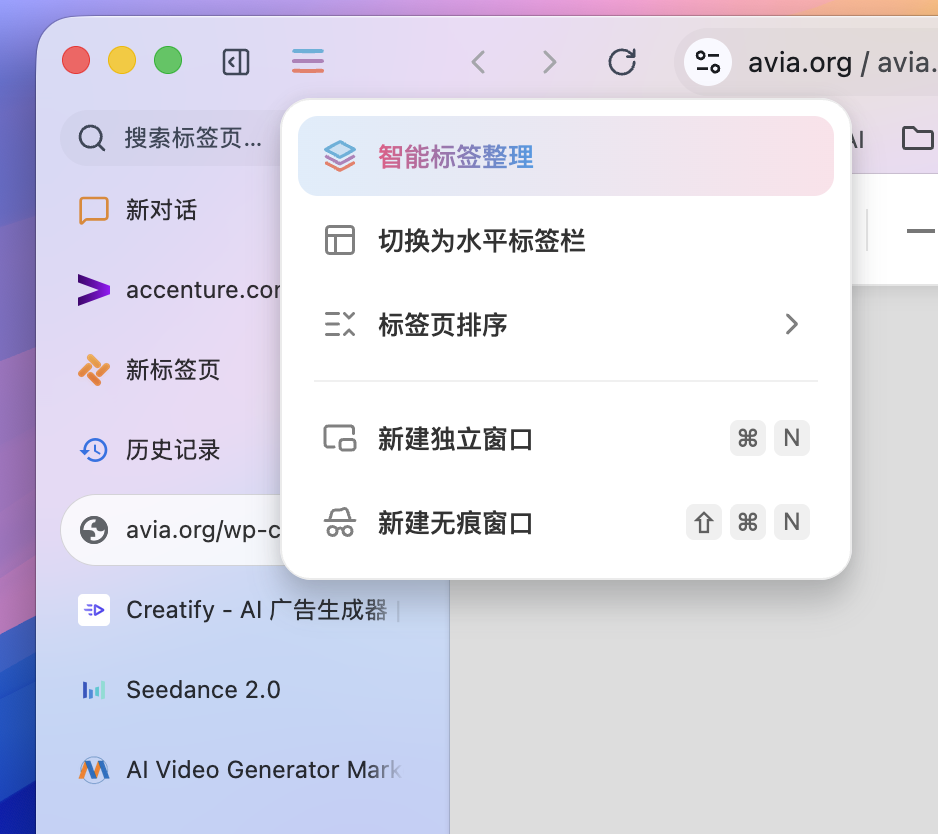
Click it, and like the left sidebar in the image below, it automatically categorizes and groups these dozen-odd tabs based on their respective content and context.
Then you can follow the organized categories to do information synthesis directly.
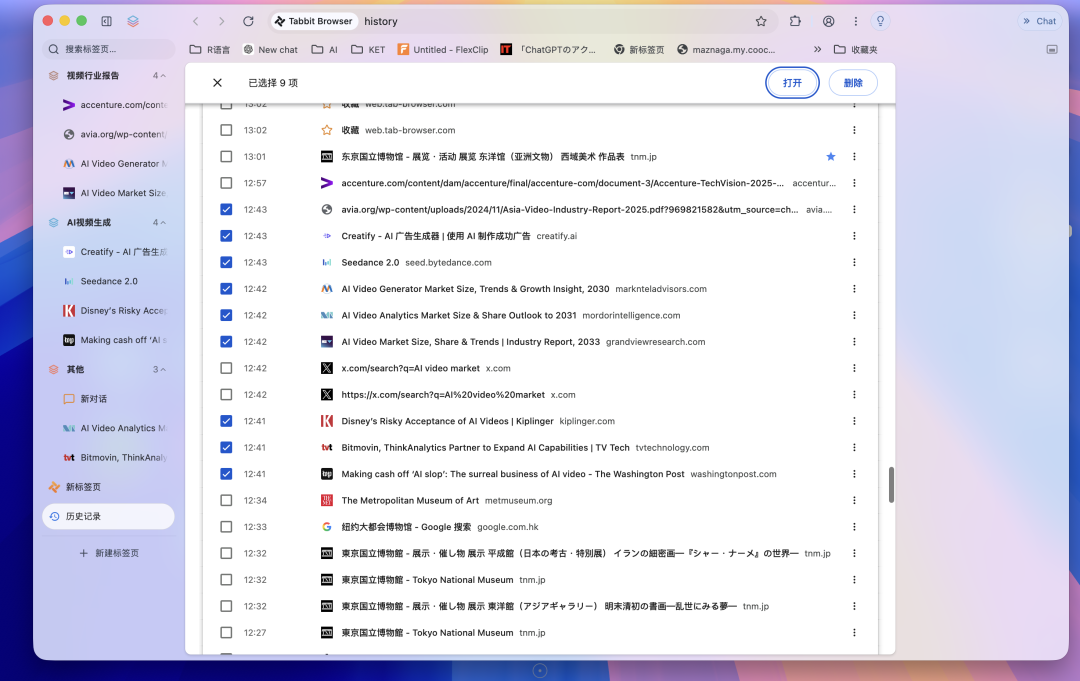
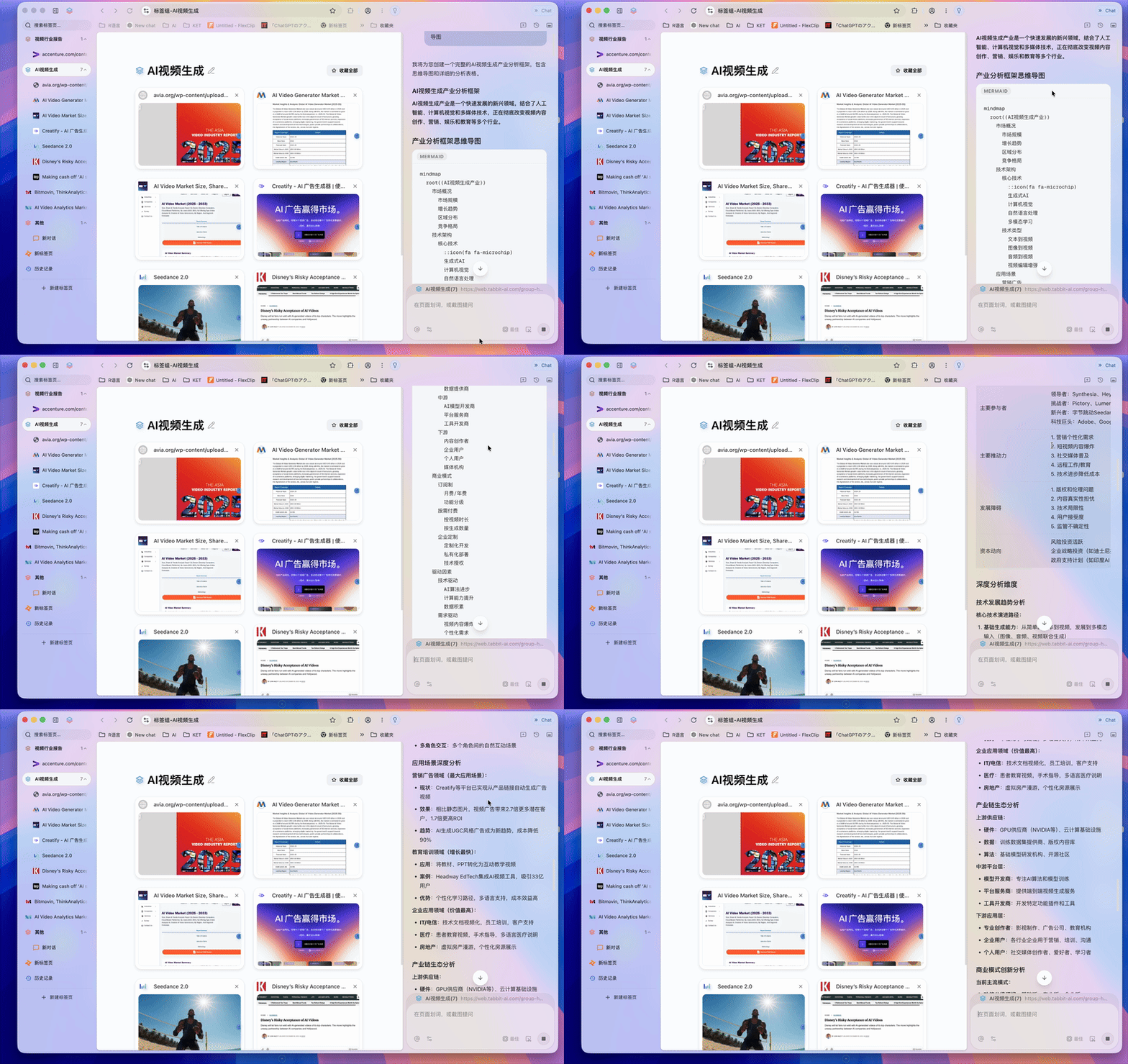
Of course, if you want the easy way, you can also dump all pages under one tab group, then ask questions about that group for a complete analytical framework.
You'll find its context really is quite long — it synthesizes information across these dozen-odd pages.
The output is very structured, even including tables and mind maps, with the mind maps附带 simple code you can copy and use directly.
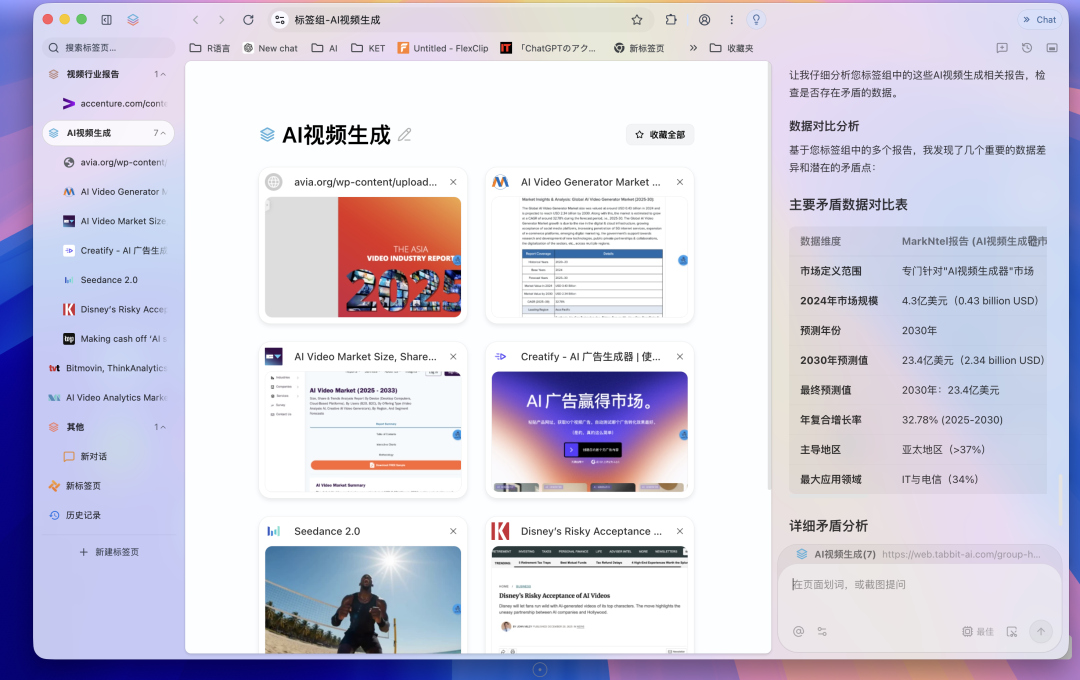
This scenario goes beyond simple information organization. I also discovered a particularly useful use case during use: when we open many sites day-to-day, if you look closely, a single site may contain massive amounts of data.
You might open several sites for cross-verification, and in that process, data conflicts easily emerge — which significantly impacts work requiring precision.
So at this point you can put them under one tab group and ask: are there contradictory data points across these pages, help me find and compare them, and see if there are consistent data points that match.
It will then organize accordingly based on these pages' contexts.
Overall Tabbit AI Browser is fairly mature, with AI features touching many small details. Tab groups as mentioned above are one example; another is its bookmarks feature, which directly helps you understand the context of all your previously bookmarked content.
I have nearly 300 bookmarks myself — you can just ask about them. After hundreds or thousands of bookmarks, you've probably long forgotten what you saved, so just have it do information organization for you.
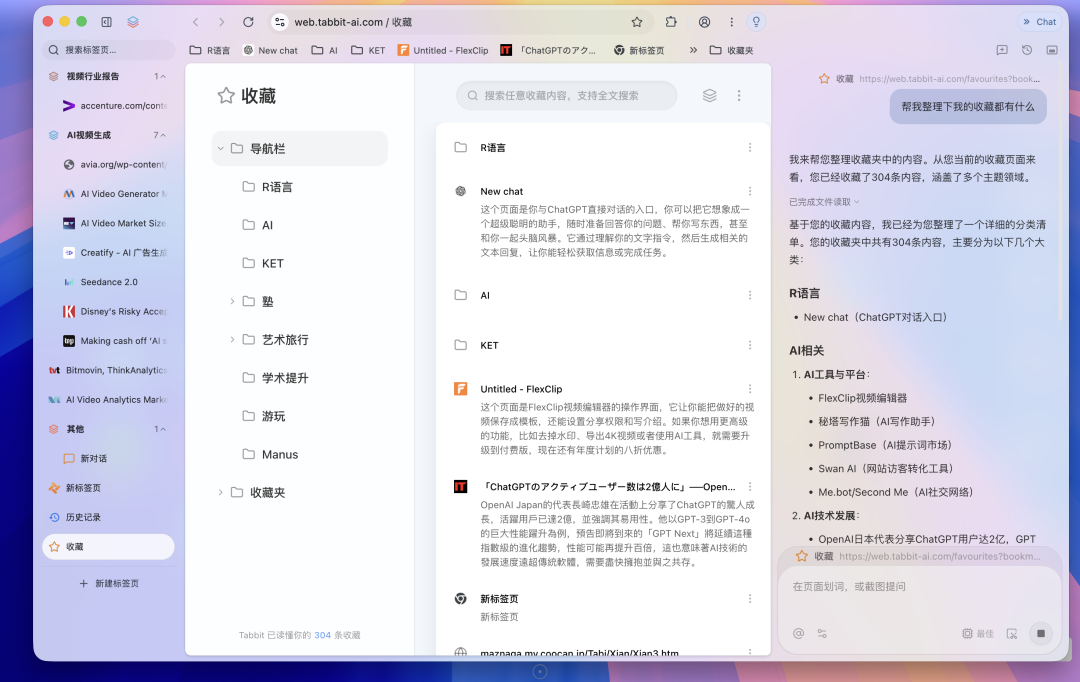
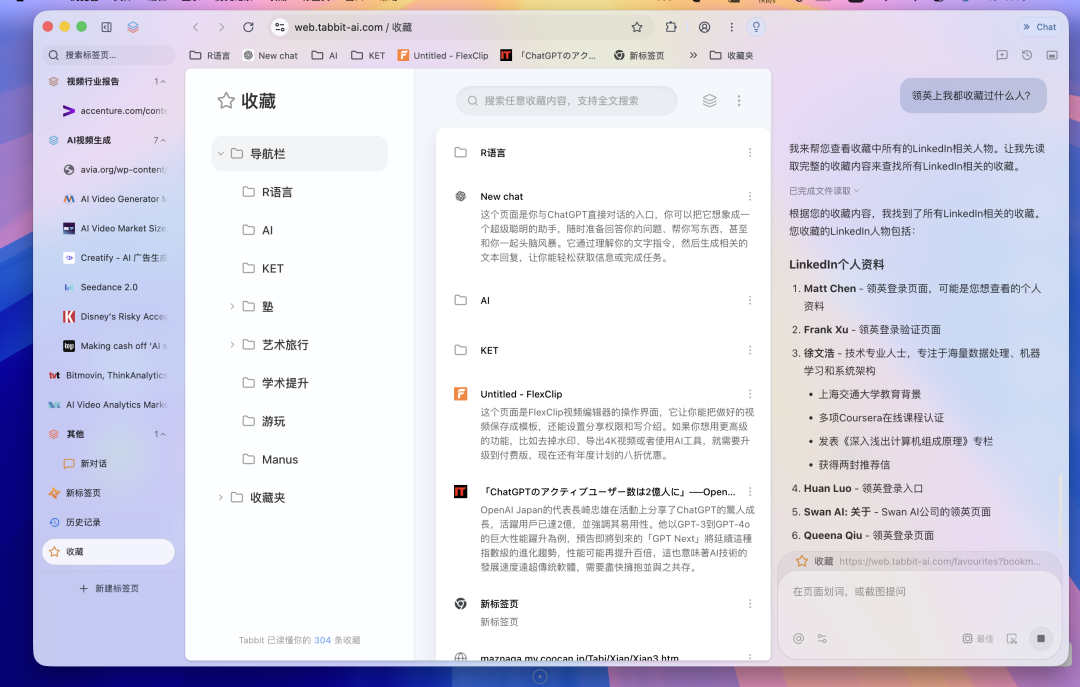
Even when I was researching some AI products before, I bookmarked some AI founders' LinkedIn profiles. Over time you forget — who exactly did I save?
At this point you can ask it to help you look up multiple professionals' work experience and such from these LinkedIn profiles.
It will organize all the professionals' LinkedIn profiles you've bookmarked, with corresponding links.
Tabbit AI Browser also lets you directly double-click images on websites to bookmark them.
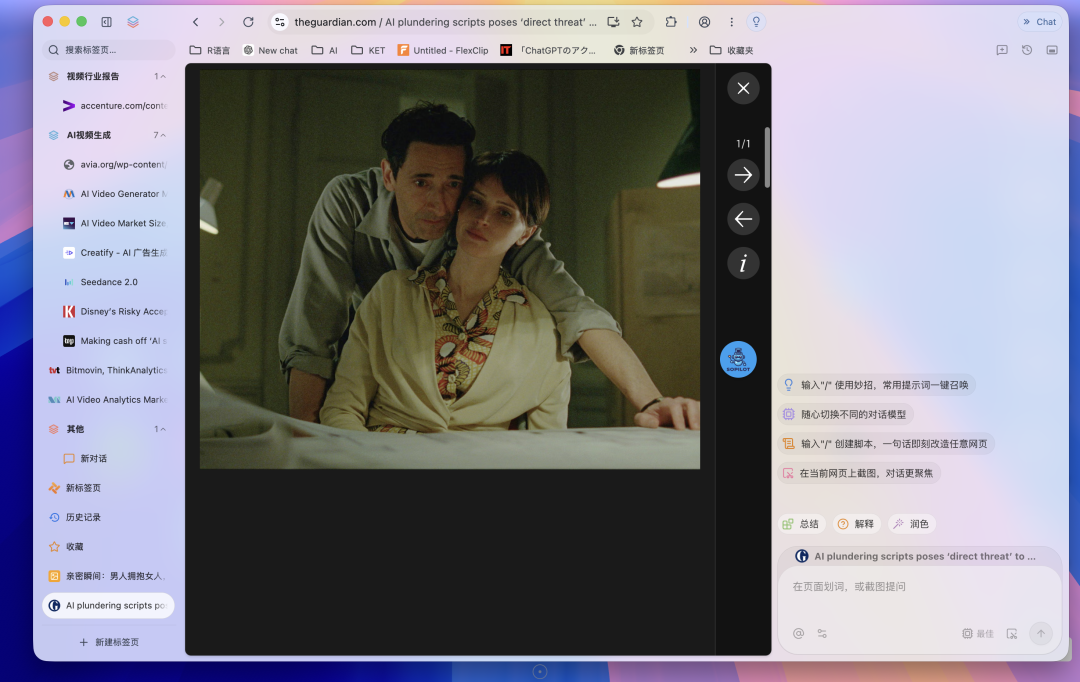
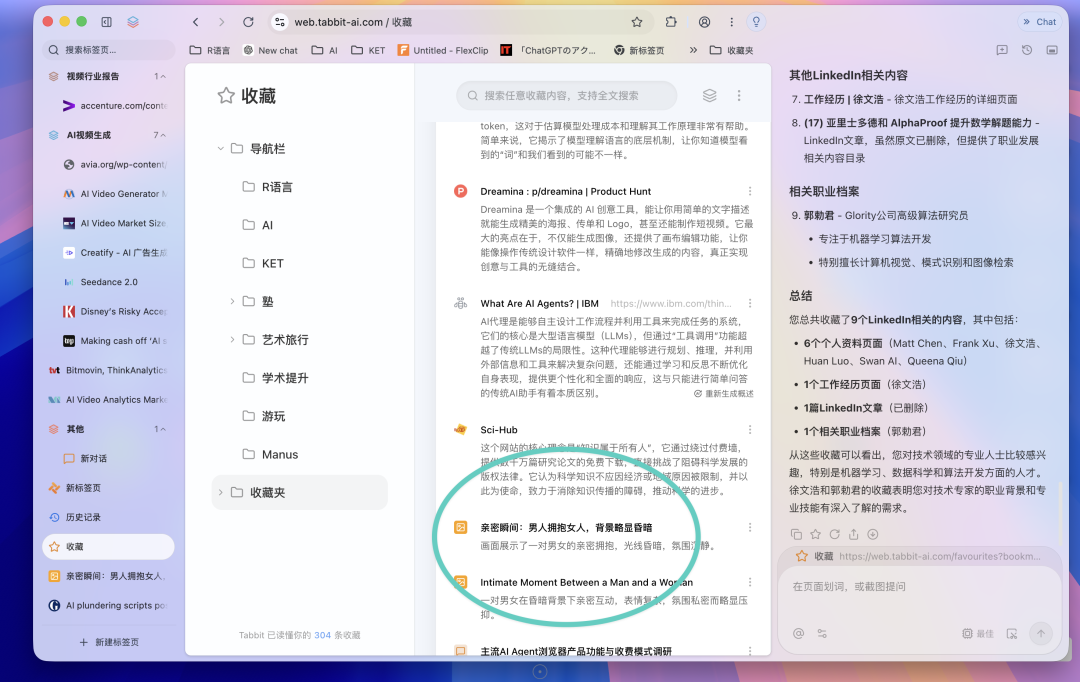
Like the image from the site above — I bookmarked it directly to my bookmarks folder. And you'll find it doesn't just save the site link simply; it has an AI information generation capability.
It recognizes the image, extracts key information, and automatically uses that as the bookmark item's name.
Moves
Having covered the basic features and capabilities above, you can see Tabbit AI Browser is fairly mature overall. On top of this experience, Tabbit AI Browser also offers quite a few novel creative touches.
For example it has a feature called "Moves" — think of it as a simplified version of Skills, Skills applied within a browser.
Its main capability is helping you do a Skills-like experience. You can press forward slash "/" directly in the search box or text box, and it will automatically pop up these Moves; select one and it helps you do workflow-based task processing.
For example I made a fairly complex Move called "Meeting-Product Alignment Analysis":
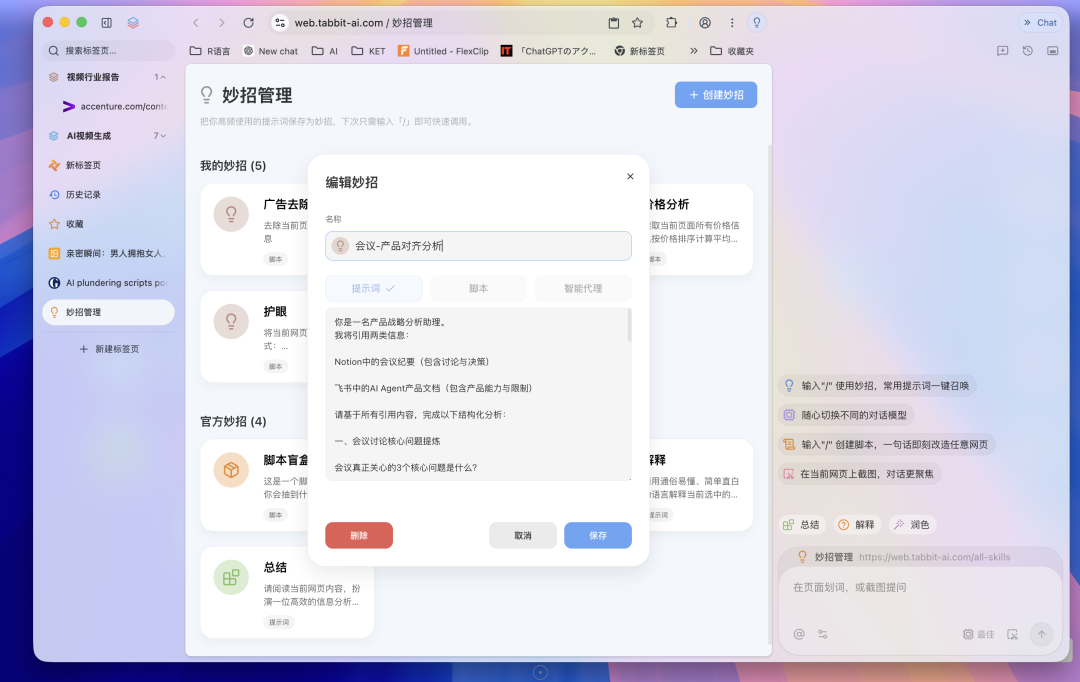
This Move solves one thing: when I use OpenAI's Codex, I've already built a set of Skills where after internal team meetings, all voice gets automatically transcribed, generating structured meeting notes that auto-save into my Notion database.
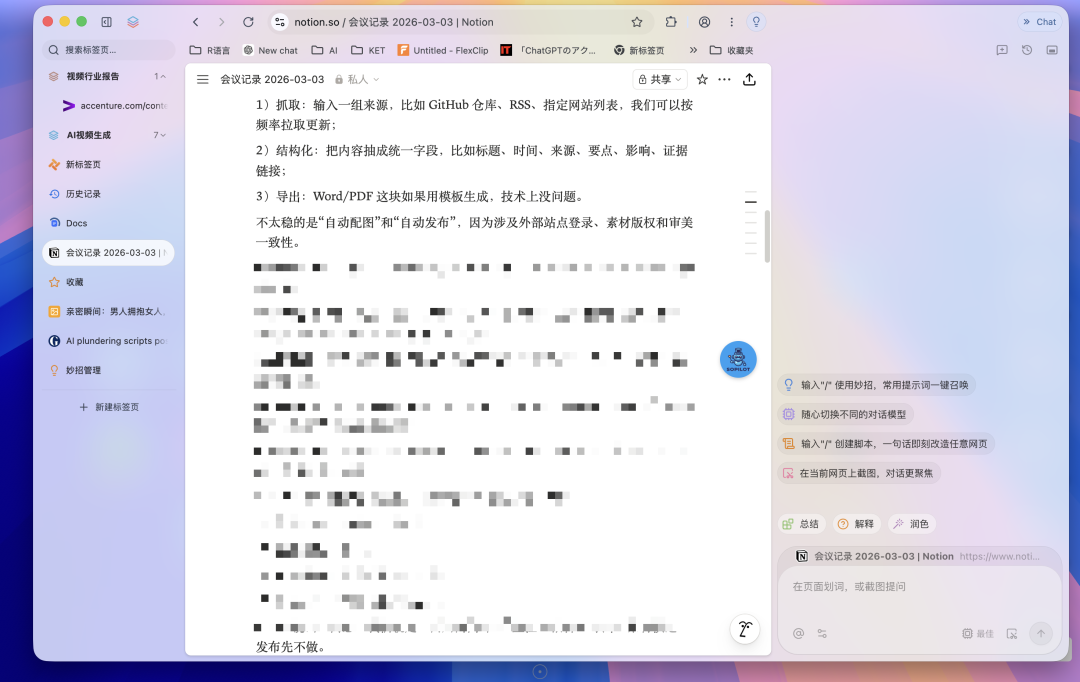
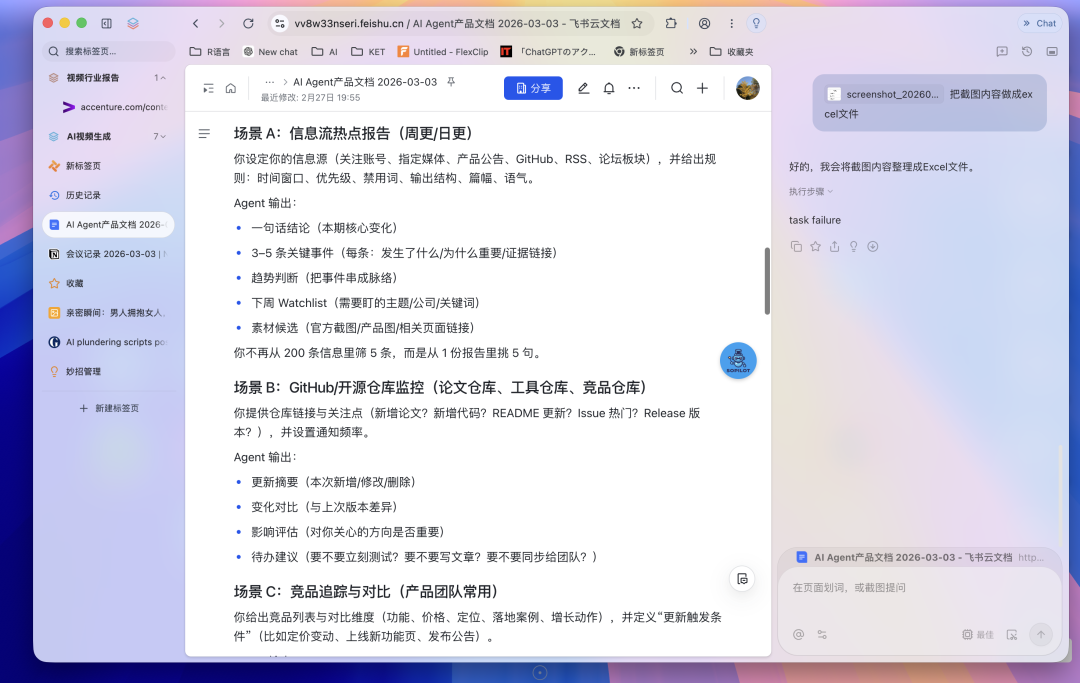
But Lark is where our team actually collaborates better; product documentation lives more appropriately in Lark. So we save our AI Agent product's structured documents in Lark.
This involves two platforms, and information in these two platforms is often partially coupled, partially matching.
So I need a workflow capability to organize and combine documentation information from these two platforms.
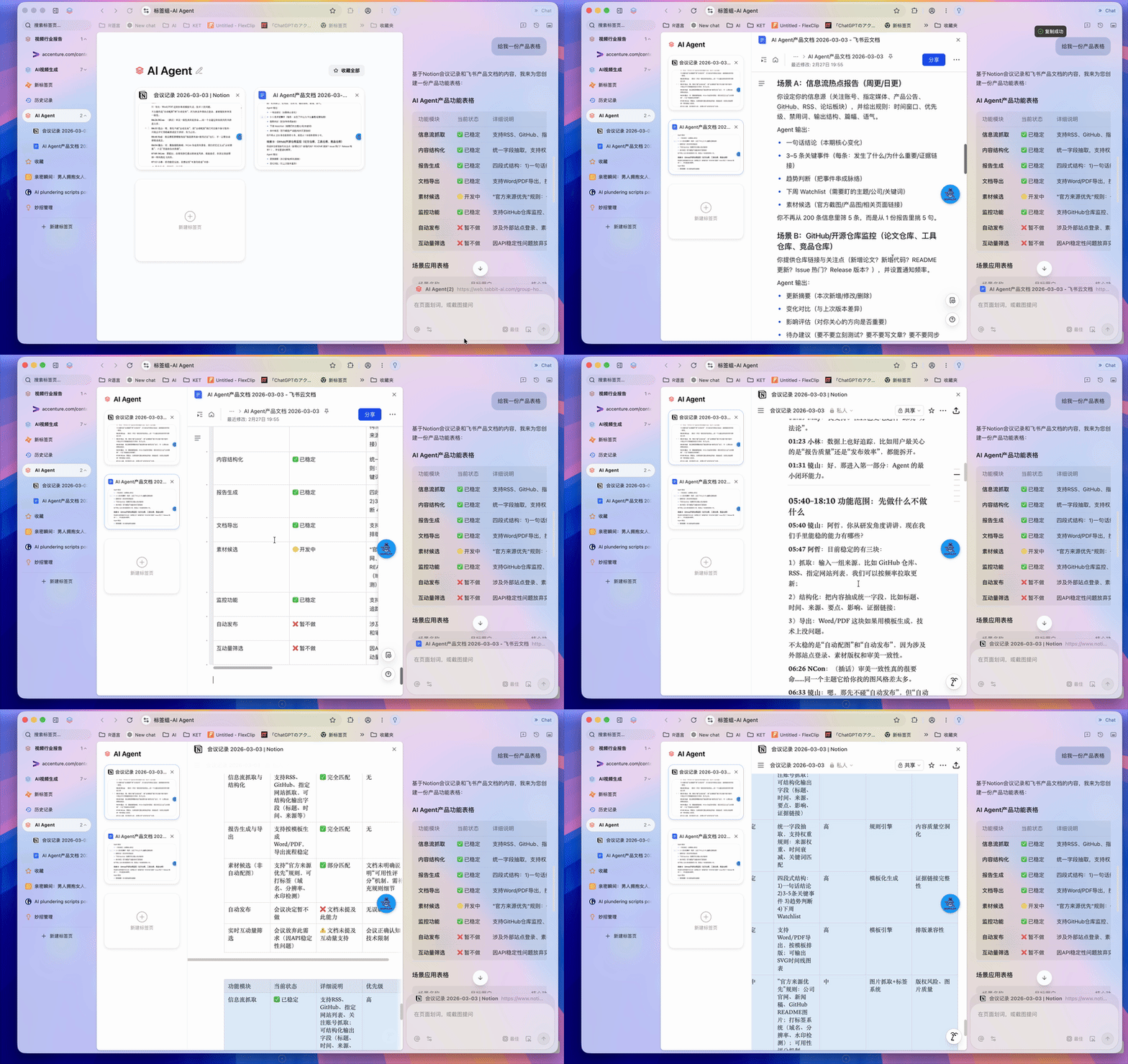
The specific workflow goes like this: first set up a Move, give it some preset prompts, having it follow a logic of integrating Notion database and Lark information, outputting a final combined report in structured form.
Then you need to put both pages under the same tab group, say one called "Meeting Product," click that tab group, and in the right-side input box type 「/ meeting-product」 to invoke that Move.
You'll see it generates a structured report integrating Lark and Notion data according to the preset prompts configured in the Move, matching my requirements.
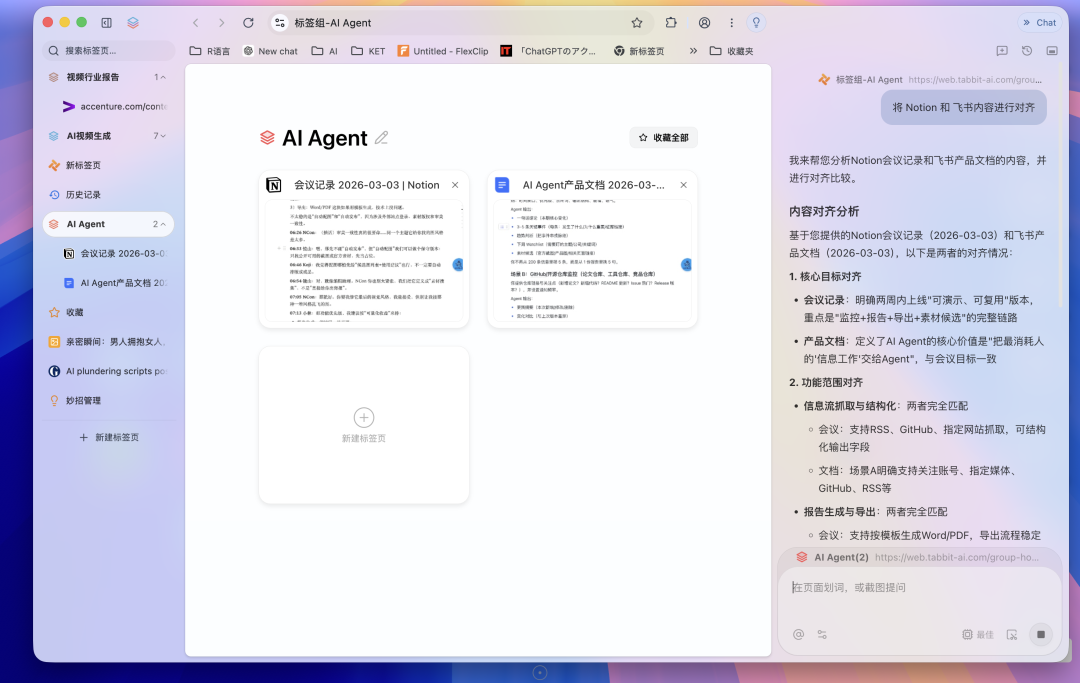
In use, there's genuinely a lot of potential to discover. For example when you click a tab group, the report it generates often includes tables.
And these tables can be one-click copied directly into Lark or Notion databases, table formatting preserved. This operation is very smooth.
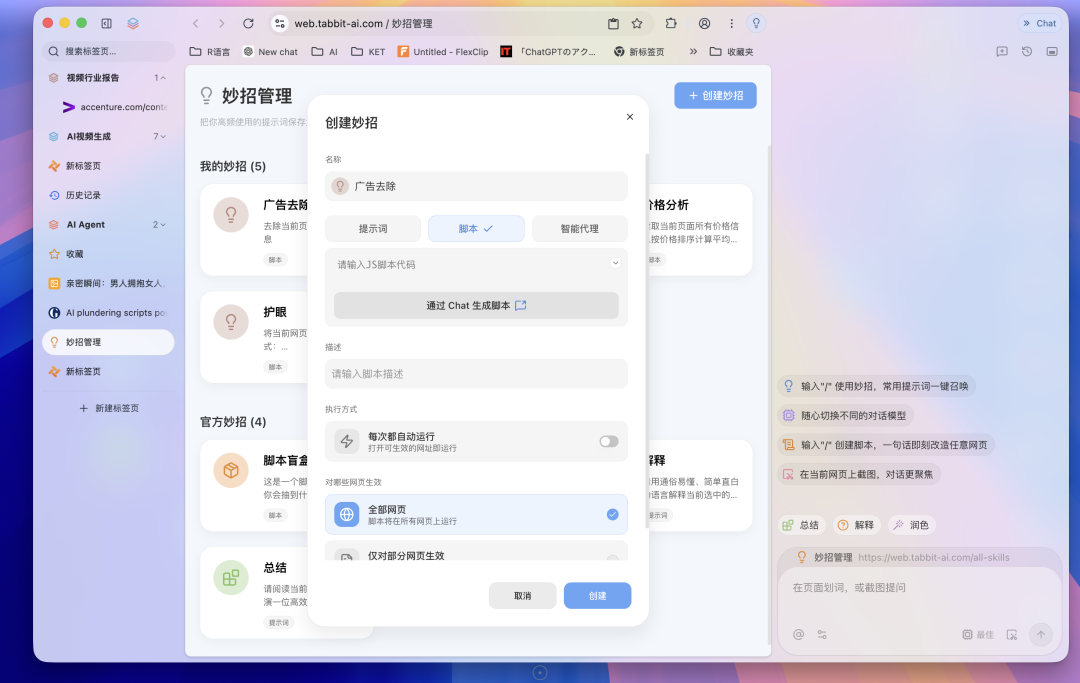
Beyond custom prompt-based Moves like above, Tabbit AI Browser also supports "Script Moves."
As the name suggests, you can directly input script code to "transform" the current page; if you don't code yourself, you can generate it through AI conversation:
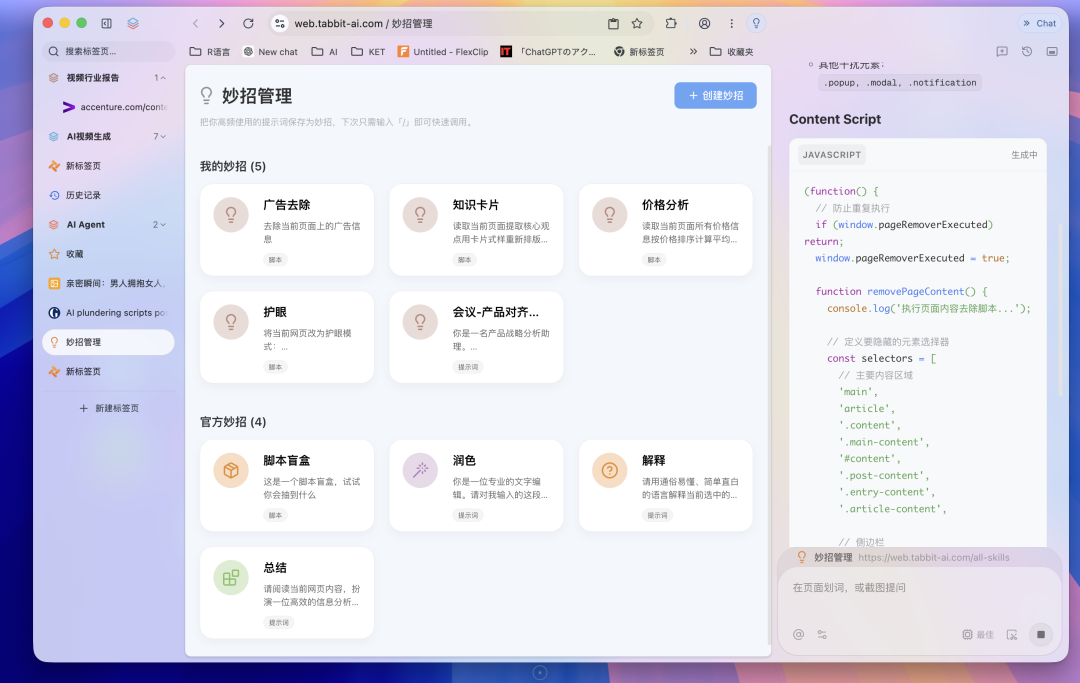
After generating a Script Move, you can save it with one click, then when opening a webpage, invoke it with one click from the text box at bottom right.
For example I made an "Ad Removal Mode" Script Move that autonomously creates a Content Script:
Then click to activate — this ad removal script can automatically identify and remove ads:
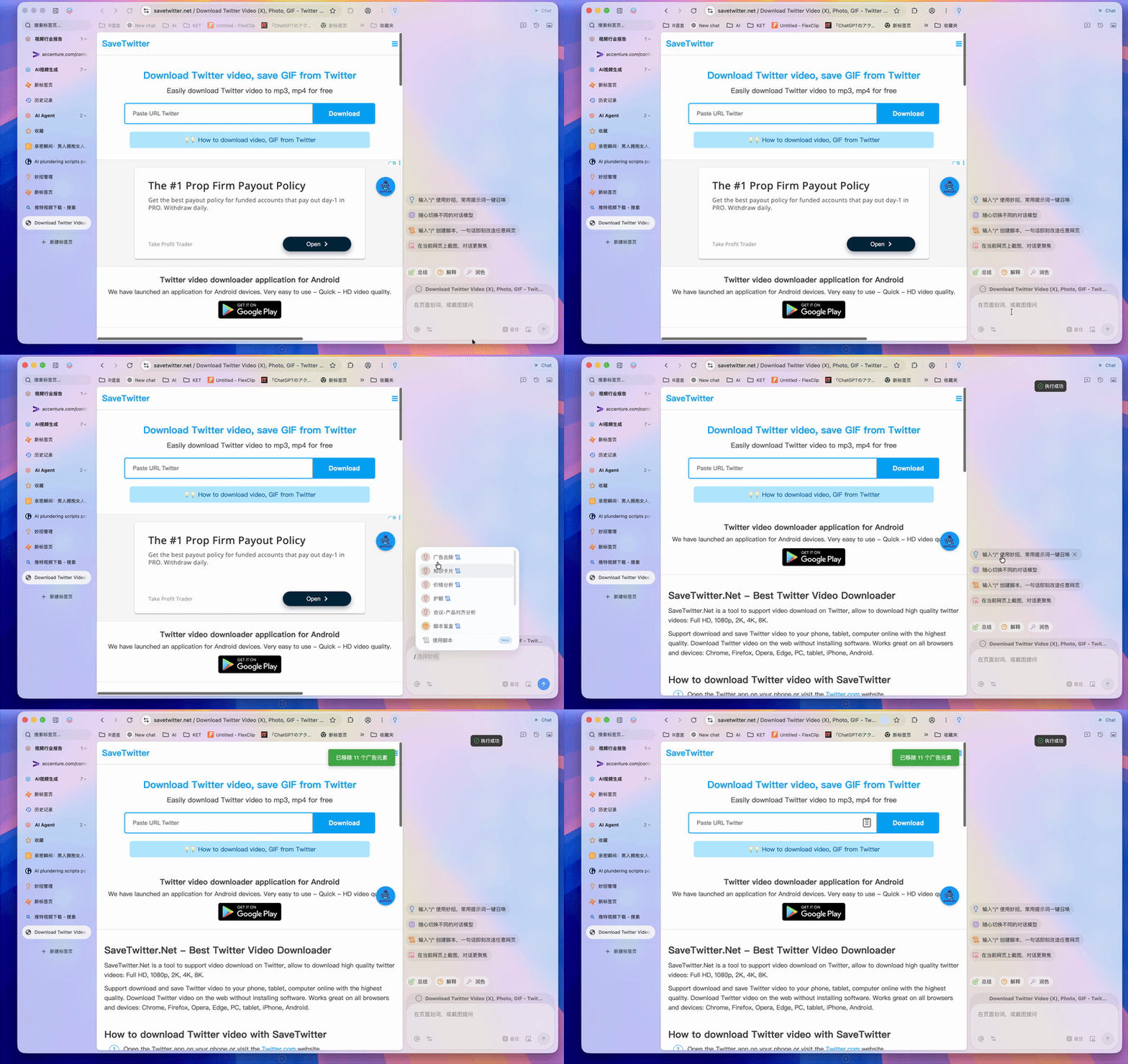
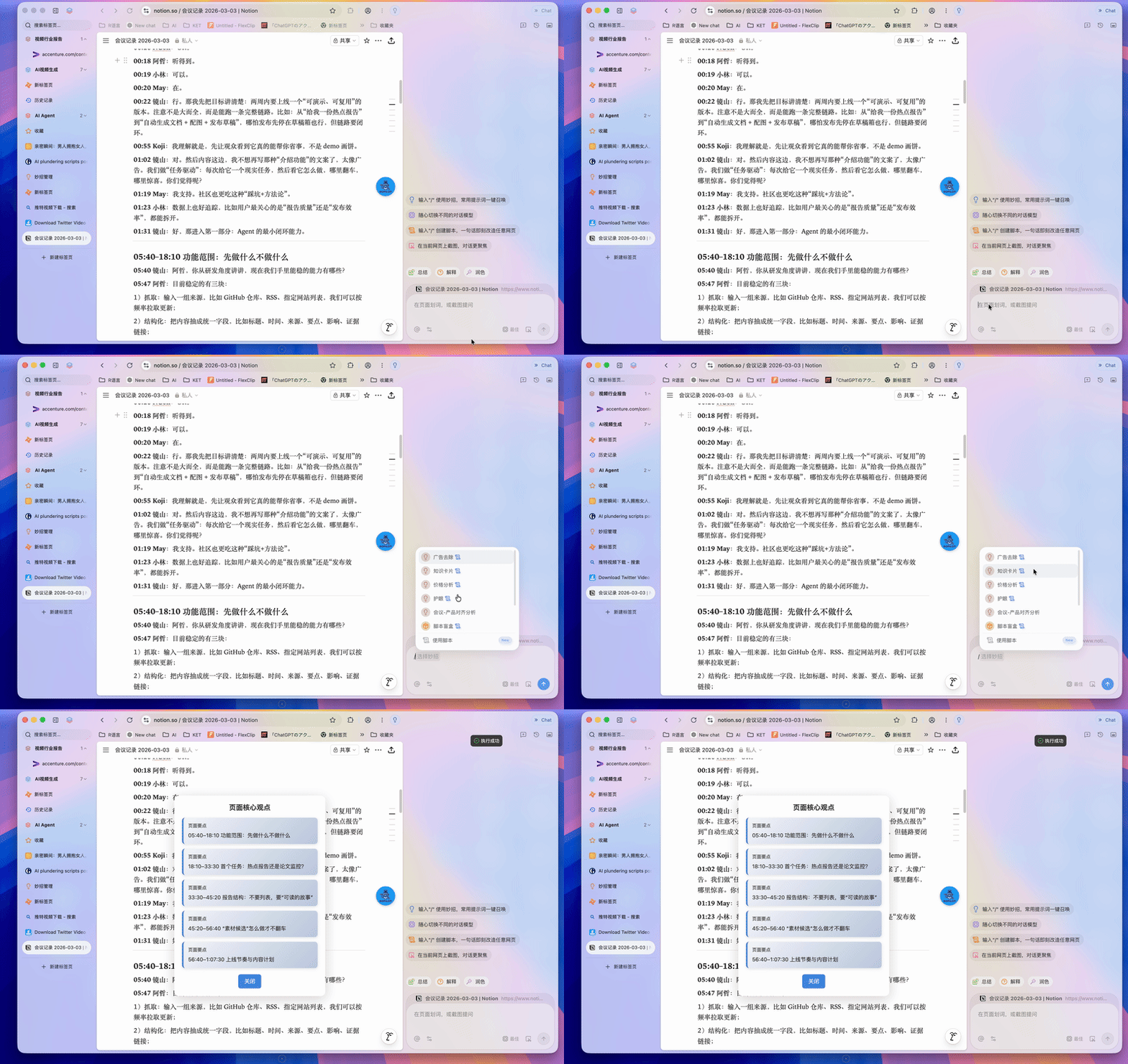
You can even make key knowledge cards based on keywords in page content (like core, key, main, primary, feature, function, advantage, characteristic, innovation), extracting several key points from Notion meeting notes:
Smart Agent Mode
Finally, Tabbit AI Browser's Smart Agent Mode. This is something many AI browsers are doing — using AI agents to do fully automated browser operations for you.
As we said at the start, it's well-suited for AI-native workflows.
For example I first asked it, what well-known AI startups are currently building AI browser products, using its Chat mode through its built-in AI search engine to synthesize information.
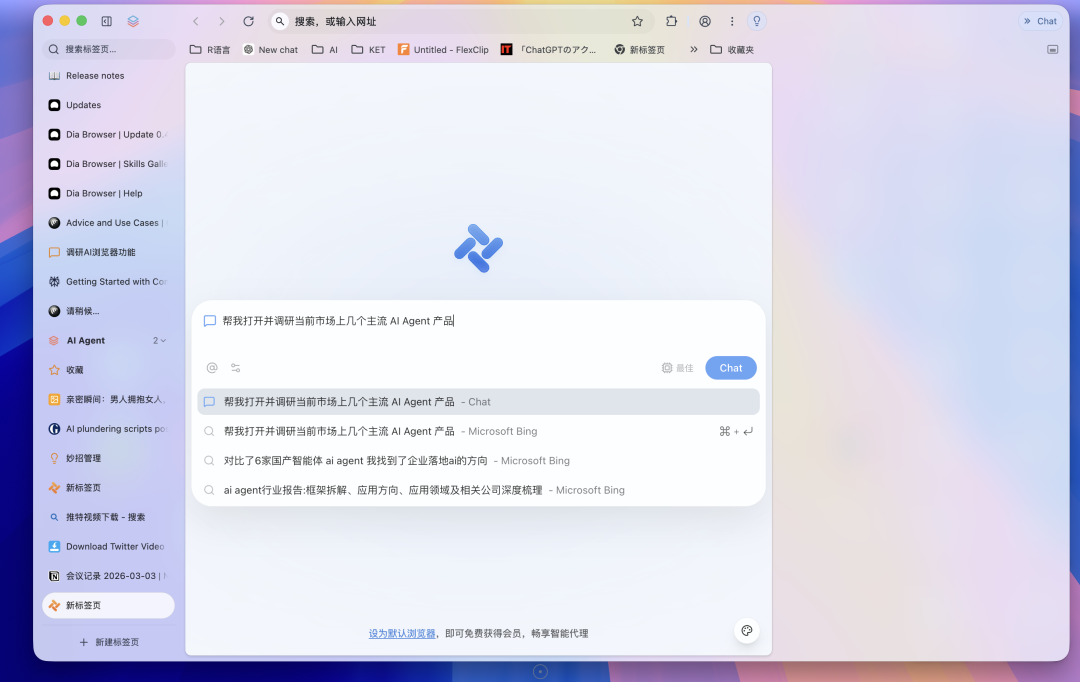
Then it uses its AI engine to do massive web searches:
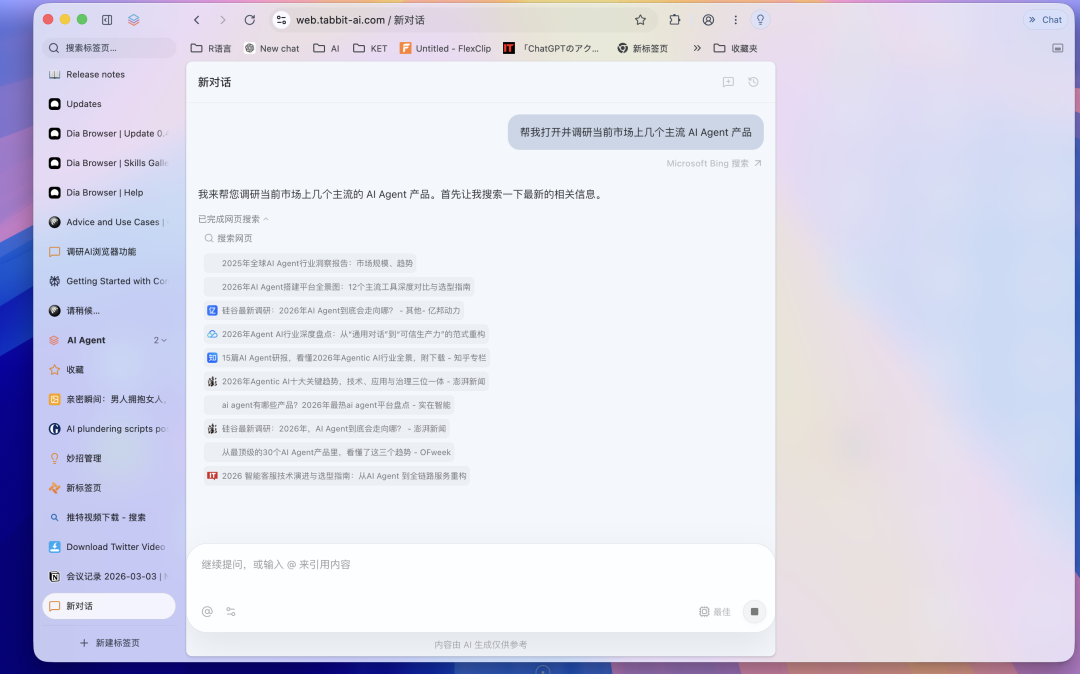
Then gives a final very structured answer, followed by a compilation of all source website links it referenced.
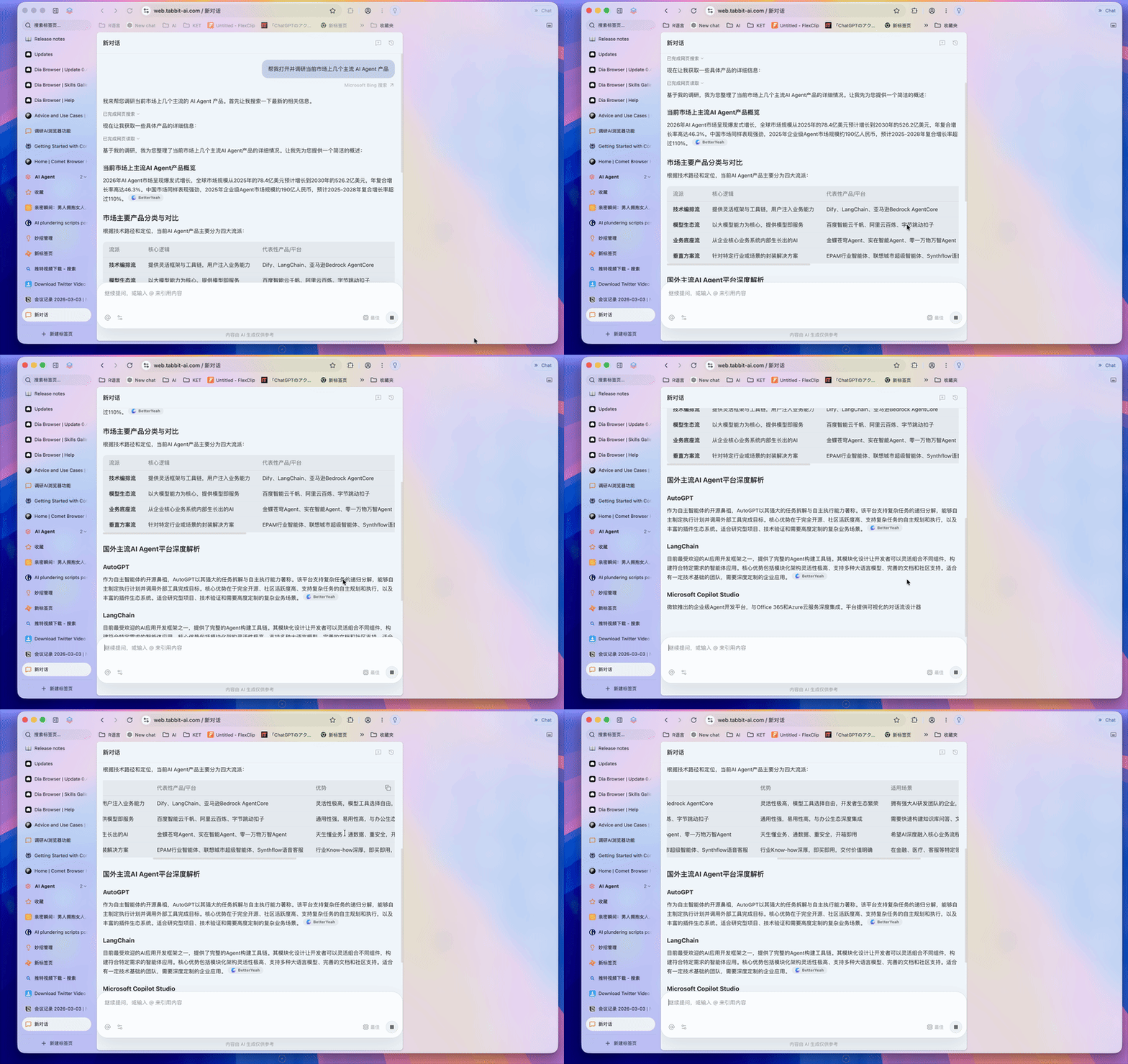
Then you can take another step, having it autonomously research some mainstream AI products in the market — the ones from its previous answer.
Generally when we have AI research information, it easily cites small media content, which may be secondhand processed.
So I particularly want AI agents to help me search primary information directly from these products' official sites, official documentation. This is actually rather tricky.
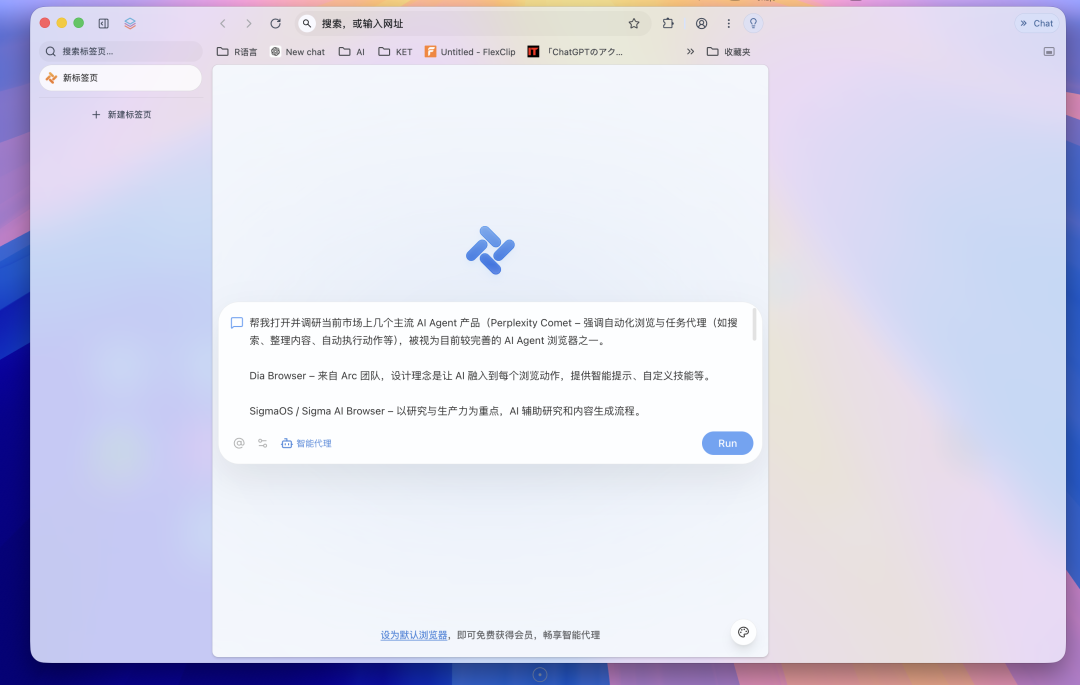
So at this point I enable Smart Agent Mode, having it help me look up information from these mainstream AI browsers' official documentation.
You'll see it first does some research, then autonomously clicks into these AI browser product sites, extracting content from official docs, even autonomously typing in text boxes to search for related information.
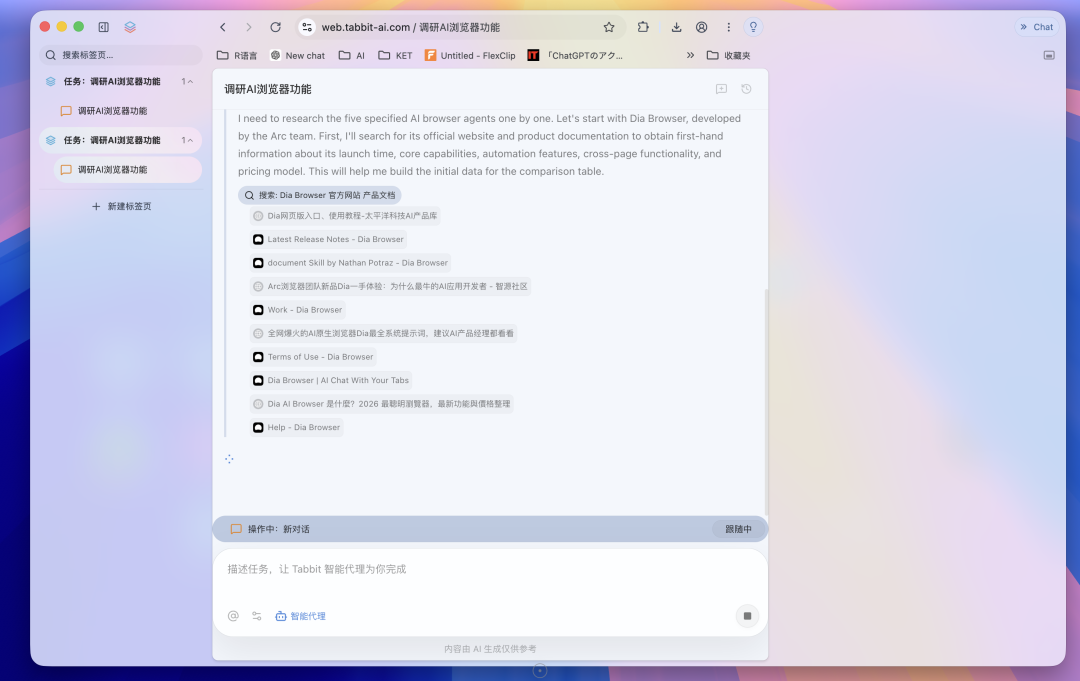
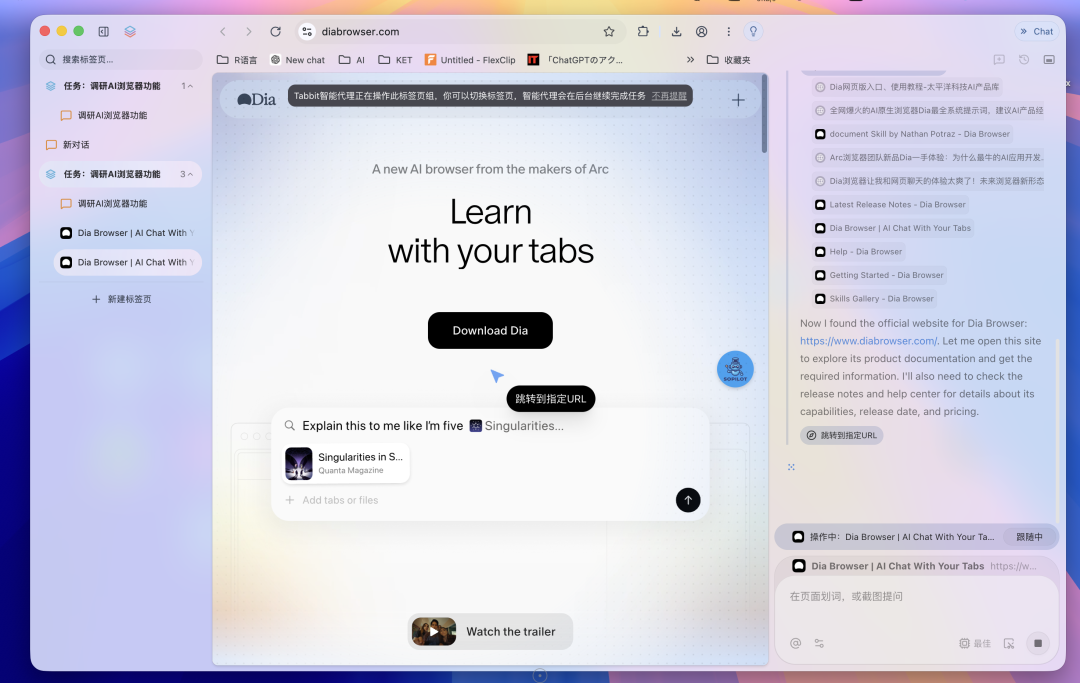
Then I recorded a result — you can see it goes through the several AI browser pages mentioned in my prompt one by one, searching, researching, extracting information from their official sources, ultimately giving a very complete report with a huge table, all information well fleshed out.
But must say, having an AI Agent replace humans in operating browsers and extracting information — this process really is quite long, quite time-consuming.
For this task, it might run continuously for nearly 30 minutes. It didn't make too many errors, completed things relatively coherently overall, but this wait time really is long.
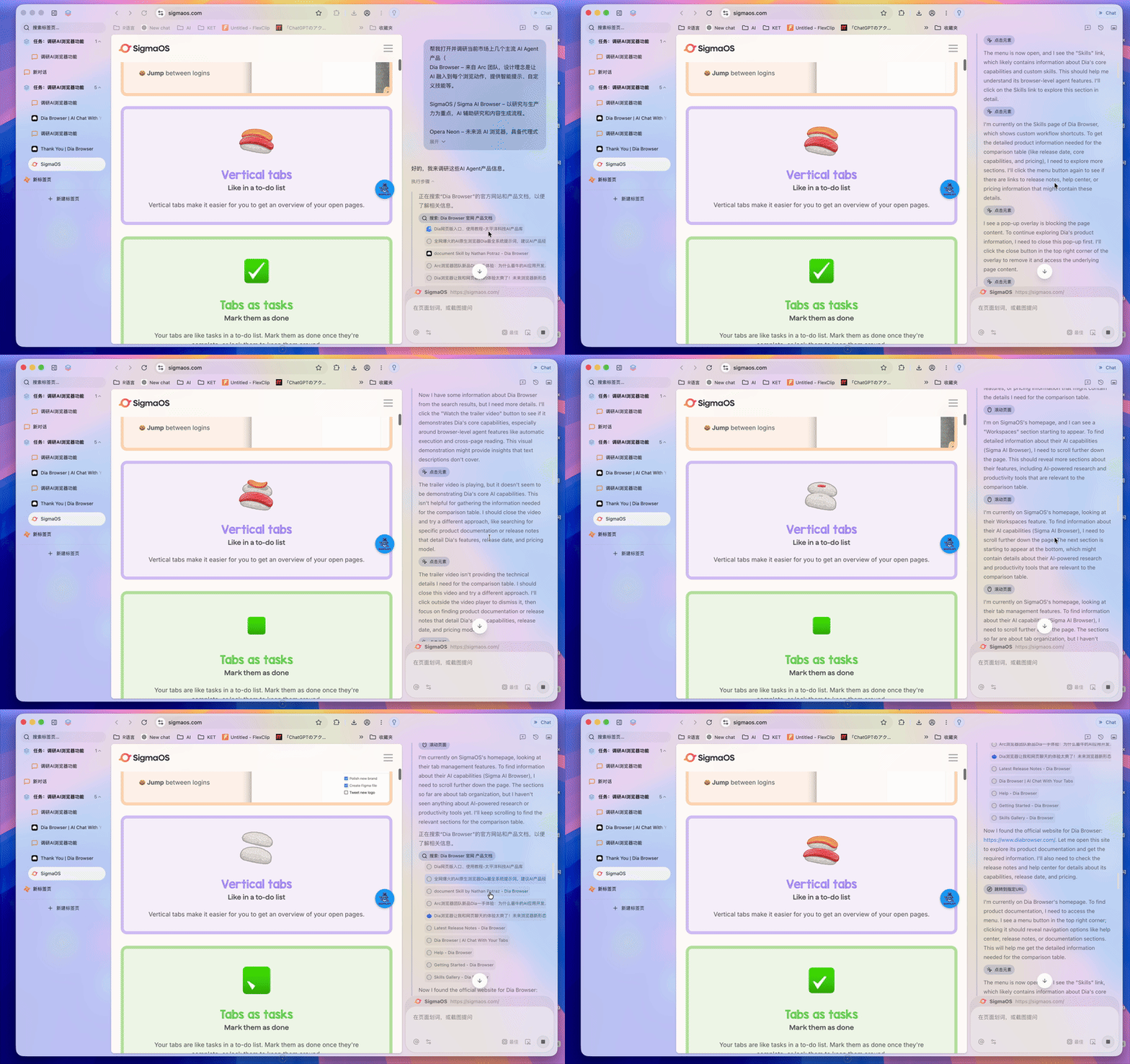
However, the Smart Agent creates a separate group to execute tasks in, not disturbing me from continuing other browser operations. Though the wait is long, you're not "staring blankly waiting" — you can continue doing your own things in the browser.
All content in Tabbit AI Browser's information panel can be directly saved as PDF or Markdown format files, or bookmarked.
And when you click bookmark, each step's content gets divided into multiple modules; you can selectively bookmark certain modules, and they'll save to the browser's bookmarks.
So all this AI-generated information, since the bookmarks also have AI context organization capability, this AI output is essentially "compounding."
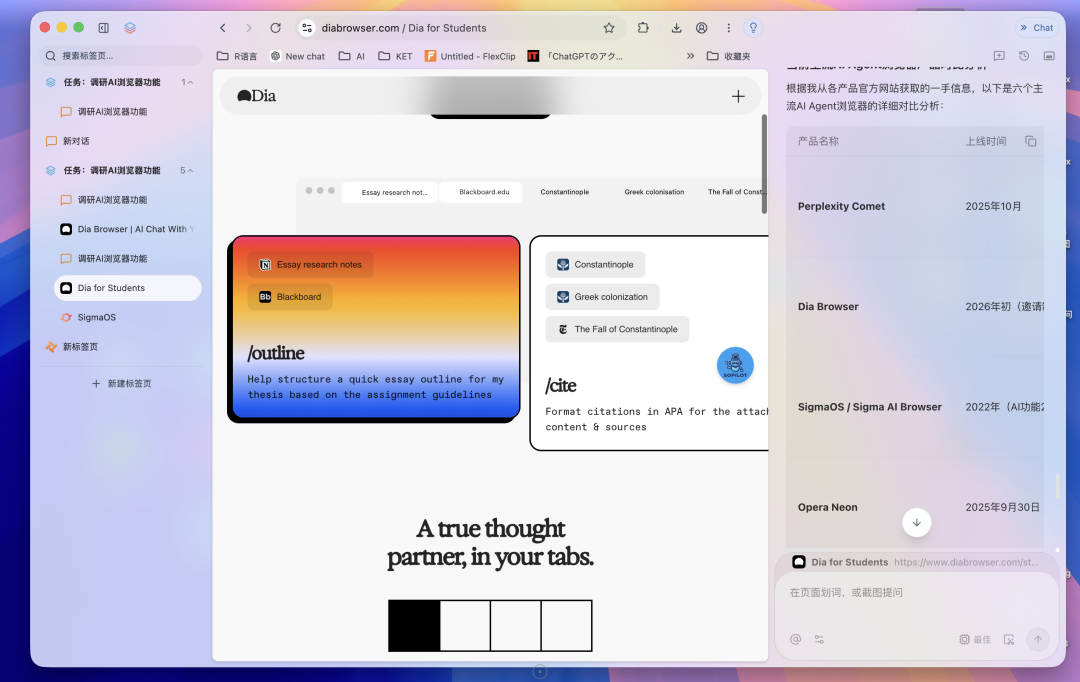
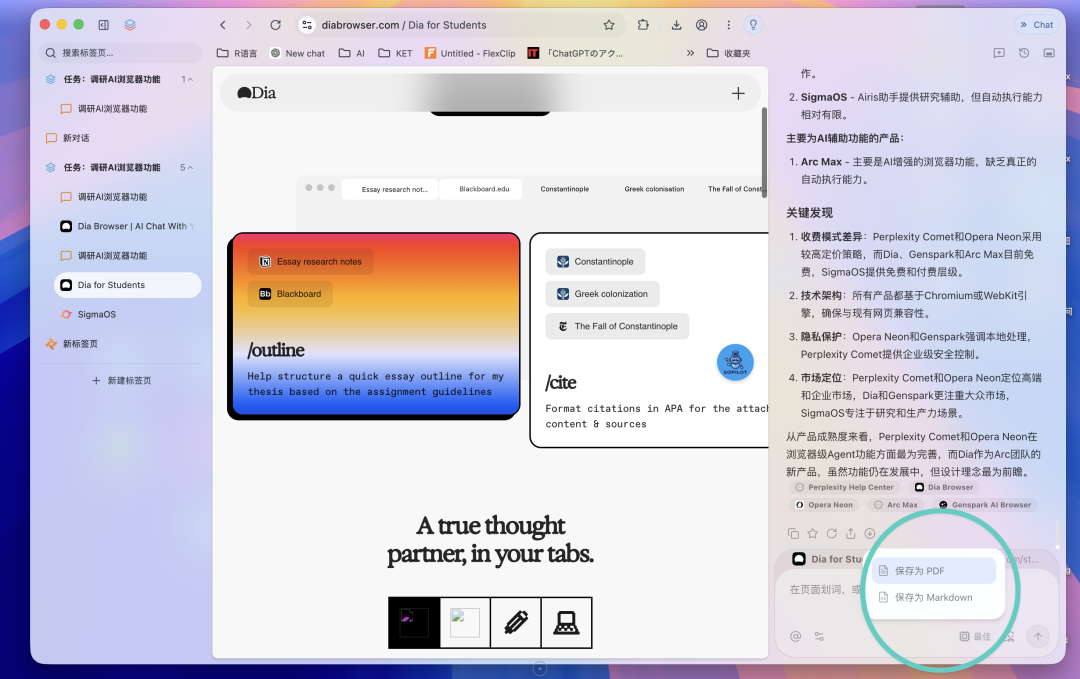
AI output in Tabbit AI Browser can be bookmarked; bookmark content gets AI context organization; organized information can feed back into the next tab group analysis.
Tab groups, bookmarks, screenshots, double-clicking images... these are the most everyday, highest-frequency operations in browsers, with AI packed into every detail.
Every use can be seen as "compounding" — this is what's most attractive about AI browsers.
Whether users are willing to swap out Chrome, which they've used for over a decade, for AI features — this remains unclear.
But one thing is certain: the browser as an entry point is worth someone taking seriously and rebuilding properly.
Official site for download and trial: www.tabbit-ai.com