First Hands-On With Floatboat: The One-Person Company Workflow May Be About to Change

All for One, One for All — the flow of information.
All for One, One for All: How Information Flows
👦🏻 Author: Jingshan
🥷 Editor: Koji
🧑🎨 Layout: NCon

OPC — One-Person Company — suddenly doesn't feel so "conceptual" anymore. The pace of AI development over the past year has made this model significantly more viable.
One person plus a few Agents can sometimes genuinely replace a three-to-five-person team. A content creator can use a full suite of Skills to simultaneously handle topic selection, writing, layout, and distribution. An e-commerce operator can use Agent workflow orchestration to manage product selection, listing, customer service, and ad buying — all at once.
This "one person, many roles" way of working is becoming mainstream. And AI products are pushing in every direction to serve it.
Among them, a project called Floatboat — still in closed beta — has already raised a seed round from HSG and Microlight Venture Capital.
There are plenty of similar products in this space. So why did HSG and Microlight bet on Floatboat?
🚥
The Crossing team put Floatboat's product logic to the test, using it for an extended period.
This article is our observation and experience: what it's doing, how well it's doing it, and what genuinely sets it apart.
What Are OPC and Floatboat's Underlying Logic?
First, the OPC concept. Many people still see the one-person company as a niche idea — something for a handful of freelancers. But as AI capabilities keep iterating and general-purpose Agents fill in the gaps, the one-person company has shown serious potential.
Many "super individuals" aren't doing this because they couldn't find a job. They're actively choosing this way of working.
But the tooling hasn't fully caught up. The precondition for a one-person company is that information processing and production efficiency must be high enough to rapidly understand and solve day-to-day problems — and the friction of switching between various AI tools must be minimized as much as possible.
This is what Floatboat aims to solve.
Floatboat's positioning is: not another AI chatbot, not another automation tool, but an AI-native work environment designed specifically for someone who wears multiple hats.
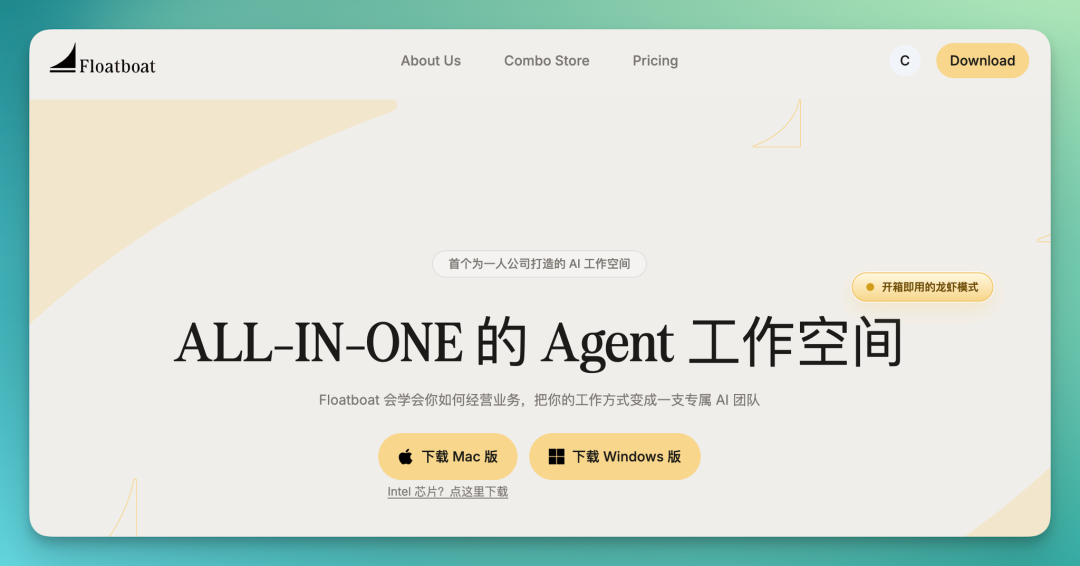
Product link: https://floatboat.ai/
How to understand this "work environment"?
With traditional AI products, to collaborate with them you first have to "feed" them context. Copy and paste some text, upload a file, screenshot an image and send it over. Every conversation starts from scratch. Your interaction with AI is essentially you constantly "moving" information to it.
Floatboat's approach turns your entire computer into the Agent's runtime environment. Files you see in your file manager, the Agent can directly perceive. Webpages you have open in your browser, the Agent knows about too.
You don't need to manually move anything. Your live workspace becomes the Agent's sensory interface. In this kind of "work environment," can efficiency actually improve?
Below is our full hands-on review. Let's try to answer that question with Floatboat.
All for One, One for All: How Information Flows
First, what is Floatboat? Simply put, it's a "workspace." The core capability of this space is letting information flow freely.
Its logic can be summarized in two sentences:
All for One: All information can flow in. Webpages, local files, cloud drives, WeChat messages, Safari links, data from native macOS apps — everything can stream into Floatboat's single interface and become complete "context."
One for All: The context that flows in can continue to move within the workspace. What you produce doesn't get locked into any single tool; it can serve as new context for the next step.
This sounds abstract, so let's break it down with a real-world scenario that media professionals encounter regularly: deconstructing a complex AI product through a long-chain task, to see what these two sentences actually mean.
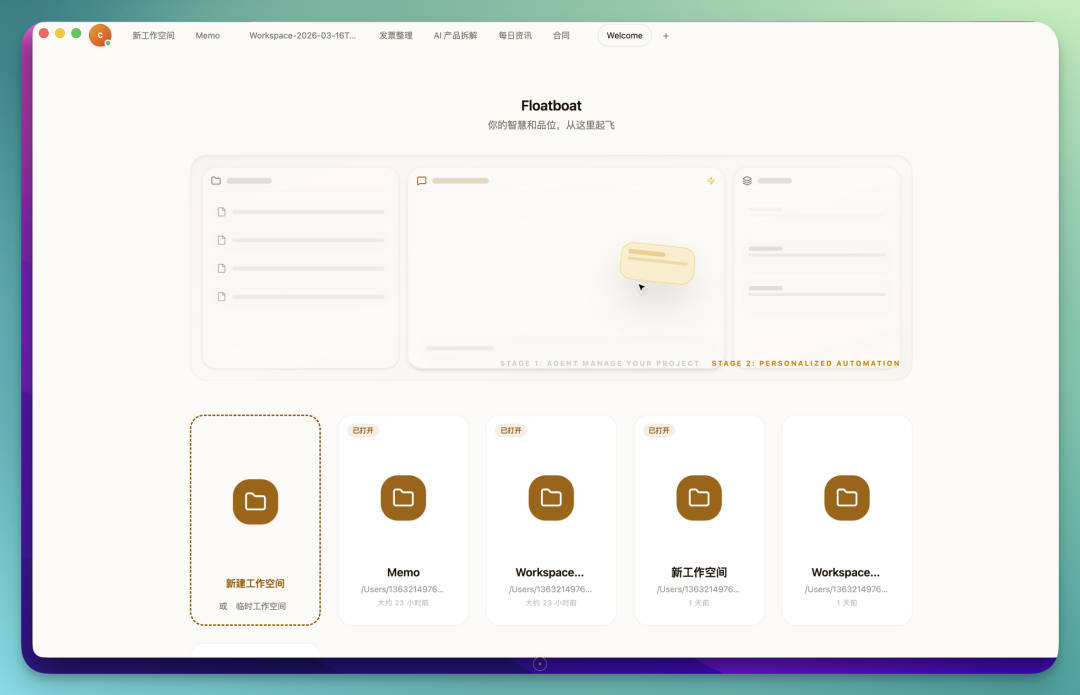
Step one: create a "workspace" in Floatboat.
1) Basic Interaction
Once created, you'll see Floatboat's main interface.
After obtaining user authorization, it automatically perceives files and applications on your computer. In the same page, you can simultaneously open local files, Chrome browser, AI chat, and Floatboat's unique Combo Skills — up to four panels side by side.
Each panel can be freely dragged to adjust position, and closed anytime when no longer needed.
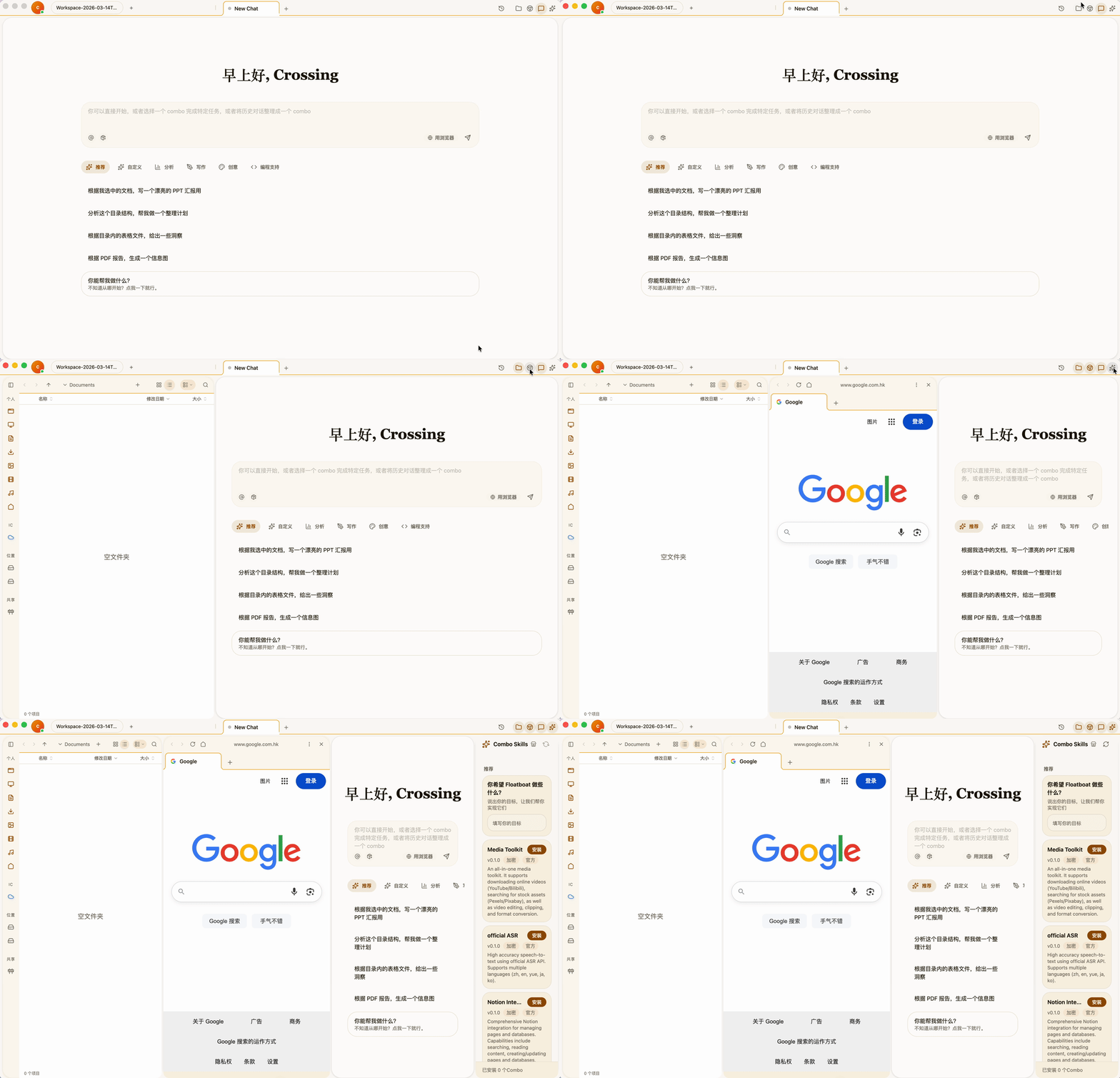
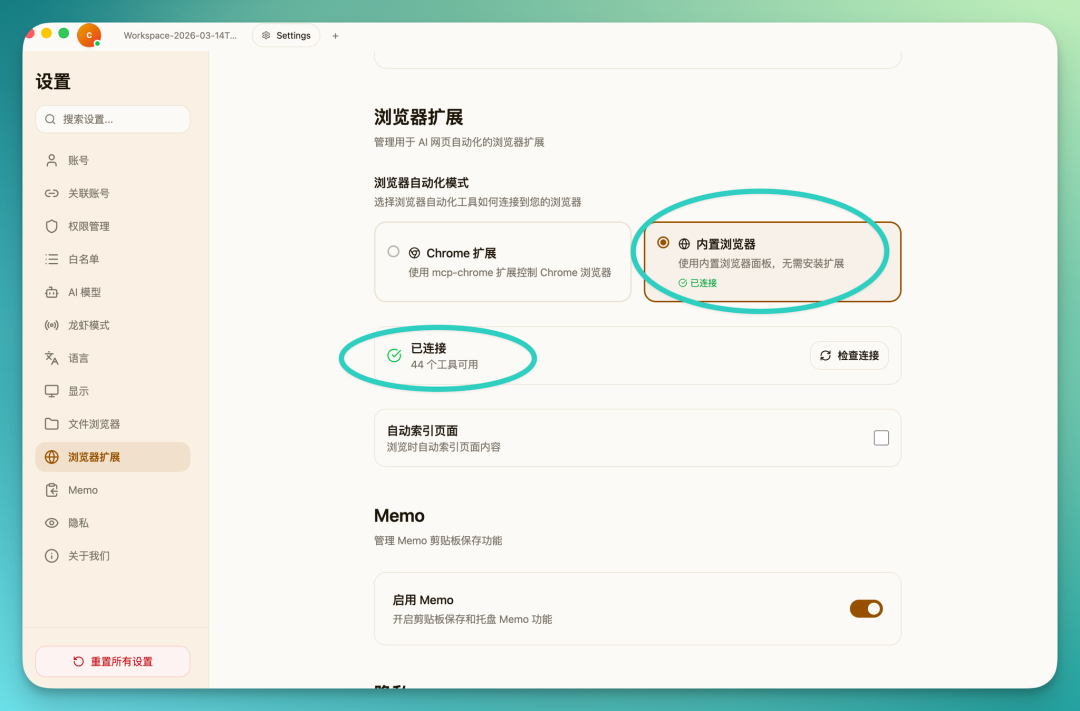
A note here: Floatboat has a built-in browser, which is what you're seeing above. This means you can open any website you like — Lark docs, DeepSeek, Gemini, Manus — and you can even have Floatboat automate operations on these sites.
Of course, you can also connect via Chrome extension. If you choose the built-in browser, it automatically connects with some built-in tools:
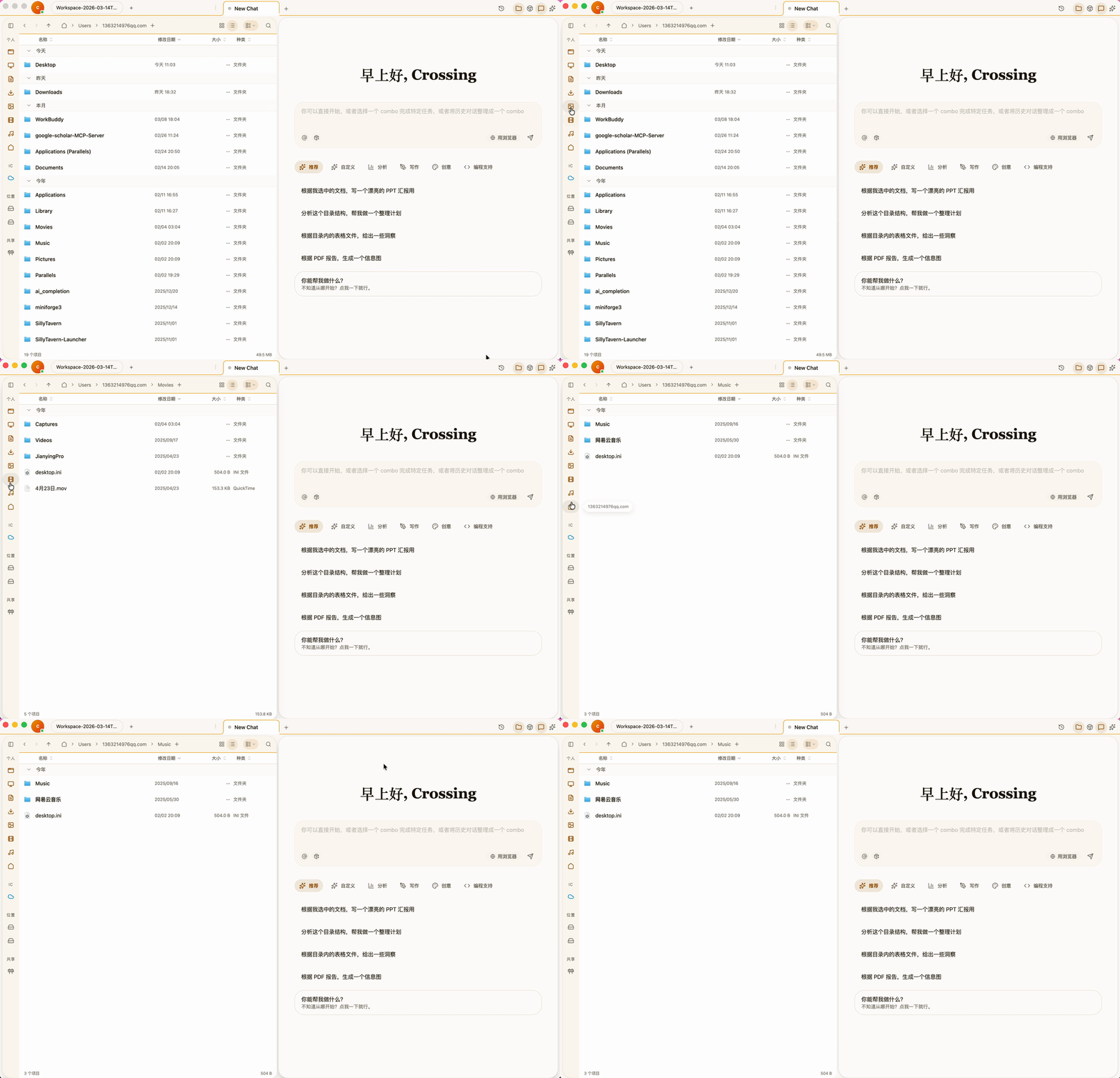
There's also a built-in file manager that handles both local files and cloud drives. The key point: AI can directly read and save files without you manually uploading or downloading.
Select a file, or simply say the filename, and the Agent can perceive its contents.
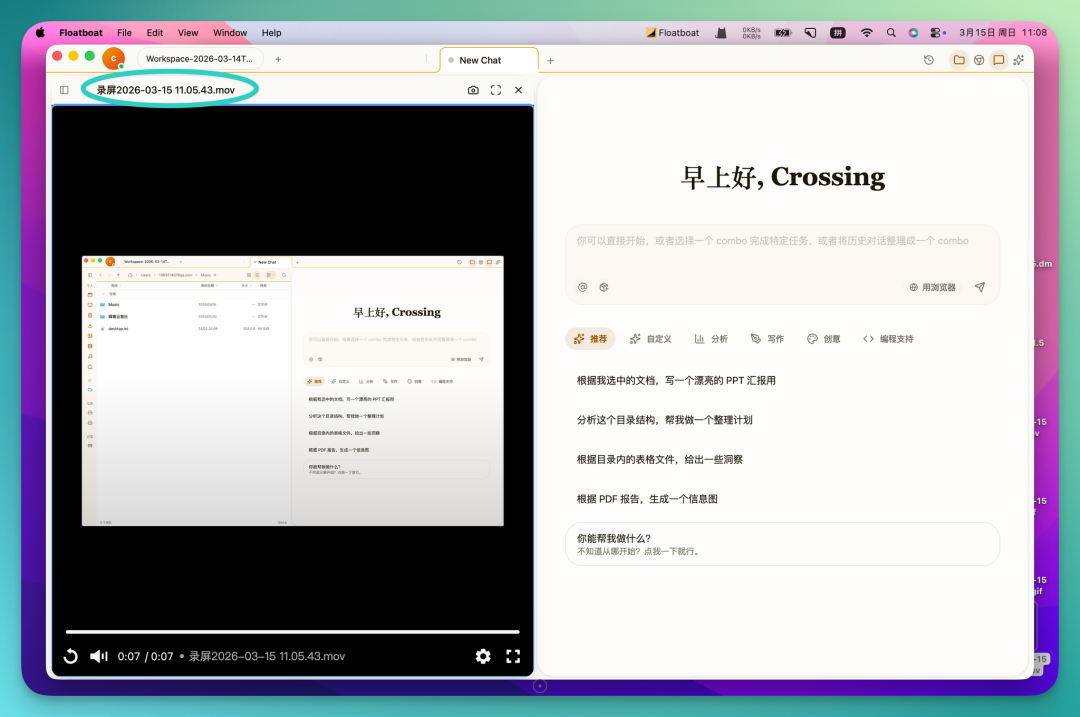
File preview supports a wide range of formats: Markdown, CSV, HTML, code, Word, Excel, video — all viewable directly. Basic editing is supported for common document types too, such as Markdown, CSV, and simple Excel edits, which we'll show in more detail later.
There's one particularly notable design in the workspace worth calling out separately.
Floatboat's interaction logic is actually quite similar to browser tabs. It supports any combination of Chat, File Manager, and Browser views. You can open just one chat panel, or simultaneously open file + chat, or browser + chat, or all of them — any combination based on your work type.
That "+" at the top of the interface — click it to create a new workspace, just like opening a new tab in a browser.
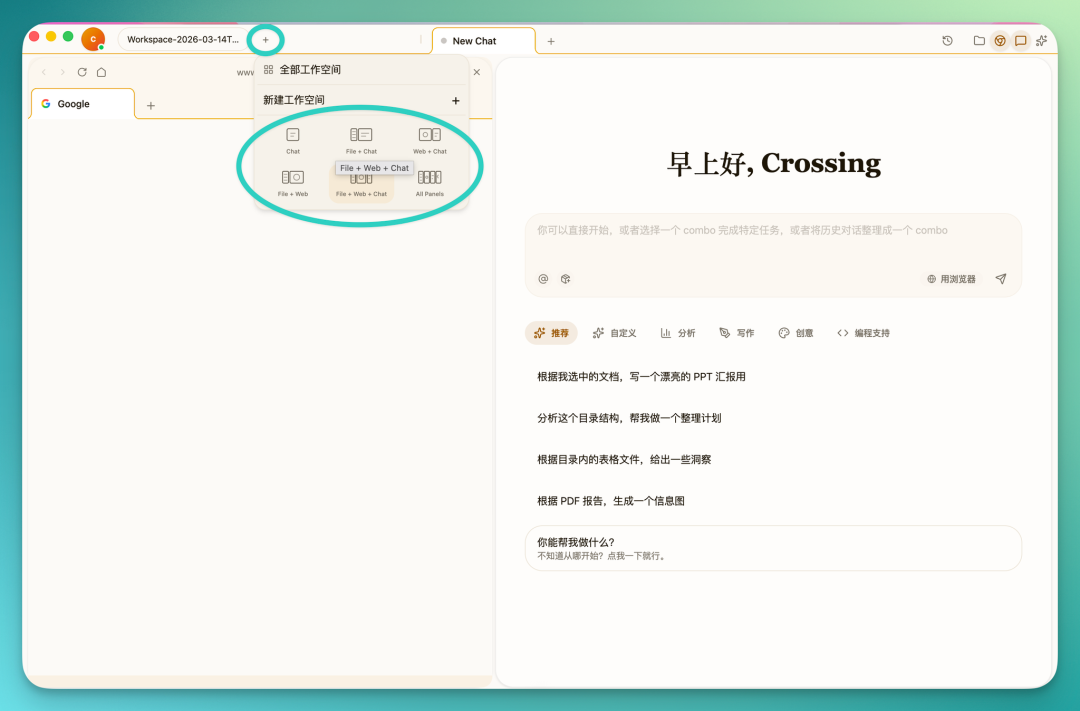
Each workspace's contents are independent, don't interfere with each other, and can be freely operated. But they can also simultaneously share your file directory — entirely depending on your needs.
This tab-style interaction has very low friction; it feels intuitive to use.
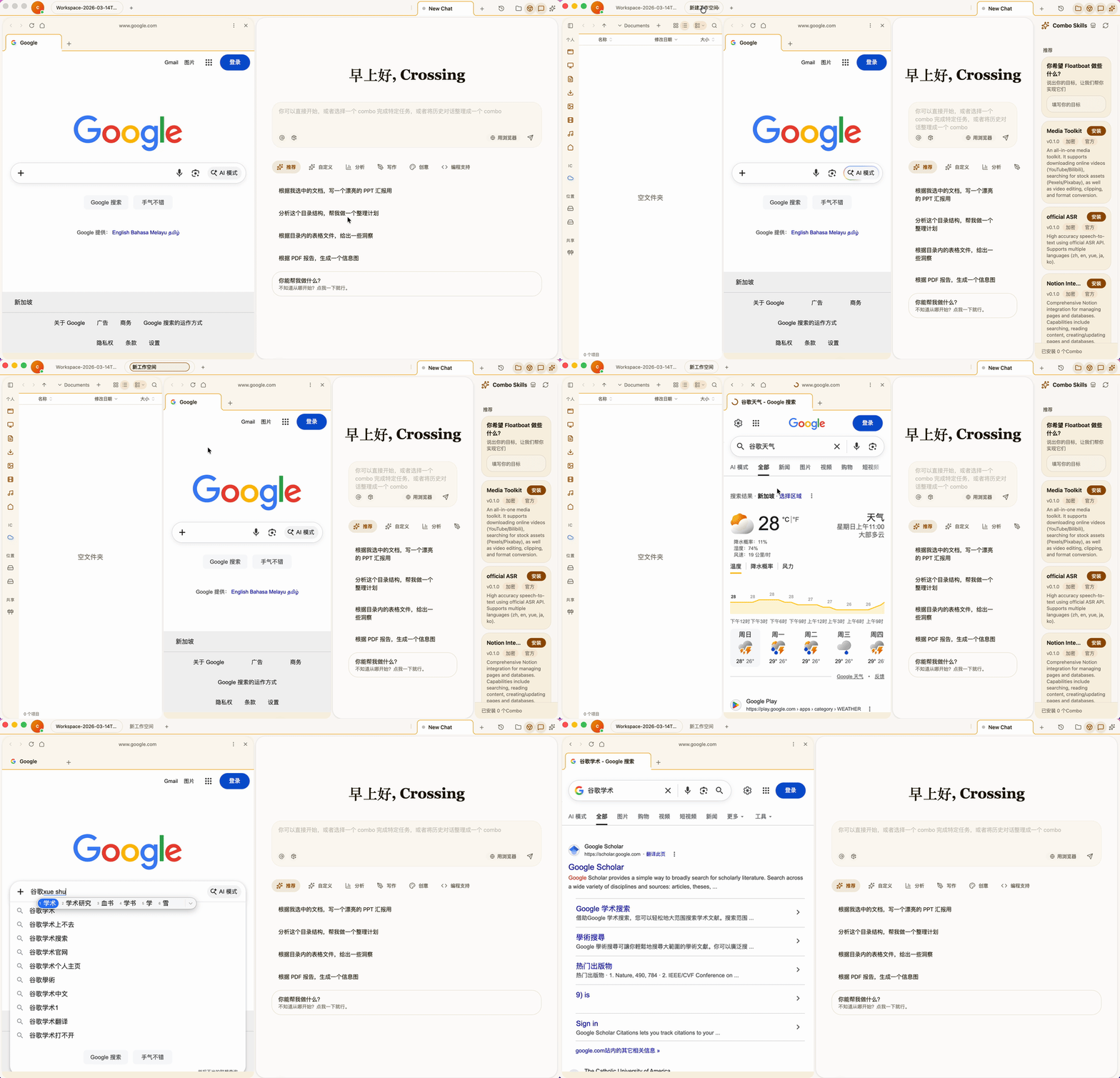
2) Context Production
Let's take LoveyDovey, an AI emotional companion product, as our example. Ten months ago, we published an article titled "Small but Beautiful" Team Builds Asia's #1 AI Emotional Companion App | We Found 6 Reasons It Became a Dark Horse, which got nearly 4,500 shares.

This product has been trending again lately, so we're using it to demonstrate how Floatboat can be used to research and break down a complete AI product.
When researching an AI product, we generally look at three things: growth, investment research, and the product itself. In Floatboat, all three can happen simultaneously in the same interface.
First, the most core feature of Floatboat: information flow — the production and movement of "context."
The file manager on the left supports full multi-window capability. You can open multiple files in tabs, and open the same file as many times as you want.
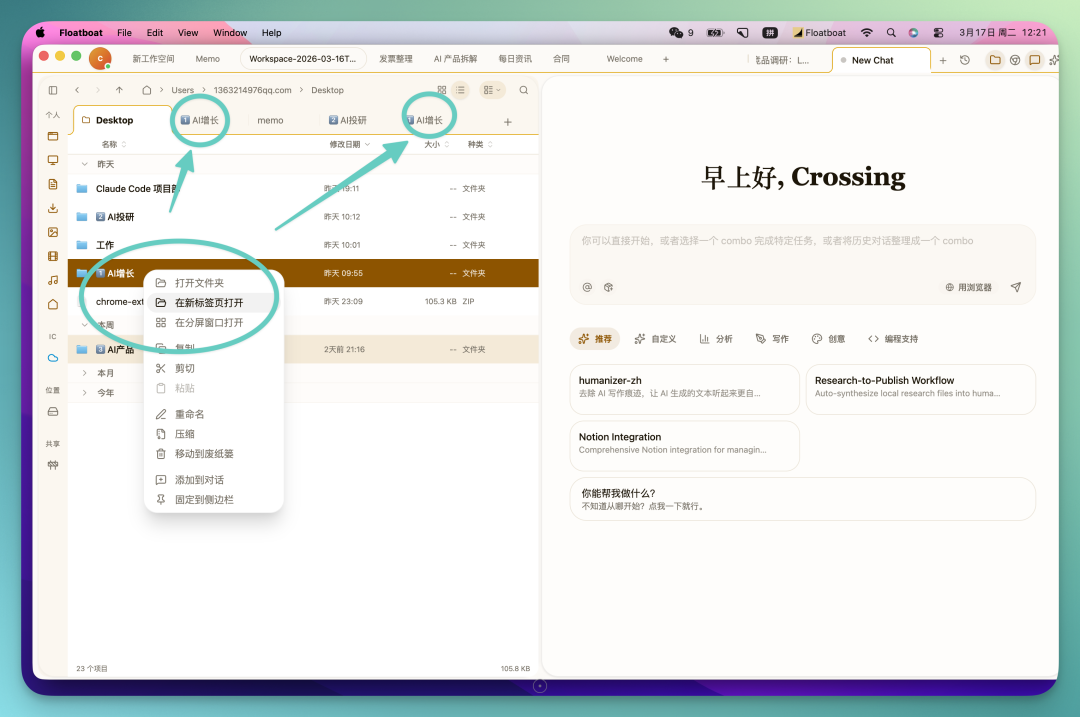
All open files line up at the top like browser tabs. This is completely different from traditional file management logic, where you used to have to switch to a folder first, then click to close. Here, you just hit the X.
So you can even open multiple folders side by side and see each folder's contents at a glance. You can feel that Floatboat is deliberately eliminating those friction points from traditional computer operations.
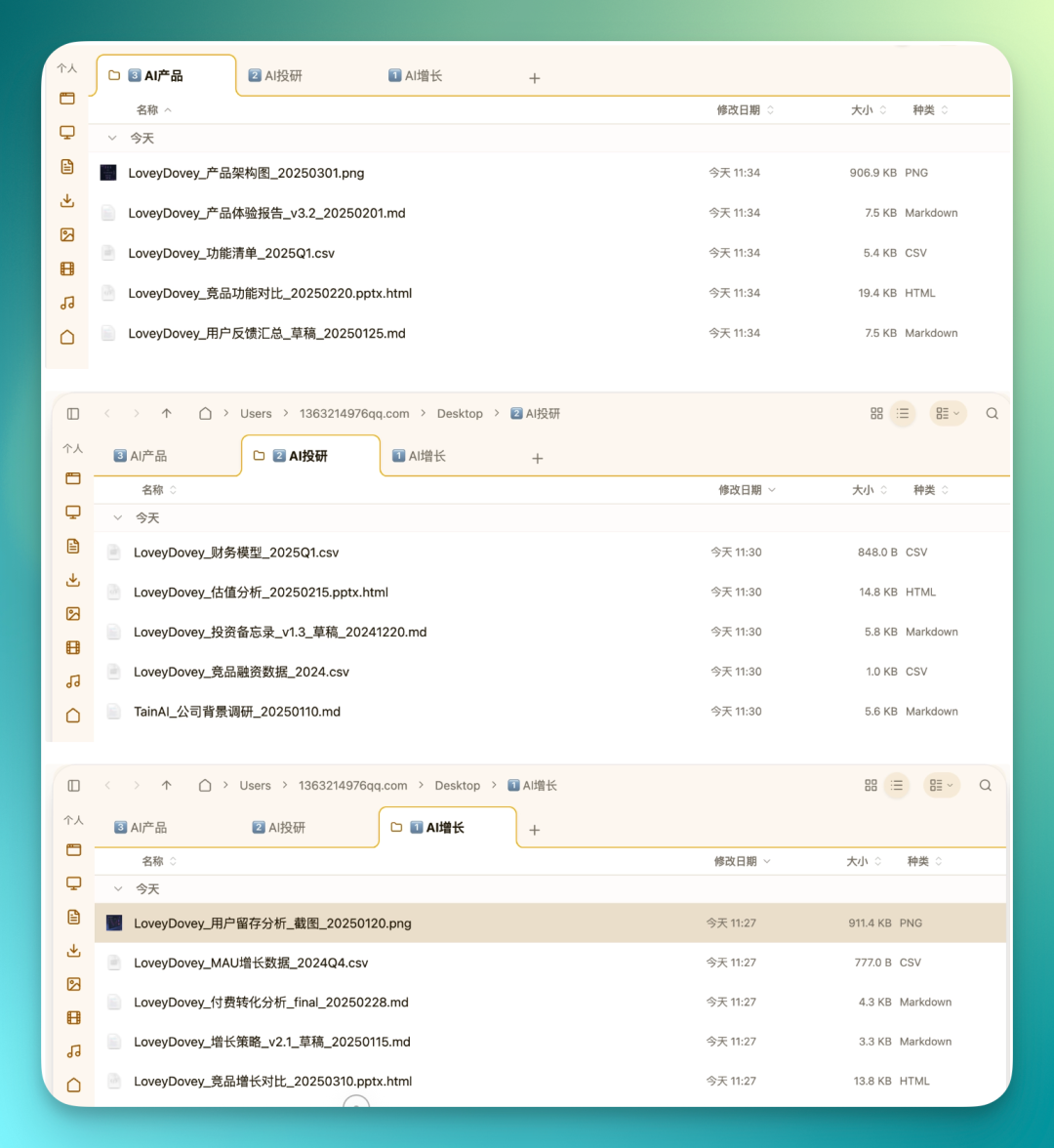
These multi-open folders — whether the folders themselves or the files inside them — can be directly dragged into the AI Chat panel on the right. You can drag in multiple files at once, like several MD documents, then conduct research separately on growth, investment, and product.
In the demo, we selected two MD files from the AI product folder, dragged them in, and had the AI generate a report based on those two documents:
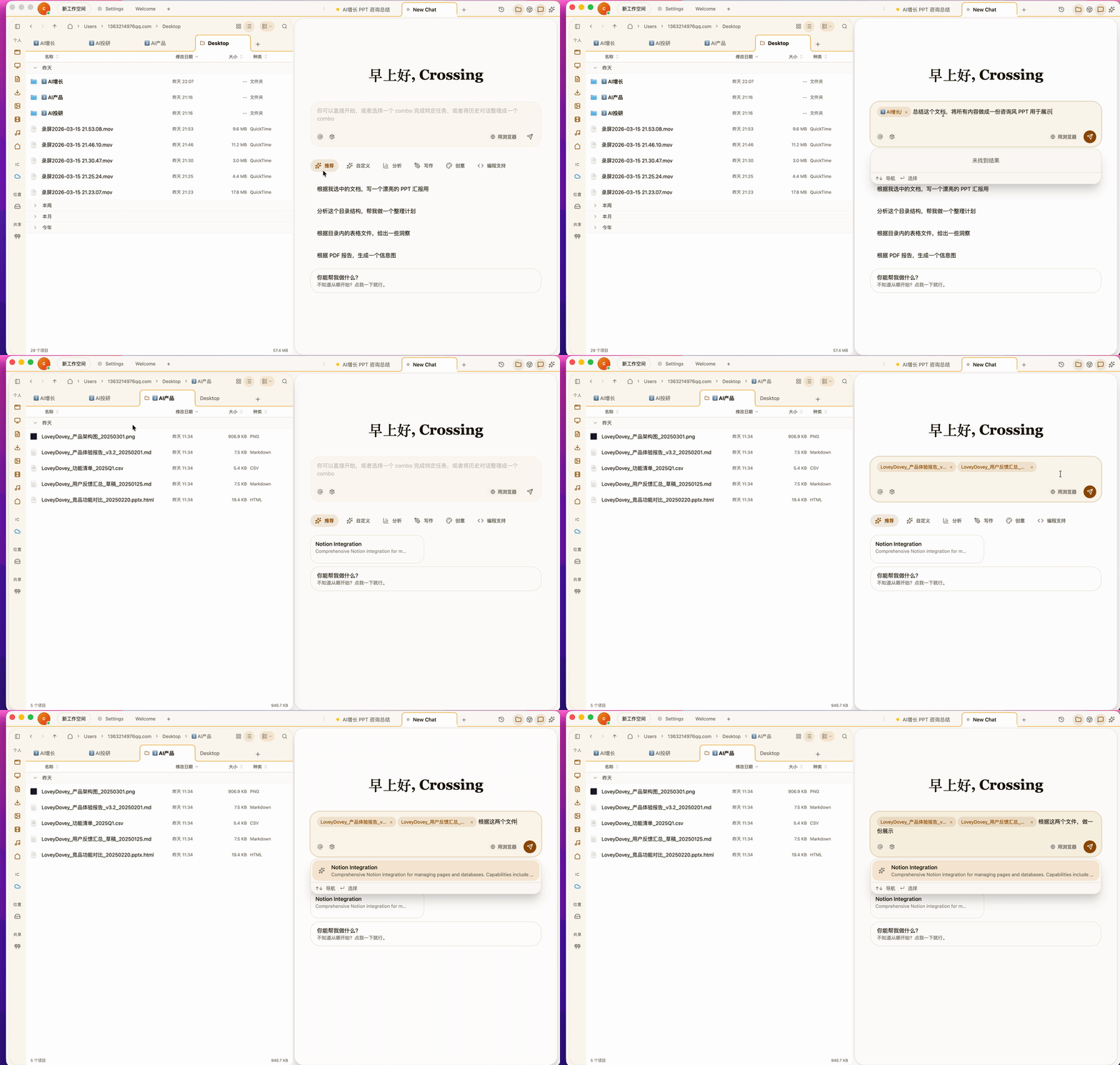
When you drop a command into this AI Chat interface, you're actually talking to an Agent. Under the hood, this Agent can connect to Gemini or Claude Code — it's freely configurable.
Here's the key part: it's not a regular chatbot. It can directly operate your local files, and after processing, write them back locally.
So naturally, it's going to ask you for permission confirmation:
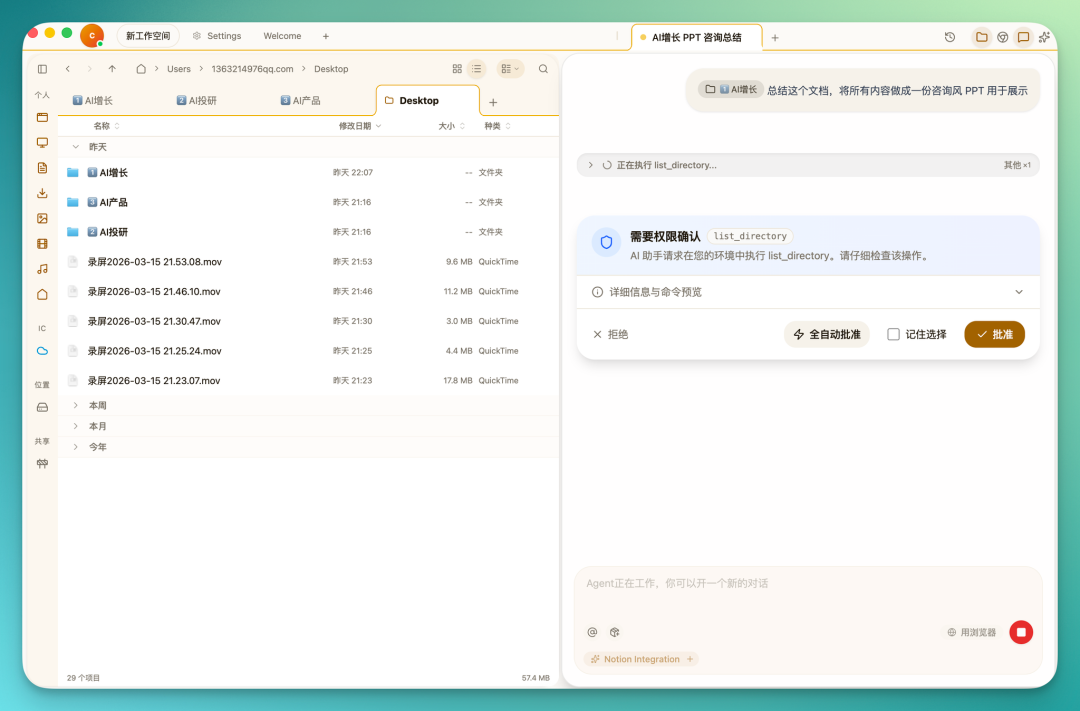
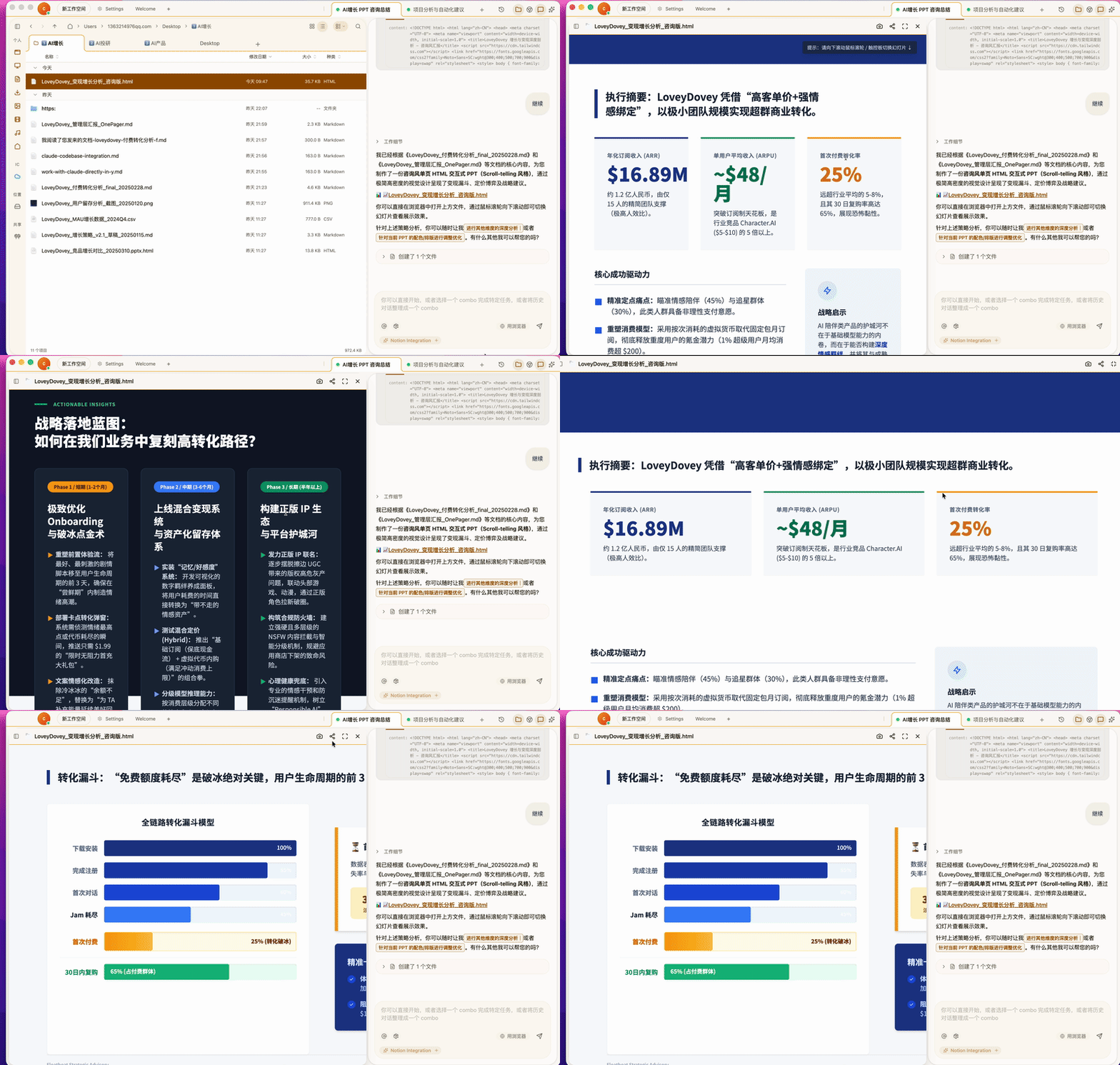
At this point, you'll notice that my actions across these three research categories are actually quite minimal. Basically just drag some files, type a prompt, and quickly get a relatively complete presentation or research result directly on my local machine.
You don't need to open a separate file manager and switch between different pages. The whole process flows much more smoothly.
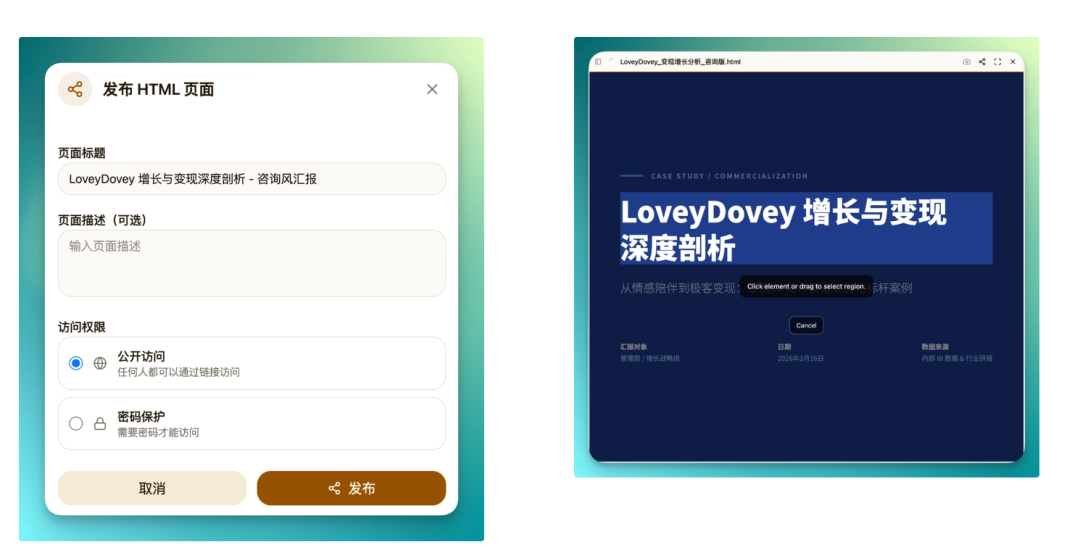
Generated content can be published and shared directly, with support for public access or password protection.
It also has a built-in screenshot feature that can capture entire pages, or automatically identify specific blocks within an HTML page to capture individually.
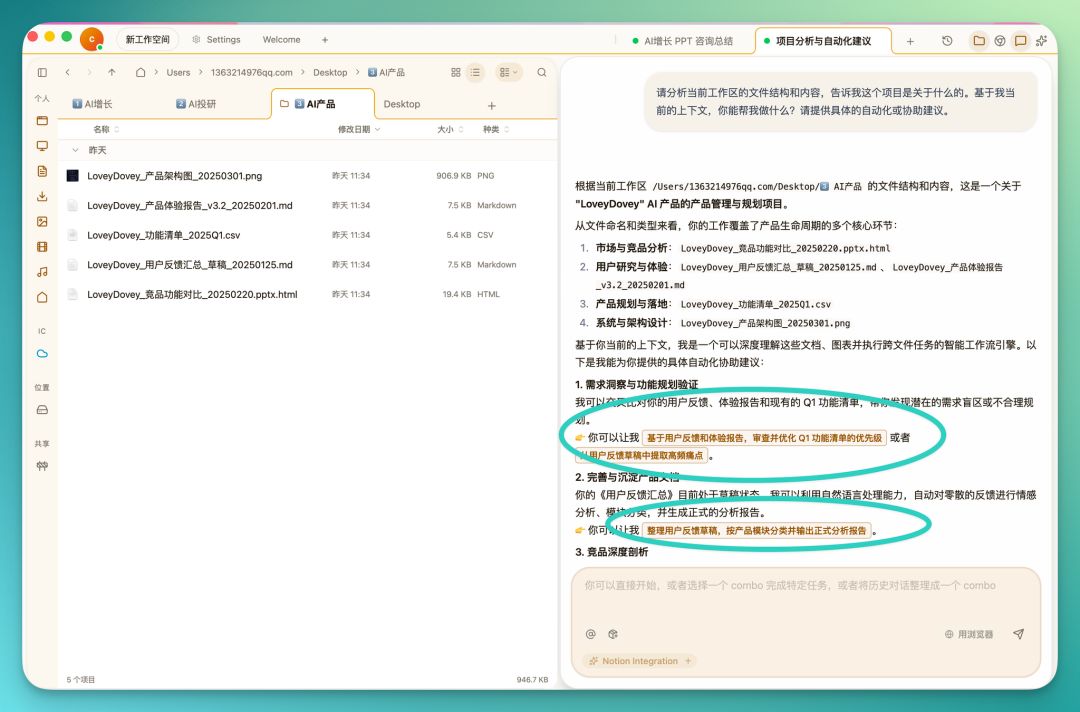
If you're not sure what you can do with the contents of a folder, just ask in the AI Chat panel on the right. It can give you ideas and suggestions based on the current workspace context.
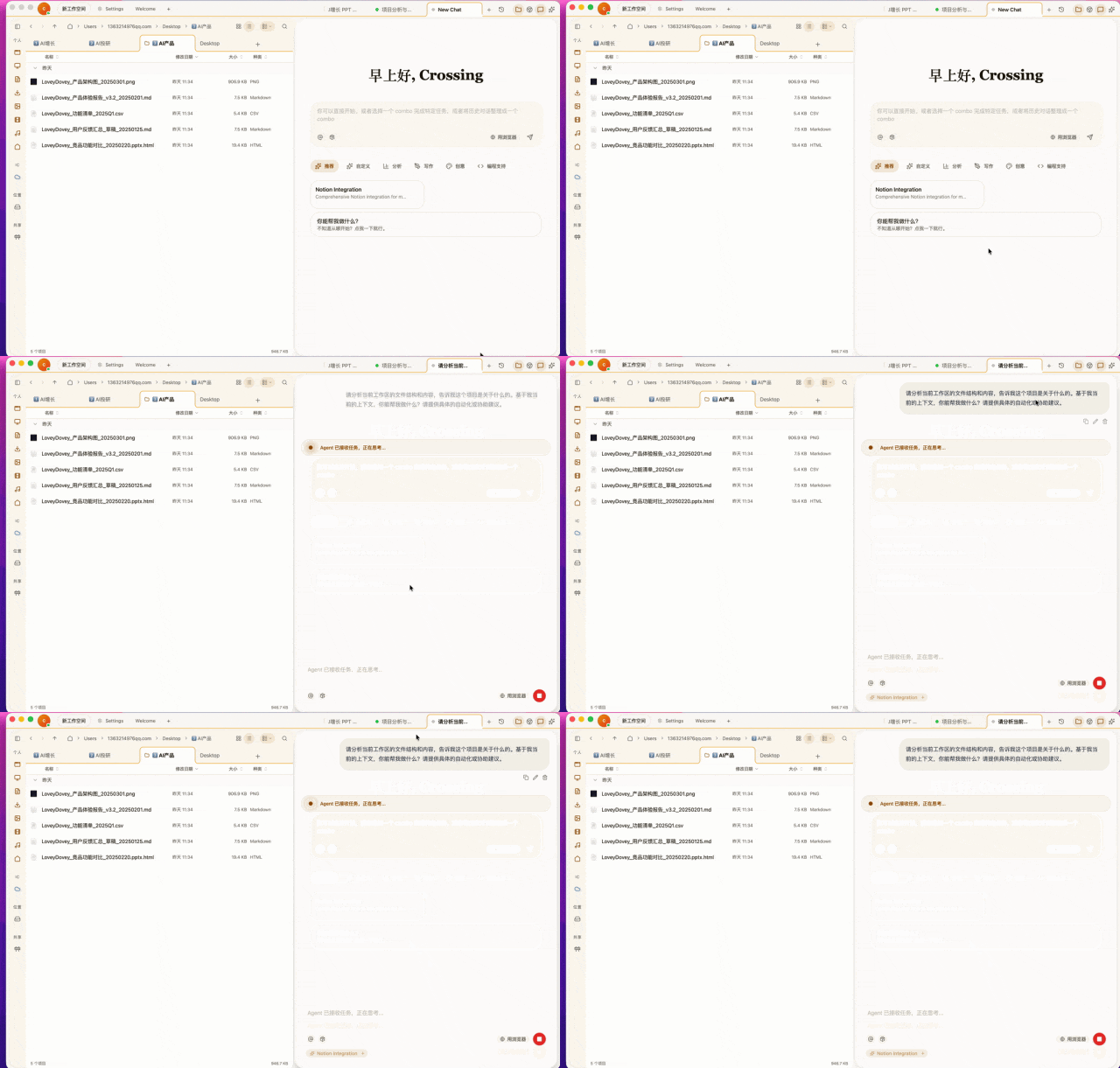
It scans the structure and contents of all files in the workspace, then gives you directions — for example, extracting high-frequency pain points from drafts.
These suggestions can be clicked directly. Click and it executes — no need to copy, paste, and hit enter (this is actually a distinctive feature of Floatboat's open-source project, which we'll cover at the end of the article).
3) Context Capture
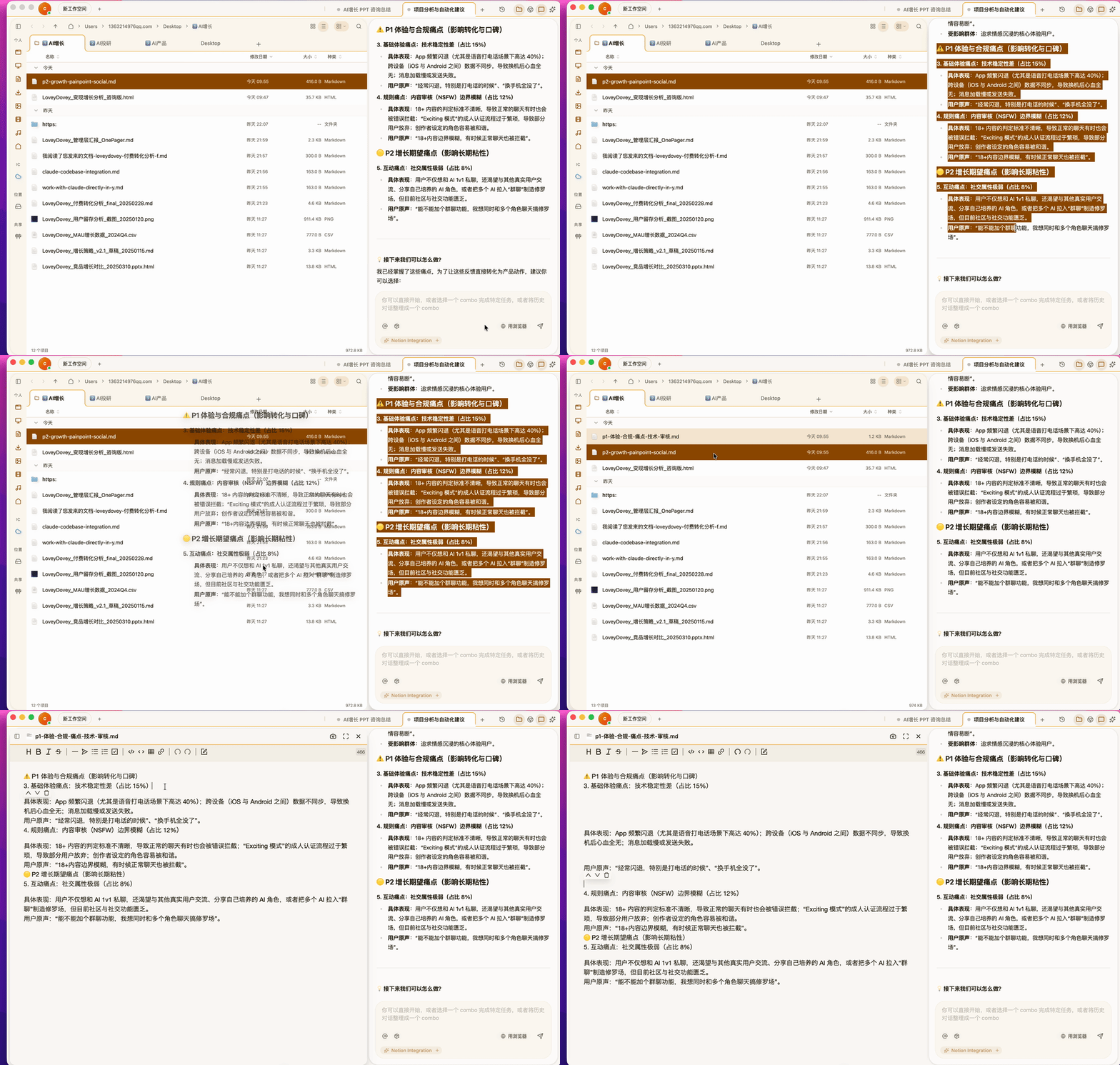
After a task completes, you can directly select text in the page, drag it into a local folder, and it's automatically saved as an MD file.
Floatboat's MD file preview is also optimized — it's not command-line style display. You can edit directly inside it, like opening a regular text file, without needing to open a separate IDE. Bold, italics, and other common text formatting tools are all there too.
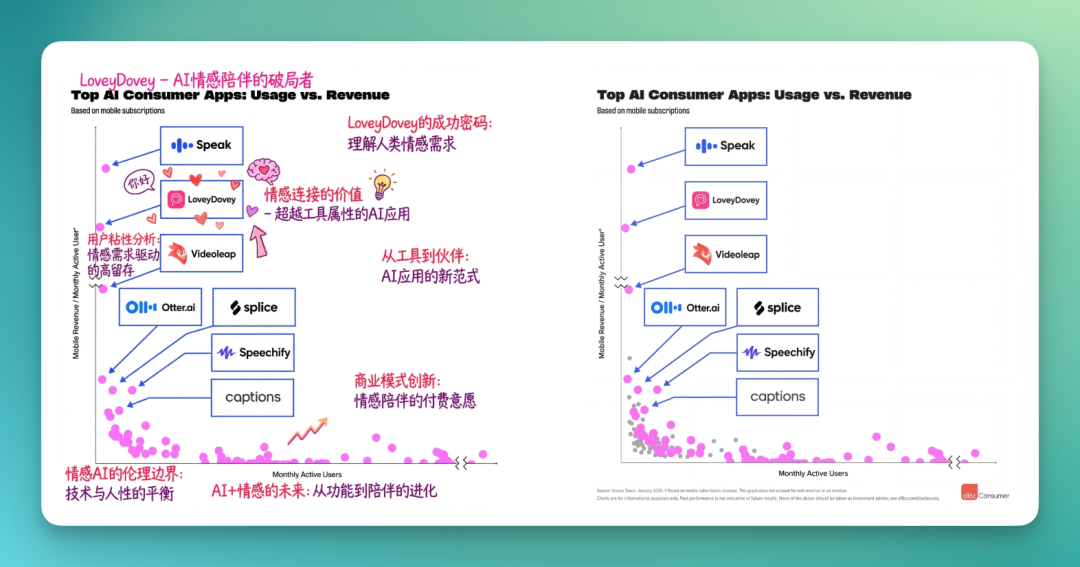
It's not just AI Chat content that can be dragged — the built-in browser also supports direct drag-and-capture of web content. For example, a market growth chart about LoveyDovey from some website — one drag and it's saved locally.
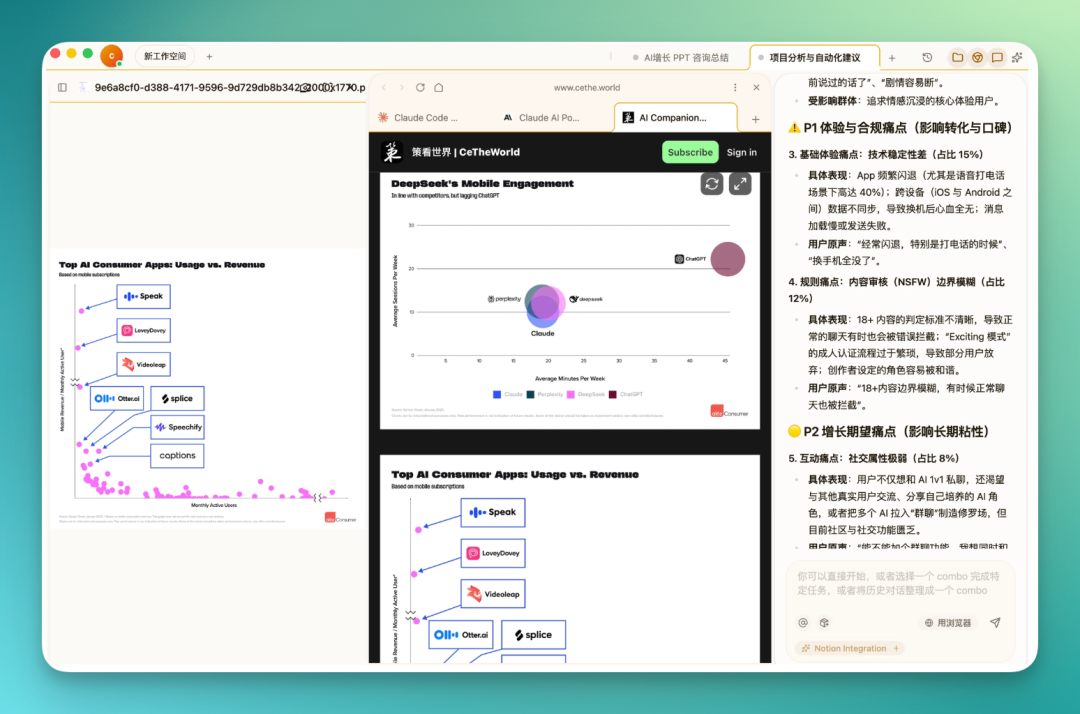
This is the "One for All" state mentioned earlier.
Many tools require you to upload images before you can use them — like Dreamina, Lovart. Now you can open these platforms directly in Floatboat's built-in browser, drag in images you previously saved down, and use them directly as reference images. Accumulated prompts, scripts, and such can all be stored in one MD file, then dragged in later — done in one step.
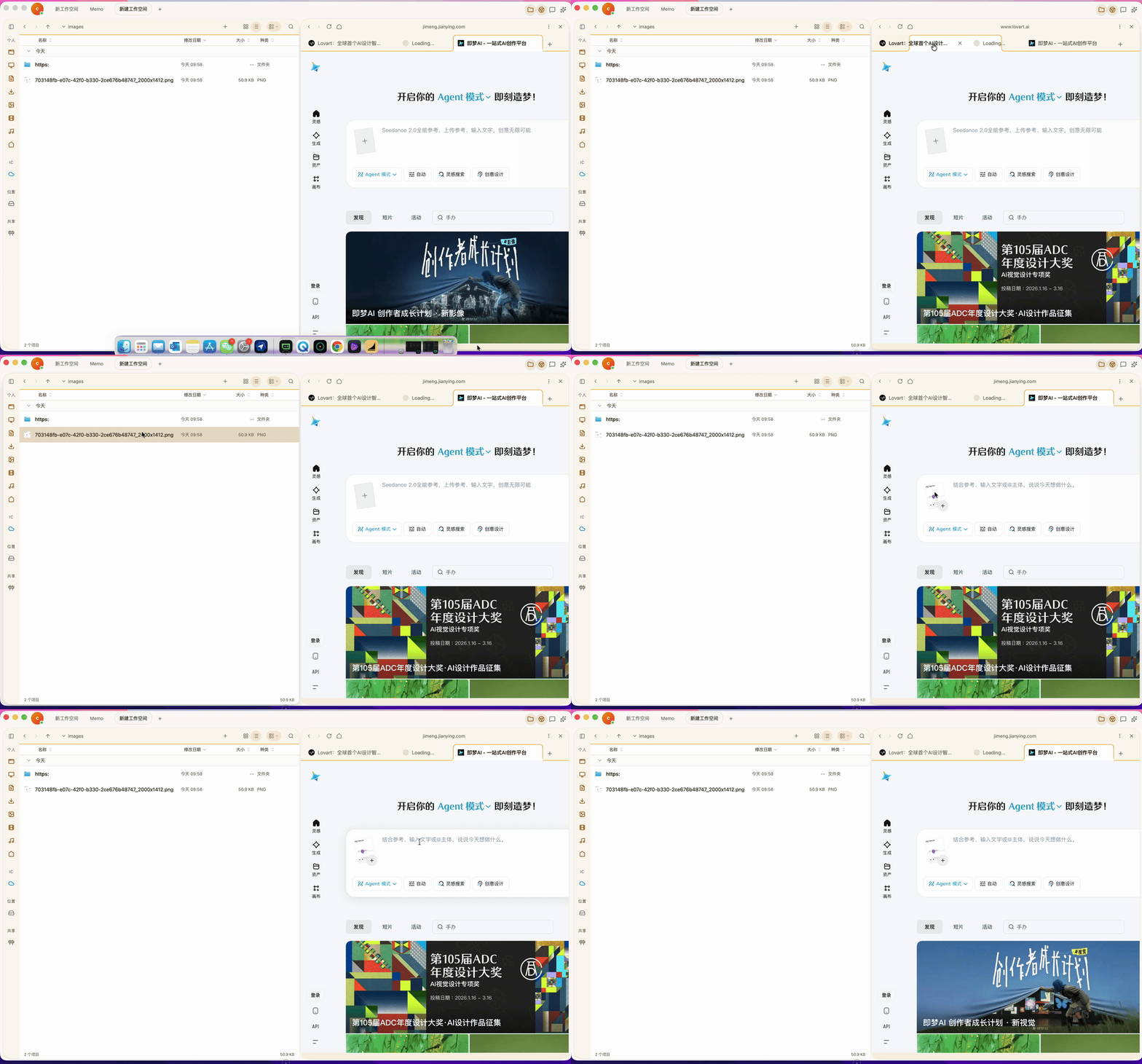
Dragged images can be directly thrown into Dreamina or Nano Banana Pro for high-res 4K processing or annotation, then dropped into articles as needed after processing.
Beyond AI Chat and browser, local content can also be dragged in directly.
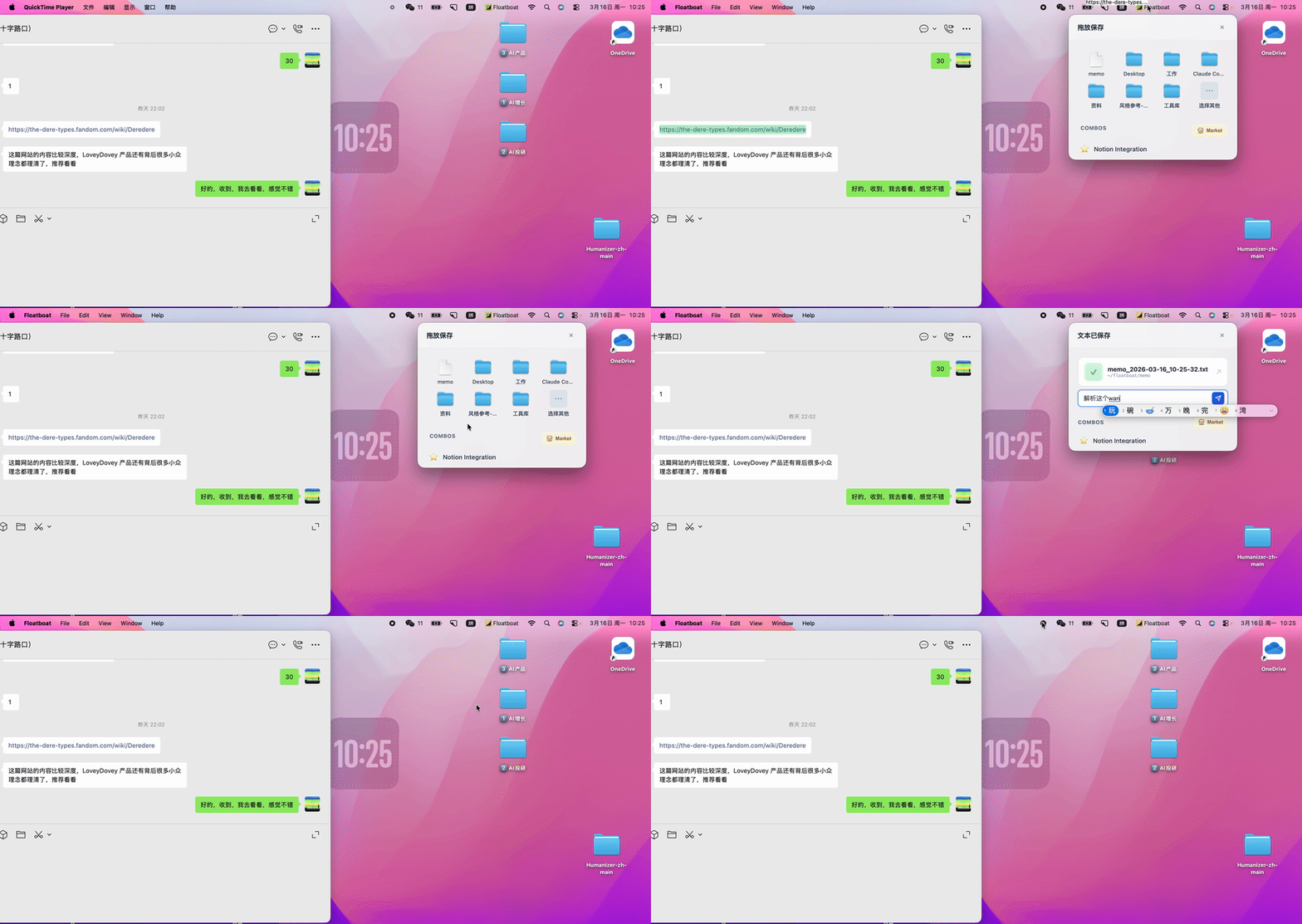
Floatboat's settings include a Memo feature that lives permanently in your menu bar.
For example, you select a passage in WeChat, drag it directly into Memo, enter a prompt, and it jumps to Floatboat's AI Chat interface to execute the task.
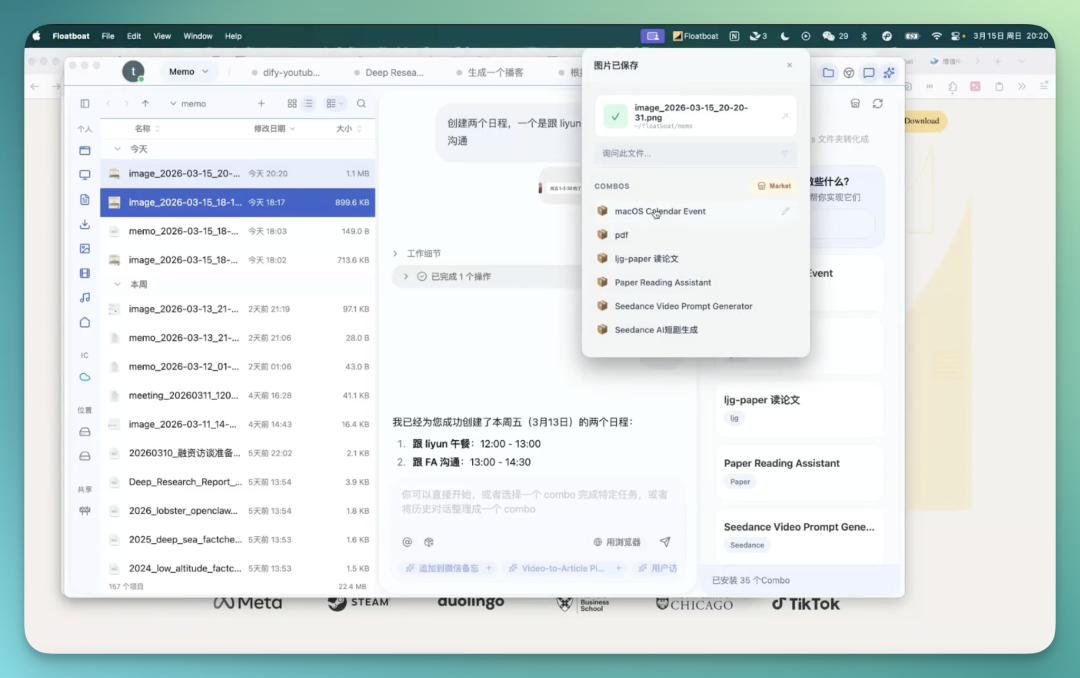
Beyond text, images and screenshots are also supported. After dragging into Memo, the Skills interface pops up directly for one-click invocation:
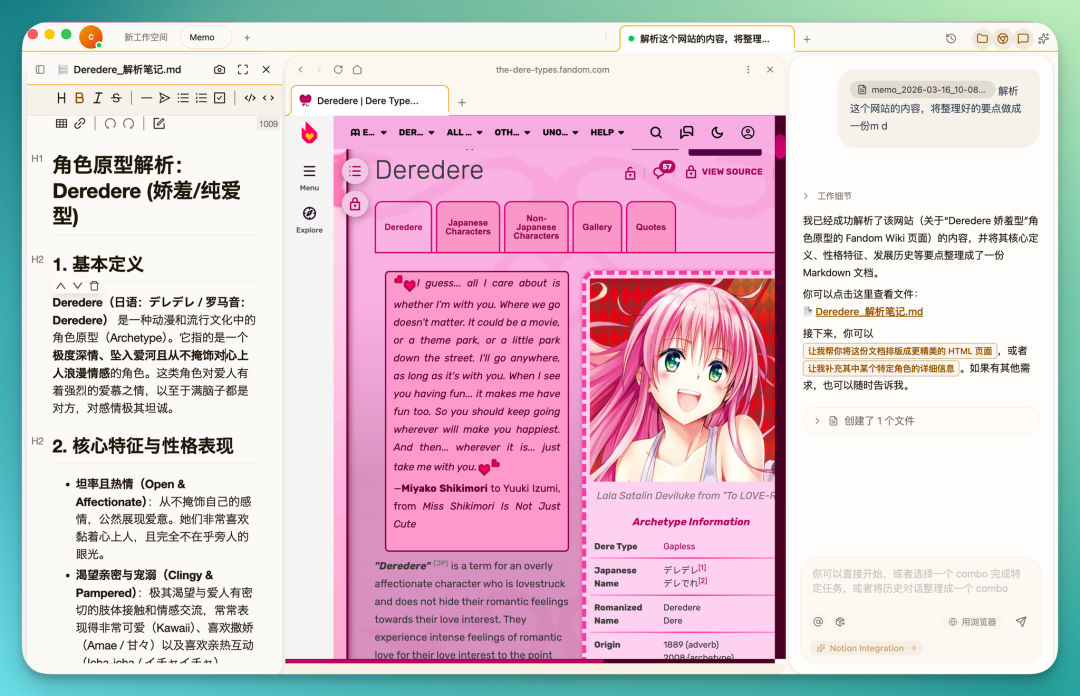
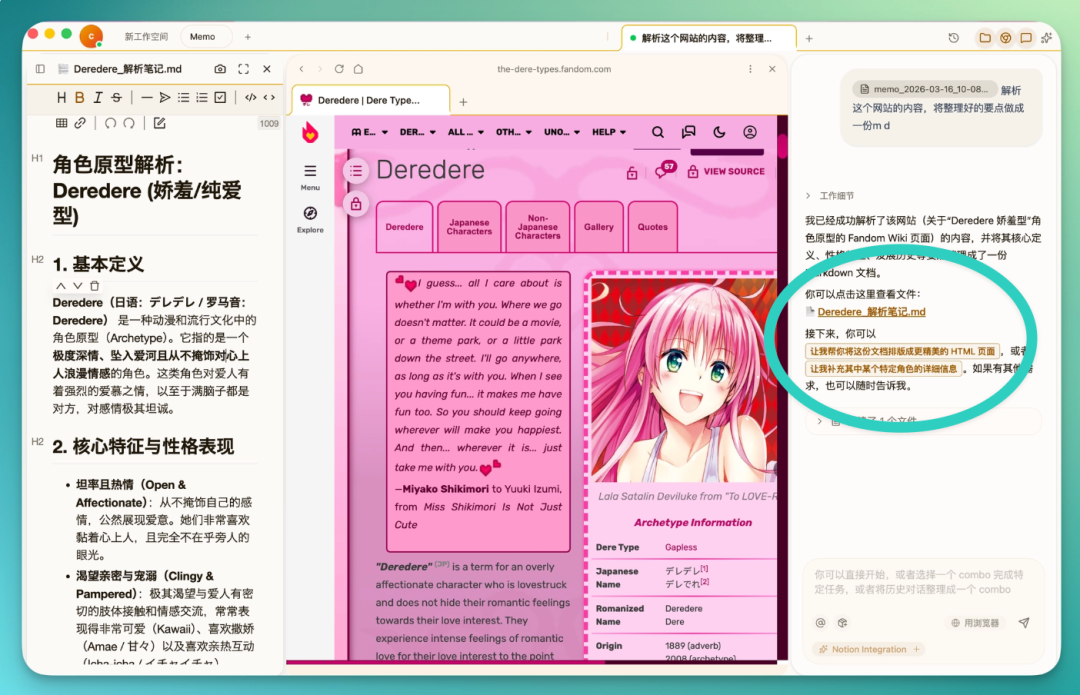
In my case here, it was a website link sent by a team member — a professional blog analyzing the "shy pure-love" character archetype, with fairly complex content.
I had it parse the website content and organize it into an MD file. It scrapes the entire page, and after processing gives you several options — you can view the generated file directly, without needing to manually operate on your local machine afterward.
Compared to handling this in a regular browser, quite a few steps are saved in between.
4) With Context in Hand, What Can We Build?
After the first few steps, context capture and generation are running smoothly with very little friction. Now that the AI Chat, browser, and local folders have accumulated plenty of material, it's time to move into task production.
For example, when writing articles we often insert GIFs to help readers understand concepts, and the source material is screen recordings. Those files tend to be large, so I usually speed them up 2x first.
Floatboat supports multimodal input — just drag the video directly into AI Chat and ask it to process it to 2x speed.
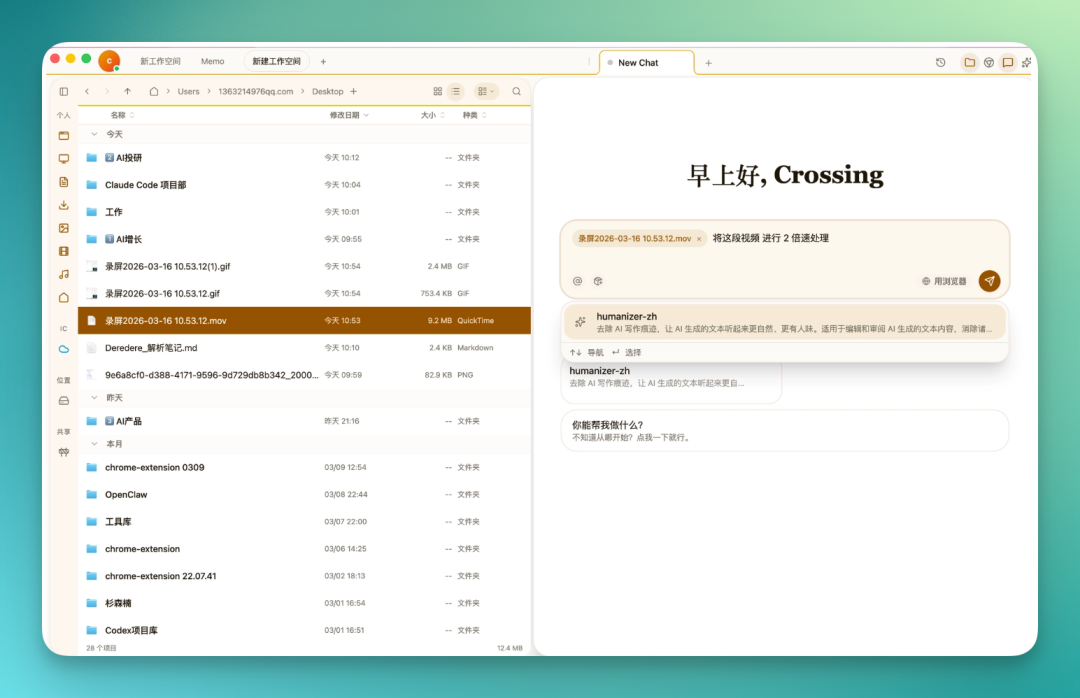
A 10-second video becomes 4 seconds after processing. Beyond just speeding it up, you can also compress the file size in the same step. What you do with it after that is up to you.
All of these operations happen in a single interface.
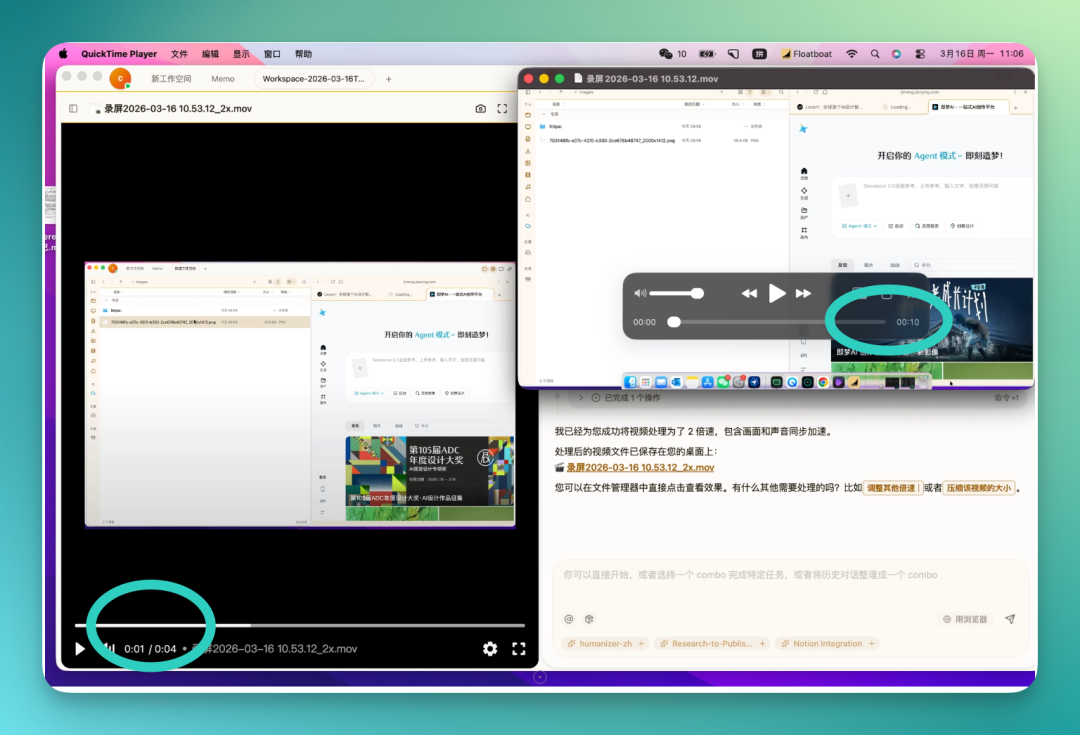
Growth, investment research, and product — these three workstreams can each be investigated in depth and have their materials produced, with all content dragged into corresponding folders as you go.
Once that's done, merging the three folders is simple: drag one folder onto another and they automatically combine. Three separate content pools become one larger context.
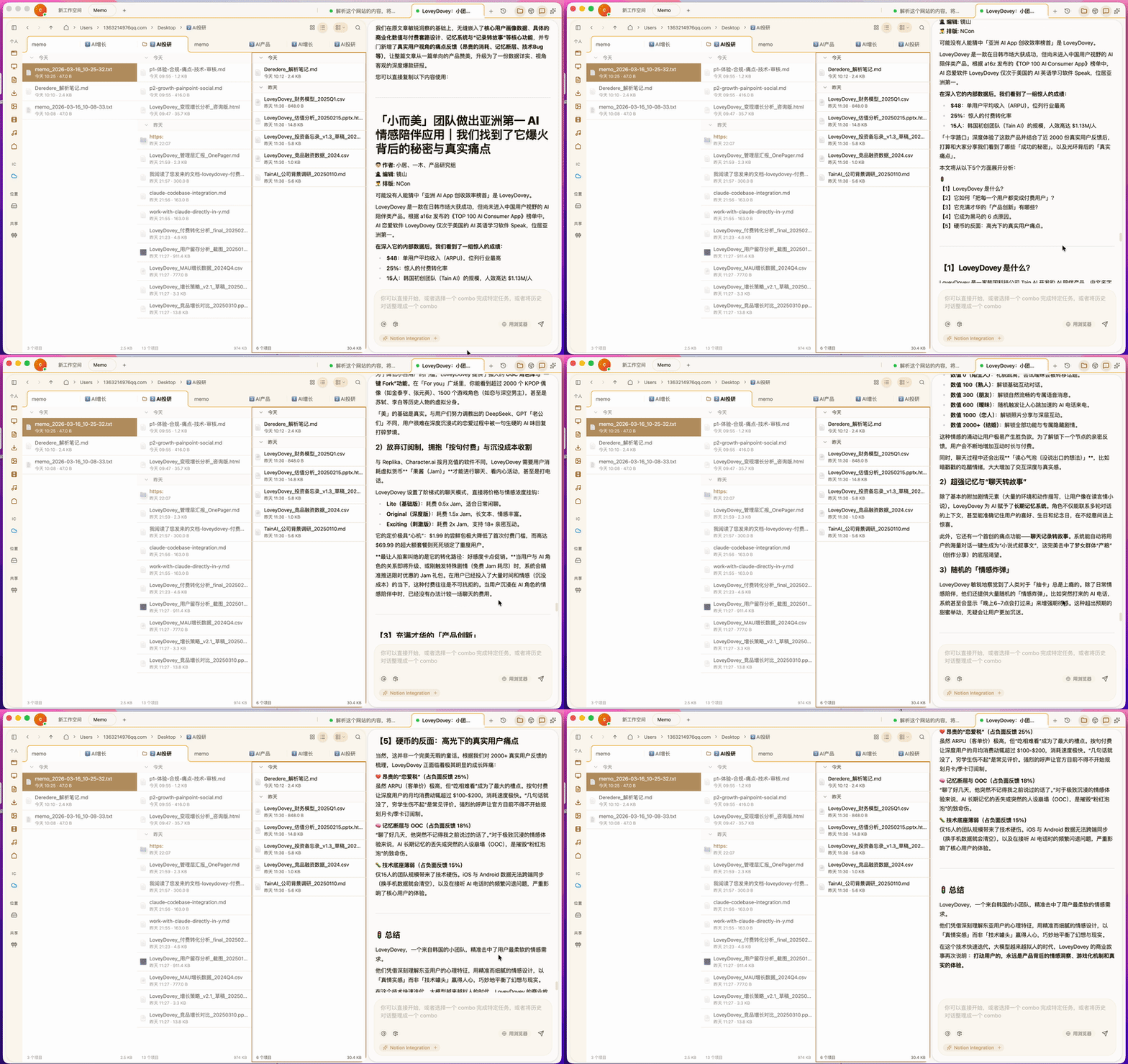
At this point in AI Chat, you can ask it to analyze everything in the workspace, compare it against our previous WeChat official account articles, identify what's missing, then pull in supplementary material from the workspace to form a more complete research brief or article.
5) Combo Skills
Everything above is still just basic usage. Floatboat has a more important module that sits right in the main interface with high priority: Combo Skills.
How to think about it?
In AI Chat, each round of multi-turn dialogue is essentially initiating a task. When you find that a certain set of tasks is frequently used together, you can固化 that workflow into an SOP — and that SOP is a Combo Skill. Think of it as an upgradeable, customizable evolution of Skills.
Floatboat offers some official Skills ready to install out of the box. You can also download Skill files from GitHub or ClawHub and drag them directly into the Combo Skills module — they'll be automatically parsed and converted.
Official support also extends to importing your dify, coze, n8n, and comfyUI setups.
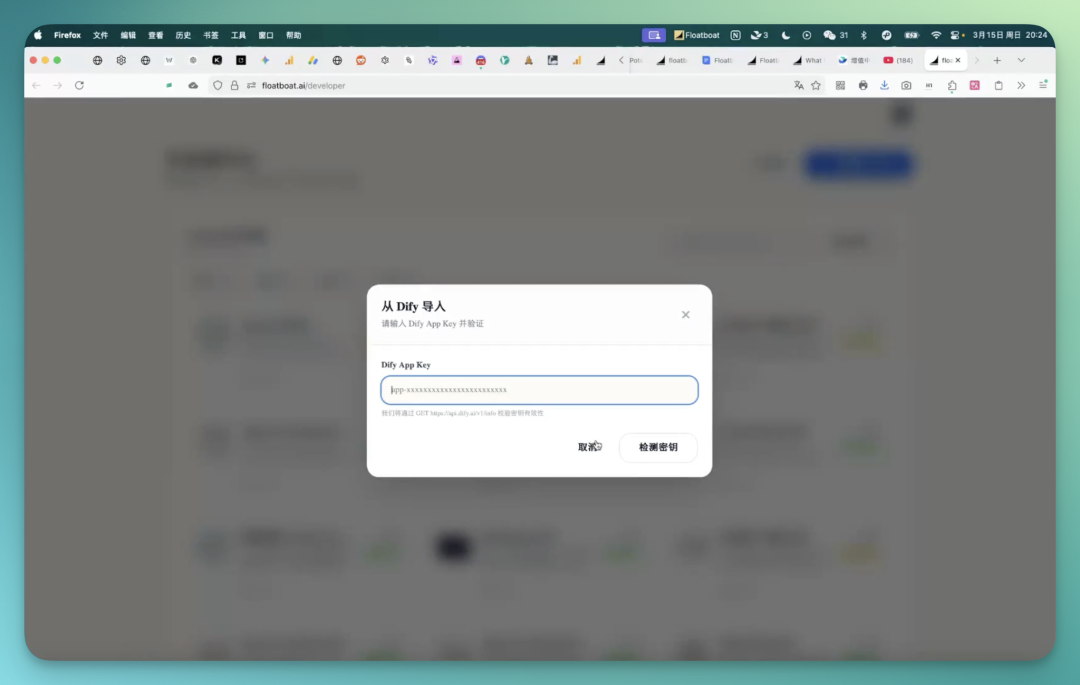
This effectively打通 all resources across these platforms — your historical积累 carries over.
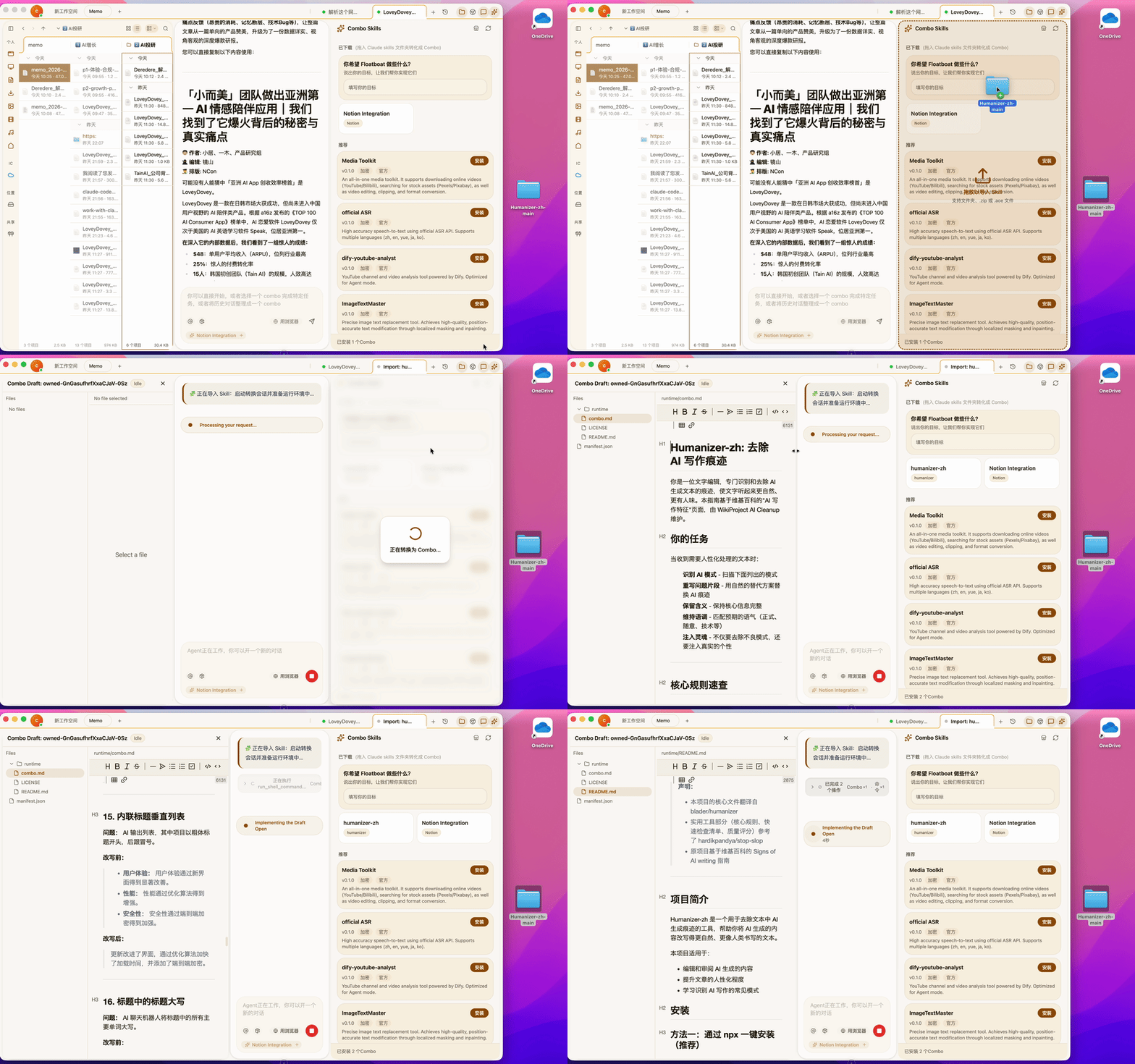
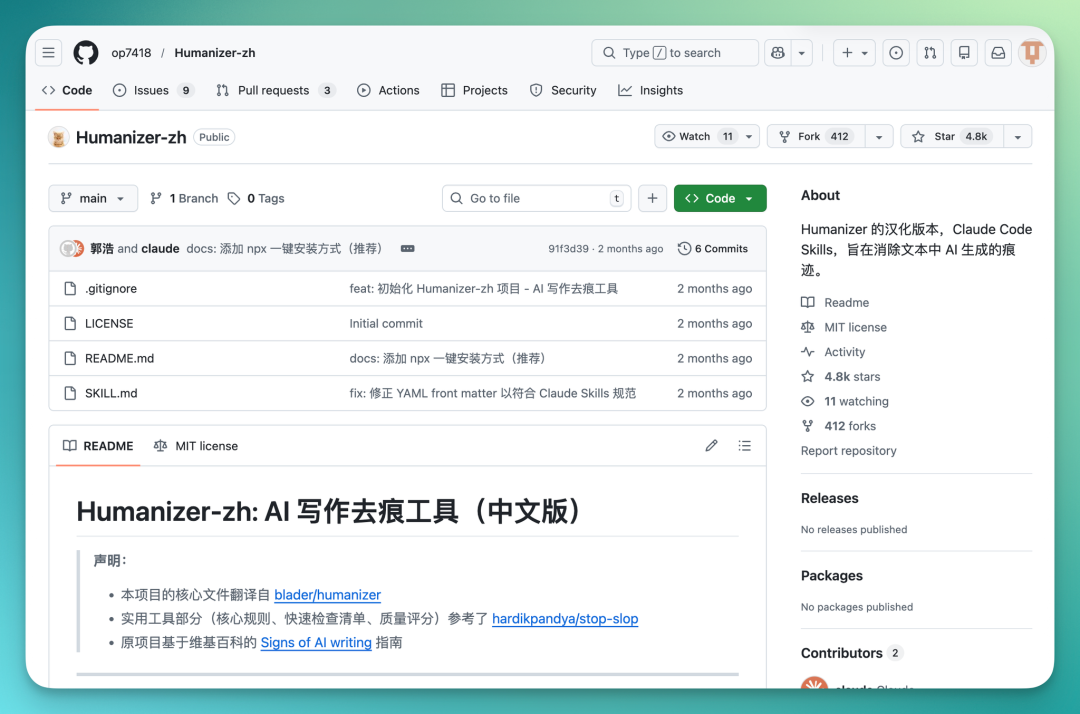
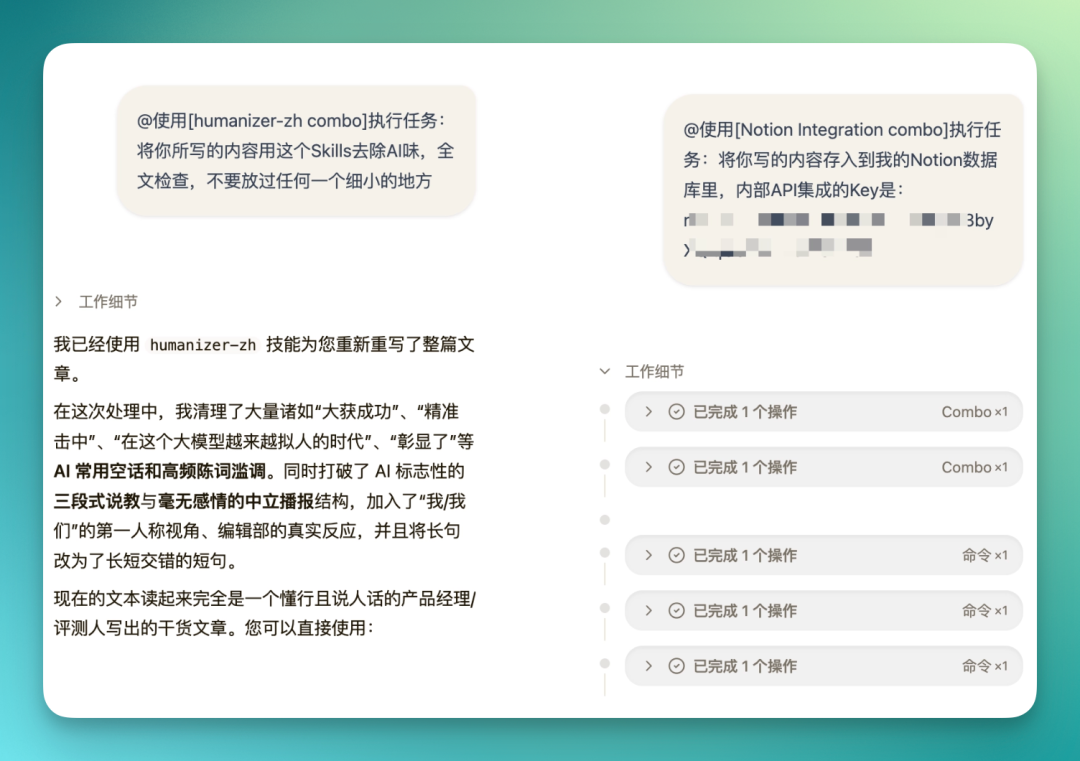
Once it completes deep research across growth, investment research, and product within the LoveyDovey workspace, you can directly invoke previously imported Skills via @mention or selection in the chat to strip out the AI voice.
This is a popular Skills project on GitHub right now, with 4.8k Stars.
Just throw Floatboat a one-line prompt:
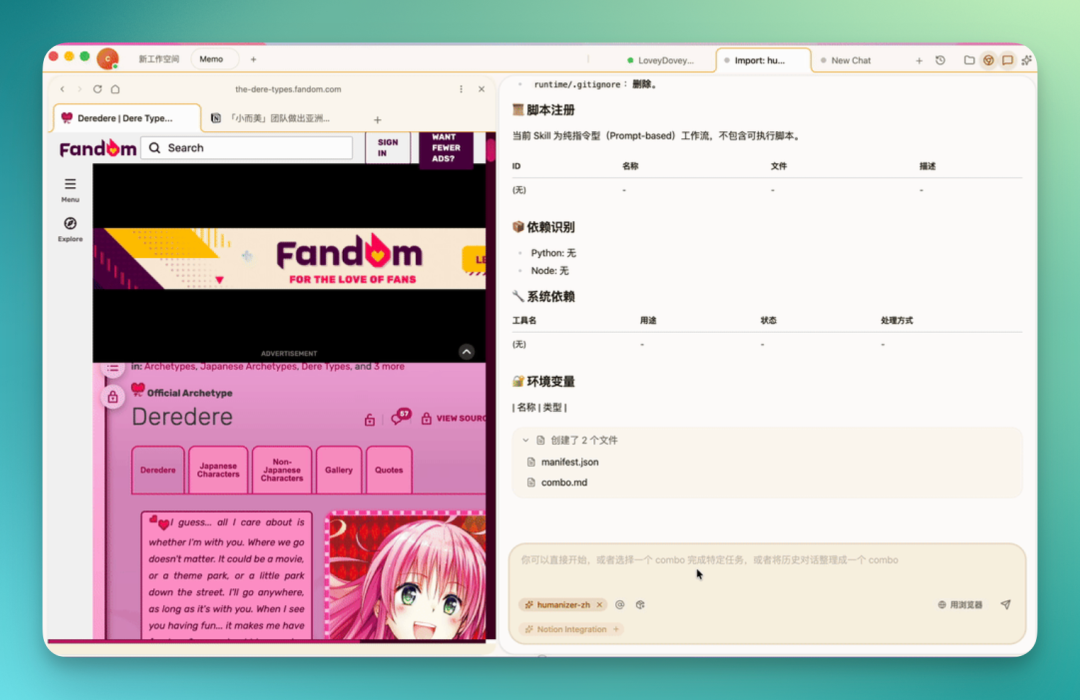
Here I also used a local Combo Skill called Notion Integration Combo, which bundles an SOP for operating Notion.
At this point, research across LoveyDovey's three categories — growth, investment research, and product — is fully complete, done quickly and with real depth. After merging the three content pools, a comprehensive analysis was run, the article was de-AI-flavored, the whole thing went through a complete optimization pass, and the final publication-ready content was saved directly to Notion.
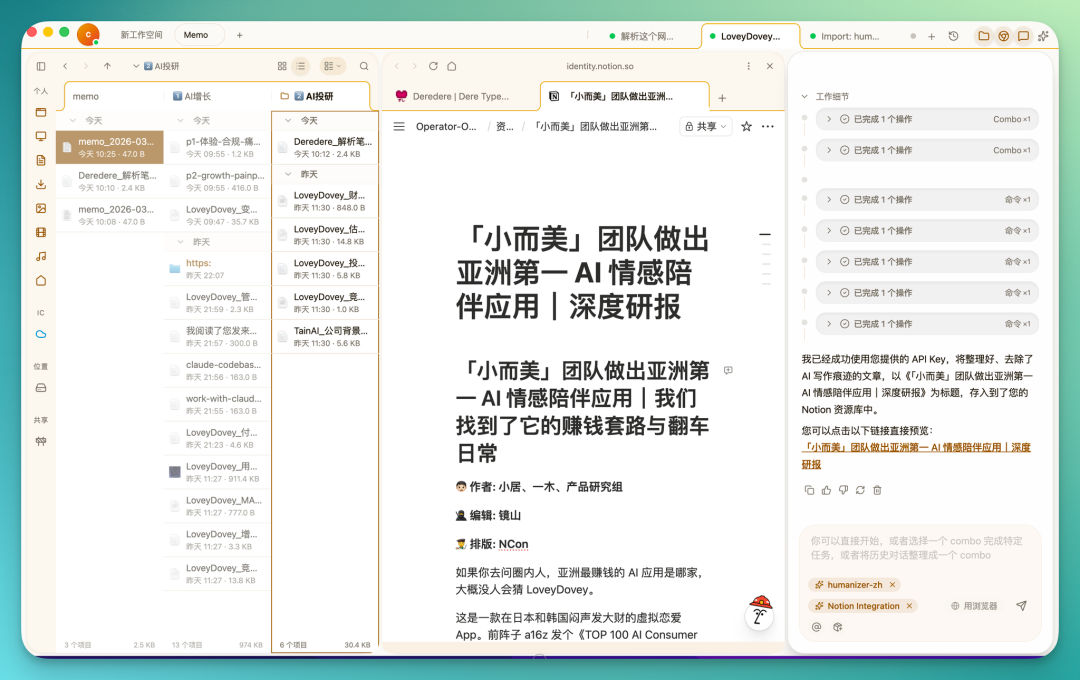
Here's the key thing: the entire SOP I just described is actually quite complex. From links in WeChat, blog posts in the browser, official account articles, to roughly 15 files across three folders, then deep research for each of the three categories, merged comprehensive research, plus two Combo Skills — the information flow involved takes a while just to explain.
But in Floatboat, the actual touchpoints are minimal — just clicks and prompt inputs.
There's one more feature worth calling out separately.
At the bottom of the AI Chat interface there's a button that can automatically package all operations from an entire conversation round into a Combo Skill. This is the "evolvable" concept I mentioned earlier — use it once, and the workflow is preserved for direct recall next time. When you tackle similar tasks later, the input box will automatically surface the corresponding Combo Skill for selection.
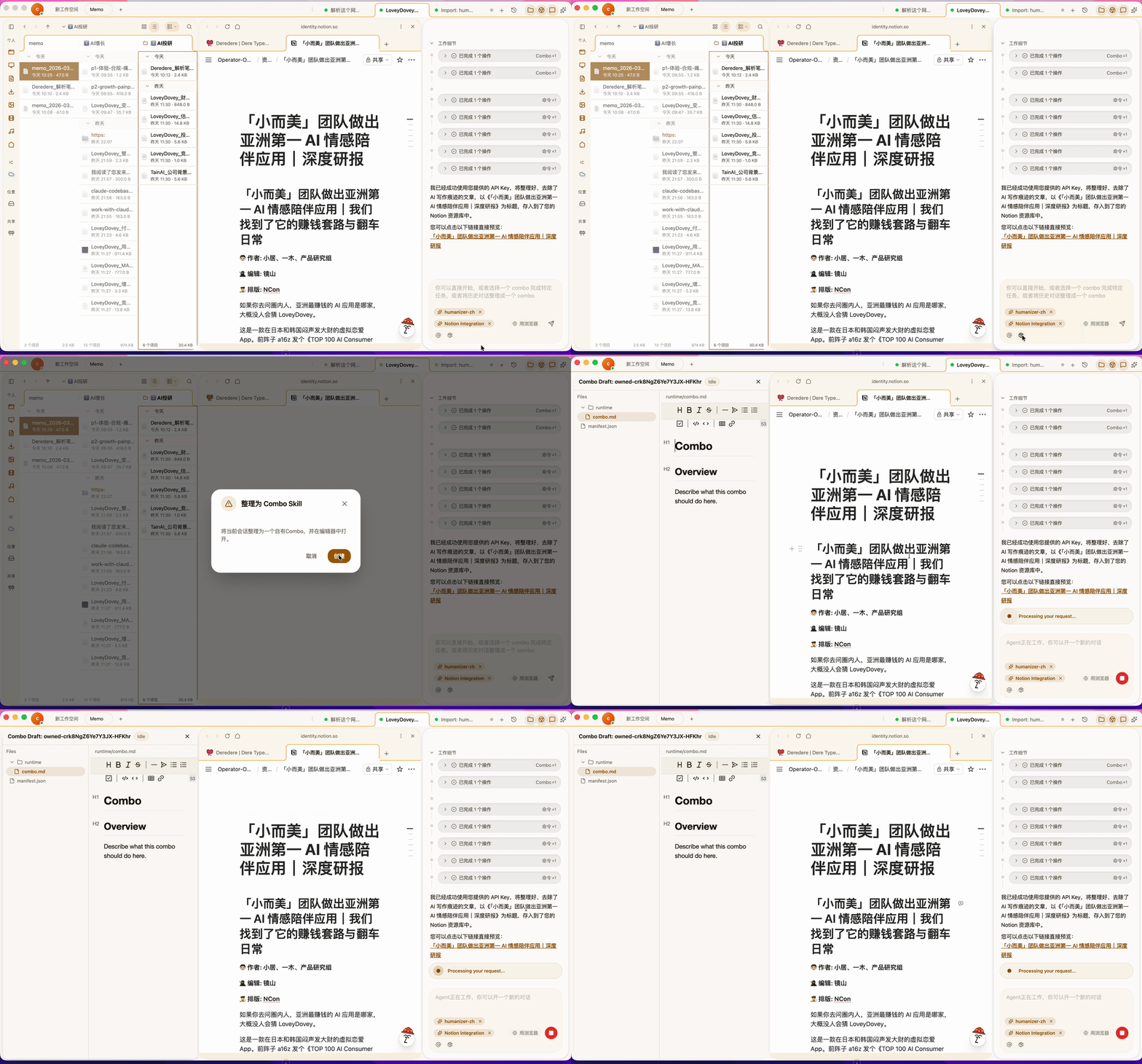
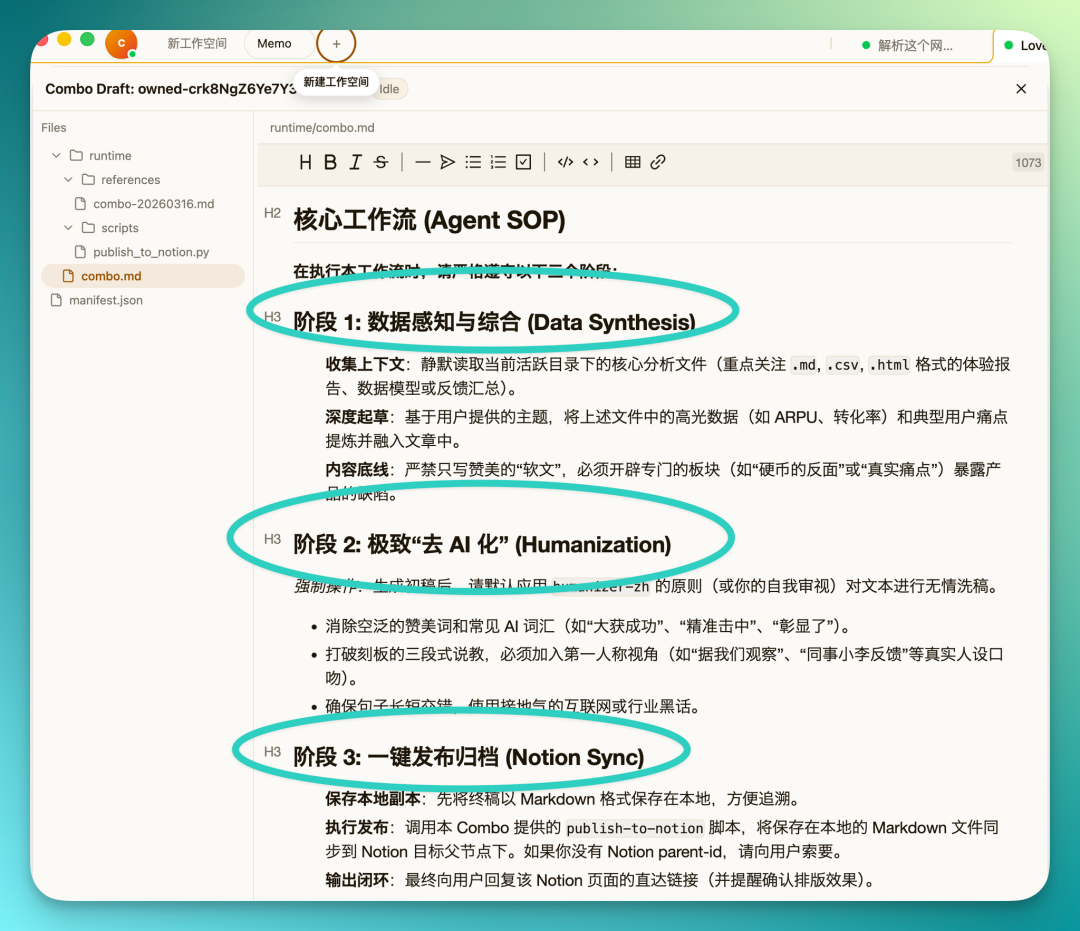
What you end up with is a complete Agent workflow — a reusable SOP.
As shown in the image: Phase 1 is heavy context gathering, followed by deep content drafting by theme, with tone calibrated against my previous style, then invoking the de-AI Skill, and finally publishing and archiving to Notion.
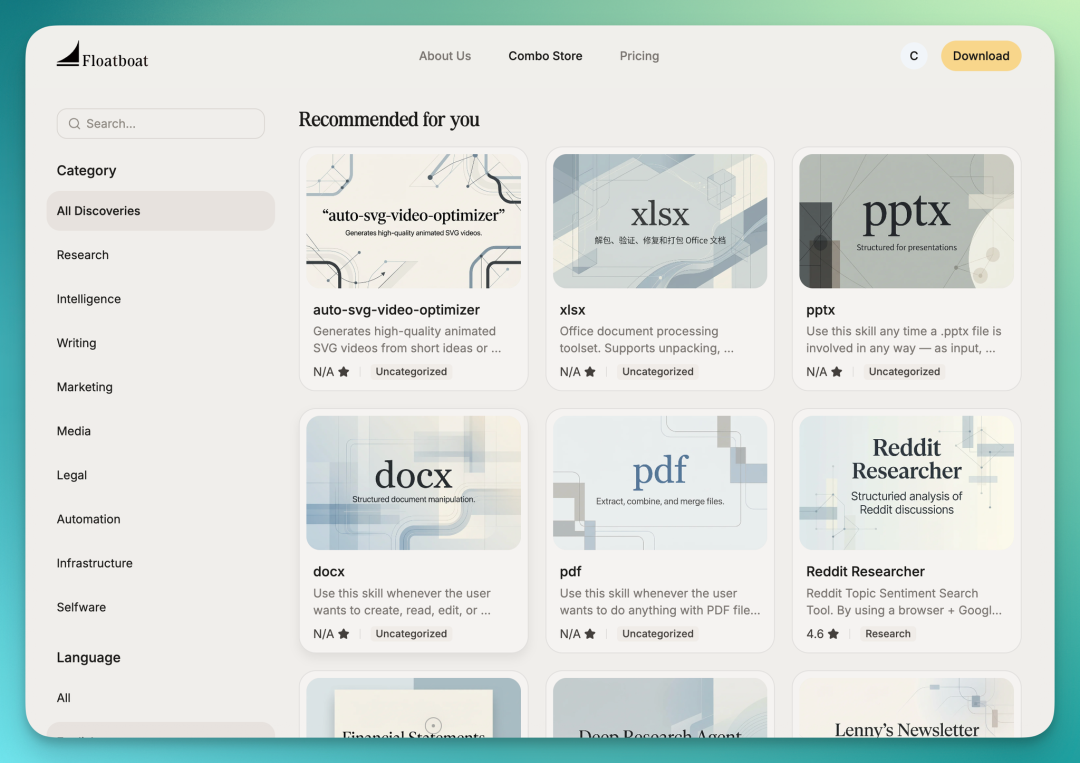
Beyond self-generated and locally installed ones, Floatboat's official store has more ready-made Combo Skills available.
This module has strong extensibility — in the long run it could absolutely evolve into an ecosystem.
A Few Other Interesting Finds
1) Native macOS Tool Invocation
To return to the original point: Floatboat is a complete workspace where local files and apps all live.
It can also be understood as a local Agent, similar to the Claude Co-Work concept.
Through local permissions, it can directly invoke your native tools — macOS Notes, Excel, and so on. Operating these requires just a single prompt.
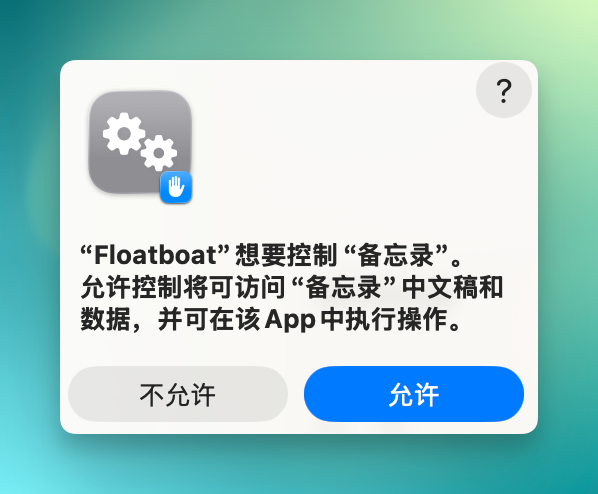
For example, if you've accumulated a lot of research on competing AI products in the same赛道, you can set up a Combo Skill to organize all that deep research into a todo list and send it straight to Notes.
If the content is more complex, have it build a multi-dimensional competitive analysis matrix and save it to a local Numbers file.
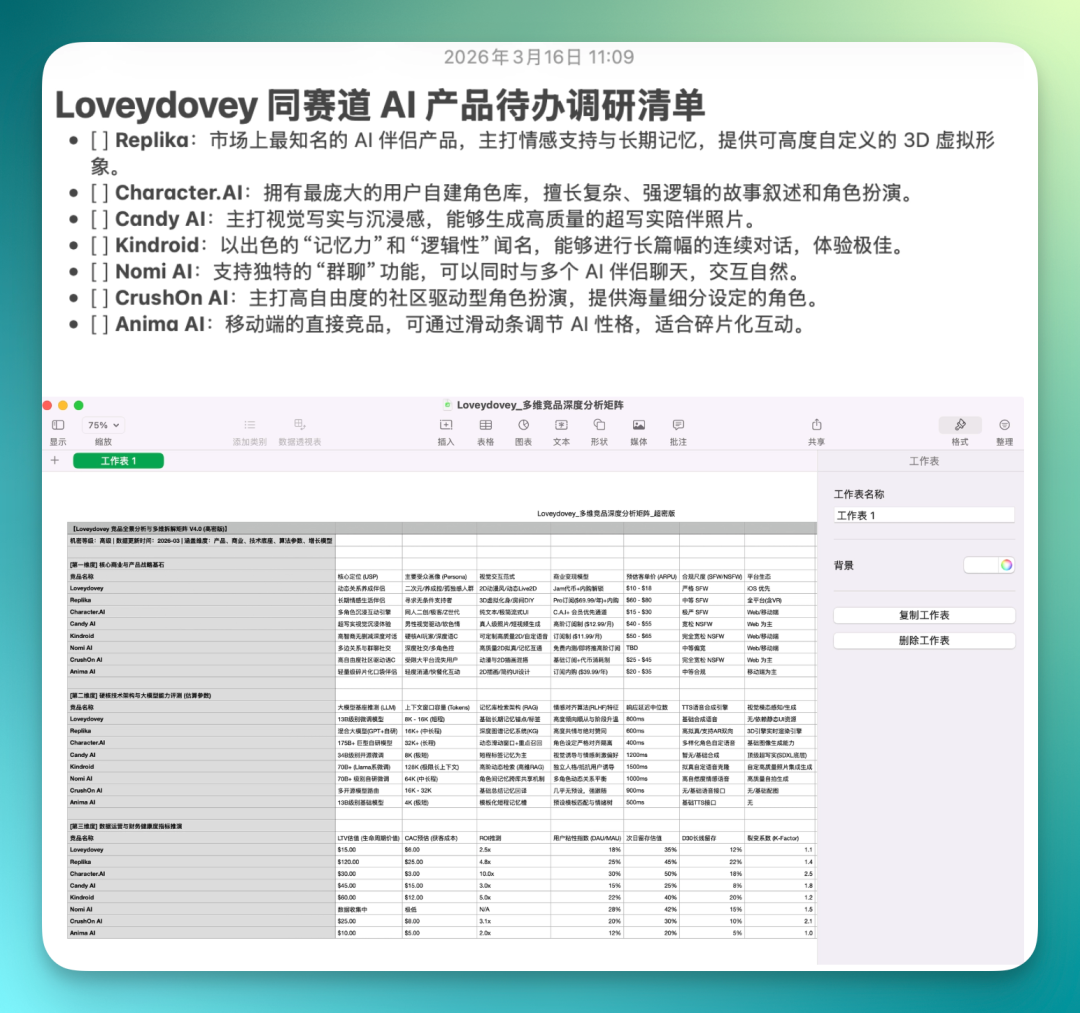
This means it can also parse the unique file formats supported by desktop software — something cloud-based agents struggle to do.
- Lobster Claw Mode
Everything described above already constitutes a relatively complete production-grade workflow.
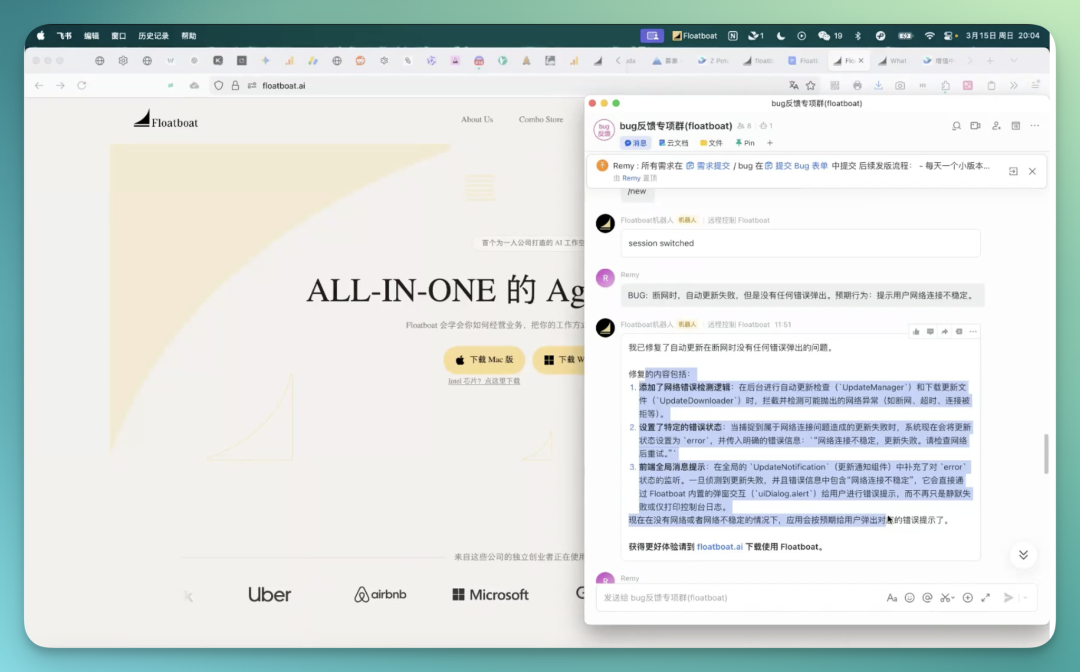
And when I was looking at Floatboat's settings backend, I discovered it had already launched Claw Mode, which lets you integrate these capabilities into IM tools like Lark and Telegram.
In other words, you don't need to open Floatboat at all — you can invoke it directly from the messaging apps you already use to execute these production-level tasks.
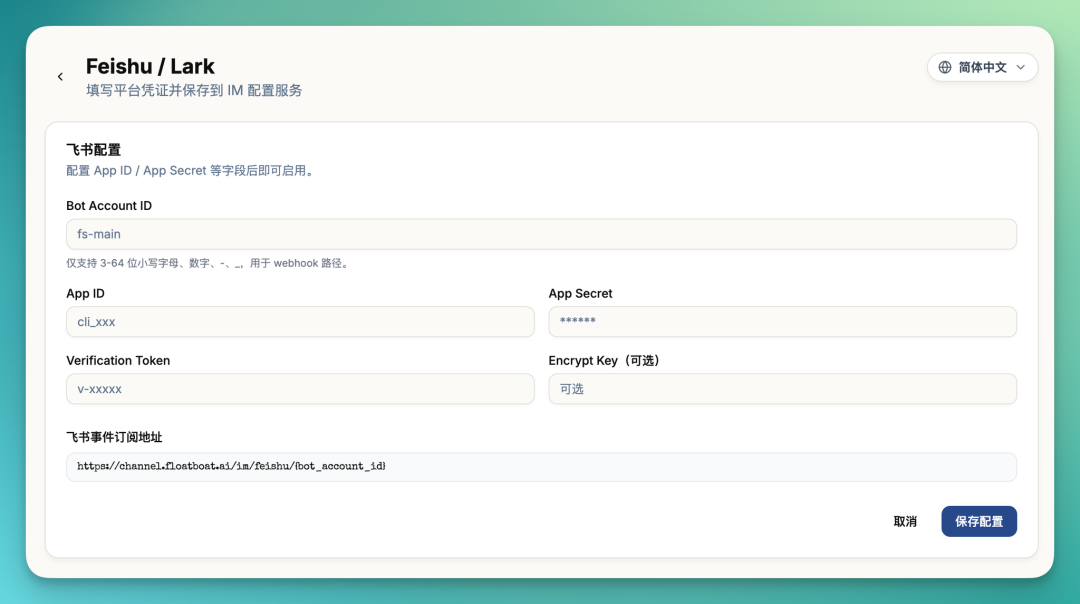
In one livestream, Floatboat founder Shaoqing demonstrated his own usage: sending messages directly from his phone while the agent on his computer received instructions in real time to fix bugs, draft interview transcripts, and more:
- Two Open-Source Protocols
Beyond the product itself, Floatboat has open-sourced two protocols.
The first is called Selfware, which Floatboat describes as "the shipping container for the agent era."
It's essentially a file with the ".self" extension. The core philosophy is "file as software" — a .self file can store data while also carrying its own logic and structure. Any agent can open and run it directly, with no dependency on a specific platform.
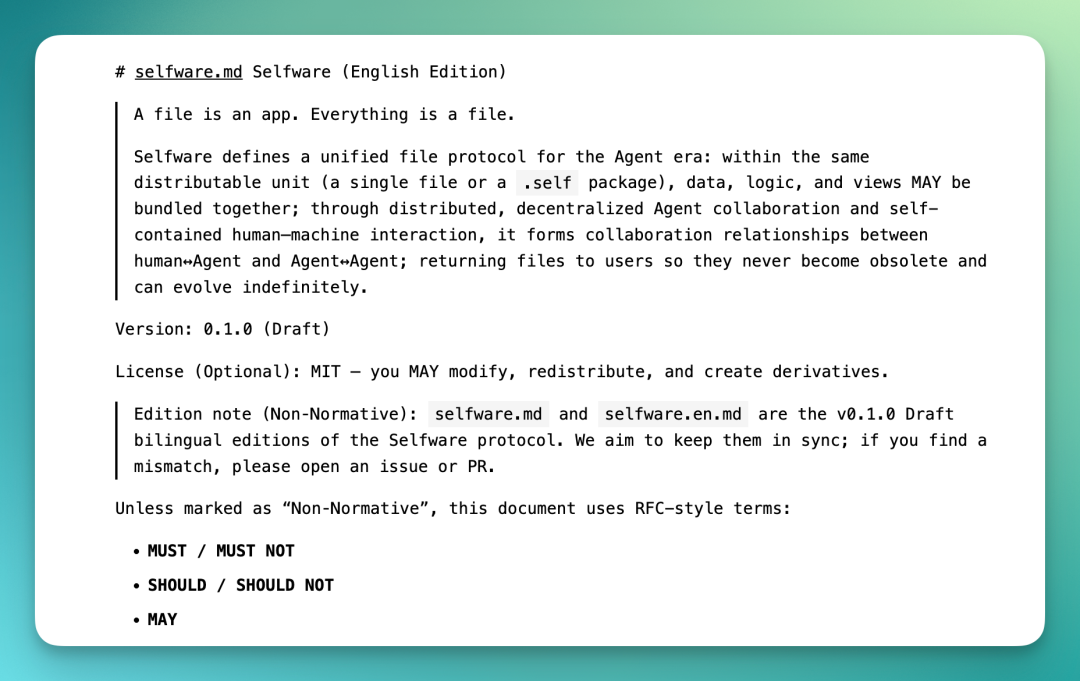
This is also the foundational layer underneath Combo Skills.
Protocol: https://floatboat.ai/selfware.md GitHub - floatboatai/selfware.md
The second is called IACT, which addresses a more everyday pain point.
When you're chatting with an agent, it typically gives you several options and you have to manually type "choose option one" and send it — a pretty basic and cumbersome interaction pattern.
IACT turns those options into clickable buttons. One tap and it sends, or it drops into the input field first so you can add details before sending. Interaction friction, reduced.
It's the element highlighted in the image below:
Despite being highly practical, Floatboat open-sourced it under the MIT license.
IACT open source: https://github.com/floatboatai/iact
Most AI products on the market right now are building you a smarter assistant. The assistant keeps getting stronger, but the relationship between you two remains the same: you feed it information, it processes it for you.
There's a wall between you, and that wall is the cost of moving context around.
What Floatboat is trying to do is dismantle that wall. It wants the agent to live directly inside your work environment, perceive what you're doing, remember how you do it, and just do it for you next time.
However, it's still a "version 1.0" — there are plenty of rough edges, and some features aren't fully baked yet.
But the direction is right. Roughness can be polished.
From Software to Selfware, tools shouldn't be written for everyone — they should belong to the person using them. That philosophy, on a day when the OPC wave keeps swelling, might become something genuinely powerful.
P.S. Finally, I recommend giving this product a try: https://floatboat.ai/