iPad: "Productivity before purchase, iQIYI after"? AI Won't Have It

WPS for Pad is here.
WPS for Pad Is Here.
👦🏻 Author: Jingshan
🥷 Editor: Koji
🧑🎨 Layout: NCon

"Buy for productivity, use for iQIYI" — is your iPad gathering dust?
This week, Kingsoft Office officially launched WPS for Pad, sparking considerable discussion across various communities. It's a characteristically targeted attempt, aimed squarely at the long-standing gap in iPad office workflows.
Functionally, WPS for Pad strives to maintain a desktop-grade experience while incorporating some existing AI capabilities.
🚥
Here's our hands-on review.
Does WPS for Pad Deliver a "Native iPad Experience"?
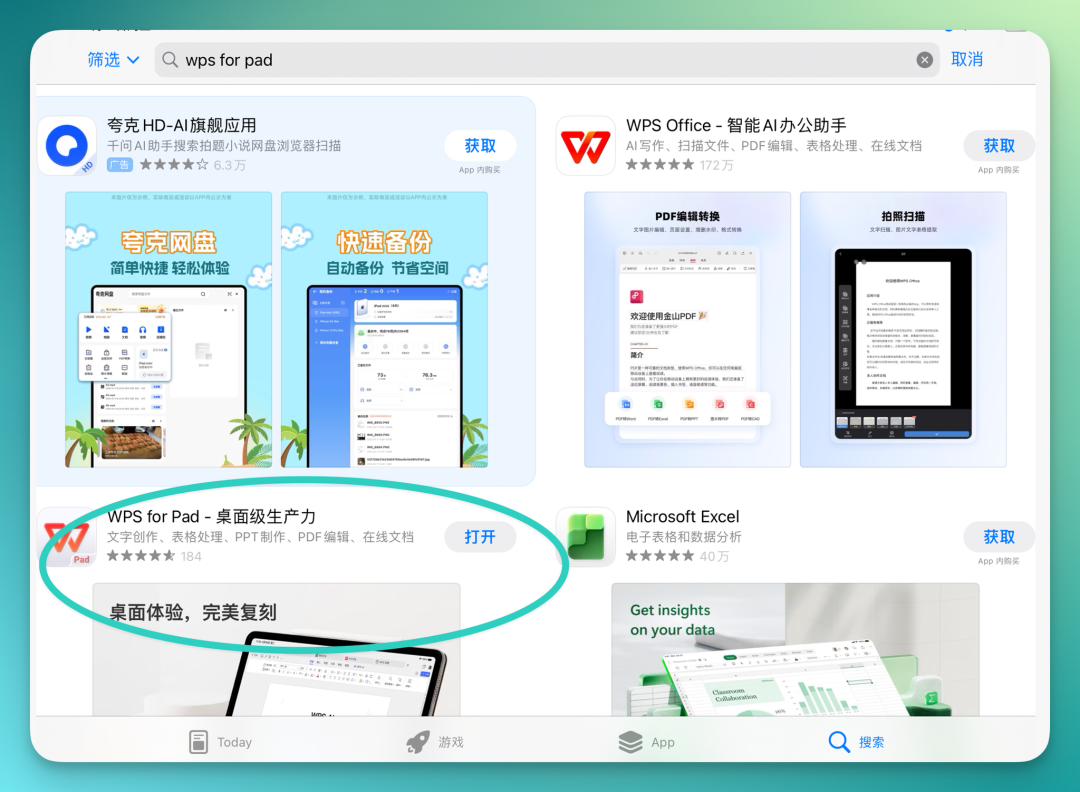
First, how to find it: just search "WPS for Pad" on the App Store. It debuted in the Hong Kong region, immediately topping both charts, then quickly rolled out domestically.
Why the buzz? The context is straightforward. WPS has long been an influential productivity tool, but its home turf has always been the desktop.
On the iPad side, apps with genuine native adaptation capable of running complete office workflows have honestly been scarce. Many tools feel disjointed — usable, but clunky.
So when WPS for Pad dropped, communities like Xiaohongshu lit up with discussion.

I opened the four most common file types directly in WPS for Pad: DOC, PPT, Excel, and PDF. The overall layout is essentially identical to the desktop version of WPS.
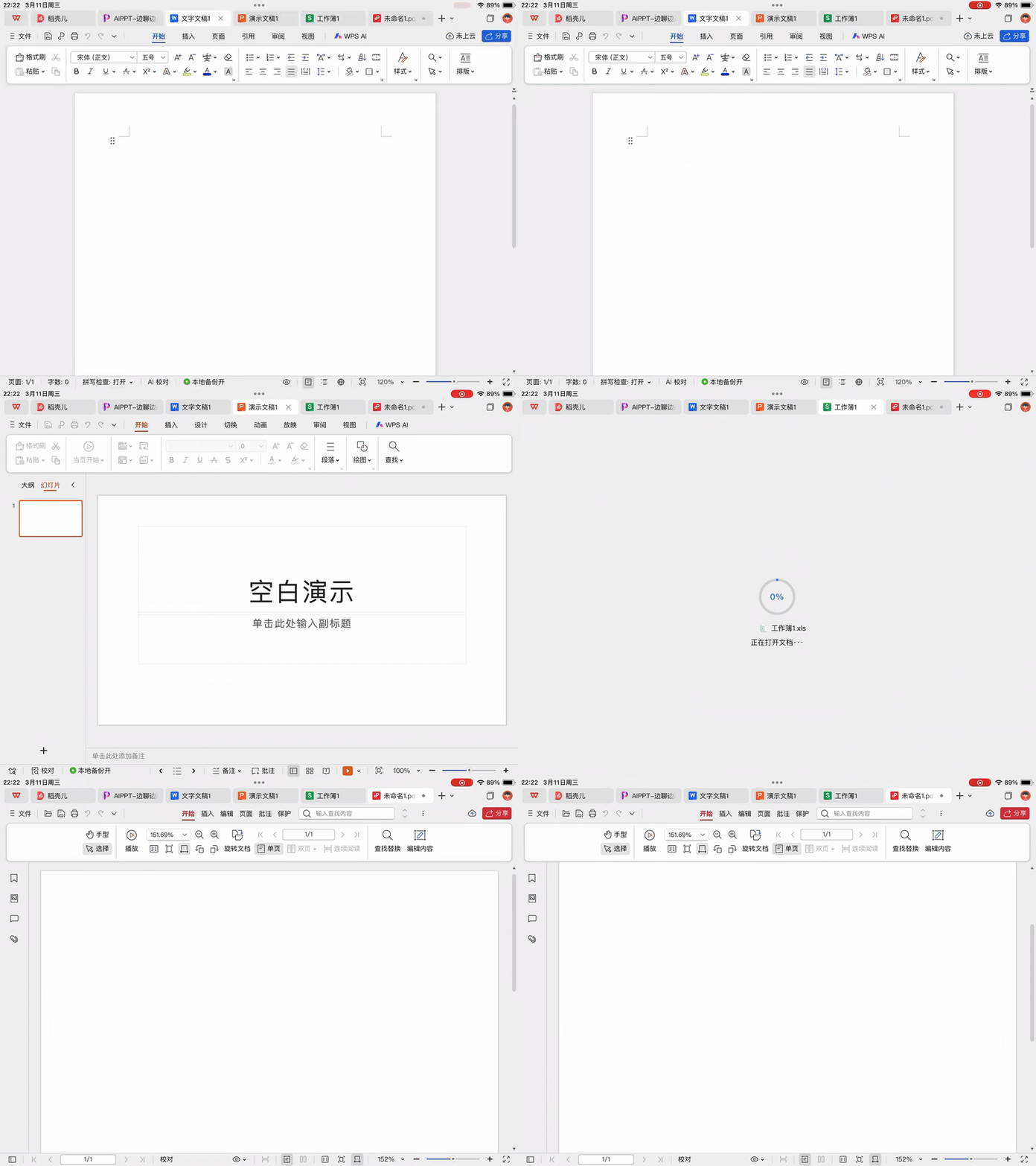
After several days of use, my overall impression comes down to two things: the experience is highly consistent with the desktop version, and it's smooth.
WPS has been at this for years; its internal workflows and pipelines are well-established. Porting a native experience to iPad typically introduces numerous issues, but WPS for Pad has resolved most of them.
Let's walk through each file type — DOC, Excel, PDF, and PPT. WPS has packed AI features into each category; we'll examine them one by one.
Word Documents
I had a document previously created using the desktop Agent — an OpenClaw derivatives catalog, put together recently because OpenClaw has been so hot.
This document has a fairly complex structure: table of contents, tables, multi-colored annotations — a relatively complete format that I'd been keeping in WeChat.
I used it to test WPS for Pad's Word experience.
First, the integration between WeChat and WPS for Pad is seamless. Tap a document directly in WeChat, and it opens effortlessly in WPS for Pad. Moreover, for the same document, WPS for Pad's format fidelity is even slightly better than WeChat's built-in preview.
The key point: this complex-format document opens in WPS for Pad looking almost exactly like the desktop version. Text layout isn't broken, tables aren't misaligned, cover images display normally, and the overall structure remains unchanged.
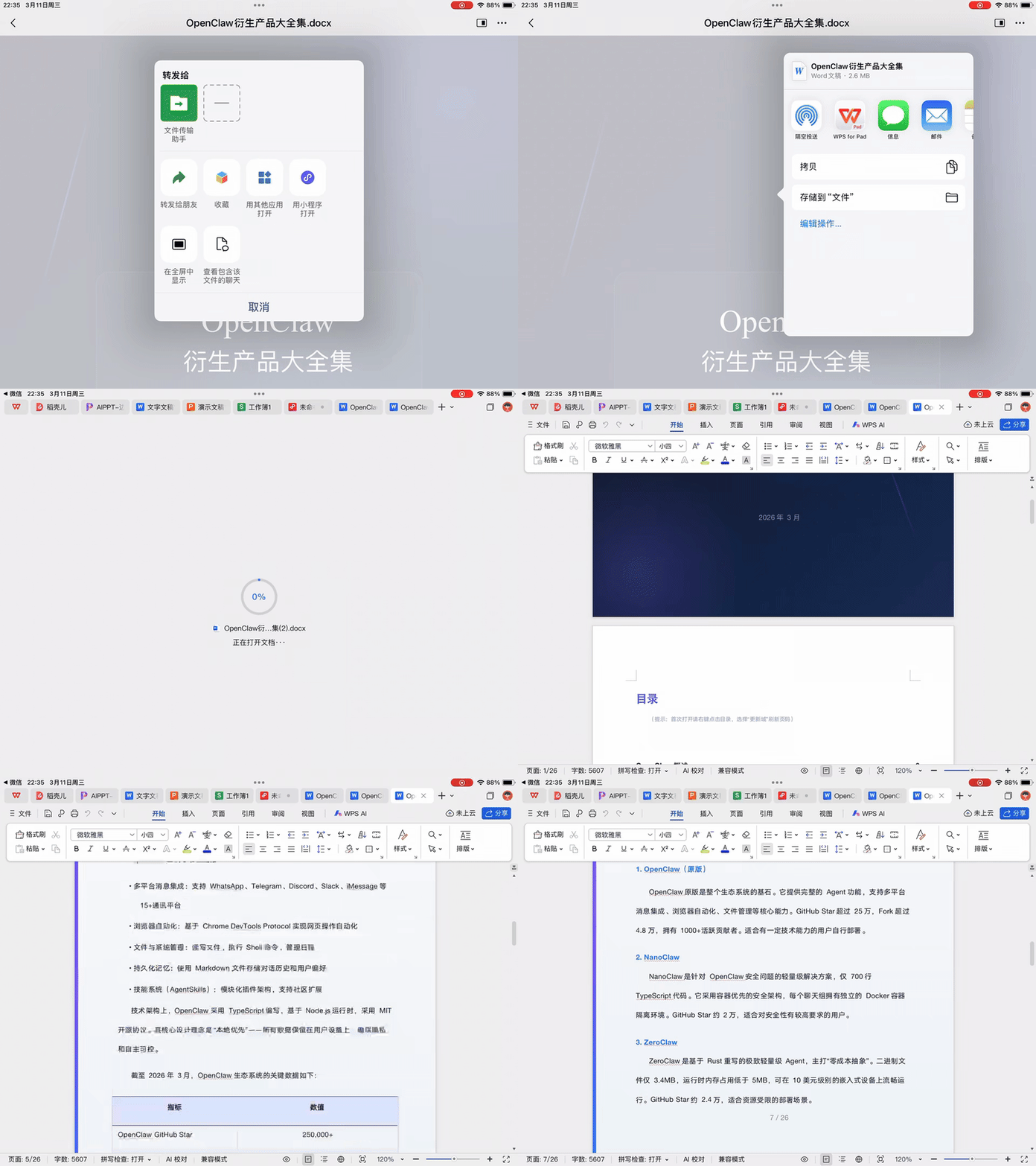
Looking closely at the details: page count, word count, and spell check all appear in the lower left corner; headers and annotations display correctly without any glitches.
I also tested the editing experience. Selecting text by finger-swiping, adding highlights, adjusting fonts, changing font sizes — the entire process is fairly smooth with virtually no lag.
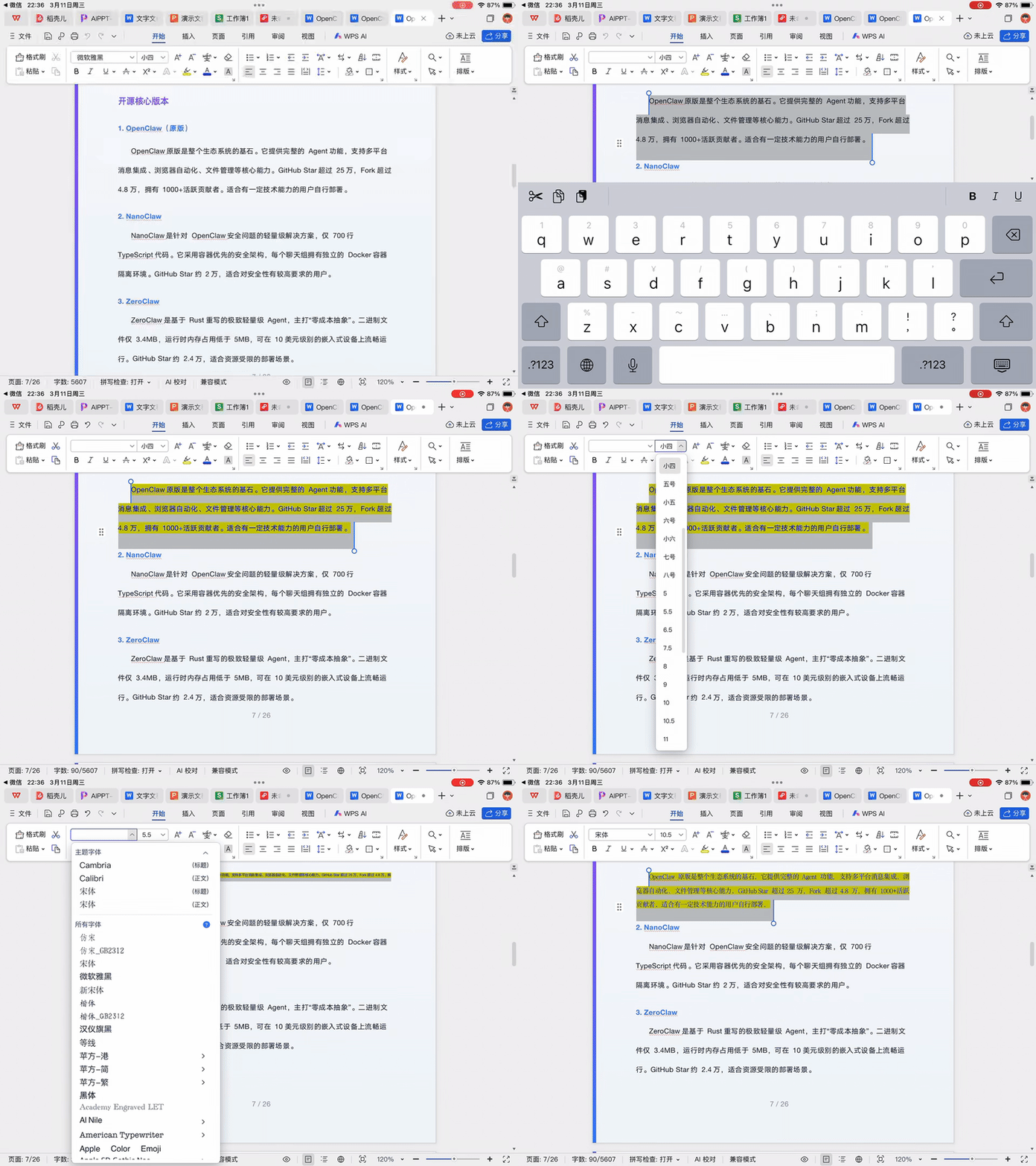
WPS has integrated several AI features into Word, with AI formatting being the most noteworthy.
It comes with several built-in templates: academic paper formatting, official document formatting, and general document formatting. If these aren't sufficient, custom template import is also supported.
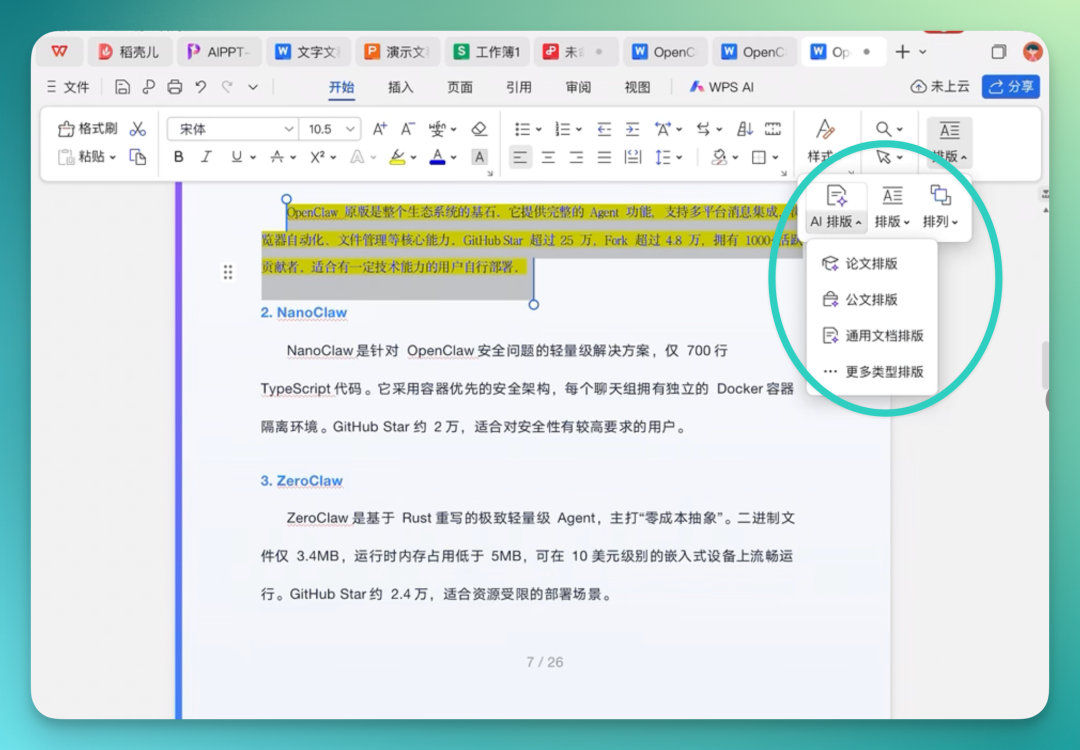
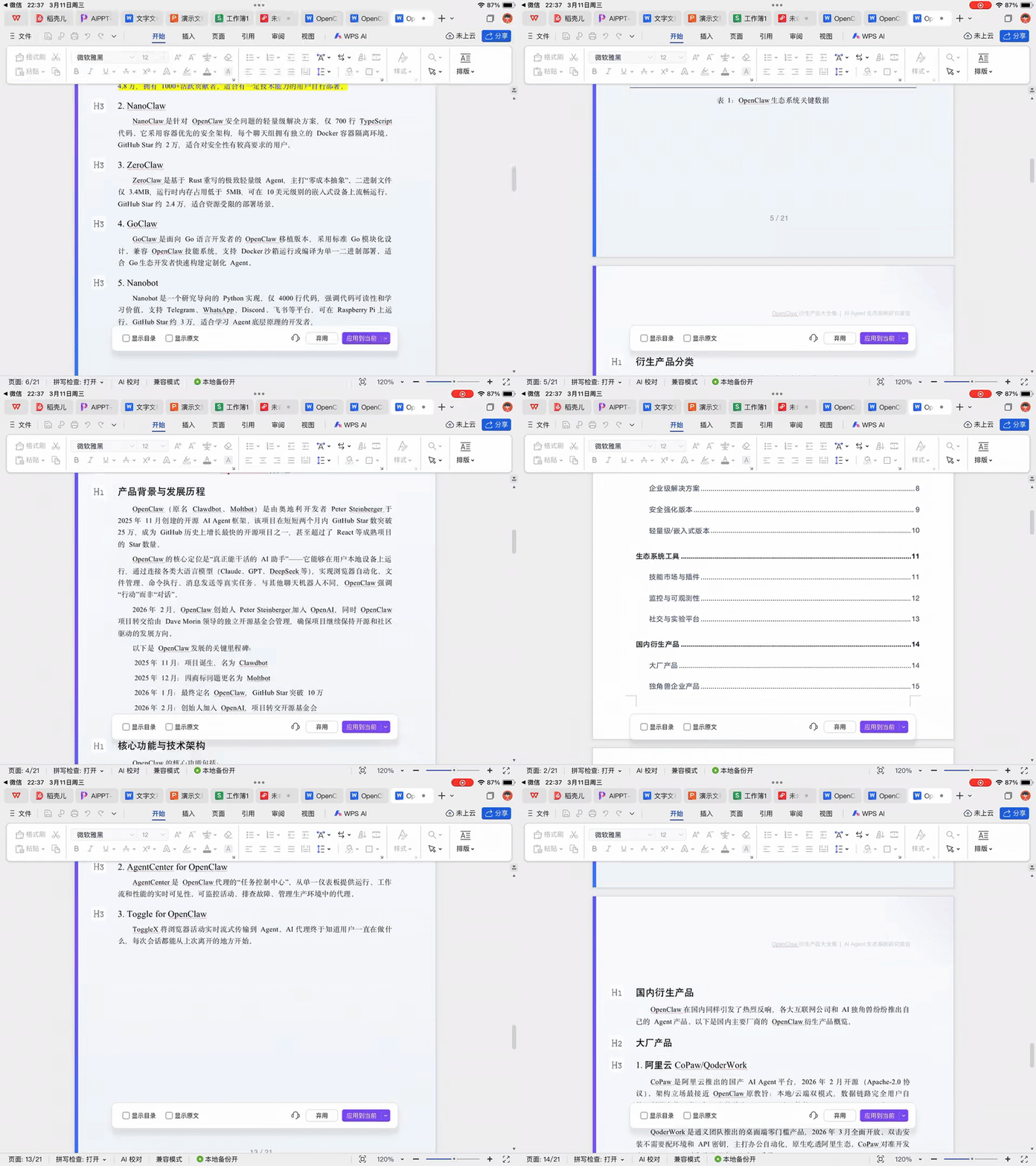
I tested AI formatting directly on the document mentioned above.
For 21 pages of content, it restructures according to the original framework, filling in more complete heading hierarchies — for instance, standardizing places where third-level headings were previously irregular. All text formatting is uniformly aligned.
Across various communities, I've noticed a shared concern about this WPS for Pad release: smoothness.
The logic is easy to understand — desktop GPUs are powerful enough to run smoothly. Whether iPad chips can handle it, whether there'll be noticeable lag, these are genuine worries.
But in actual use, the smoothness holds up.
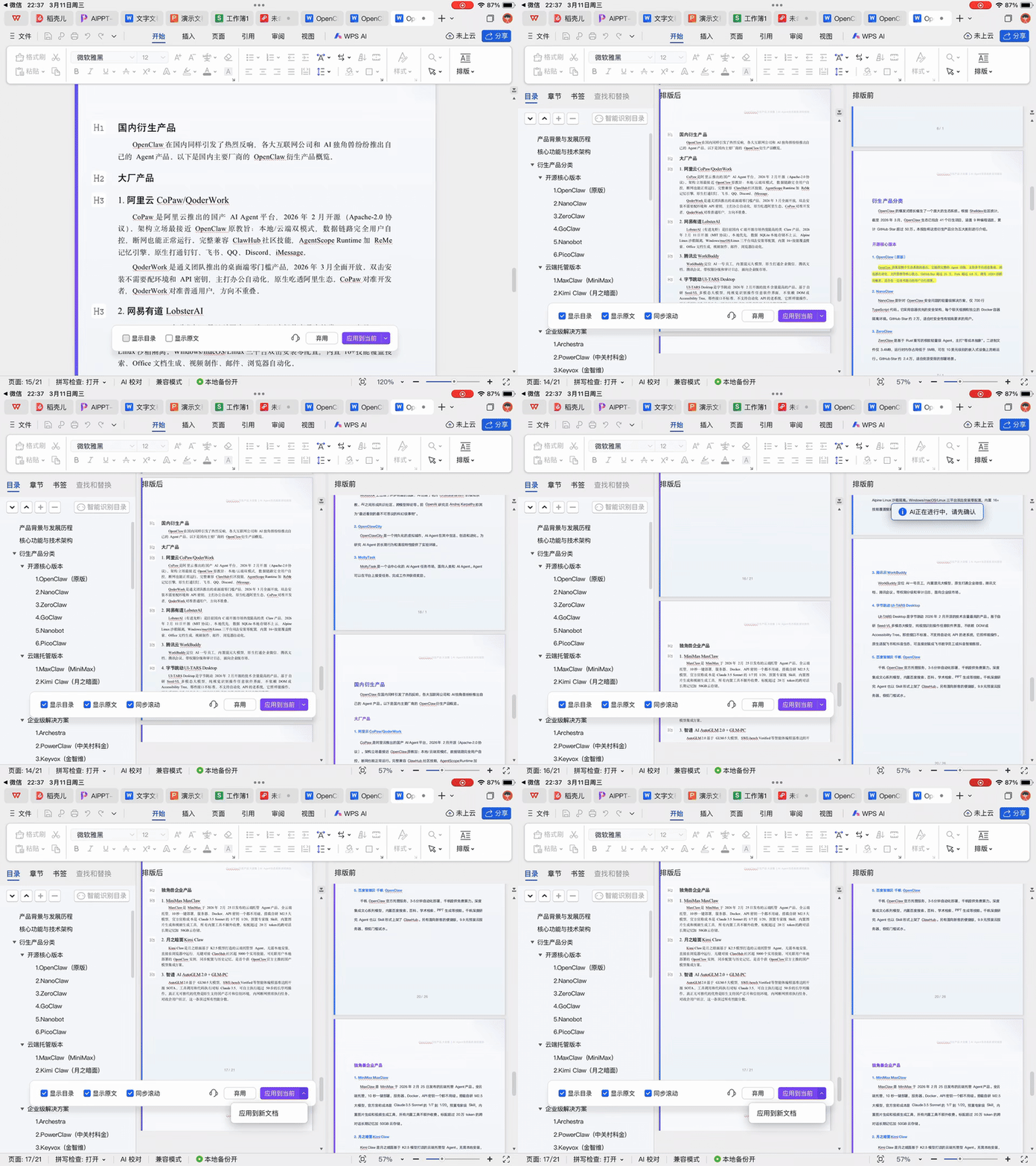
Take the most typical example: after applying AI formatting, three windows appear simultaneously on screen, each independently scrollable. I tested scrolling all three panes at once — overall smoothness is decent, with no obvious stuttering.
Excel Spreadsheets
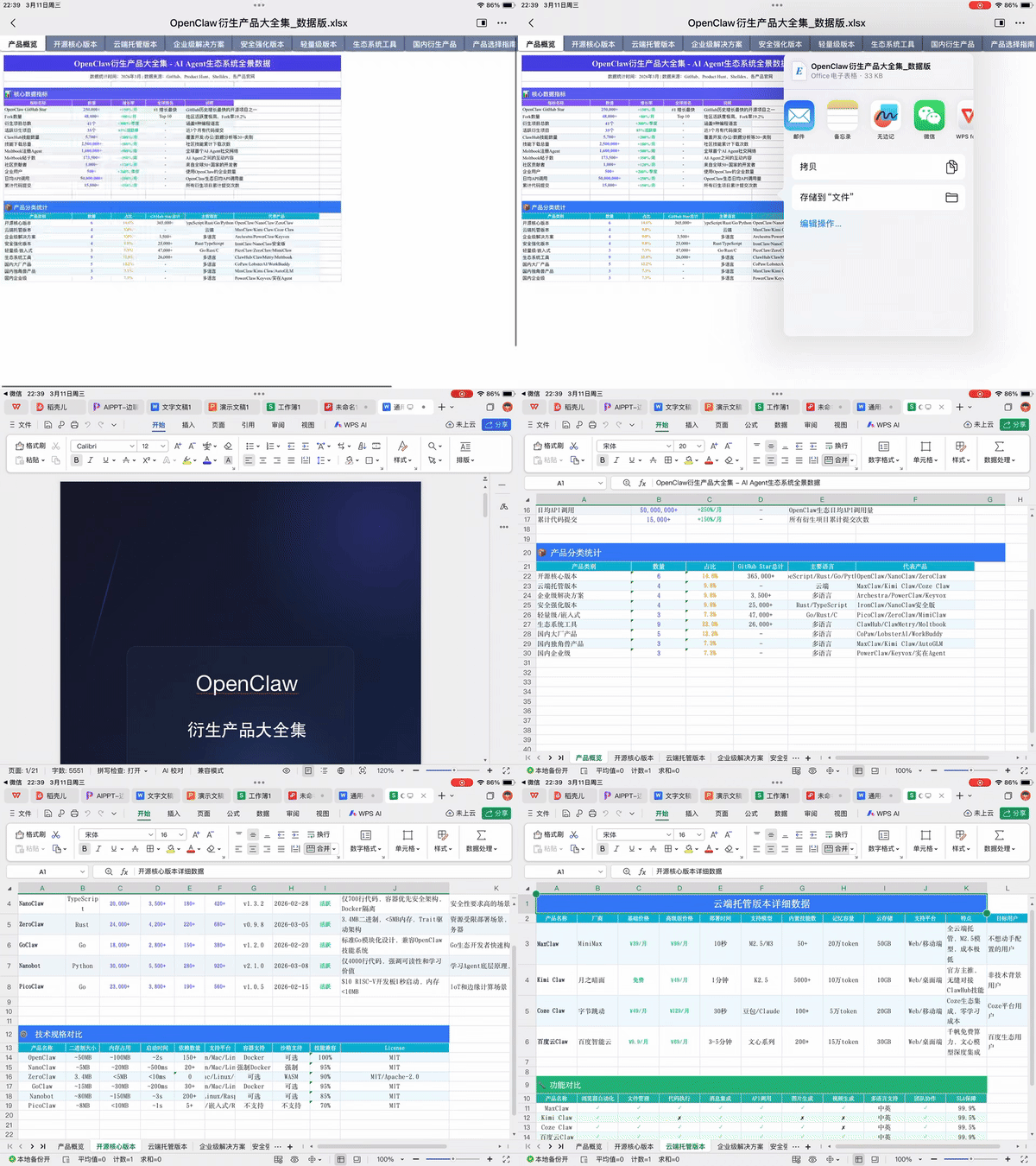
Next, spreadsheets. The test file was also an OpenClaw derivatives catalog, previously created with the Agent.
The entire file contains seven or eight sub-sheets, each packed with data, multi-level headers, and built-in internal logic — product categories, technical specifications, and so on. The structure is quite complex.
Opening this spreadsheet in WPS for Pad, zooming, scrolling, switching between multiple files — all smooth, no friction.
This time, one detail in spreadsheets deserves mention: pivot tables.
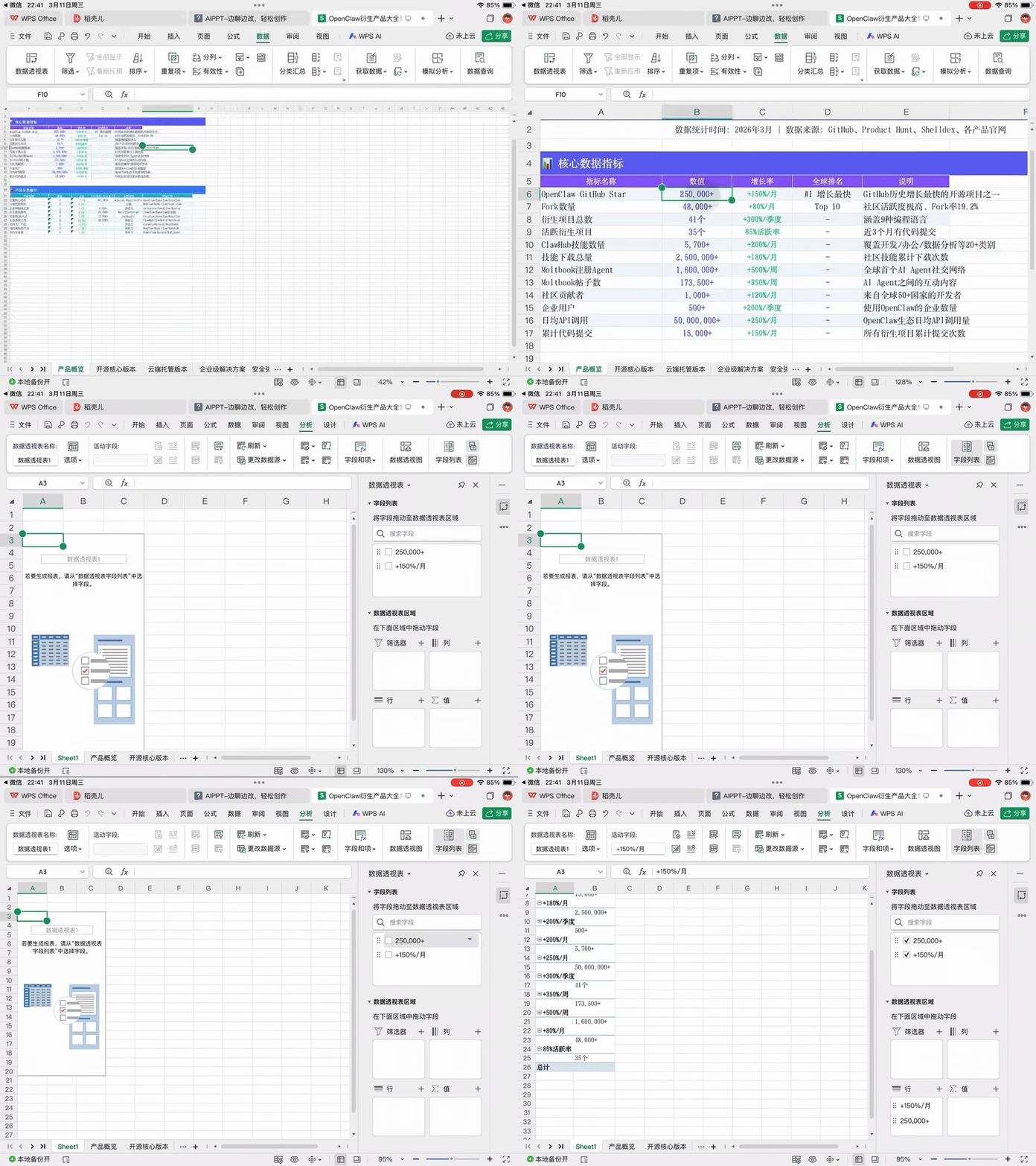
WPS for Pad fully supports pivot tables with decent interaction — directly operable by touch on iPad, selecting data and dragging fields, all completed through direct touch.
I directly selected columns B and C, checked them in the field list, and the pivot table generated instantly in another sub-sheet. The overall workflow has no obstacles; desktop operation logic translates to iPad.
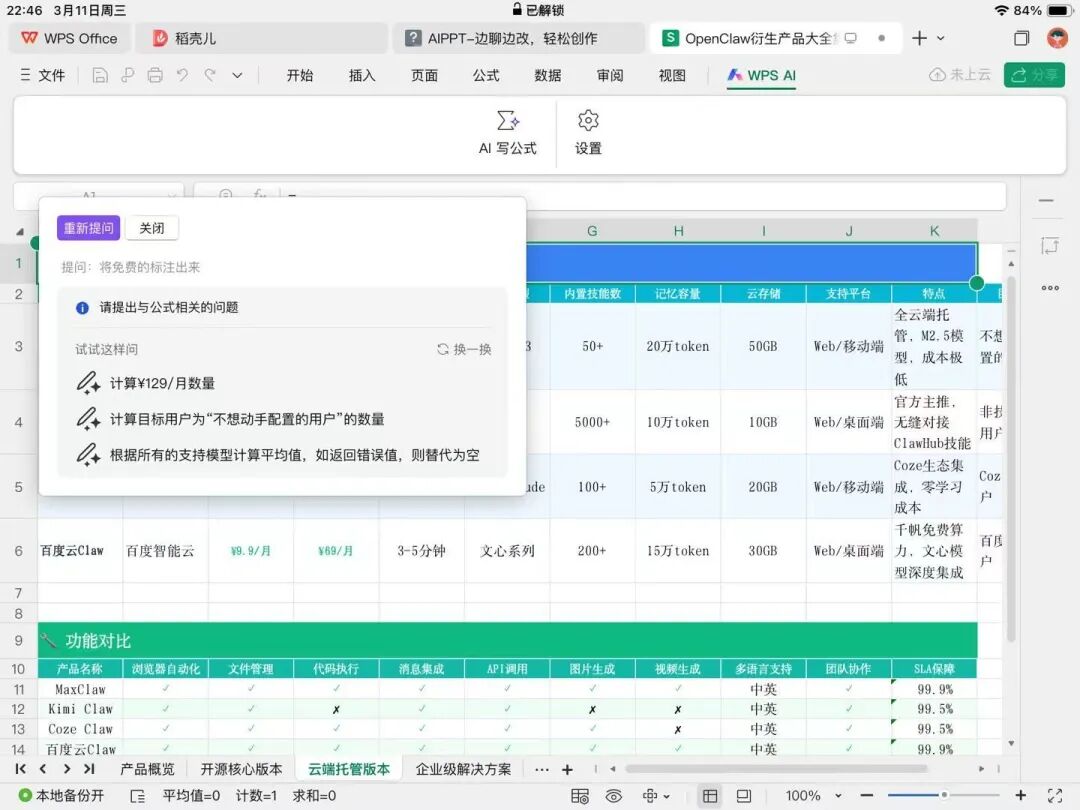
There's a WPS AI entry point in the upper right corner of spreadsheets, also present in Word documents — basically all file types have integrated AI functionality.
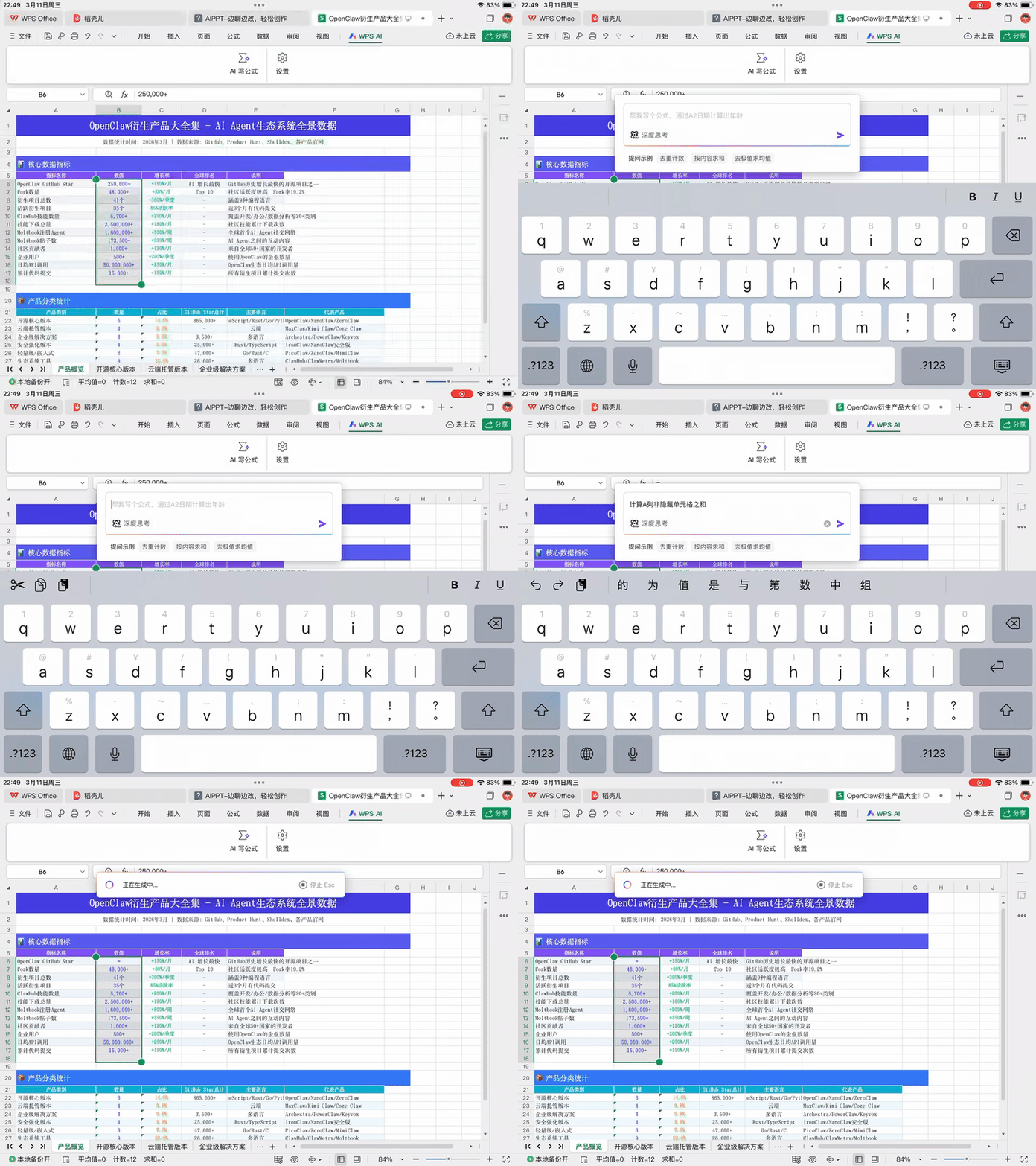
In spreadsheets, one particularly practical capability is natural language formula writing. No need to manually type functions; just say what you want to calculate.
For example, I tested calculating monthly fee quantities for various OpenClaw files, the proportion of target users who don't want manual configuration, and averages based on certain knowledge models — all through natural language queries, with AI generating corresponding formulas.
Let me demonstrate the complete natural language formula generation workflow.
WPS AI first reads your entire spreadsheet content, then recommends a batch of default formulas based on the table data — these recommended formulas can be browsed with one-click switching.
After selecting a formula, click confirm, and AI combines deep thinking capabilities with the actual spreadsheet content to automatically write and fill in the formula. The entire process requires no manual function input.
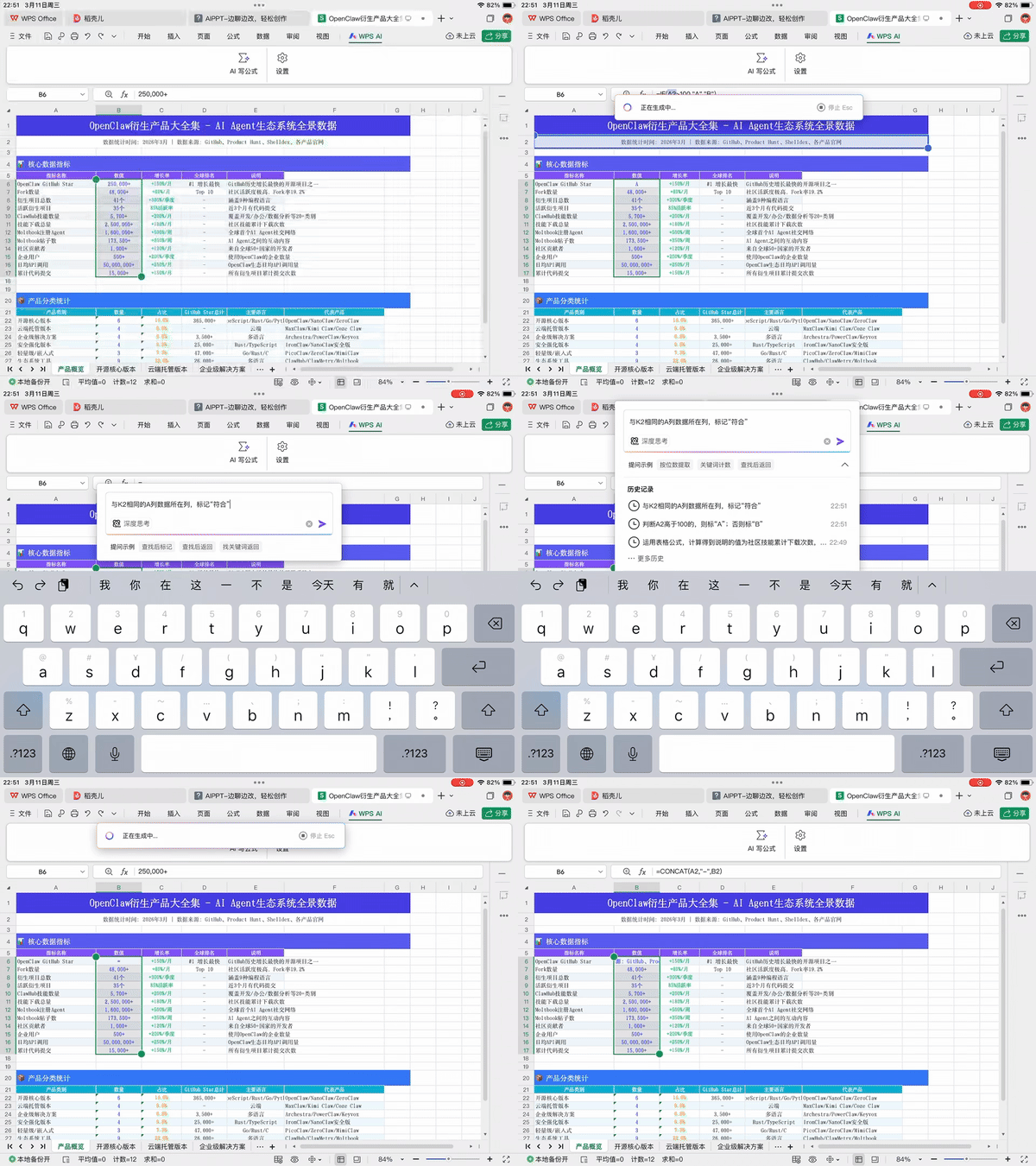
For instance, I asked it to calculate the sum of non-hidden cells in column A, inputting this requirement in natural language, and AI automatically generated the corresponding formula.
PDF Documents
Next, PDF.
Opening PDFs in WPS for Pad, the overall functional modules are basically consistent with the desktop version. Since it's within the WPS ecosystem, all expected sub-features are present — content editing, content insertion, even playback support. The feature coverage is fairly comprehensive.
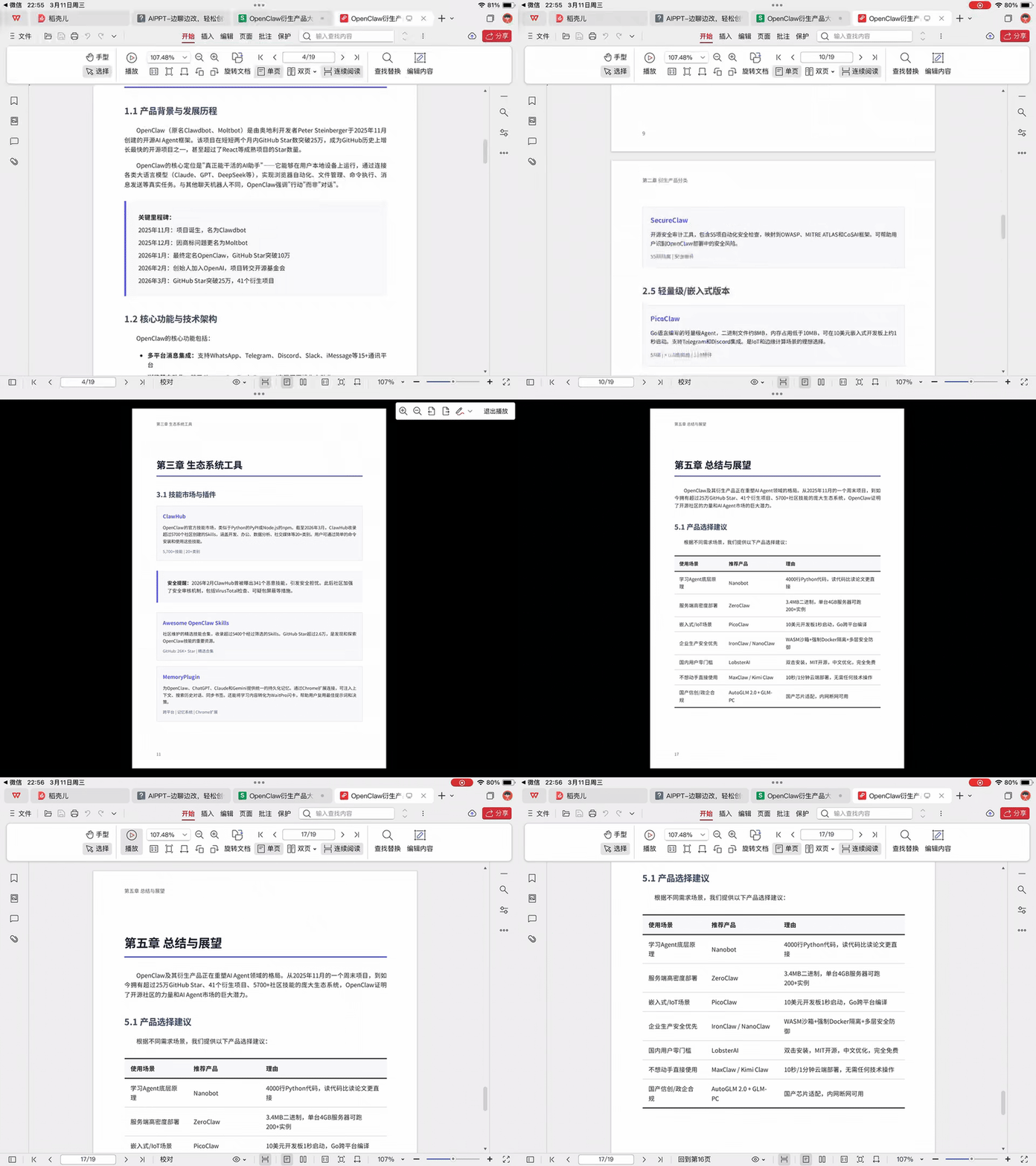
Overall, the PDF experience is quite smooth.
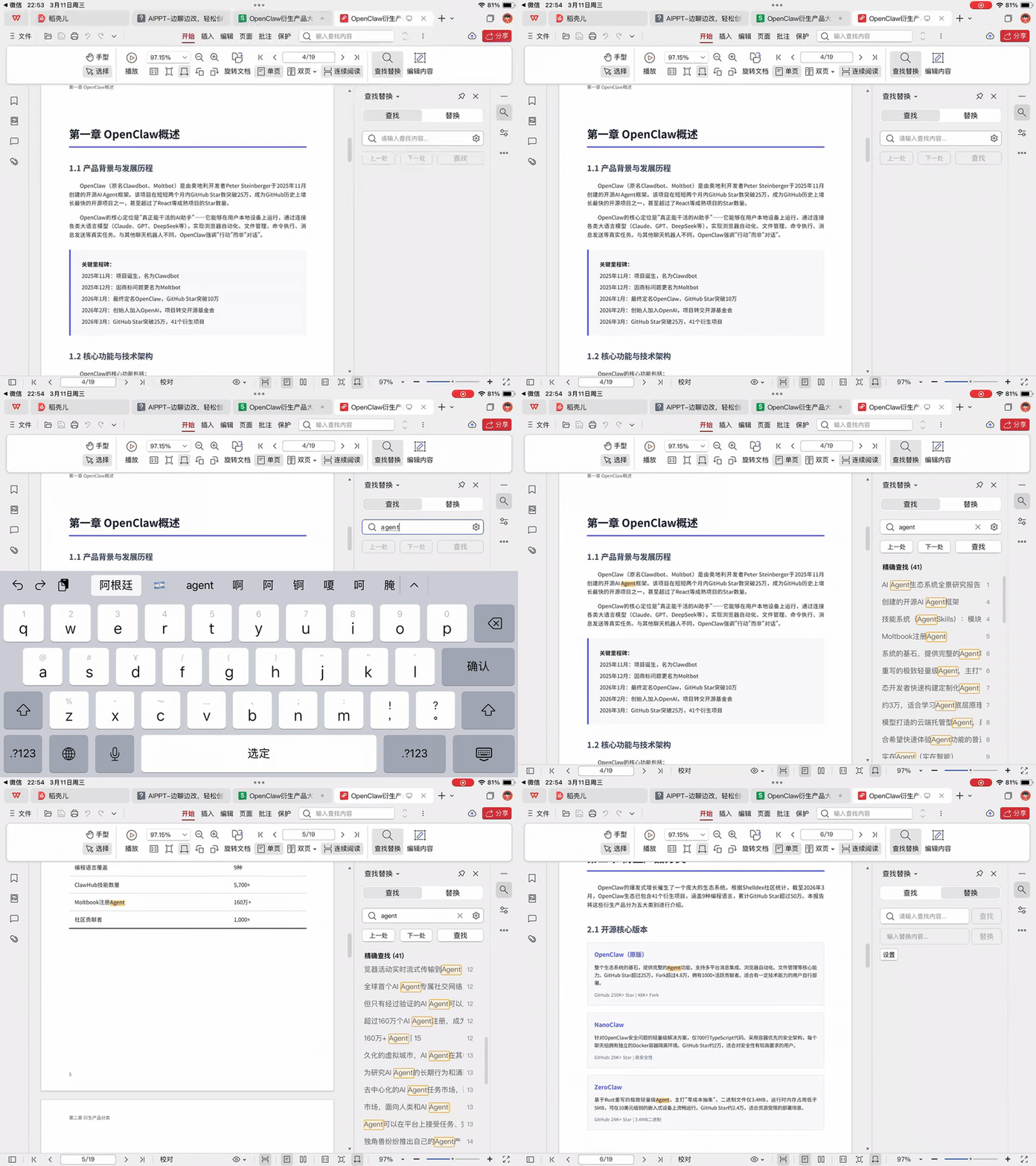
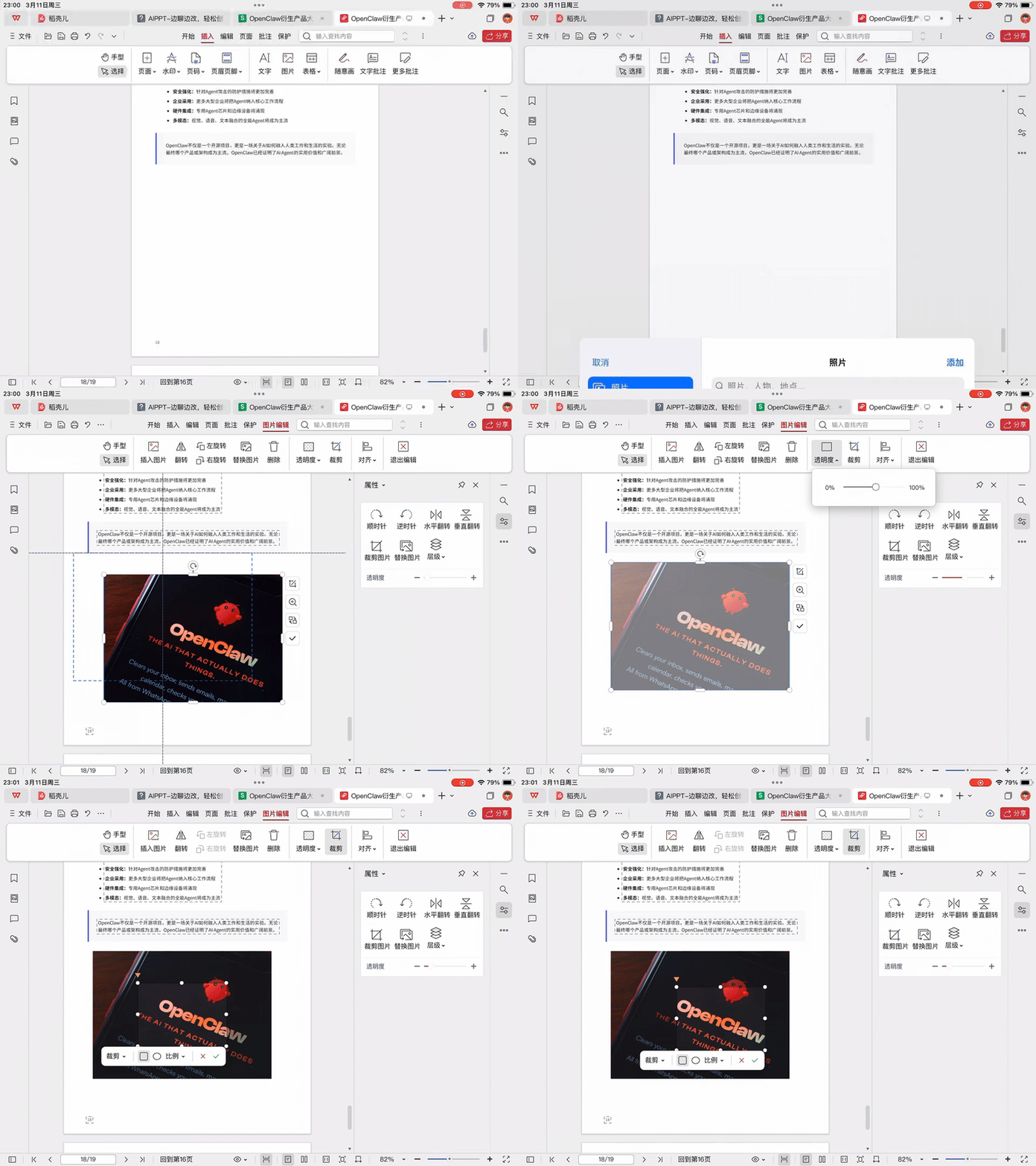
Here are a few simple examples — small details, but they reflect overall smoothness. For instance, the find-and-replace experience for PDFs on iPad: I searched for "Agent," and all instances in the document were highlighted with virtually no delay:
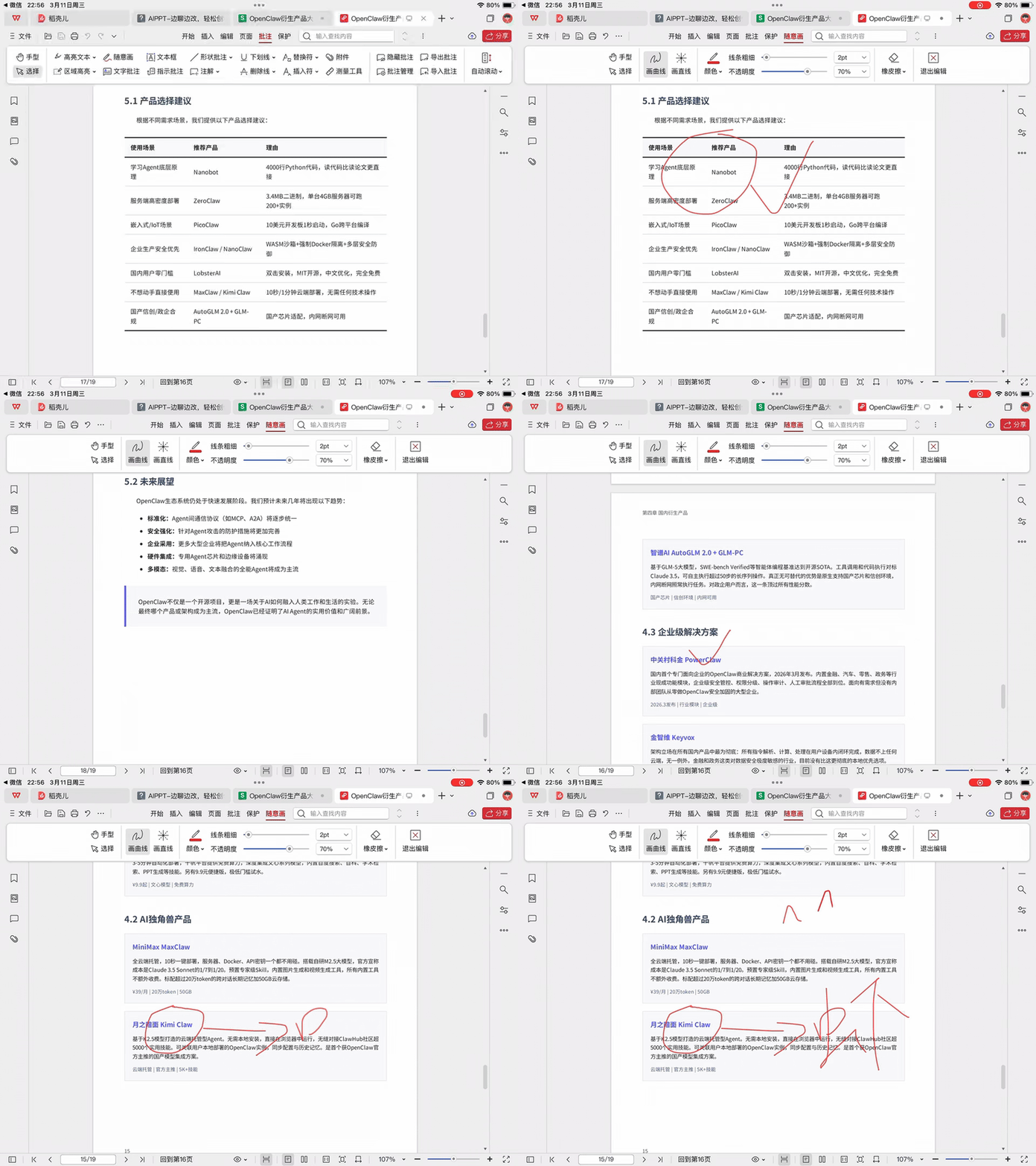
Another small example: freehand drawing, allowing direct sketching or annotation on PDFs using finger or Apple Pencil, drawing curves, changing colors, adjusting line thickness. Operating with finger or Apple Pencil on iPad feels quite natural:
One more example: inserting images into PDFs is also handy. Select directly from photo album, insert into a blank page, drag to adjust position with finger, cropping also supported — lightweight operation.
PowerPoint Presentations
Finally, PowerPoint. PPT itself has the most complex format — text, tables, and icons mixed together. If fonts are off or formatting slightly wrong, the presentation effect goes sideways.
Many Agents can generate PPTs now, but downloading locally often causes issues: garbled text, abnormal text embedding, formatting chaos — these are all common. So cross-system format fidelity after opening is a fairly critical experience point.
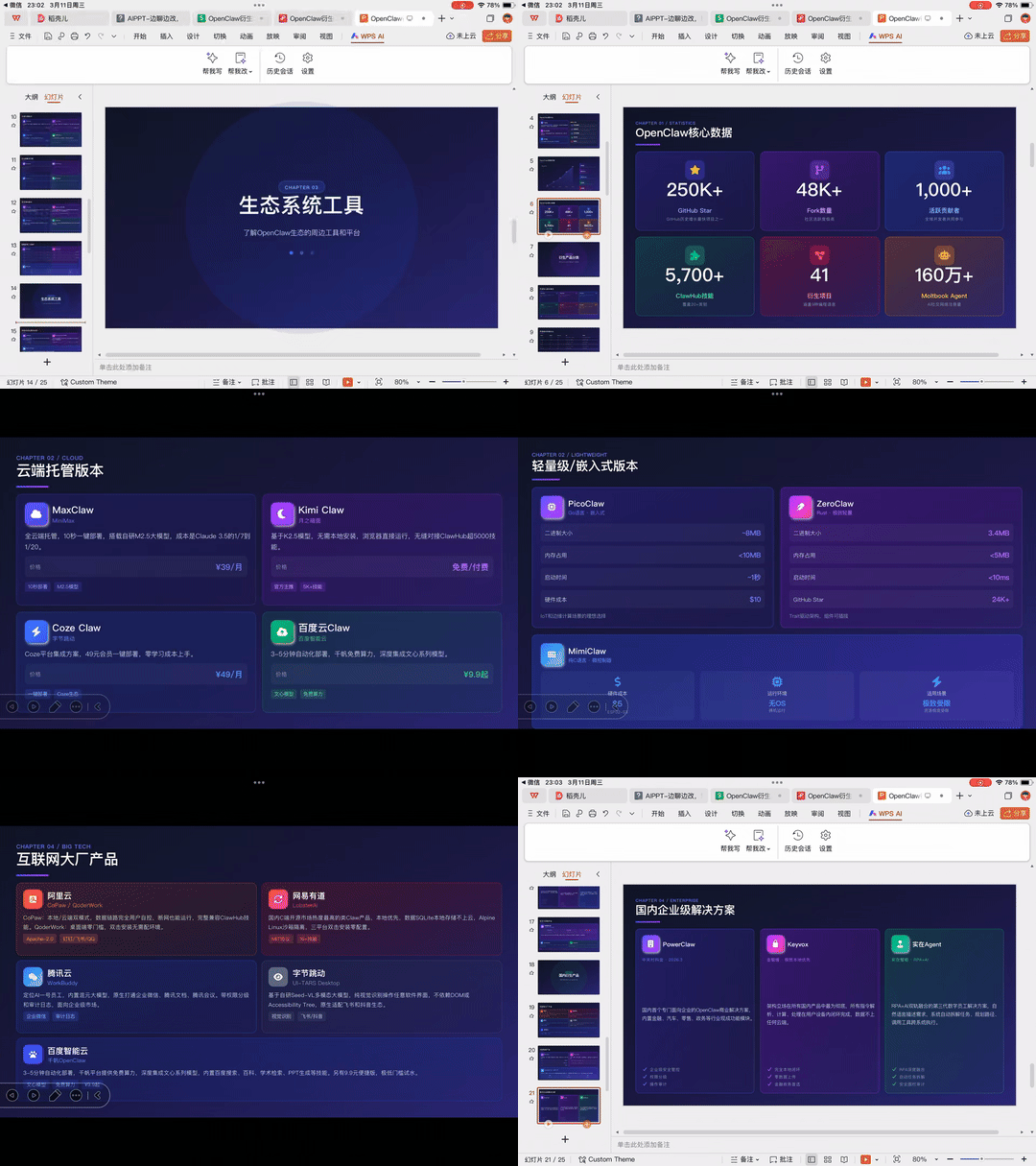
Opening PPT in WPS for Pad, the overall display is basically consistent with the desktop version — text isn't misaligned, icon positions are normal, structural frames show no obvious offset.
AI Features
The four file types mentioned above all embed WPS AI functionality, but WPS for Pad actually has a more complete AI entry point in the left sidebar — same as the desktop version, integrating WPS's own AI Agent Lingxi, plus AI PPT capabilities.
Let's focus on this.
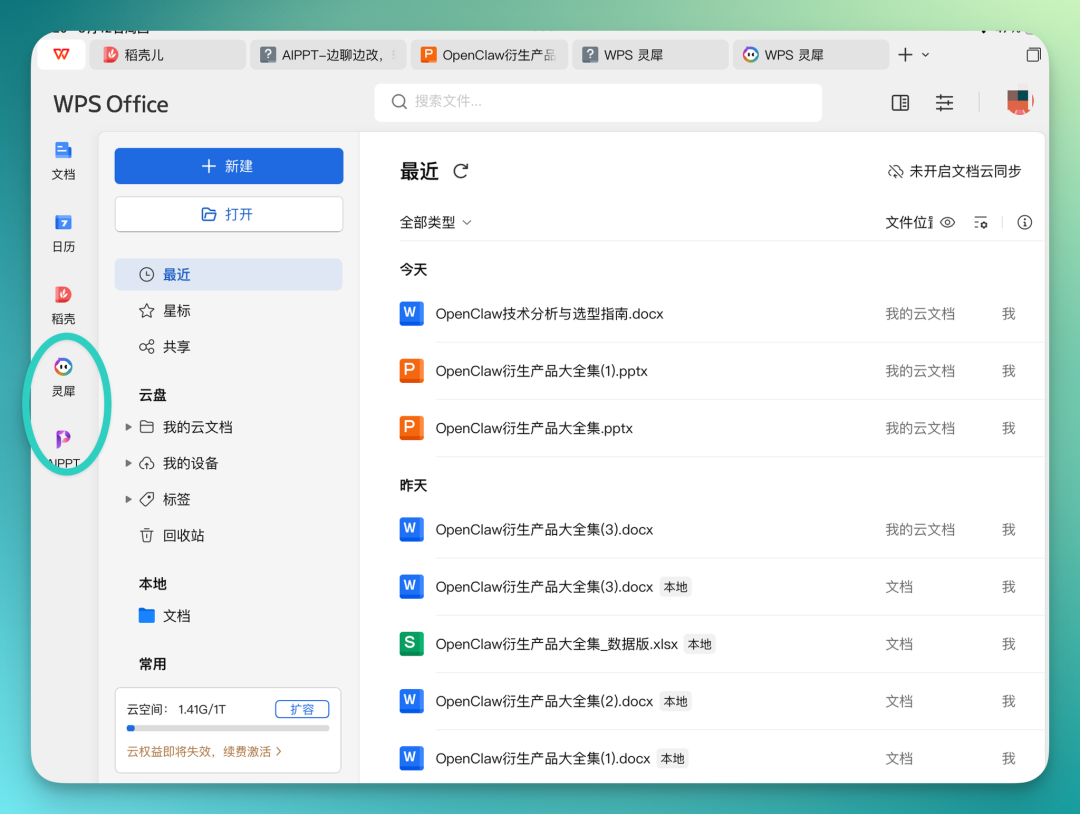
WPS for Pad already integrates the AI office assistant Lingxi, with an experience basically consistent with the desktop version. Not just the interface resemblance — the built-in Agents, such as code writing and preview functions, follow the same logic.
One workflow integration point deserves mention. After transferring files from WeChat to WPS for Pad, you can upload to cloud space with one click. Documents in cloud space, whether previously stored from desktop or newly transferred local files, can be directly fed to Lingxi to generate presentations, spreadsheets, documents, and more based on these files.
The entire workflow is connected end-to-end, no need to shuttle files back and forth.
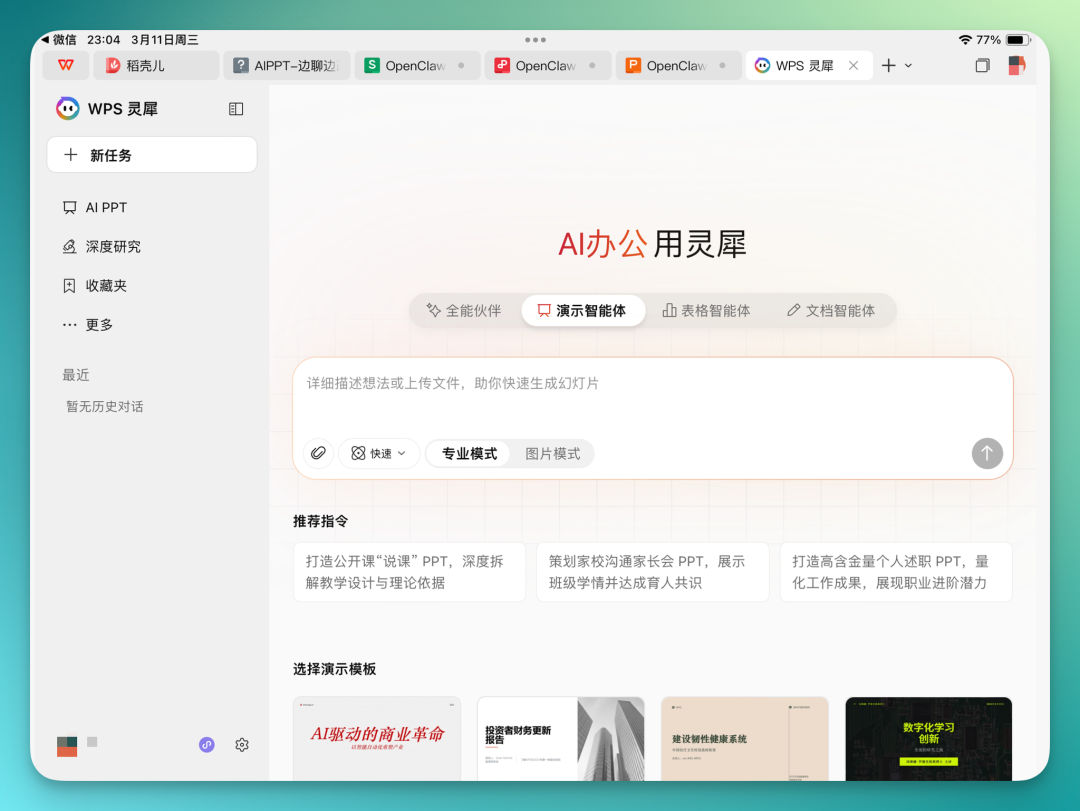
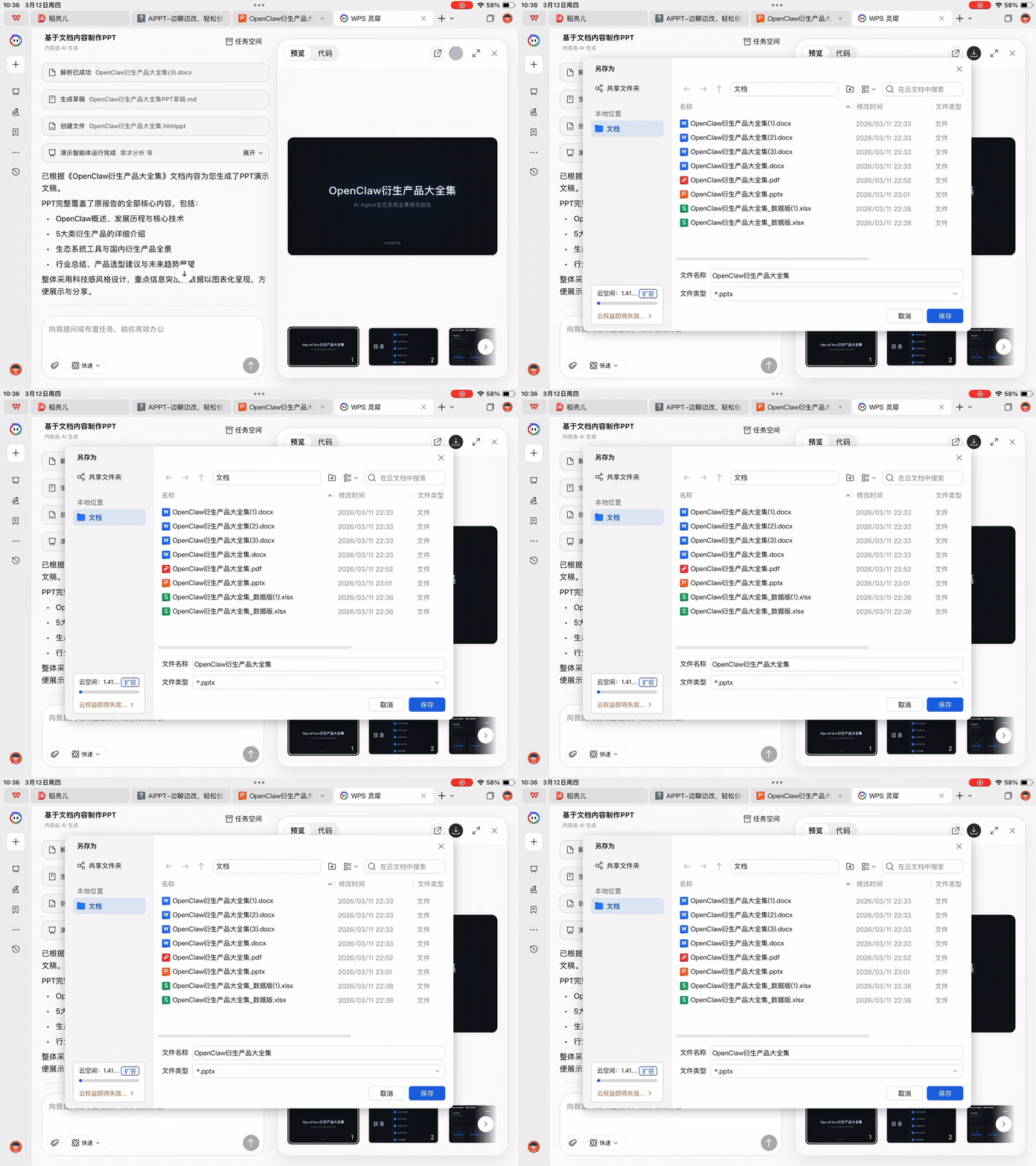
Lingxi has many built-in templates. I directly uploaded that OpenClaw derivatives document and asked it to generate a PPT based on this document:
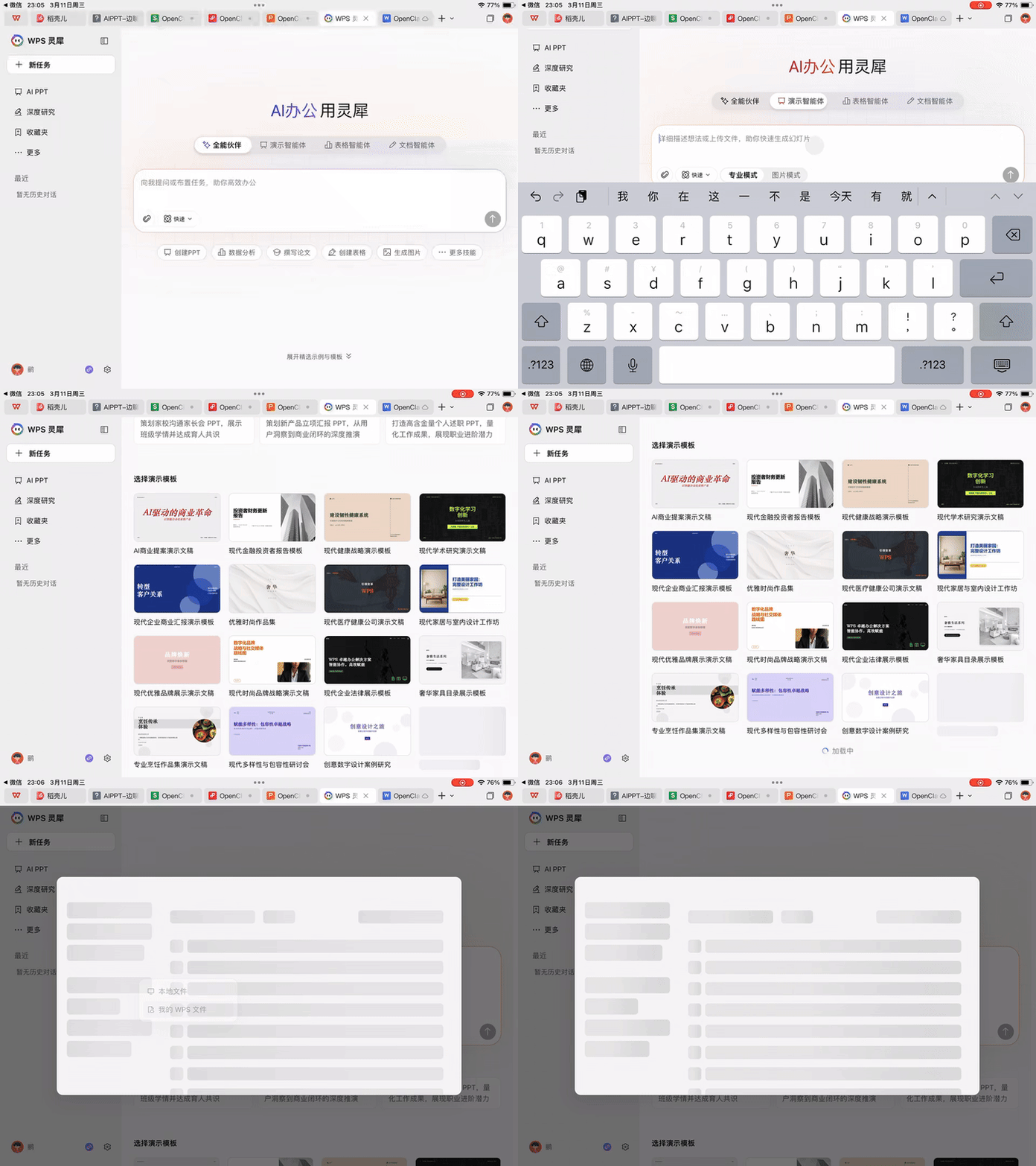
Then I switched to another template:
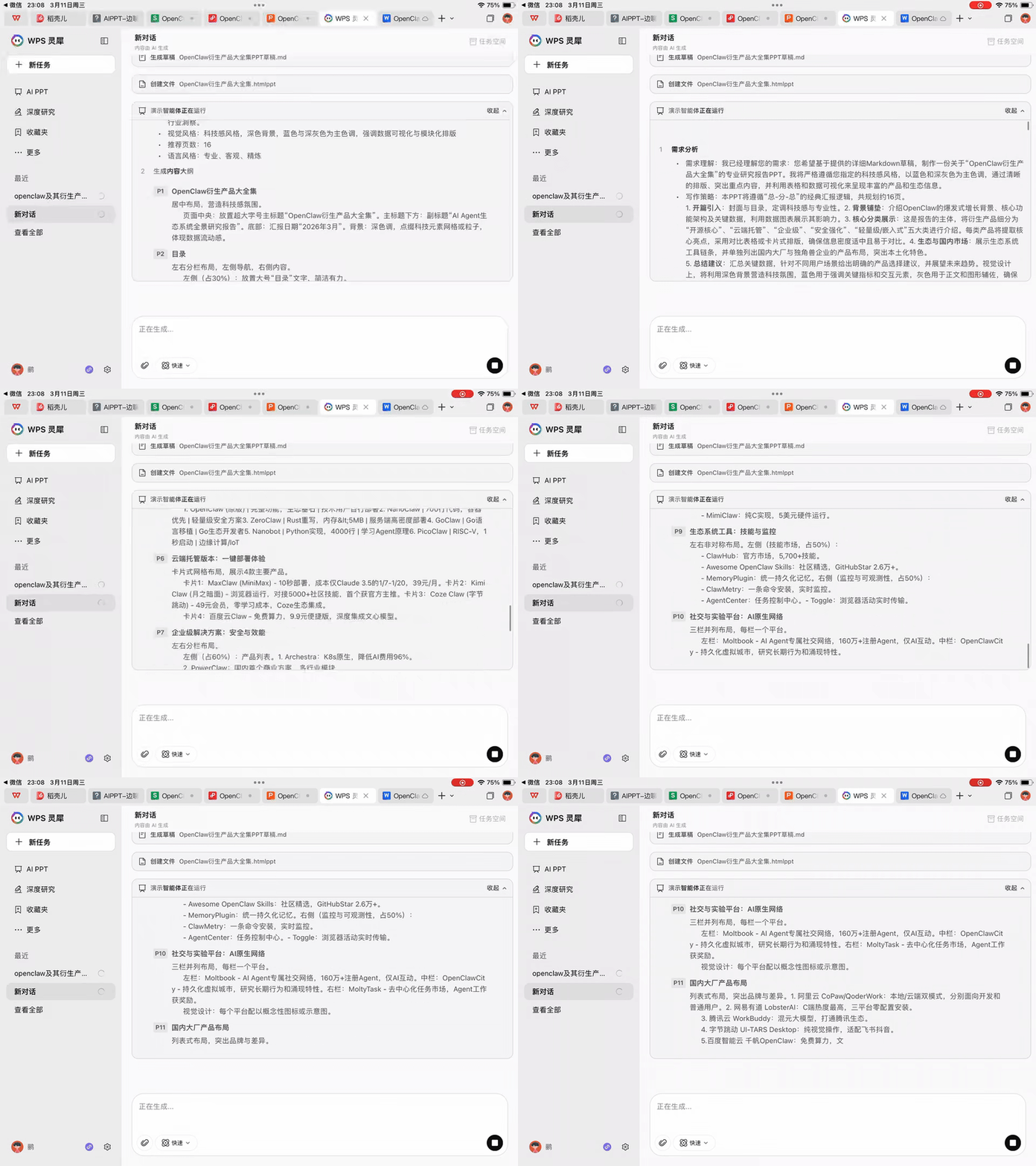
The execution process is visible — you can see the Agent running in real-time: requirement analysis, content planning for each page, color matching, structural layout, such as three-column parallel arrangements. The entire design process is displayed, just like running on desktop.
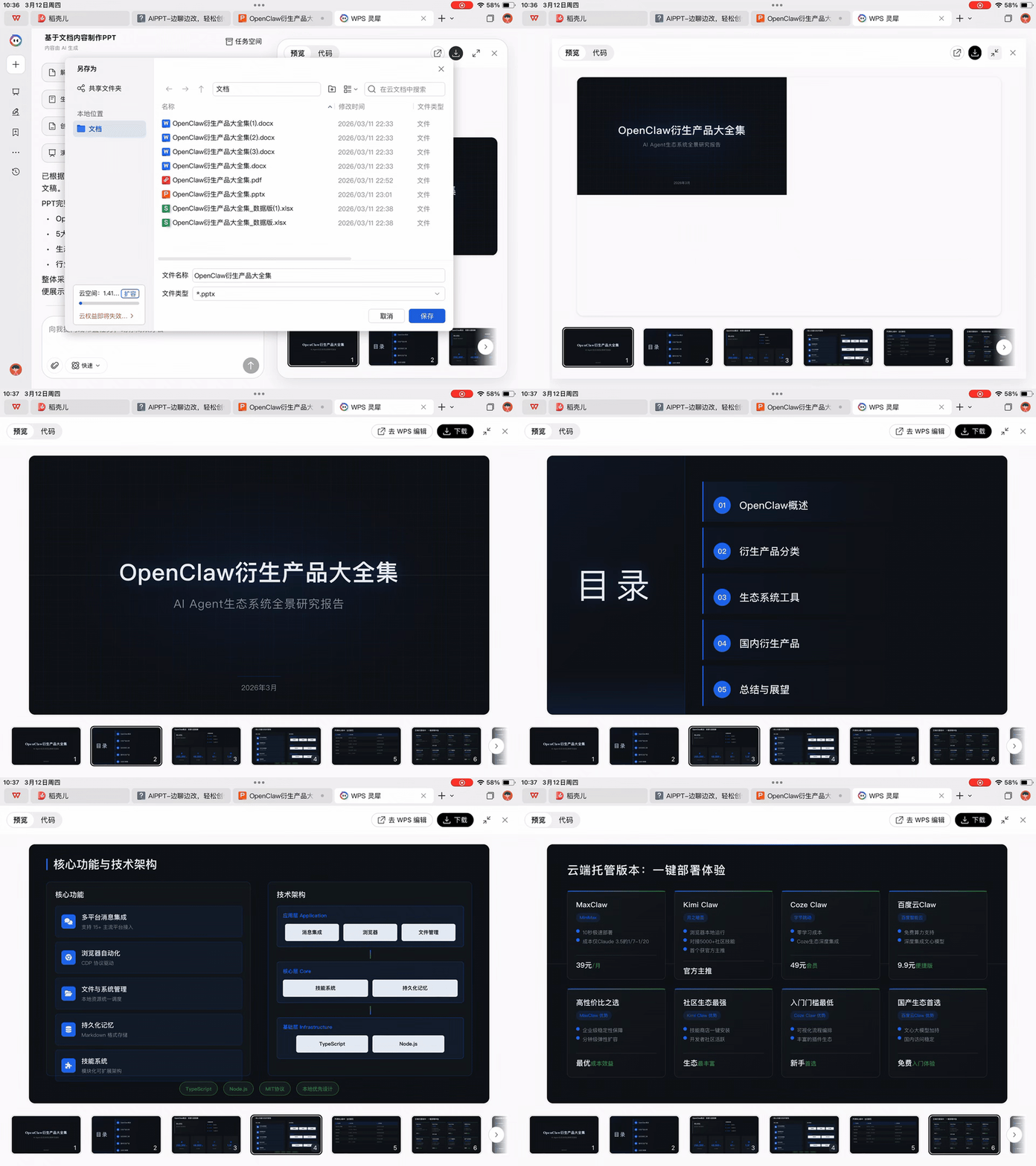
The final output is decent — OpenClaw project overview, Star count, Fork count, all present. Generated 15 slides total, fairly complete content.
After generation, you can directly invoke the embedded WPS AI for further refinement, no need to export and reprocess.
WPS for Pad also supports deep research functionality, consistent with the desktop experience. The entire workflow execution is visible, with hundreds of web sources called listed in the task panel.
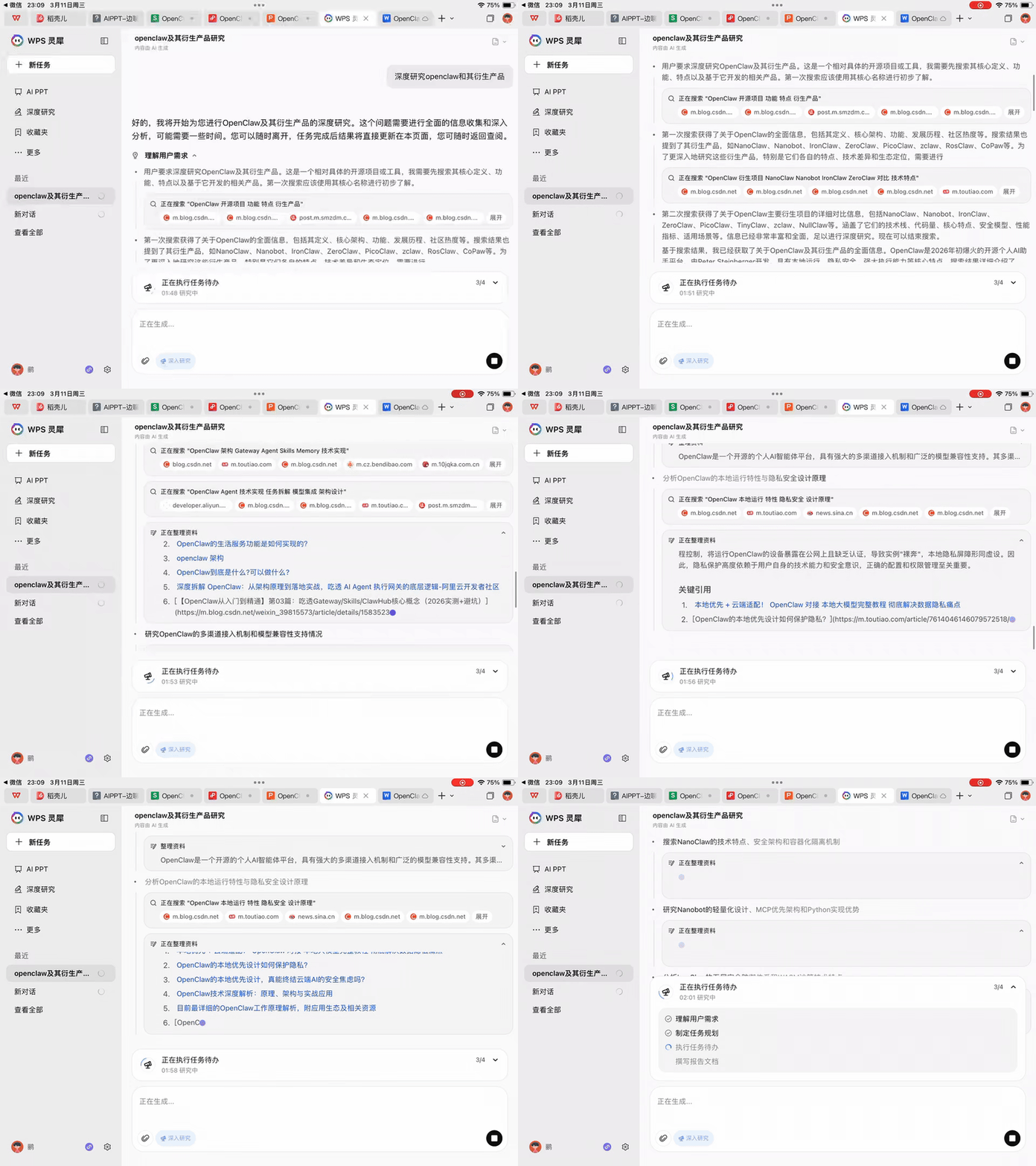
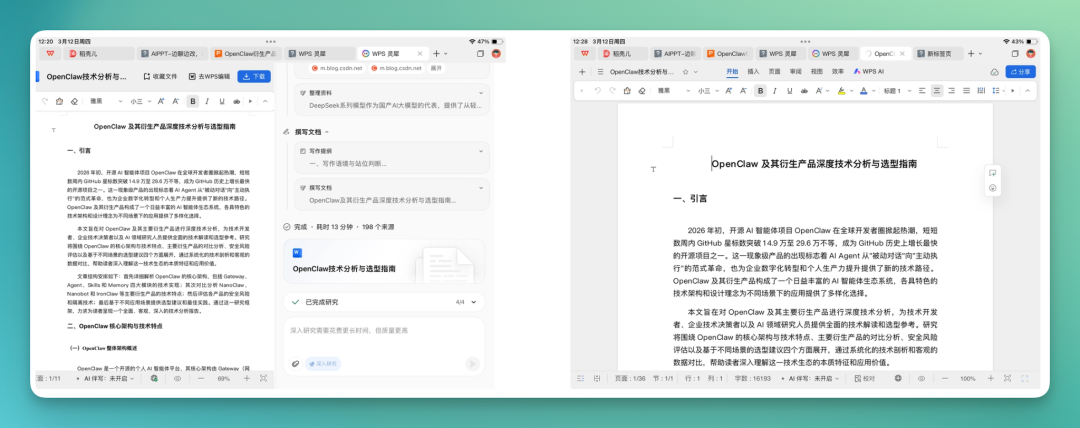
It quickly generated a 16,000-word deep research report, containing a complete selection guide for OpenClaw and its derivatives.
The layout is two-column: the left side shows generated report content, the right side allows continued conversation with the Agent, requesting modifications based on the document at any time.
When satisfied, directly click the WPS edit button above to enter editing mode — these two nodes are connected, no need to save separately and reimport.
Of course, due to system characteristics, WPS for Pad's AI features currently still don't match the PC version in quantity. I've also seen the WPS team indicate in communities that they'll gradually fill in the gaps — something to look forward to.
Let me add context about my device. Saying it's smooth on an M4 iPad might not be very convincing.
I have two iPads; one was charging, so this demo used the older one. I actually recorded a GIF of the deep research report segment — you can see the smoothness directly:
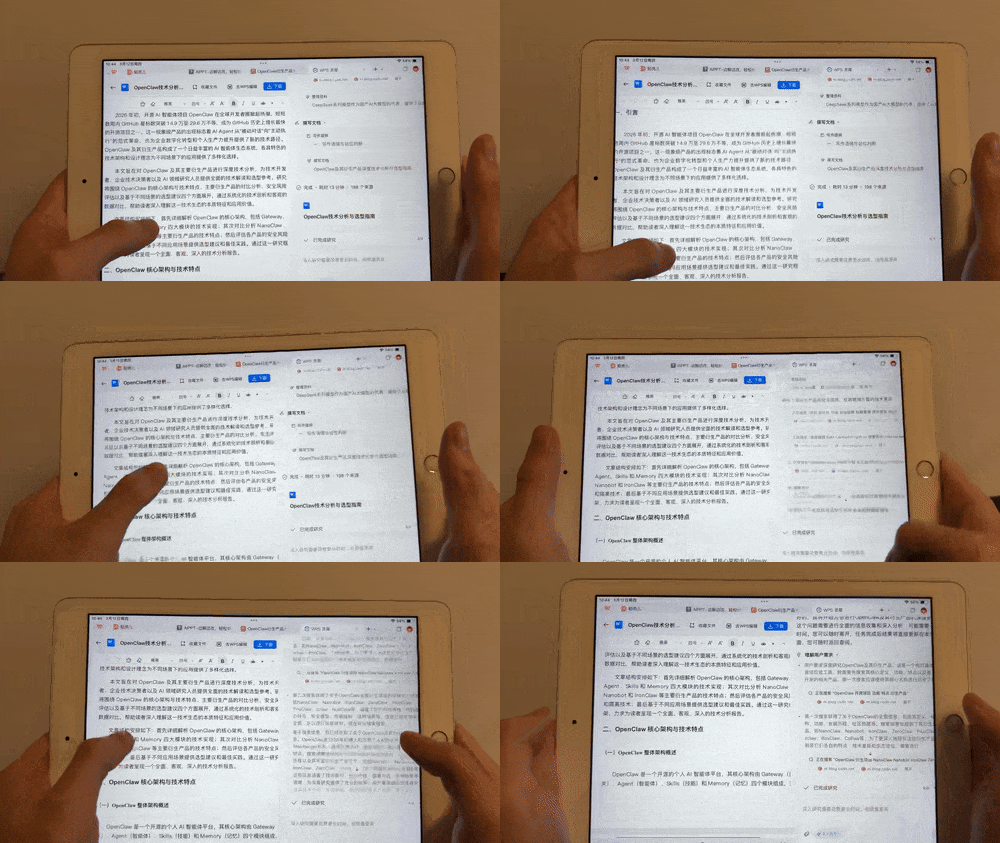
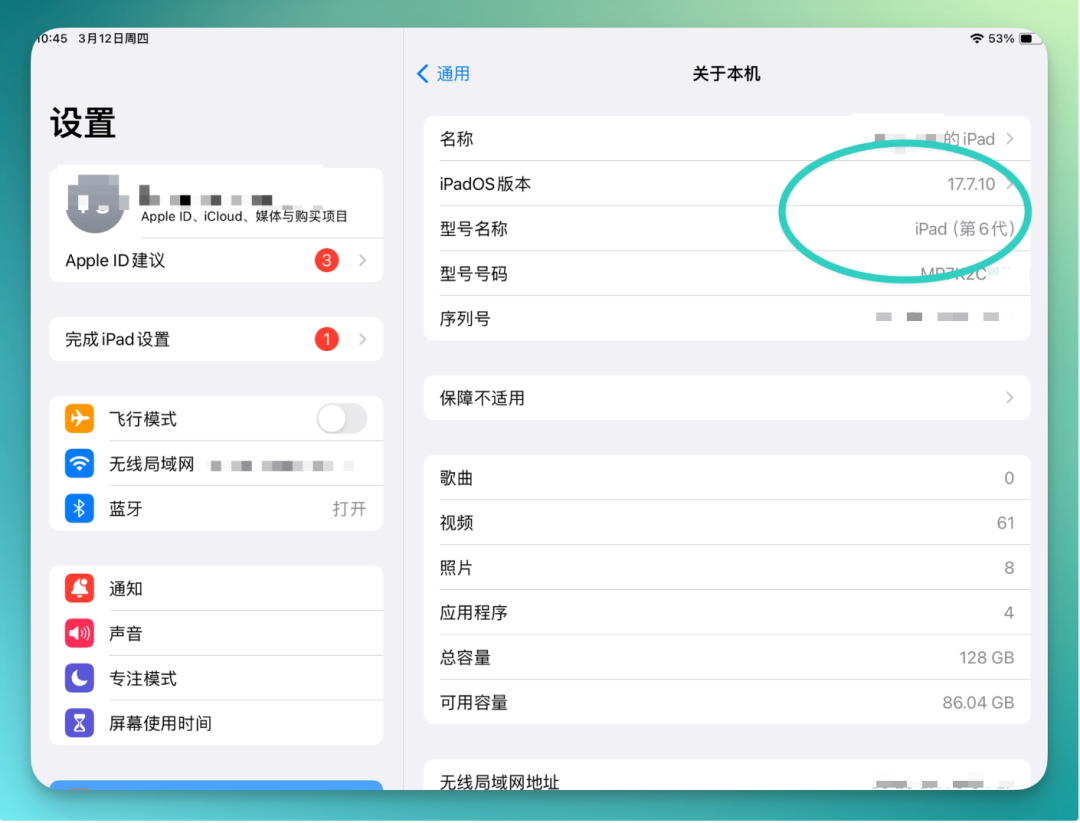
This iPad is a 2018 sixth-generation, just updated to the latest iPadOS — a fairly old device.
All demonstrations above were based on this machine, so at least from sixth-generation onward, WPS for Pad runs without major issues.
Word, PowerPoint, PDF, Excel, deep research, AI PPT — all walked through from start to finish. The battery-health-compromised sixth-generation iPad consumed roughly 30% total, fairly resilient.
To summarize: looking at these experiences and capabilities comprehensively, you'll notice the iPad's role is shifting.
Over the past decade-plus, Apple has been pushing the iPad toward productivity. From Apple Pencil to Magic Keyboard, to multitasking systems and window management, these designs have all tried to make the tablet shoulder more work tasks.
But for a long time, the real limiting factor on iPad wasn't actually hardware capability.
As desktop-grade applications like WPS for Pad gradually enter iPadOS, combined with AI tools, tablet devices are beginning to embody a new possibility: maintaining the portability of mobile devices while taking on increasingly professional work scenarios.
The iPad is 16 years old.
From its first generation launch, Apple has been telling a story: it would become the next-generation computing device. But for a long time, this vision never fully materialized.
The reason is simple: hardware can evolve quickly, but software ecosystems need more time.
And when desktop-grade applications, AI office tools, and powerful hardware appear simultaneously, the iPad is finally beginning to slowly approach its original goal.