SenseTime Office Raccoon Desktop 2.0 Is Here: No Fluff, Just Gets to Work

Let's skip the buzzwords and run through four real-world work scenarios.
No Buzzwords, Just 4 Real Work Scenarios

👦🏻 Author: Yitao
🥷 Editor: Koji
🧑🎨 Layout: NCon

For many people, SenseTime still brings to mind the "AI Four Dragons" era. In this wave of large language models, the spotlight has mostly landed on foundation models and chatbot products, and SenseTime's name hasn't come up as often.
But SenseTime hasn't been sitting idle. It's been pushing forward on three fronts: AI infrastructure, foundation models, and applications. The one closest to everyday users is the "Raccoon Family" product line. "Office Raccoon" first made its name in data analysis, has been running as a web app for several years, accumulated 15 million users, and found its way into plenty of enterprise workflows.
Recently, Office Raccoon launched Desktop 2.0. Unlike the web version, Desktop 2.0 can directly read local files, control the browser, and automatically execute workflows.
Does it actually work? I put it through four everyday work scenarios.

Office Raccoon moves in locally
First up: how well does it handle local files?
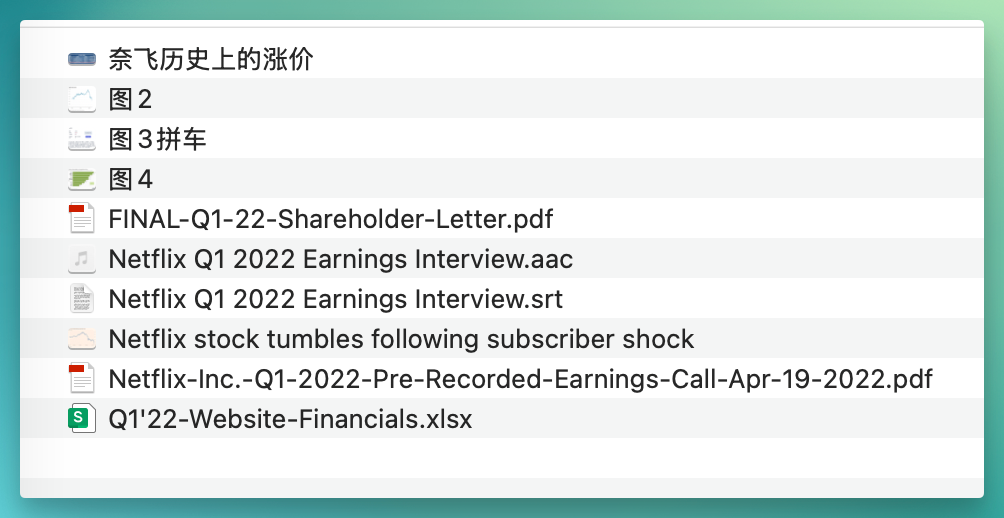
I happened to have a Netflix user churn analysis on hand, packed with five different file formats: 2 PDFs (a shareholder letter and an earnings call transcript), 1 financial Excel, 1 interview SRT subtitle file, and several images. With the web version, I'd have to upload these one by one.
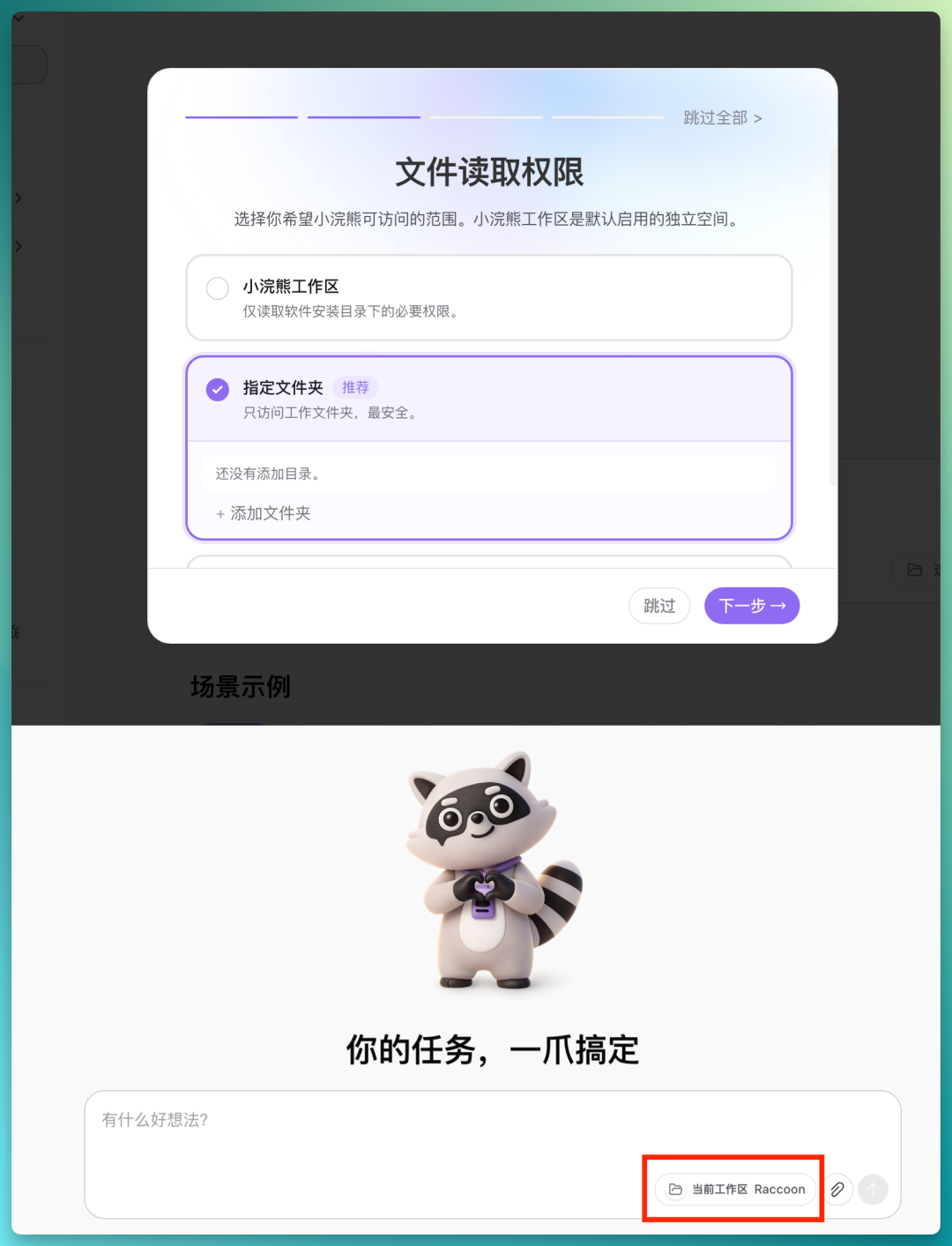
Office Raccoon Desktop 2.0 takes a different approach: first, you designate a working folder in settings and grant it access. You could give it access to your entire computer, but for security, it's better to use "Designated Folder" mode — only authorizing that one directory, the smallest scope, the safest option.
Once set up, I gave it a single instruction:
Analyze this folder and synthesize a report for me
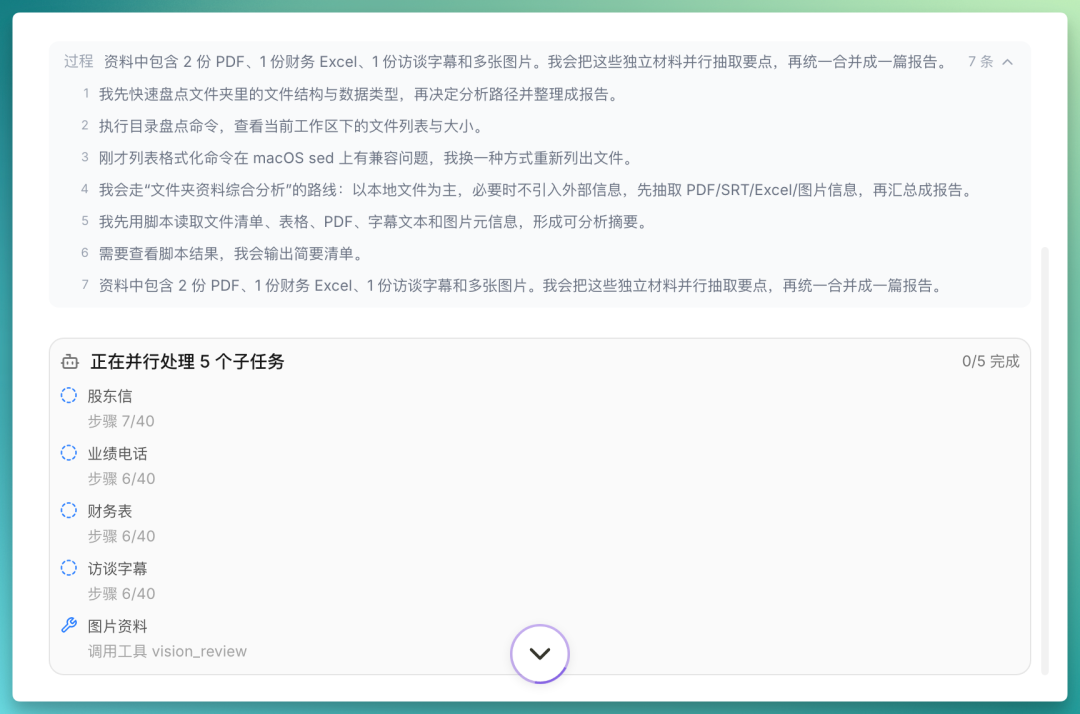
It spent a few seconds inventorying the folder structure and file types, then decided its own analysis path: prioritize local files, extract content from PDFs, Excel, subtitle text, and image metadata, then compile into a report.
Then it broke the job into 5 subtasks and ran them in parallel.
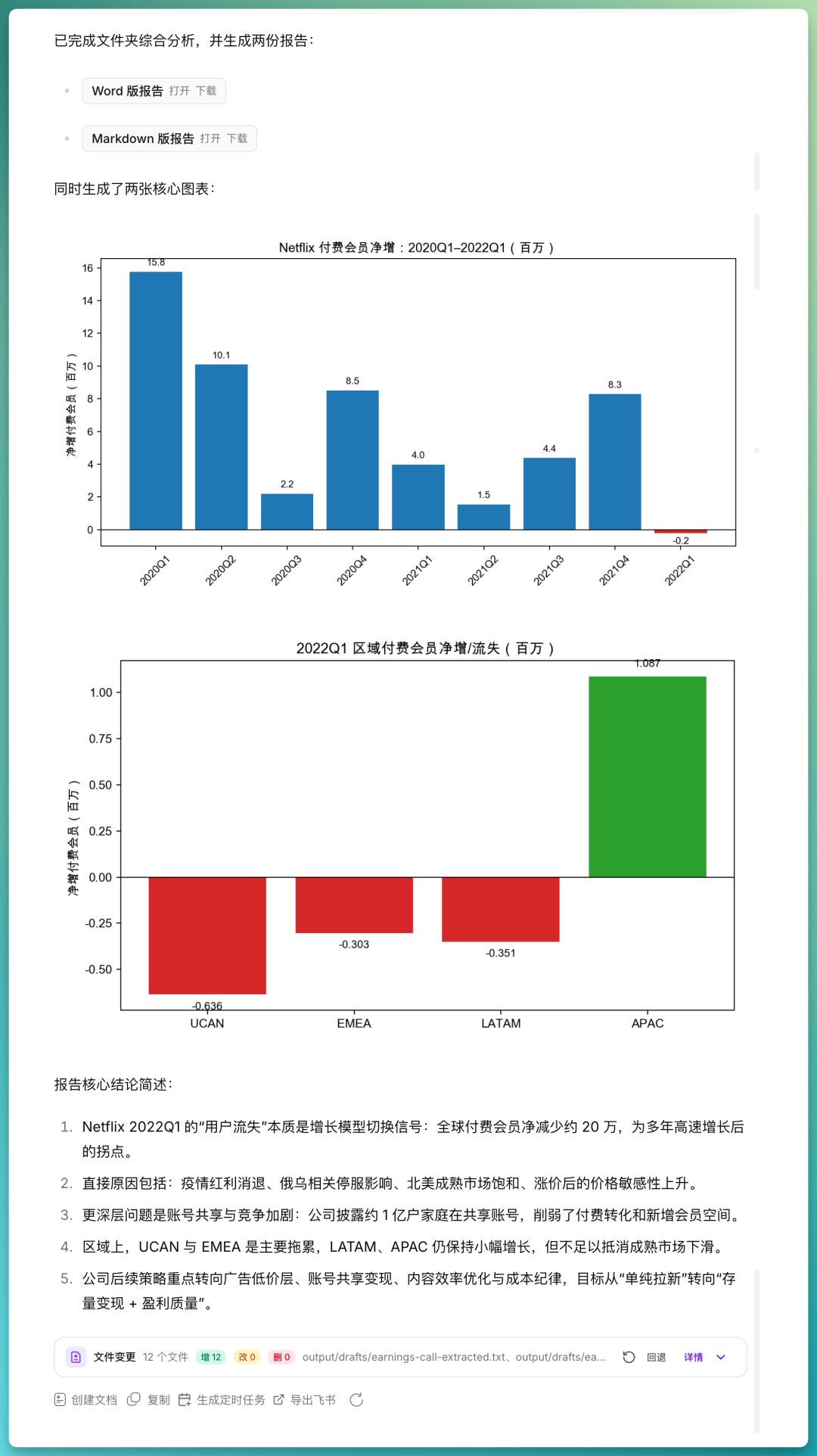
When finished, it produced a complete comprehensive analysis report, with both Word and Markdown versions.
The report included quarterly net member addition trends, regional revenue comparisons, and a breakdown of churn causes (pandemic boost fading, account sharing, price hikes, competition, Russia-Ukraine conflict — analyzed item by item). It even generated two charts on its own: global paid member net addition trends and 2022 Q1 regional member net addition comparison.
How it felt: from giving the instruction to receiving the report, I didn't do any "moving things around." It saw what was in the folder, broke down the tasks itself, and executed.
Report quality exceeded expectations. It read through multiple materials and did cross-analysis. For example, it pulled regional ARM data from the financial Excel and cross-referenced it with management's stance on account sharing from the shareholder letter.
Also, SRT subtitles are a pain for humans to read, but perfect for machines. The timestamps make it easy to trace back to the video.
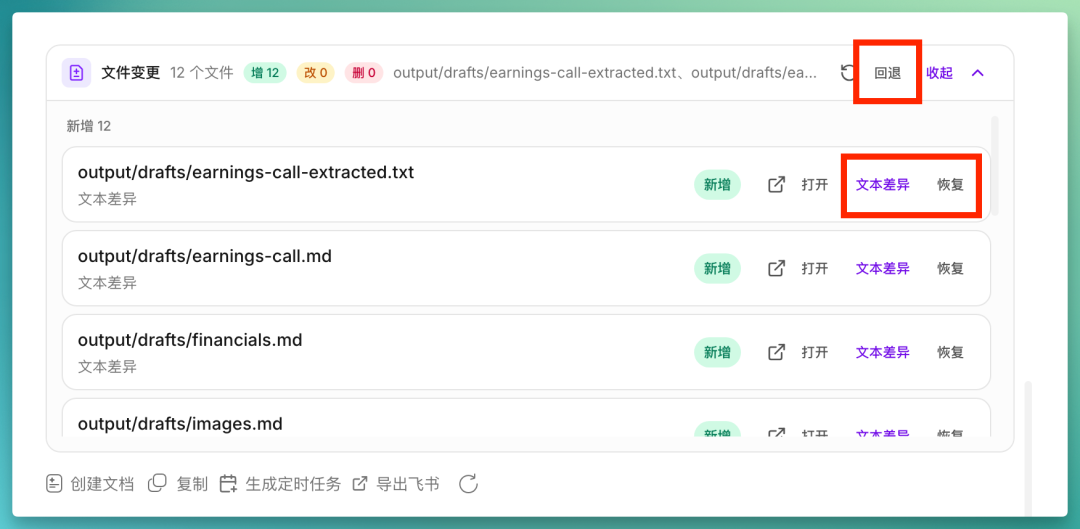
If a task goes wrong, there's change history and one-click rollback. The biggest fear with agent auto-execution is accidental deletion or modification — this provides a safety net.
Scheduled tasks: AI starts working on its own
After Case 1, a natural thought:
Since it already has local file access, can I just let Office Raccoon handle things by itself?
Take weekly reports — due every week, with new materials coming in every week. If Case 1's work could run on a schedule automatically, it shifts from "I ask it to work" to "it works on its own."
I set up a "Weekly Work Report" that auto-runs every Friday at 18:00. Underneath, you can attach data source files and tell it which folder to read.
Configuration was painless. No need to write cron expressions — just dropdown-select "Weekly," "Friday," "18:00." Simpler than most automation tools.
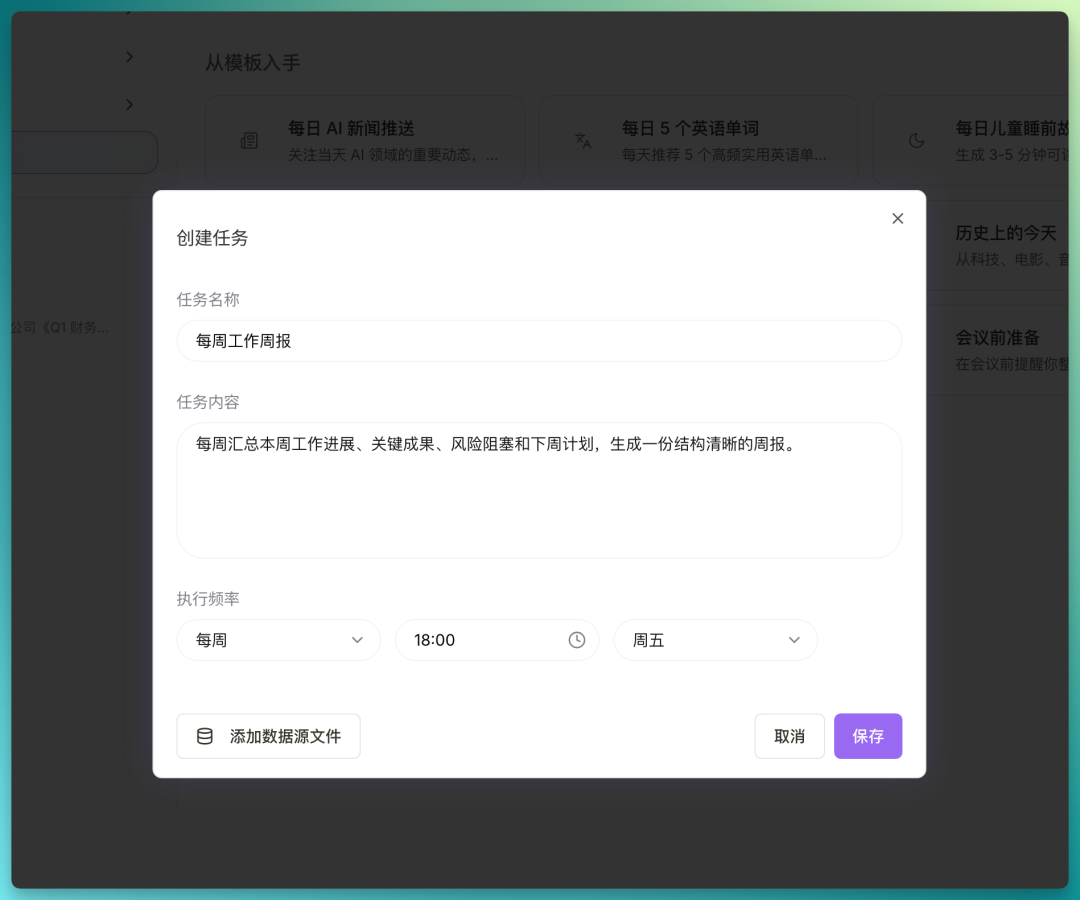
At first glance this looks like something a script could handle, but there's a fundamental difference. Traditional scripts mostly move files and execute rules. Writing a report requires understanding content — only large model capabilities can pull this off. That's what makes this different from the past.
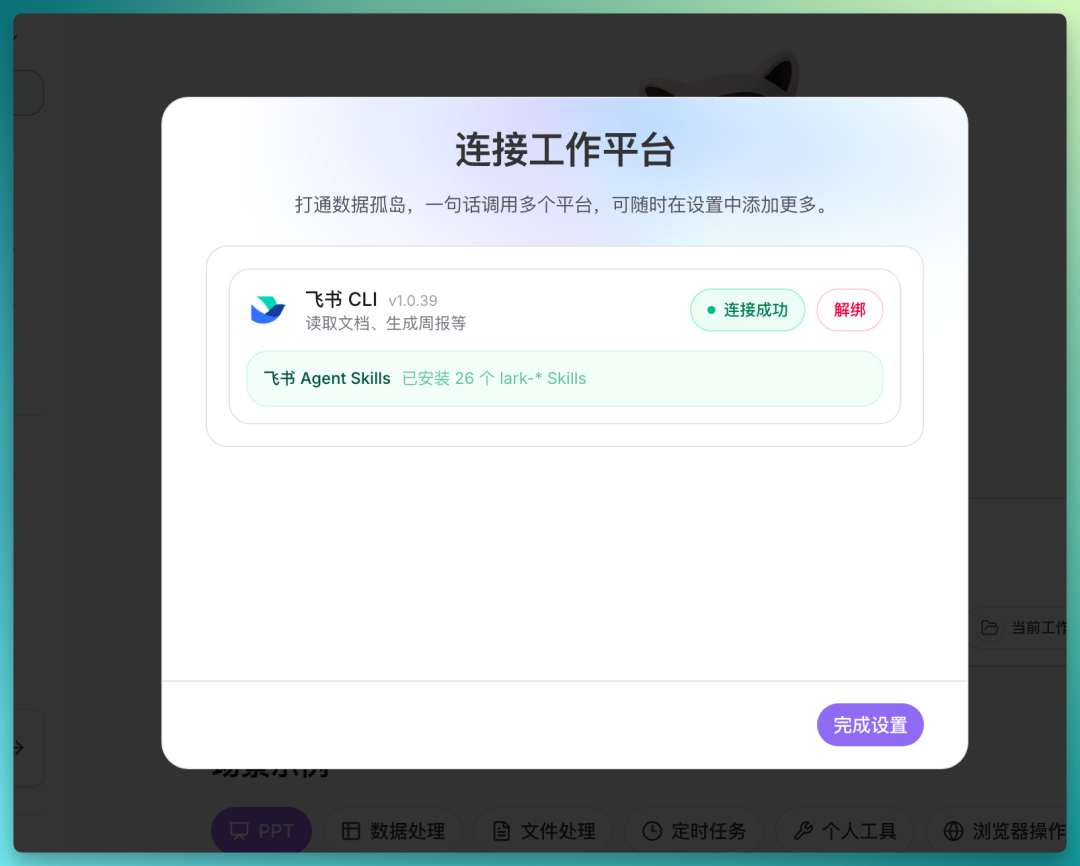
While I was at it, I connected Lark. Once linked, it automatically installed 26 Lark-related Agent Skills. AI-generated analysis reports can be exported to Lark documents with one click, or appended to existing team docs. So results don't just sit in a chat window — they flow directly into team collaboration.
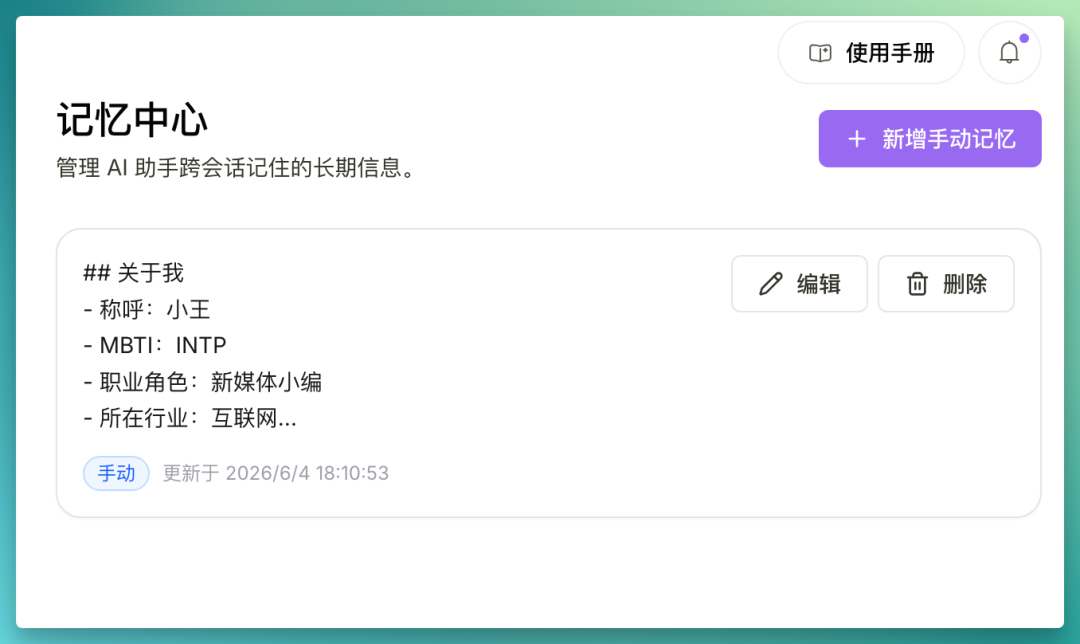
One more thing: local memory. In settings, you can tell it your name, professional role, even MBTI type. It remembers these preferences for future tasks.
For example, tell it "My weekly report preference: conclusions first, then progress, then risks" — and every auto-generated report will follow that format.
And this memory accumulates over time. The more you interact with it, the more familiar it becomes with your work habits and preferences.
All past guests from Crossing, right here
Third task: browser control. Unlike AI search, this lets AI visit pages, click elements, and read real-time information like a human would.
I wanted to test something I'd actually do, but that's tedious manually. Crossing podcast has done 100+ episodes with 100+ guests, but never had a systematically organized guest directory page.
I told Office Raccoon:
Please scrape past guests from the podcast "Crossing," and make a dynamic webpage styled after Apple's website
It automatically broke this into four steps: confirm data sources and scrape past episode info, clean the guest list (deduplicate, fill in identities and links), generate the webpage, and do a local preview check.
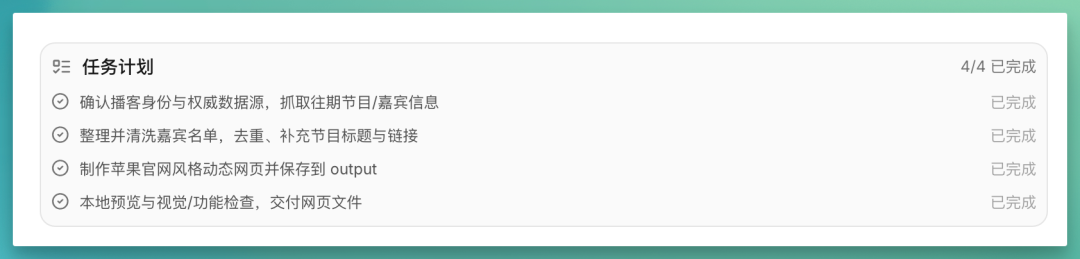
This task chain is quite long — actually two tasks stacked together: browser control to scrape data, code generation to build the webpage. If the guest list scrape is wrong or the layout doesn't match expectations, rework costs are high.
Here's where the "Insert" feature deserves special mention: you can add new instructions mid-agent-execution.
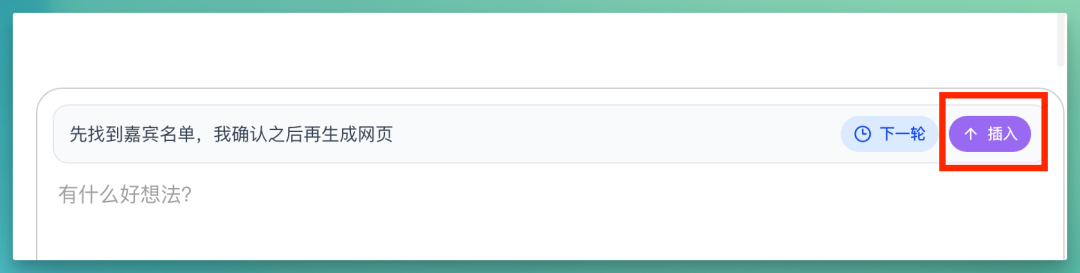
I split the task in two: first extract the guest list, I confirm, then generate the webpage.
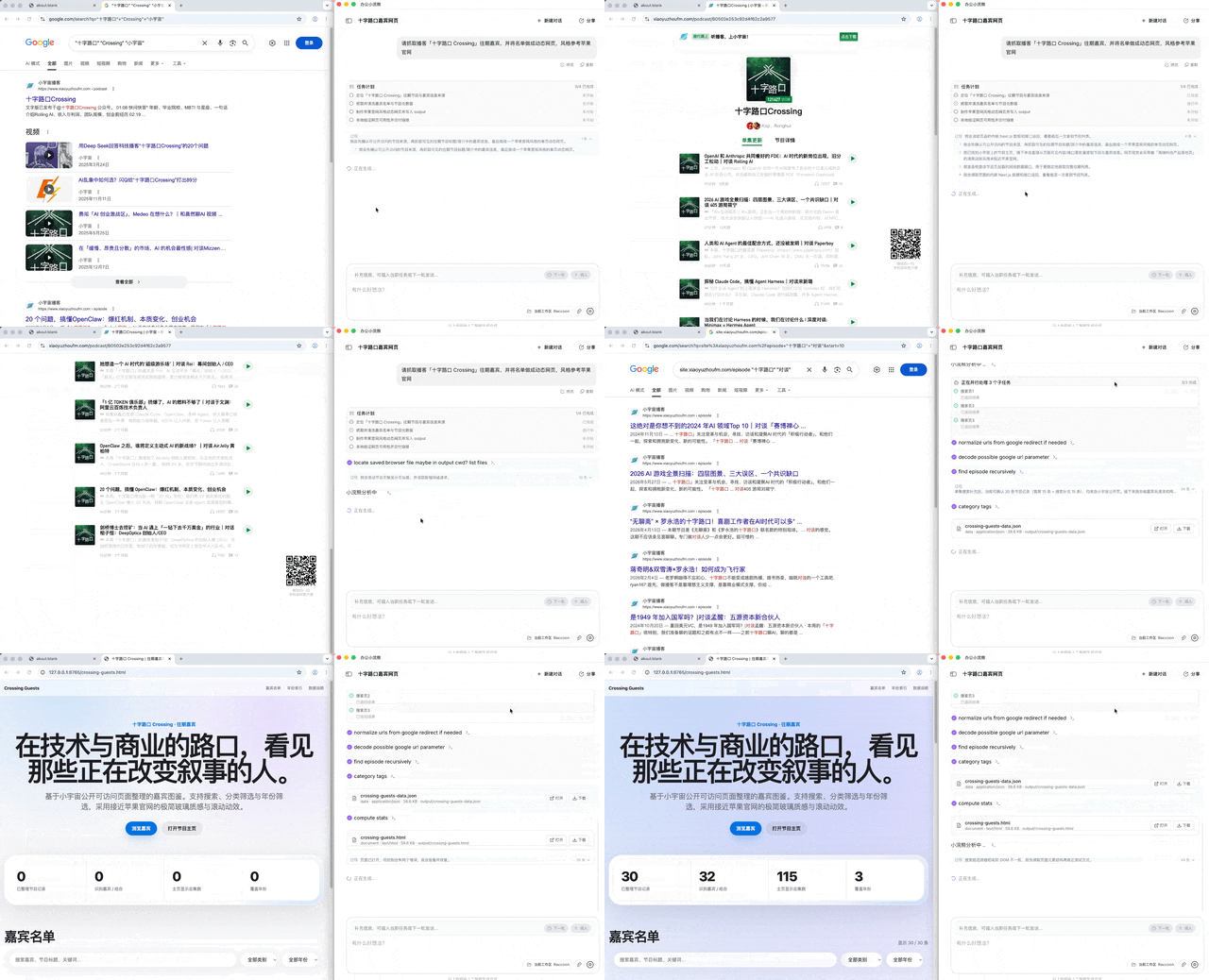
The final result exceeded my expectations. It delivered a complete single-file HTML that captured Apple's clean, restrained visual sensibility quite well.
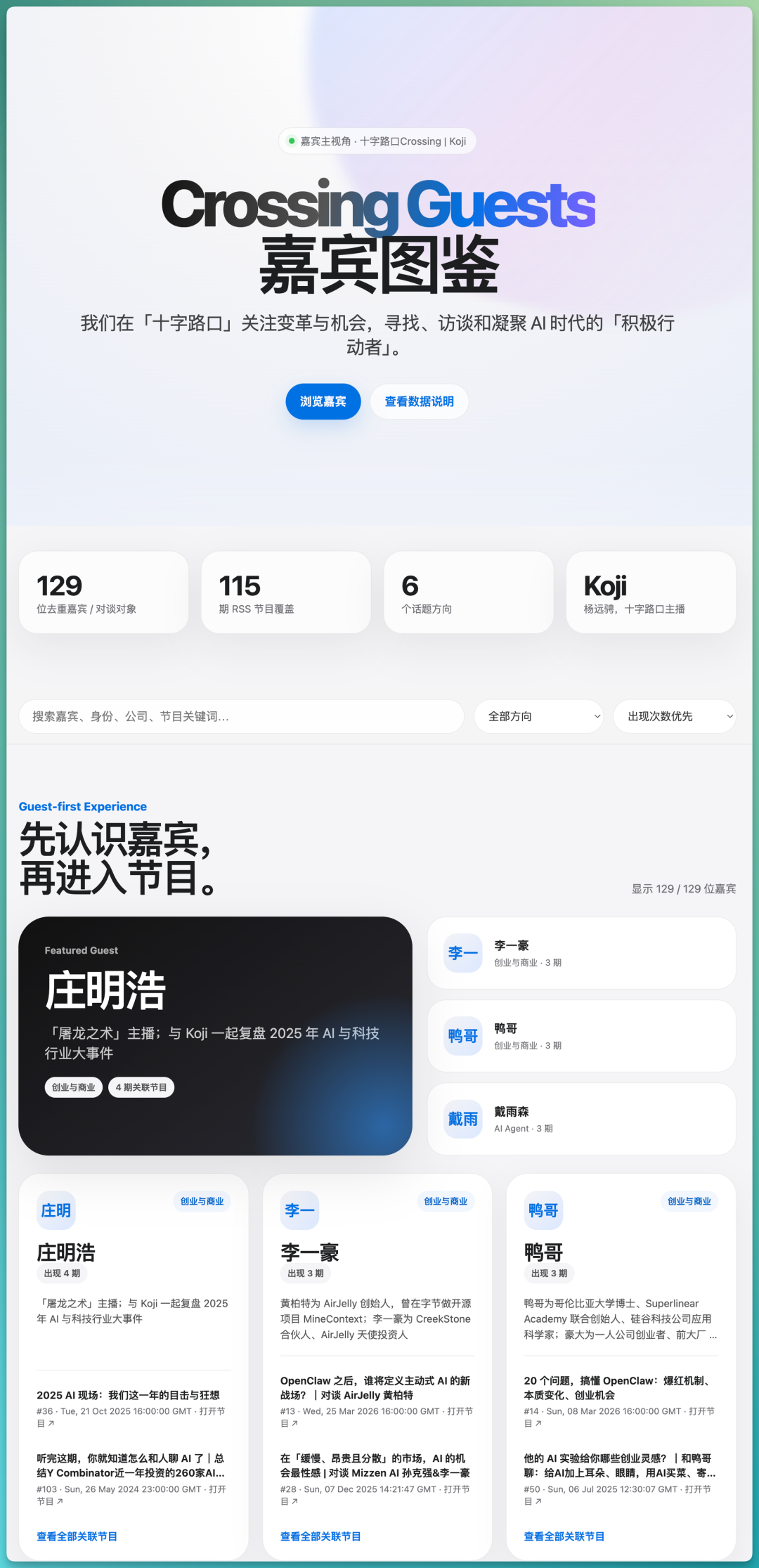
Functionally complete too: search covers guest name, company, and episode title; category filtering by guest field; sorting toggles between appearance count and name. I didn't ask for these features, but they're common enough that Office Raccoon thought to include them.
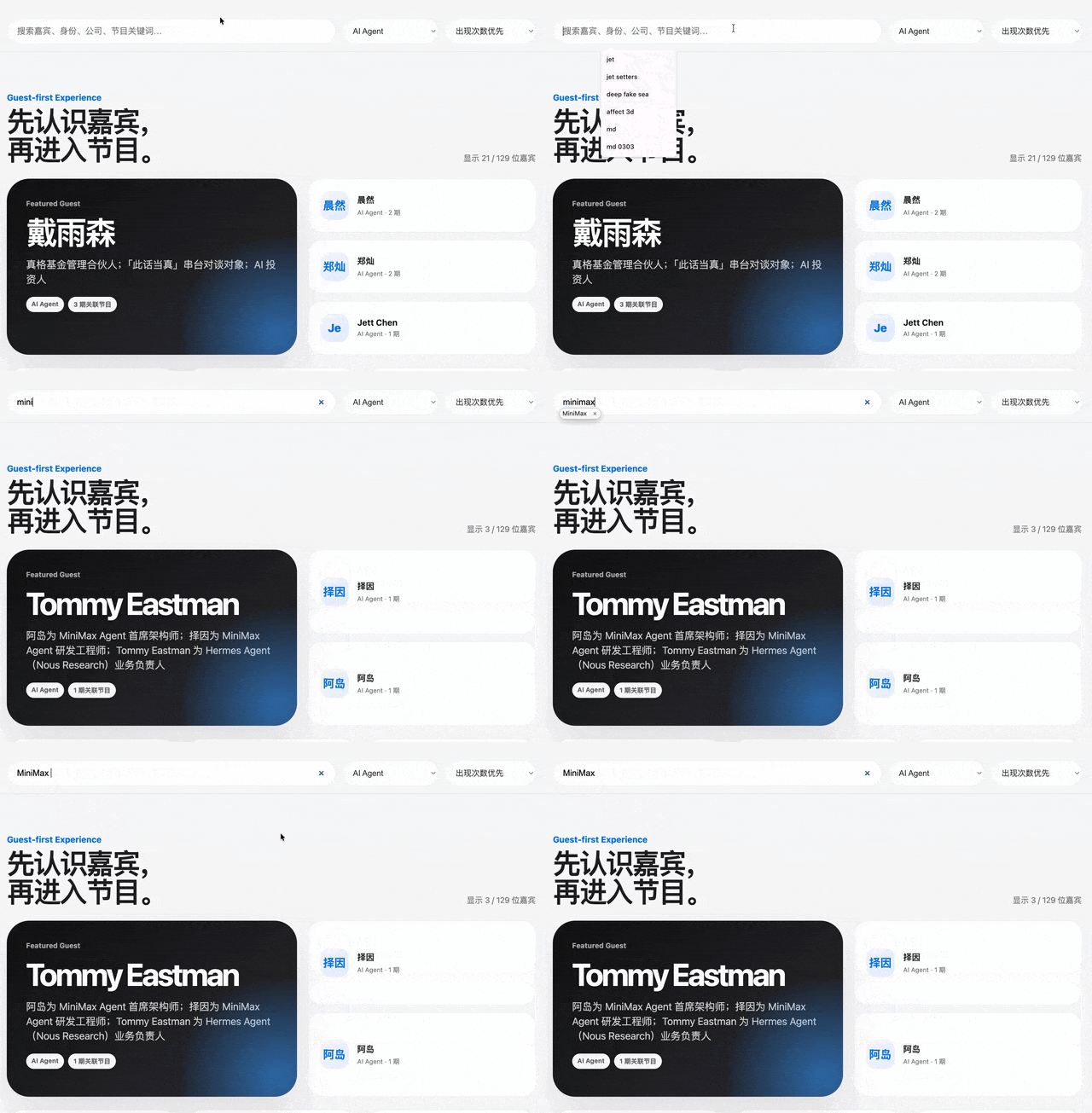
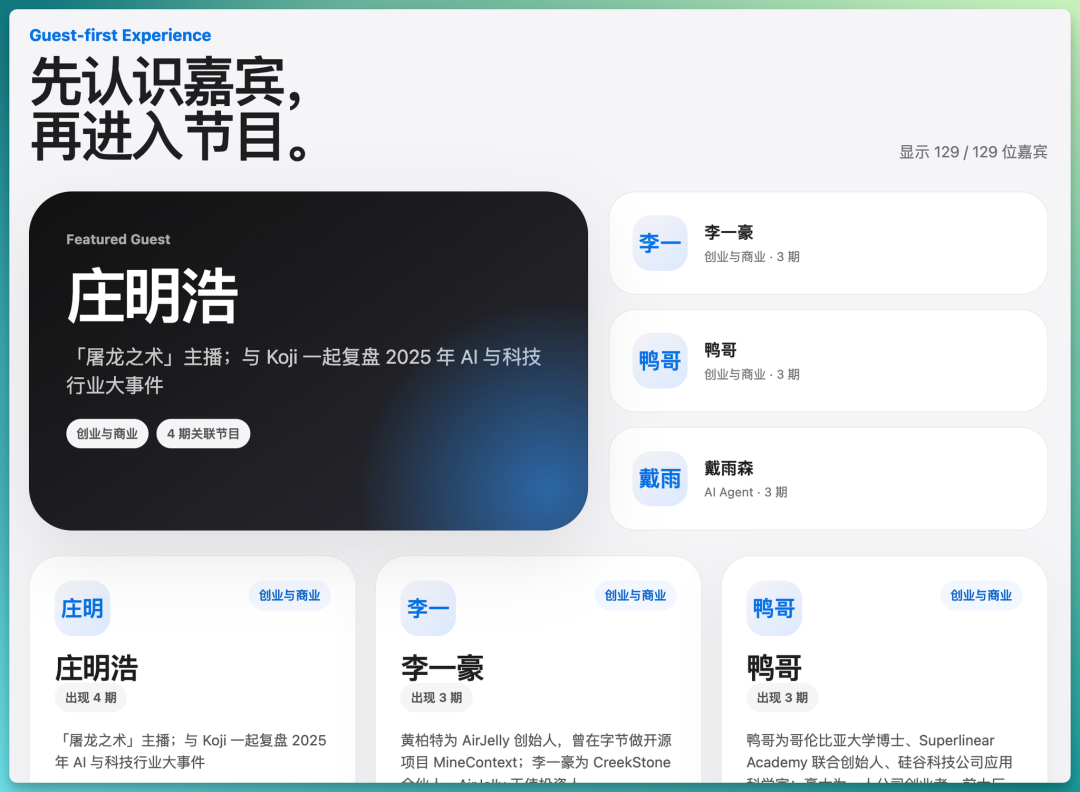
Data covers all 115 episodes, organizing 129 guest cards. Repeat guests automatically merge into one card — Minghao Zhuang, for example, appeared 4 times.
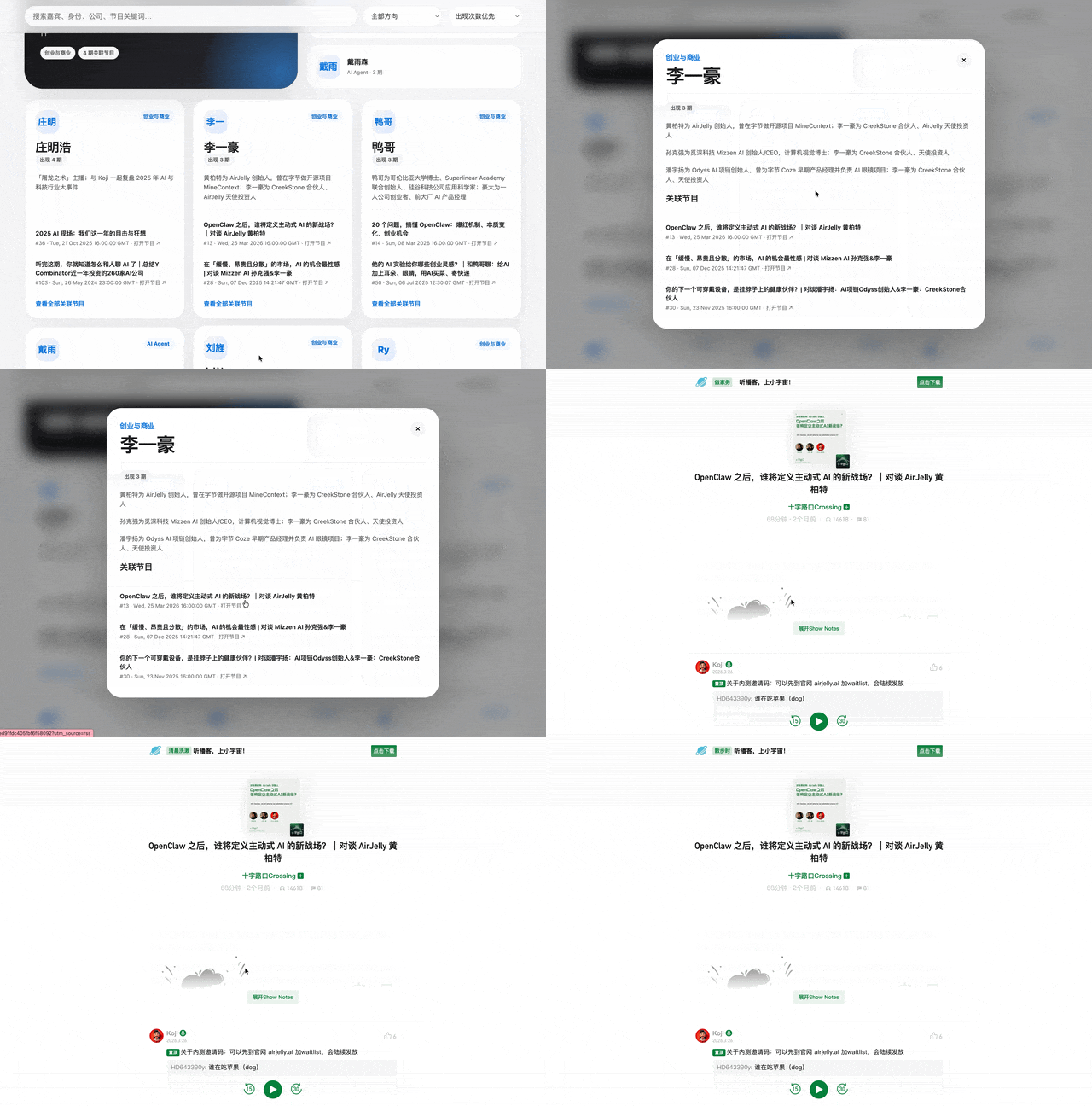
Click any card for details: all associated episode titles, numbers, and dates. Click a link to jump to the episode page.
Looking back, I basically wrote one prompt, added one command mid-way, and Office Raccoon handled everything else. Execution logs show it worked through various issues — selector match failures, favicon 404s — and resolved them itself. Whole thing took maybe ten minutes.
This would've been nearly impossible before. Never mind the tedium of organizing the list, front-end development barriers alone would stop most people. That's perhaps the most interesting thing about technological progress — it bridges gaps, making possible things that simply wouldn't have existed otherwise.
Universal Entry Point: Quick Bar
Finally: Quick Bar.
The first three cases all happened in Office Raccoon's main window. Quick Bar works differently: in any app, select some content, press ⌘K, and summon Office Raccoon to process whatever you selected.

I tested two scenarios.
First: translation.
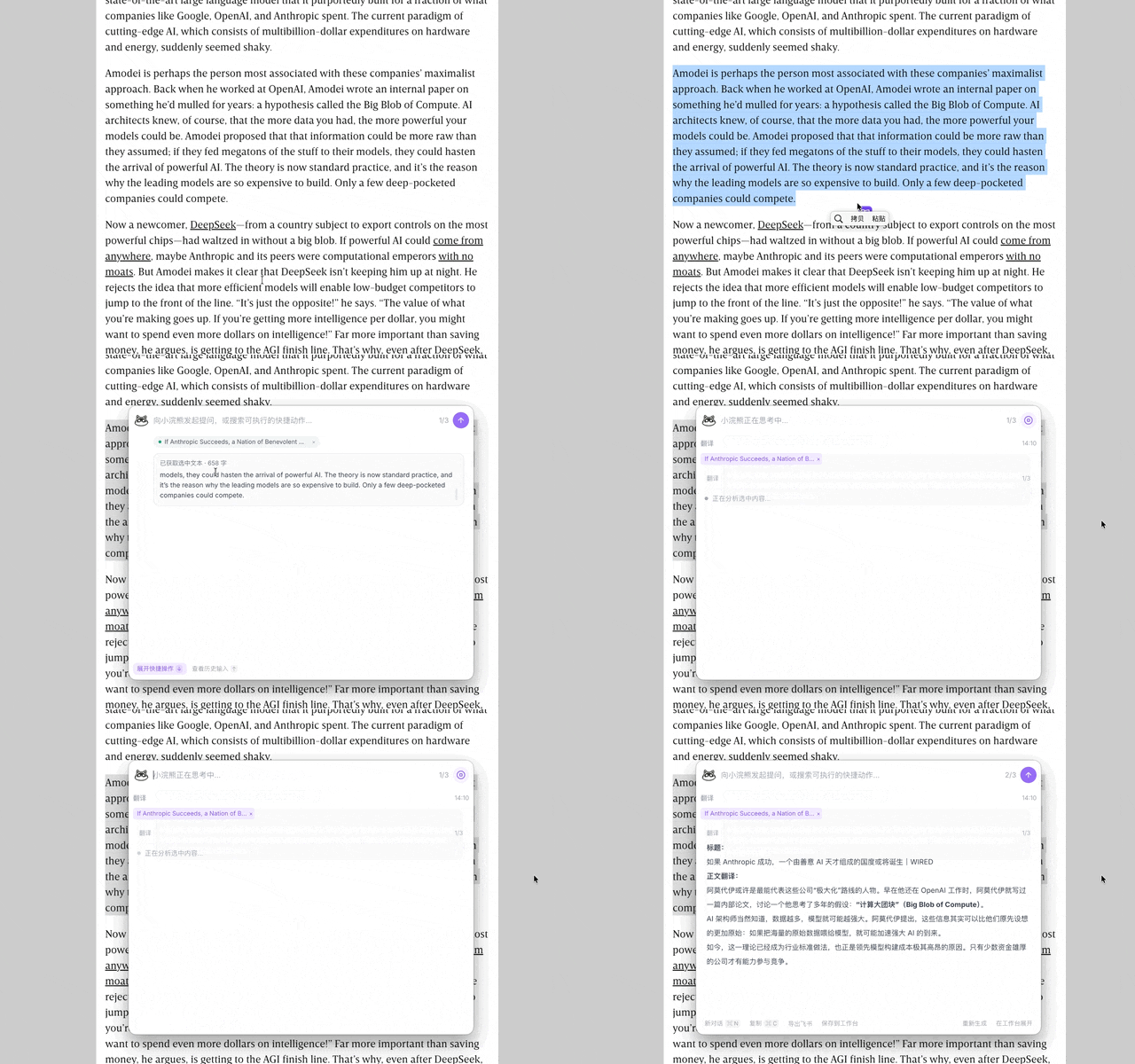
Reading a long English article in browser, I selected a few paragraphs about Dario Amodei on Big Blob of Compute, hit ⌘K for Quick Bar, and asked for Chinese translation.
Fast response, translation pops right up, no need to leave the page.
Old workflow:
Select → Copy → Switch to translation tool/AI chat → Paste → Wait → Copy translation → Switch back.
Now:
Select → ⌘K → Translate.
Four or five steps eliminated.
Second: Excel enhancement.
In Excel, select a data range, ⌘K (Windows/Linux: Ctrl+K) for Quick Bar, ask it to analyze outliers and tag them. It reads the selected cell contents and delivers analysis right beside it.
Never left Excel. Like Excel had a built-in AI assistant all along.
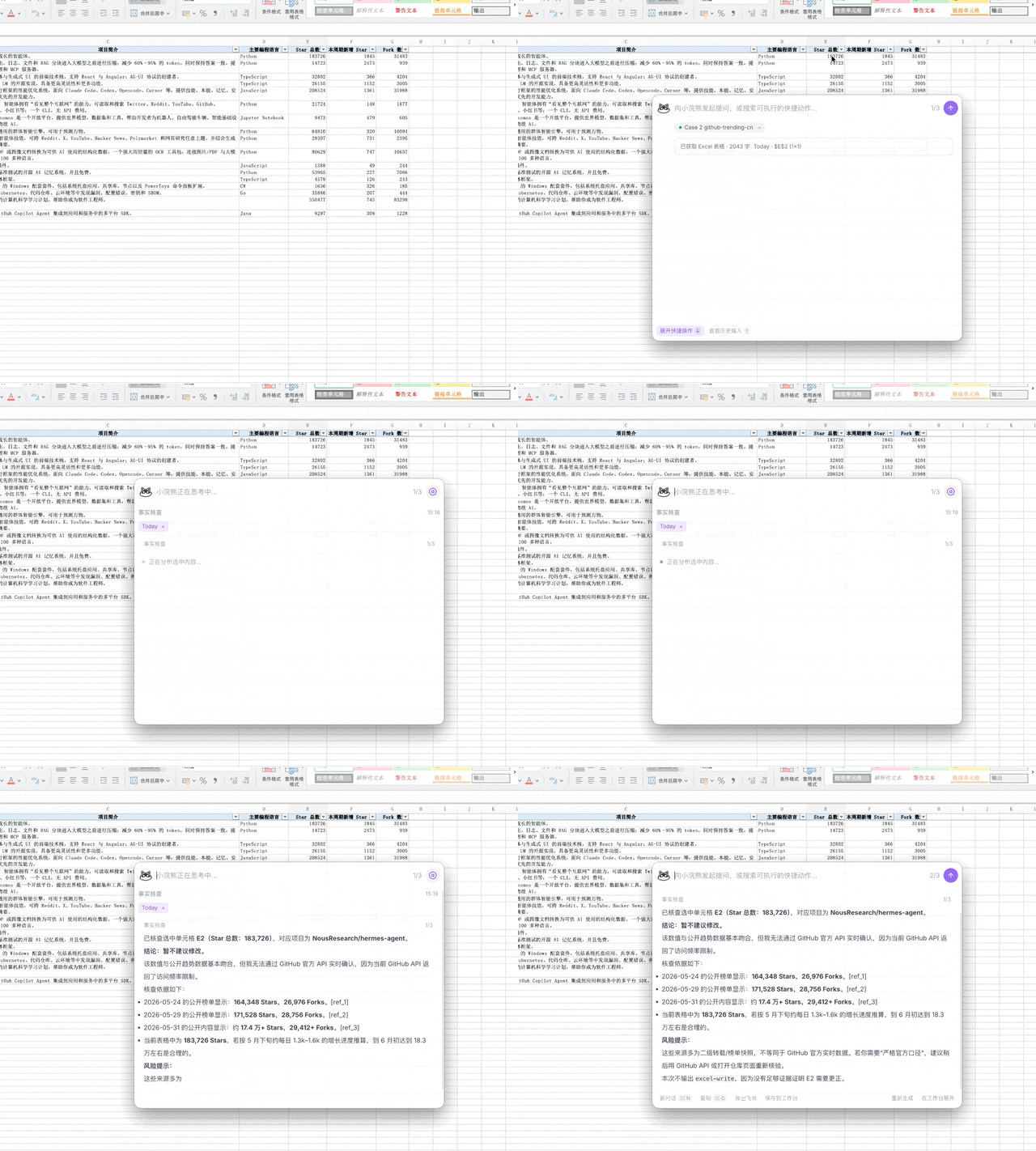
Compared to the heavier tasks before, Quick Bar feels completely different — very lightweight. You can wake it in any window,切入 from any workflow step, and call on Office Raccoon's capabilities. Like glue, seamlessly bonding various processes together.
Agent Enters Real Work Environments
This is the year of the Agent. Everyone's talking "local operations," "giving AI hands and feet." But I think we can push this one step further:
After AI grows hands and feet, then what? What do we need it to do?
Office Raccoon Desktop 2.0 offers one observation. Four cases in, nothing felt particularly dazzling or earth-shattering. But the overall feeling: everything it does sits very close to real work environments.
Take local file reading — sounds unremarkable, but it solves one of AI's core bottlenecks: context.
However capable a large model is, if it can't see your materials, it can only answer based on fragments you manually feed it. Once local files are connected, your working directory itself becomes context — AI problem-solving quality changes completely.
Browser control works similarly, essentially plugging your online information sources into the loop.
Scheduled tasks need less explanation — human time is finite, but AI can run 24/7. Set it up, AI runs on rhythm, wake up to results.
Quick Bar turns AI into something you can summon anytime, embedded in any app, massively expanding application scenarios.

None of these capabilities are complex on their own, but combined, they piece together quite a few complete workflows. And Raccoon Desktop 2.0 also supports MCP tool integration and Skills extension — more connection points keep opening up.
At the end of the day, rather than chasing what dazzling feats AI can perform, better to embed it in real work environments and nail those tedious daily grunt tasks.

The scenarios I tested are just a starting point. To see how many real tasks these capabilities can cover, check out SenseTime's recent event "Raccoon Real Task Challenge Season," with two competitions.
One is the "OPC Capability Challenge," co-launched by SenseTime Raccoon and Datawhale. Total prize pool ¥550,000, top single prize ¥100,000. Split into Newcomer Track and Expert Track. Newcomer track: complete a real task with Raccoon and post to social media. Expert track: submit a complete industry scenario project.
The other is "21-Day Real Task Check-in Challenge" — one real office task daily, consecutive check-ins earn swag and memberships, total prize pool over 2 million.

Crossing is looking for independent writers to cover AI product and model reviews. If you've written similar pieces: Hands-on with PixVerse C1, Hands-on with LibTV, please contact zeo0811@gmail.com. Email should include: ① personal intro, ② AI reviews you've written. We offer competitive rates. Looking forward to observing and documenting the AI era with you 🎪